 ProMapRanker
Photoshop Alternatives for Mac in 2026


Closest full Photoshop replacement · Pricing starts at: Free
Key takeaways
- Affinity Photo is our pick for most Mac users because it is now free and covers layers, retouching, and RAW editing.
- Pixelmator Pro is the best Mac native paid option, with a one time price and strong Apple silicon performance.
- GIMP and Photopea are the best free routes, with GIMP for desktop power and Photopea for browser PSD work.
- Test PSD compatibility with a real project file before you switch, since complex smart objects and text may not transfer perfectly.
- For social graphics rather than photo retouching, Canva is faster than a full photo editor.
Quick comparison
| Pick | Great for | Pricing starts at | Free tier | |
|---|---|---|---|---|
| Affinity Photo | Closest full Photoshop replacement | Free | Yes | Visit |
 Pixelmator Pro | Mac native editing | $49.99 one time | Free trial | Visit |
 GIMP | Free desktop power editing | Free | Yes | Visit |
 Photopea | Browser PSD editing | Free | Yes | Visit |
 Krita | Digital painting and illustration | Free | Yes | Visit |
 Canva | Quick branded graphics | Free | Yes | Visit |
 Luminar Neo | AI assisted photo enhancement | See website | Free trial | Visit |
 Capture One | Pro RAW and studio work | See website | Free trial | Visit |
 darktable | Free RAW workflow | Free | Yes | Visit |
The best photoshop alternatives for Mac
These apps cover the core Photoshop jobs on a Mac: layered editing, retouching, compositing, and RAW handling. We compared official pricing pages, feature documentation, and recent pricing reports, and we kept only apps that are live on macOS and truly fit photo editing or design work.
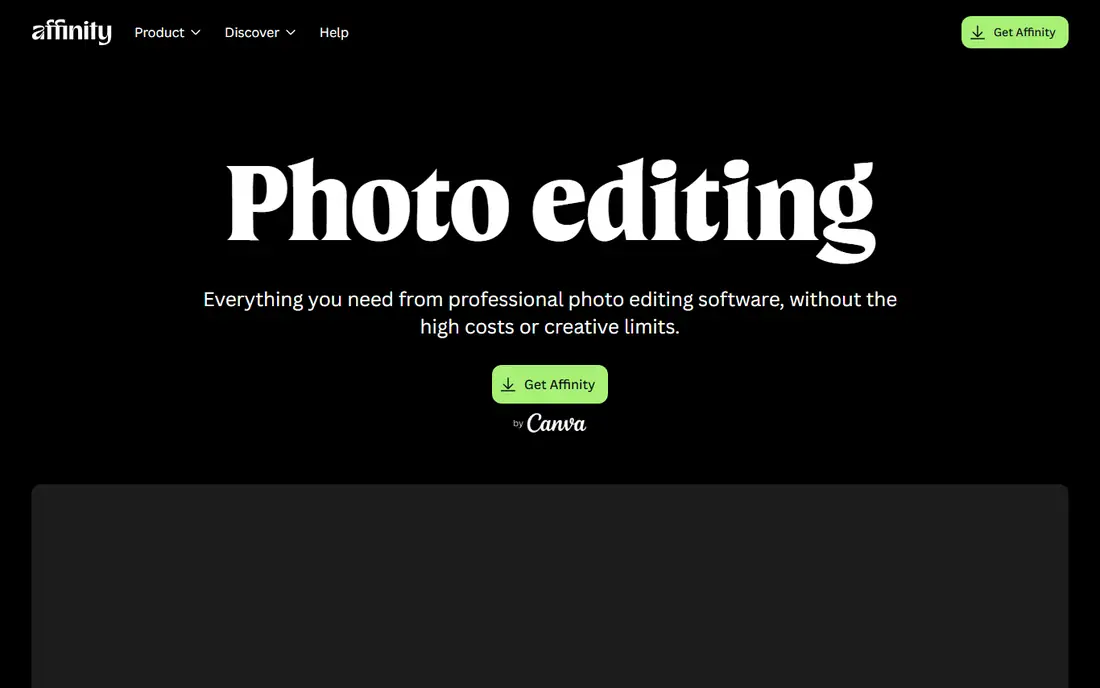
Affinity Photo is the clearest Photoshop replacement on Mac. It handles layers, masks, retouching, compositing, and RAW development in one app, and it opens PSD files with strong compatibility for ordinary project work. Since it became free in October 2025 with a free Canva account, the price barrier that once held people back is gone, though newer generative AI tools need a Canva Pro subscription at $120 per year.
The main gaps are ecosystem and habit. Photoshop plugins, actions, and team workflows do not all transfer, and long time Photoshop users will need a few days to relearn shortcuts. For most photographers and designers, though, Affinity Photo covers the daily job at no cost. Start here, and only pay for another tool when a specific feature is missing.
- Full layer and retouching toolset
- RAW handling
- Now free with a Canva account
- Newer AI tools need a Canva Pro subscription
- Plugin ecosystem is smaller than Photoshop

Pixelmator Pro is the best paid option for Mac users who want a native app without a subscription. It costs $49.99 once on the Mac App Store, runs fast on Apple silicon, and covers layers, retouching, and RAW editing with a clean interface that feels at home on macOS. Machine learning tools for background removal and super resolution add useful speed for everyday edits.
It is Mac only, so teams with Windows users need a second tool for shared files, and its plugin and automation ecosystem is smaller than Photoshop. For a solo Mac user who wants to buy once and own the app, that trade is easy to accept. Pixelmator Pro also opens PSD files well for ordinary work, though complex files still deserve a test before you rely on them for a client handoff.
- One time purchase
- Fast on Apple silicon
- Clean Mac native interface
- Mac only
- Smaller plugin and automation ecosystem than Photoshop
GIMP is the most capable free desktop editor on Mac. It offers layers, masks, retouching, and compositing at no cost, with a large plugin community for extra features. For students, volunteers, and small teams with no software budget, GIMP does professional level work, even if the interface feels less polished than a paid app.
The learning curve is real, and PSD files import with limits on smart objects and some text effects, so test a real client file before you commit. GIMP also lacks the polished RAW workflow of Capture One or Affinity, so many photographers pair it with darktable for RAW development. If you have time to learn and no money to spend, GIMP remains the strongest free desktop pick.
- Free and open source
- Deep editing tools
- Runs on Mac, Windows, and Linux
- Interface takes time to learn
- PSD import can lose complex features
Photopea is the best choice when you need to edit a PSD on a Mac without installing anything. It runs in a browser, opens and saves PSD files with strong layer support, and covers the core Photoshop tools for retouching and compositing. For quick edits on a shared Mac, a Chromebook style workflow, or a machine you do not own, that instant access matters.
The free tier is ad supported, with Premium from $5 per month removing ads, and very large files can feel slower than in a desktop app. Photopea is not a full replacement for a daily desktop workflow, but it is an excellent second tool and a lifeline when you need a PSD opened now. Keep it bookmarked even if you buy Affinity or Pixelmator as your main editor.
- Free in any browser
- Excellent PSD opening and saving
- No install needed
- Ads on the free tier
- Performance depends on browser and file size
Krita is a painting app first, and it excels at illustration, comics, and concept art on Mac. Its brush engine, stabilizers, and canvas tools give digital painters a professional workspace at no cost, and it opens PSD files usefully for artwork. For an illustrator who also needs basic photo edits, Krita can cover both jobs in one free app.
It is not the best pick for pure photo retouching, since its RAW handling and photo specific tools are thinner than Affinity or Pixelmator. Use Krita when painting is the main job and photo work is secondary, and pair it with a photo editor when retouching dominates. For artists on a budget, that combination costs nothing and covers a wide range of work.
- Free and open source
- Excellent brushes for painting
- Good for comics and illustration
- Not a full photo retouching replacement
- RAW support is limited
Canva is the fastest option on this list for branded graphics, social posts, and marketing materials on Mac. Templates, brand kits, and background removal on paid plans let a small business owner produce a polished post in minutes, without learning layers and masks. The free plan is generous for basic design, and the Mac app and browser versions stay in sync.
Canva is not a Photoshop replacement for retouching or compositing, and it imports PSD files only in a limited way, so complex photo projects still need a real editor. Use Canva for the graphics around your photos, and use Affinity or Pixelmator for the photos themselves. That split keeps both jobs fast and avoids forcing one tool to do work it was not built for.
- Huge template library
- Fast social and marketing graphics
- Easy brand kits on paid plans
- Not a pixel level photo editor
- PSD handling is limited
Luminar Neo suits photographers who want fast, AI assisted enhancements without a deep editing session. Sky replacement, portrait retouching, and background tools can lift a photo in minutes, and the app works standalone or as a plugin for other editors. For wedding, portrait, and travel photographers with large batches, that speed is the main selling point.
It is not a full compositing tool, so complex layered design work still belongs in Affinity or Photoshop. Pricing also varies between perpetual and subscription options, so we list it as See website and recommend checking the current Skylum pricing page. Use Luminar Neo as a photo enhancer beside a main editor, not as your only design app.
- Fast AI sky, portrait, and background tools
- Good for photographers
- Works as a plugin
- Not a full layer compositing tool
- Pricing varies by license type
Capture One is the professional pick for RAW development and tethered studio work on Mac. Its color tools, tethering, and session organization suit photographers who shoot in a studio or on location with a client watching. For RAW quality alone, many professionals rate it above Lightroom and above general editors.
The price and focus are the trade offs. Capture One costs more than the other tools here, with perpetual and subscription options that change, so we list pricing as See website. It is also a photo tool, not a graphic design app, so compositing and text heavy design still need Affinity or Pixelmator. Choose Capture One when RAW quality and tethering drive your income.
- Excellent RAW color and tethering
- Strong for studio shoots
- Pro organization tools
- Higher price than most alternatives
- Less suited to graphic design
darktable is the free RAW workflow for Mac users who want professional development tools without a subscription. It handles RAW files non destructively, with modules for color, tone, lens correction, and noise, and it suits photographers who shoot RAW every day. Paired with GIMP for pixel edits, it forms a complete free photo pipeline.
The learning curve is steep, and darktable is not a layer based editor, so compositing and heavy retouching need another app. That split is normal in a RAW workflow, and many photographers already work that way. If you shoot RAW, want no subscription, and are willing to learn, darktable is the best free starting point.
- Free and open source
- Powerful RAW development
- Non destructive editing
- Steep learning curve
- Not a layer based photo editor
How we picked these
We compared official pricing pages, feature documentation, and recent pricing reports for photo editors that run on macOS in October 2026. We kept only apps that cover layered editing, RAW handling, painting, or design work in a real way, and we excluded Windows only tools and pure template apps with no photo editing depth. Prices are the lowest tier we could confirm, with one time prices noted as such, and we used See website where pricing varies by license or plan. We did not claim hands on testing.
What to check before you pay
Test with your own files before you switch. Open a real PSD, a RAW file from your camera, and a layered project you edited recently, then export each one and check layers, text, and color. A tool that looks good in a demo can still lose a smart object or shift a blend mode on your actual work, and that test takes less than an hour.
Next, match the tool to the job, not to the brand. A photographer needs RAW and retouching, an illustrator needs brushes, and a marketer needs templates and speed. Buying the closest Photoshop clone for a template job wastes time, just as using Canva for a complex retouch wastes quality. Finally, check the total cost over two years, since a one time purchase and a subscription can look similar in month one and very different by year two.
Frequently asked questions
What is the best free photoshop alternative for Mac?
Affinity Photo is our free pick for most Mac users, since it is now free and covers the full Photoshop style toolset. GIMP is the best free desktop alternative for power users who want open source control, and Photopea is the best free browser option for PSD work. Try Affinity first, then add GIMP or Photopea for the jobs it does not cover.
Can these alternatives open Photoshop PSD files?
Yes, with limits. Affinity Photo, Pixelmator Pro, Photopea, and GIMP all open PSD files, and ordinary layers usually transfer well. Complex smart objects, some blend modes, and advanced text effects may not transfer perfectly, so test a real project file before you rely on a new tool for client work.
Is Pixelmator Pro really a one time purchase?
Yes, Pixelmator Pro costs $49.99 once on the Mac App Store, based on recent pricing reports. That makes it one of the cheapest serious paid options for Mac users who dislike subscriptions. Check the App Store listing at purchase time, since Apple pricing can vary by region and by bundle offers.
Which alternative is best for RAW photos on Mac?
Capture One is the professional pick for RAW color and tethering, while darktable is the best free RAW option. Affinity Photo and Pixelmator Pro also handle RAW files well for most photographers. Pick Capture One for studio work, darktable for a free pipeline, and Affinity for a mix of RAW and layered editing.
Do I still need Photoshop for client work?
Many photographers and designers no longer do, especially with Affinity Photo free and Pixelmator Pro available. You may still need Photoshop if a client or agency requires native PSD delivery with smart objects, or if your workflow depends on specific Photoshop plugins. In those cases, keep Photoshop for handoffs and use an alternative for daily editing.
What is the best Photoshop alternative for beginners on Mac?
Canva is easiest for beginners who need social and marketing graphics, while Pixelmator Pro is easiest among full photo editors thanks to its clean Mac interface. Affinity Photo is also beginner friendly once you learn layers, and it costs nothing to try. Start with the tool that matches your main job, not the one with the longest feature list.
Sources
- https://affinity.serif.com/en-us/photo/pricing
- https://www.pixelmator.com/pro/pricing
- https://www.gimp.org/downloads
- https://www.photopea.com/pricing
- https://krita.org/en/download
- https://www.canva.com/pricing
- https://skylum.com/luminar/pricing
- https://www.captureone.com/pricing
- https://www.darktable.org/install
See where you really rank - block by block
ProMapRanker scans Google Maps across a grid of your service area. Simple monthly plans from $19, white-label on every plan.
Start freeKeep reading
 zscaler alternatives
Best Zscaler Alternatives in 2026
Looking for zscaler alternatives? We compare 9 SASE and zero trust platforms on architecture, data protection, pricing, and fit for your network and team.
Read → zapier alternatives free
Best Zapier Alternatives Free in 2026
Nine automation tools for zapier alternatives free in 2026, all with genuinely free tiers, plus free plan limits, starting prices and upgrade paths explained.
Read → which platform is best for online reputation
Which Platform Is Best for Online Reputation in 2026
Wondering which platform is best for online reputation? We compare 8 review, listing, and response tools for small and multi-location businesses and agencies.
Read →