 ProMapRanker
Best Photoshop Alternatives in 2026

Key takeaways
- Affinity is now free for individual use in its current form, which makes it the strongest full Photoshop replacement at no cost.
- Photopea is the best browser option, since it opens PSD files with layers intact and needs no install.
- GIMP remains the most customizable free desktop editor, while Krita is the best free choice for painting and illustration.
- Pixlr and Canva suit quick edits and social graphics, while Pixelmator Pro and Luminar Neo suit Mac users and AI assisted photo work.
- The right alternative depends on whether you need PSD compatibility, RAW editing, painting, or fast templates, so match the tool to the job.
Quick comparison
| Pick | Great for | Pricing starts at | Free tier | |
|---|---|---|---|---|
 Affinity Affinity | Full Photoshop replacement | Free | Yes | Visit |
 Photopea Photopea | Browser PSD editing | Free | Yes | Visit |
 GIMP GIMP | Customizable desktop editing | Free | Yes | Visit |
 Krita Krita | Digital painting and illustration | Free | Yes | Visit |
 Pixlr Pixlr | Quick browser edits with AI tools | Free | Yes | Visit |
 Paint.NET Paint.NET | Lightweight Windows editing | Free | Yes | Visit |
 Canva Canva | Templates and social graphics | Free | Yes | Visit |
 Pixelmator Pro Pixelmator Pro | Fast Mac native editing | See website | Free trial | Visit |
 Luminar Neo Luminar Neo | AI assisted photo editing | See website | Free trial | Visit |
The best Photoshop alternatives
We compared official feature pages, pricing pages, and public reviews to find the best Photoshop alternatives for photo editing, design, and illustration. The list favors editors that are still maintained in 2026, support layers and common file formats, and cover a clear use case, from full desktop replacement to quick browser edits.
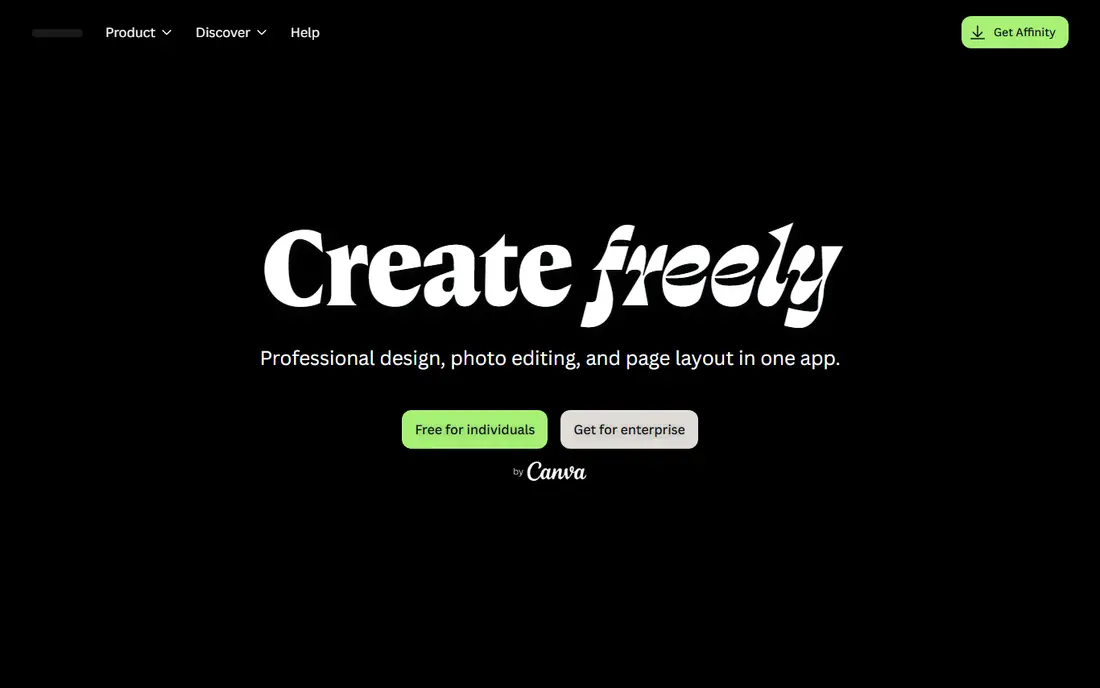
Affinity, the successor to Affinity Photo 2, is the closest free rival to Photoshop for serious photo work. It offers layers, masks, blend modes, RAW development, batch processing, and HDR and focus merging, with a clean interface that Photoshop users can learn quickly. Recent 2026 updates confirmed that the core desktop editor is free for individual use, with no time limit, which changes the value calculation for anyone paying a monthly Adobe fee.
The limits are in the ecosystem, not the core editing. Photoshop has a larger plugin library, deeper third party integration, and generative AI tools that Affinity does not fully match, and some newer AI and collaboration features sit behind a paid Canva plan. For everyday retouching, compositing, and print preparation, Affinity covers the work most people actually do. If you want a full desktop editor without a subscription, start here.
- Professional layers, masks, and RAW support
- Non destructive editing
- Now free for individual use
- Smaller plugin ecosystem than Photoshop
- Some AI and team features need a paid Canva plan
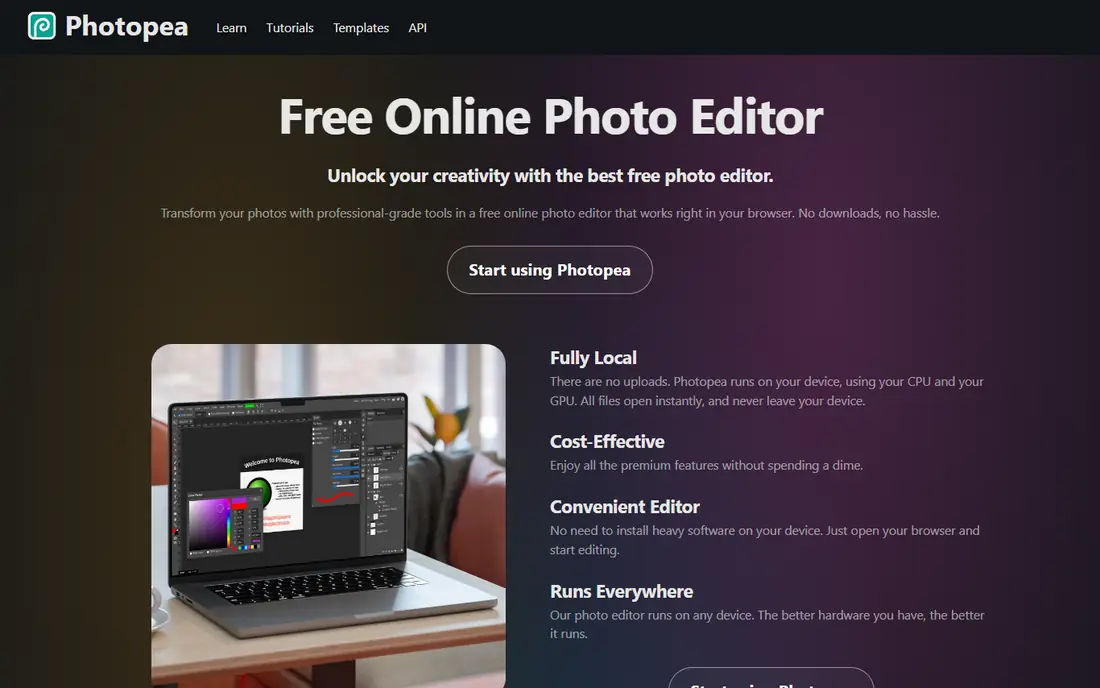
Photopea is the best choice when you need to edit a PSD file on a computer that does not have Photoshop installed. It runs in a browser, opens PSD files with layers intact, and uses an interface that will feel familiar to Photoshop users. That makes it ideal for quick client edits, school computers, Chromebooks, and travel laptops where installing software is not an option.
Premium, listed around $5 per month, removes ads and adds more storage and history steps. The free tier is fully usable for most edits, though very large files can slow down in a browser, and advanced Photoshop plugins are not available. For a fast, no install edit, or for opening a PSD someone sent you, Photopea is the simplest answer on this list.
- Opens PSD, XCF, Sketch, and XD files
- Photoshop style interface
- No install needed
- Ads on the free tier
- Browser limits very large files
GIMP, the GNU Image Manipulation Program, has been the free desktop answer to Photoshop for decades, and version 3 modernized its interface and workflow. It supports layers, masks, filters, selection tools, and scripting through Python and Script-Fu, which lets advanced users automate repetitive edits. Plugins extend it for RAW handling, batch work, and specialized filters, and the community produces many free tutorials.
The learning curve is real. Menus, tool options, and export steps differ from Photoshop, and print users may miss full CMYK support. Those limits matter less for web, social, and general photo work, where GIMP handles retouching, compositing, and graphic creation well. If you want a free editor you can customize deeply and run on Windows, Mac, or Linux, GIMP remains a strong pick.
- Full layers, masks, and filters
- Large plugin and scripting library
- Free and open source
- Interface feels unfamiliar at first
- CMYK support for print is limited
Krita is built for artists first, and its brush engine is the reason illustrators choose it over Photoshop on merit, not just price. Brushes handle texture, blending, and pressure in a way that feels natural for painting, comics, concept art, and storyboards. It also includes layers, masks, and an animation timeline, so painted work can move without a second app.
For pure photo retouching, Krita is less focused than Affinity or GIMP, with fewer photo specific tools and no full print CMYK workflow. That trade is fine if your work is illustration led, since Krita pairs well with a photo editor for final retouching. If you draw more than you retouch, Krita should be your first install, and it costs nothing.
- Excellent brush engine
- Animation timeline included
- Free and open source
- Weaker for photo retouching than GIMP or Affinity
- No full CMYK workflow
Pixlr suits fast edits when you do not want to open a heavy desktop app. Pixlr X covers quick fixes such as crop, color, and filters, while Pixlr E adds layers and more advanced tools for social graphics and product images. AI features for background removal, object removal, and image generation speed up common tasks, especially for online sellers and social media managers.
The free tier includes ads and some limits, and paid plans in recent listings start around $1.99 to $7.99 per month depending on the plan and billing period, so check the current vendor page. Pixlr will not replace Affinity or GIMP for deep compositing or print work, but for a background removal, a quick retouch, or a social graphic in minutes, it is one of the fastest good Photoshop alternatives available.
- Fast browser editing
- AI background and object removal
- Pixlr X for quick fixes and Pixlr E for layers
- Ads and limits on the free tier
- Less depth for complex compositing
Paint.NET is a free Windows editor that started as a simple Paint replacement and grew into a capable tool for everyday edits. It supports layers, blend modes, filters, and plugins, while staying fast on older computers. The interface is clear, with a small learning curve, which makes it a good pick for students, office users, and anyone who needs crop, resize, retouch, and simple compositing without a large install.
The main limit is platform. Paint.NET runs on Windows only, so Mac and Linux users need another pick from this list. RAW photo support also needs a plugin rather than being built in. For Windows users who want a light, free editor that opens quickly and handles daily tasks well, Paint.NET is hard to beat, and the optional Microsoft Store version supports the project.
- Very fast on modest Windows PCs
- Layers and plugin support
- Simple, clear interface
- Windows only
- RAW support needs a plugin
Canva is not a pixel editor in the Photoshop sense, but it is a good Photoshop alternative for people whose real job is making social posts, presentations, posters, and marketing graphics. Templates, fonts, stock photos, and brand kits let a small team produce consistent graphics quickly, and the built in photo editor covers crop, filters, background removal, and adjustments inside a design.
Pixel level retouching, advanced masking, and complex compositing are limited compared with Affinity or GIMP, and Canva does not open PSD files as a full editor. Pro, listed around $15 per month in recent comparisons, adds premium templates, background removal, and brand tools. If your output is mostly finished graphics rather than deep photo edits, Canva will save more time than a traditional editor.
- Huge template library
- Easy drag and drop design
- Photo editing built into designs
- Limited pixel level editing
- No full PSD workflow
Pixelmator Pro is a Mac and iPad editor that feels built for Apple hardware, with fast performance, a clean interface, and machine learning tools for background removal, super resolution, and color matching. It opens PSD files, supports RAW editing, and handles layers, masks, and vector shapes well, which covers most photo and design work for Mac users.
Pricing has changed over time, with a one time purchase listed around $49.99 in recent comparisons and newer versions offered through Apple Creator Studio in some listings, so check the current vendor page before buying. Windows users cannot use it, and the plugin ecosystem is smaller than Photoshop. For Mac users who want a fast, one time purchase editor without a subscription, Pixelmator Pro is a strong choice.
- Fast, Mac native performance
- Layers and machine learning tools
- One time purchase model
- Mac and iPad only
- Smaller plugin range than Photoshop
Luminar Neo suits photographers who want fast, high quality photo enhancement without manual masking for every edit. AI tools handle sky replacement, portrait retouching, relighting, and object removal, while RAW editing, layers, and presets cover the rest of a photo workflow. It works as a standalone editor and as a plugin for other photo apps, which helps photographers who already use Lightroom style catalogs.
It is not a general design tool. Text, vector work, and complex compositing are weaker than Affinity, GIMP, or Photopea, so graphic designers should pick a different tool from this list. Pricing also varies, with perpetual licenses listed from around $119 and subscriptions available in recent comparisons, so check the vendor page for the current offer. For photographers who value speed, Luminar Neo can cut editing time sharply.
- AI tools for sky, portrait, and relighting
- Strong RAW editing
- Good for fast photo enhancement
- Less suited to graphic design and compositing
- Pricing model varies by perpetual or subscription
How we picked these
We compared official feature pages, pricing pages, and public reviews for each editor. We favored tools that are still maintained in 2026, support layers and common formats such as PSD, JPEG, and PNG, and serve a clear need, from full replacement to painting to quick edits. We also weighed platform support, RAW handling, and price, since a great editor on the wrong platform will not help you. We did not claim hands on testing, and prices can change, so check the vendor page before you buy.
How to choose the right Photoshop alternative
Start from the file types you must open
If clients send PSD files, Photopea, Affinity, GIMP, and Pixelmator Pro handle them best, though compatibility is not perfect for every Photoshop feature. If you work mainly with JPEG and PNG photos, RAW handling matters more, and Affinity, Luminar Neo, and GIMP with a RAW plugin cover that need. List the formats you open weekly, then shortlist only the tools that support them well.
Decide between photo editing, painting, and design
Photo retouching suits Affinity, GIMP, and Luminar Neo, while painting suits Krita, and finished social graphics suit Canva and Pixlr. Trying to make one tool do all three usually leads to frustration, so pick a main editor for your core work and a second free tool for the occasional other job. That pair often costs nothing and covers more than a single subscription.
Test export quality before you commit
Edit a real photo, export it at the size you publish, and check sharpness, color, and file size on the screen where it will be seen. Check print export separately if you print, since color profiles and CMYK handling differ across tools. A tool that looks good in the editor but exports poorly will cost you time on every project, so test the full path from import to export.
Keep Photoshop in the loop if clients demand it
Some studios and clients require PSD delivery with specific layers, smart objects, or Adobe fonts. In that case, use an alternative for most work, but keep access to Photoshop through a trial, a single app plan, or a collaborator for final delivery. That hybrid path saves money while avoiding compatibility problems on paid client work.
Frequently asked questions
What are the best alternatives to Photoshop that are free?
Affinity, GIMP, Photopea, Krita, and Paint.NET are the strongest free options, each for a different job. Affinity is the best full replacement, Photopea is best in a browser, GIMP is best for customizable desktop work, Krita is best for painting, and Paint.NET is best for light Windows edits. The best alternatives to Photoshop for you depend on whether you edit photos, paint, or design graphics.
What is the best Photoshop alternative for PSD files?
Photopea opens PSD files in a browser with layers intact, which makes it the fastest option for a single file. Affinity and Pixelmator Pro also open PSD files well for ongoing desktop work, while GIMP opens them with partial compatibility for some advanced features. The best Photoshop alternatives for PSD work should be tested with your actual files, since smart objects and some effects may not transfer perfectly.
Are there good Photoshop alternatives for beginners?
Yes. Pixlr and Canva are the easiest starting points for quick edits and social graphics, while Paint.NET is easy for Windows users. Affinity is also beginner friendly for a full editor, thanks to its clear interface and free price. Good Photoshop alternatives for beginners share simple menus, clear export steps, and free plans that let you learn without paying first.
What is the cheapest Photoshop alternative with professional features?
Affinity is the cheapest professional option, since the core editor is now free for individual use. GIMP, Krita, and Photopea are also free and cover professional workflows for many users. Cheap Photoshop alternatives can still handle client work, but check PSD compatibility, print color handling, and plugin needs before dropping a paid plan entirely.
Is Affinity really free now?
Recent 2026 updates report that Affinity, as the successor to Affinity Photo 2, is free for individual use, with core desktop editing, RAW support, layers, and batch processing included. Some AI powered and team collaboration features require a paid Canva plan, so check the current Affinity site for the exact split. For most individual photo editors, the free core covers the main Photoshop replacement job.
What is the best alternative to Adobe Photoshop for Mac users?
Pixelmator Pro is the best Mac native choice for speed and a one time purchase model, while Affinity is the best free cross platform choice for Mac, Windows, and iPad. Krita and GIMP also run on Mac and cover painting and general editing. Adobe Photoshop alternatives for Mac should be judged on Apple Silicon performance, PSD compatibility, and whether you need RAW catalog tools alongside pixel editing.
Sources
See where you really rank - block by block
ProMapRanker scans Google Maps across a grid of your service area. Simple monthly plans from $19, white-label on every plan.
Start freeKeep reading
 youtube alternatives
Best YouTube Alternatives in 2026
Looking for youtube alternatives in 2026? We compare Vimeo, Dailymotion, Twitch, Rumble, and more on price, audience, monetization, control and privacy.
Read → what's the best ai tool for photo editing
What Is the Best AI Tool for Photo Editing in 2026
What is the best AI tool for photo editing? We compare ten tools for 2026, from Photoshop and Lightroom to Luminar, Topaz, Canva and mobile editors today.
Read → twitter alternatives
Best Twitter Alternatives in 2026
Compare the best twitter alternatives for 2026, from Bluesky, Threads, and Mastodon to Reddit, Tumblr, and Micro.blog, with free plans and audience notes.
Read →