 ProMapRanker
What Is the Best AI Tool for Photo Editing in 2026


Professional creative editing · Pricing starts at: $20.99 per month
Key takeaways
- Adobe Photoshop and Lightroom remain the standard for professional control, with AI masking, generative fill and denoise built into a full editor.
- Luminar Neo suits photographers who want fast creative AI edits without learning Photoshop, while Topaz Photo AI suits fixing noise, blur and low resolution.
- Canva, Fotor and Pixlr suit quick social and marketing edits, with free tiers that cover basic AI tools.
- PhotoRoom and Picsart suit product and social content on a phone, while Remini suits enhancing old or low quality portraits.
- AI edits can change a face or a scene in ways that look unnatural, so check skin, hands and text at full size before you publish.
Quick comparison
| Pick | Great for | Pricing starts at | Free tier | |
|---|---|---|---|---|
| Adobe Photoshop | Professional creative editing | $20.99 per month | Free trial | Visit |
 Adobe Lightroom Adobe Lightroom | Photo library and batch editing | $9.99 per month | Free trial | Visit |
 Luminar Neo Luminar Neo | Creative AI edits for photographers | $9.95 per month | Free trial | Visit |
 Topaz Photo AI Topaz Photo AI | Denoise, sharpen and upscale | $199 one time | Free trial | Visit |
 Canva Canva | Social and marketing design | Free | Yes | Visit |
 Fotor Fotor | Quick online edits | Free | Yes | Visit |
 Pixlr Pixlr | Free browser editing | Free | Yes | Visit |
 PhotoRoom PhotoRoom | Product photos and backgrounds | Free | Yes | Visit |
 Picsart Picsart | Mobile creative editing | Free | Yes | Visit |
 Remini Remini | Enhancing old and low quality photos | Free | Yes | Visit |
The best AI tools for photo editing
We compared AI features, pricing, platform support and the jobs each tool does best, and we focused on tools that are actively sold and working in October 2026. The best tool depends on whether you edit a full shoot, a single product photo, or a social post.
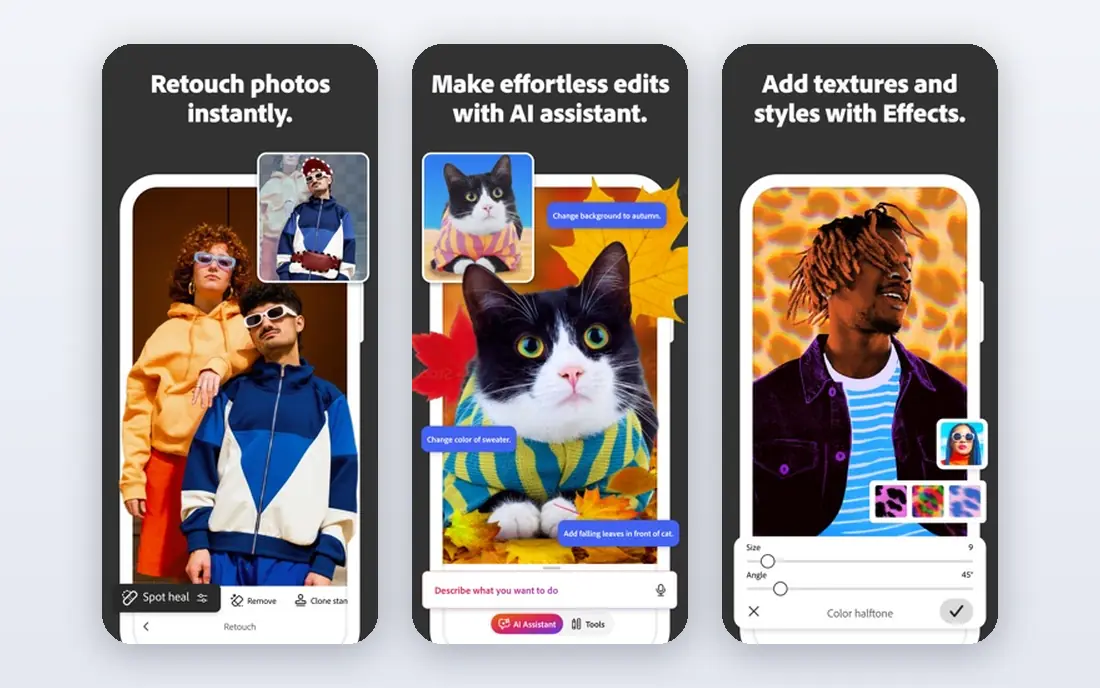
Photoshop is the tool to choose when an edit needs more than a filter. Generative Fill can extend a background, remove an object, or replace part of a scene, while Neural Filters adjust age, expression and lighting in a portrait. The cost and complexity are real barriers. At $20.99 per month, Photoshop is overkill for someone who only crops and brightens phone photos. It also takes time to learn, and AI results still need checking for odd hands, warped text or unnatural skin. For a professional or a serious hobbyist, though, no other tool on this list offers the same depth.
- Generative Fill and Neural Filters
- Full layer control
- Huge plugin and tutorial ecosystem
- Subscription cost is high for casual use
- Learning curve is steep for a beginner
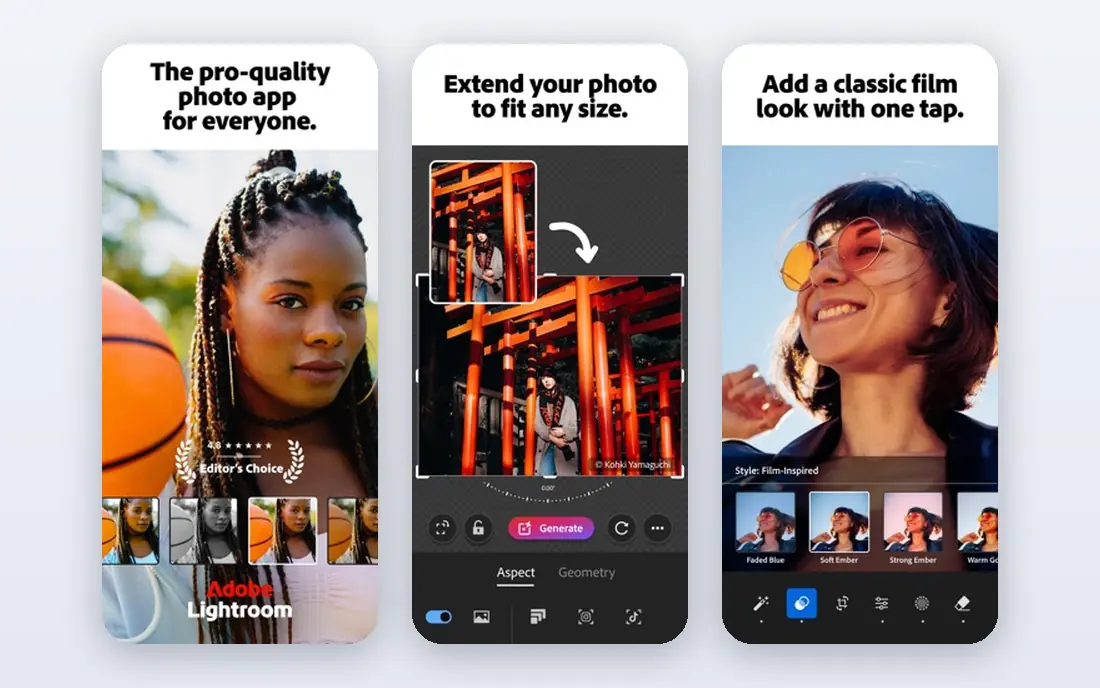
Lightroom is the workhorse for photographers who shoot hundreds of photos at a time. AI masking can select a subject, sky or background in one click, denoise can rescue a high ISO shot, and presets can apply a consistent look across a wedding or a product shoot. Lightroom is less suited to heavy compositing. If you need to replace a large part of an image or build a complex graphic, Photoshop is the better tool. The subscription model also means you rent access rather than owning the software. For organising and grading a large library, Lightroom remains the standard most photographers compare everything else against.
- AI masking and denoise
- Batch editing across a whole shoot
- Cloud sync across desktop and mobile
- Subscription only
- Generative editing is weaker than Photoshop
- Catalogue system takes time to learn
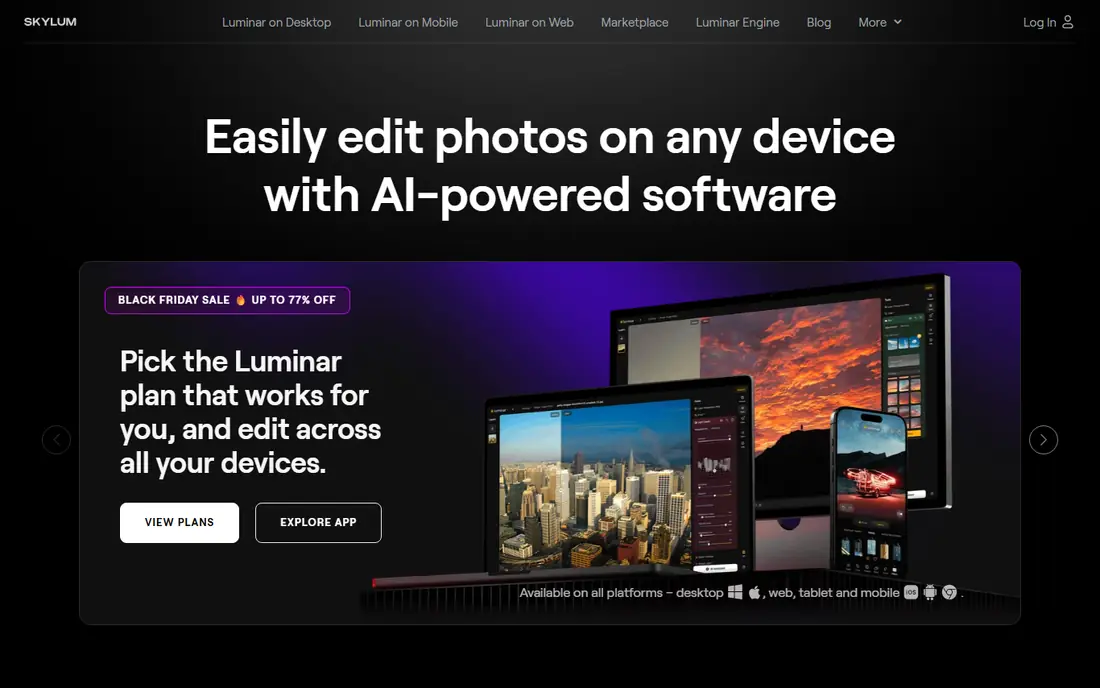
Luminar Neo is built for photographers who want dramatic AI edits without a Photoshop workflow. Sky AI can replace a dull sky, Relight AI can change the light direction in a scene, and generative tools can erase or swap elements. A scenic photo or portrait can go from flat to striking in a few sliders, which is satisfying for a hobbyist.
The trade off is workflow depth. Luminar Neo does not match Lightroom for organising thousands of photos or for complex batch work, and its pricing varies between subscription and one time offers, so check the current deal. It suits a photographer who edits one image at a time for impact, rather than a professional managing a large client library.
- Sky AI and Relight AI for fast creative changes
- Generative erase and swap tools
- One time purchase options in some offers
- Catalogue and batch tools are weaker than Lightroom
- Some AI features need an internet connection
Topaz Photo AI does one job extremely well: rescuing technically flawed photos. Noise from a high ISO shot, soft focus, motion blur and low resolution all improve with its models, often more than a general editor can manage. It works as a standalone app or as a plugin for Lightroom and Photoshop, so it fits into an existing workflow.
It is not a general editor. You will not build a composite or design a social post in Topaz, and the $199 one time price is high if you only fix a photo now and then. Processing also demands a decent computer. For a photographer with a library of imperfect shots, Topaz is the specialist worth owning.
- Strong denoise, sharpen and upscale models
- Works standalone or as a plugin
- One time licence rather than a subscription
- Processing is slow on older computers
- Default settings can make skin look plastic on portraits
Canva is the best AI photo editing app for a small business owner who needs a finished post, not a perfect RAW file. Magic Edit can change part of an image, the background remover cleans up a product shot, and templates handle sizing for each platform. A social post can go from photo to published graphic in minutes.
Professional photographers will find the controls shallow. Canva does not replace Lightroom for colour grading a shoot, and some AI features sit behind the paid plan, which starts at $14.99 per month in many guides. For marketing content, though, Canva speed beats precision, and the free tier is enough for basic edits.
- Magic Edit and background remover
- Templates for every social format
- Free tier covers basic AI tools
- Photo control is simpler than a dedicated editor
- Many AI features need a paid plan
- No RAW workflow for professionals
Fotor suits a user who wants a quick online fix without installing software. Upload a photo, run the AI enhancer, retouch a portrait, and download the result. It works in a browser, so it suits a work computer or a Chromebook where installing a desktop editor is not possible.
The limits show on demanding work. Fotor cannot match Lightroom or Topaz for RAW files or heavy noise, and the free tier restricts some tools and adds friction. Paid plans start near $8.99 per month in recent guides. For everyday photos, social images and quick retouching, Fotor is fast and easy. For a paid client shoot, use a desktop tool instead.
- AI enhancer and portrait retouch in a browser
- Batch tools for simple jobs
- Free tier for everyday edits
- Advanced features need a paid plan
- Output quality is lower than a desktop RAW editor
- Ads and limits on the free tier
Pixlr is the closest free browser alternative to a desktop editor. It offers layers, masks, AI cutout and generative fill, all without installing software. That combination makes it a good choice for a student, a casual creator, or anyone editing on a shared computer.
Free users face limits, ads and some locked AI features, with paid plans starting near $1.99 per month in recent guides. The interface is also busier than Canva, which can confuse a complete beginner. If you want free, flexible editing in a browser and you are willing to learn the layout, Pixlr gives you more control than most free tools.
- Free browser editor with layers
- AI cutout and generative fill
- No install needed
- Free tier has limits and ads
- Interface can feel crowded
- Advanced AI tools need a paid plan
PhotoRoom is built for sellers. Photograph a product on a table, remove the background, drop it on a clean studio background, and export a listing image. Batch tools help a shop owner process many products at once, and the mobile app means the whole job can happen on a phone in a stockroom.
It is not a general photo editor. Colour grading, retouching and compositing are limited compared with Photoshop or Lightroom, and the premium plan, near $9.99 per month in recent guides, is needed for the best output and batch features. For product listings, though, PhotoRoom saves more time than any other tool on this list.
- Fast background removal
- Product templates and batch background tools
- Mobile app for shop owners
- Full creative editing is limited
- Premium plan needed for high resolution and batch work
- Some templates feel generic
Picsart is the fun, creative mobile editor on this list. Filters, stickers, AI effects and a background remover make it easy to turn a phone photo into a bold social post. It suits creators who post often and who value speed and style over pixel perfect control.
Serious photographers will find the editing controls less precise than Lightroom, and the free version limits premium assets and shows ads. Paid plans start near $5 to $7 per month depending on plan and region in recent guides. For social content, Picsart is enjoyable and fast. For client work, pair it with a more precise editor.
- Large filter and effect library
- AI background remover and image generator
- Mobile, web and desktop apps
- Free version includes ads and limited premium assets
- Professional control is less precise
- Subscription needed for full AI tools
Remini has a narrow but valuable job: making an old, blurry or low resolution portrait look clearer. Family photos, scanned prints and old phone shots often improve dramatically, with sharper eyes and cleaner skin. The mobile workflow is simple, which suits a non technical user restoring memories.
The catch is identity. AI enhancement guesses detail that is not in the original, so a restored face can look slightly different from the person in the photo. Check the result against the original, and keep the original file safe. Free use is limited, with paid options from about $4.99 per week in recent guides. For restoring memories, Remini is worth trying, with care.
- Strong face enhancement for old photos
- Simple mobile workflow
- Useful for restoring family photos
- Free tier is limited
- Paid plans are weekly or monthly
- Results can change a face in ways that look unfamiliar
How we picked these
We compared AI features, pricing and platform support for tools that are actively sold in 2026, and we kept tools that cover different jobs rather than ten versions of the same editor. We included professional editors, a quality specialist, browser editors and mobile editors, so a reader can match the tool to the job. We left out tools that had been discontinued, that offered no working AI photo editing, or whose pricing could not be verified from vendor or app store listings. Prices are snapshots from October 2026, so confirm the plan page or app store listing before you buy.
How to choose the right AI photo editor
Match the tool to the job
A wedding photographer needs Lightroom batch tools, a seller needs PhotoRoom backgrounds, and a social creator needs Canva templates. Buying the most powerful tool for a simple job wastes money and time. Write down the job you do most often, then pick the tool that does that job fastest.
Check what the AI actually changes
AI tools guess detail when they enhance, fill or retouch. That guess can improve a photo, but it can also invent texture, change a face, or warp text. Zoom to full size and check eyes, hands, skin texture and any text in the image. If an AI edit changes a person identity, dial it back or redo the edit by hand.
Think about file type and privacy
RAW files need a desktop editor such as Lightroom, Luminar Neo or Topaz. Browser and mobile tools often work on JPEG files and may upload your photo to a server. If you edit client photos or sensitive images, check whether processing happens on your device or on vendor servers, and read the privacy terms before uploading.
Start free, then pay for the tool you use most
Canva, Fotor, Pixlr, PhotoRoom and Picsart all offer free tiers, and Adobe and Topaz offer trials. Test two tools on the same photo before paying. The best AI photo editing app is the one you actually open every week, not the one with the longest feature list.
Frequently asked questions
What is the best AI tool for photo editing?
Adobe Photoshop is the best all round professional tool, because it combines generative fill, neural filters and full layer control. Adobe Lightroom is better for batch editing a whole shoot, while Luminar Neo is better for fast creative AI edits. For a quick social edit, Canva is often the best choice, so the answer depends on your job.
What is the best AI photo editing app for a phone?
Canva, Picsart and PhotoRoom all work well on a phone, with different strengths. Canva suits marketing posts, Picsart suits creative social edits, and PhotoRoom suits product photos. Remini suits enhancing an old portrait on a phone. Try the free tier of each with the same photo to see which interface you prefer.
Is there a free AI photo editor that is actually useful?
Yes. Pixlr offers the most flexible free browser editing, Canva covers basic AI design free, and Fotor covers quick online enhancements free. Free tiers limit some AI tools, add ads, or cap resolution, so a free tool suits everyday edits rather than professional client work. For heavy RAW work, a paid desktop tool is still worth it.
Can AI photo editing replace Photoshop?
For many everyday jobs, yes. Background removal, sky replacement, denoise and simple object removal are now easy in cheaper tools. Photoshop still wins for complex compositing, precise masking, and professional retouching where every pixel matters. Most professionals use AI tools alongside Photoshop, not instead of it.
Does AI photo editing change the original photo?
AI enhancement can invent detail, especially when upscaling or restoring a face. That is why you should always keep the original file and check the AI result at full size. For documentary, news or legal photos, avoid AI edits that add or remove content, since they can misrepresent what was actually in the scene.
Which AI photo editor is best for beginners?
Canva is the easiest start for social and marketing edits, while Luminar Neo is the easiest start for a photographer who wants creative AI sliders. Pixlr suits a beginner who wants free browser editing with more control. Start with a free tier, learn one tool well, and only move to Photoshop or Lightroom when you need their extra depth.
Sources
- https://www.adobe.com
- https://www.skylum.com
- https://www.topazlabs.com
- https://www.canva.com
- https://www.fotor.com
- https://www.pixlr.com
- https://www.photoroom.com
- https://www.picsart.com
- https://www.remini.ai
- https://www.revoyant.com/blog/8-best-ai-photo-editors-that-you-can-use
- https://aftershoot.com/blog/ai-editing-software-for-photographers/
See where you really rank - block by block
ProMapRanker scans Google Maps across a grid of your service area. Simple monthly plans from $19, white-label on every plan.
Start freeKeep reading
 youtube alternatives
Best YouTube Alternatives in 2026
Looking for youtube alternatives in 2026? We compare Vimeo, Dailymotion, Twitch, Rumble, and more on price, audience, monetization, control and privacy.
Read → twitter alternatives
Best Twitter Alternatives in 2026
Compare the best twitter alternatives for 2026, from Bluesky, Threads, and Mastodon to Reddit, Tumblr, and Micro.blog, with free plans and audience notes.
Read → surfshark alternatives
Surfshark Alternatives in 2026
Surfshark alternatives compared for 2026: NordVPN, Proton VPN, ExpressVPN and more on price, privacy, speed, devices and streaming support. compared in full.
Read →