 ProMapRanker
Best PDF Alternatives in 2026

Key takeaways
- If you want to move away from PDF as a format, EPUB through Calibre, Google Docs, Word, LibreOffice Writer, and Notion give you editable, reflowable documents.
- If you still need to work with PDF files, Foxit, PDF-XChange Editor, Sejda, and Smallpdf cover editing, signing, and conversion at different prices.
- Calibre and LibreOffice Writer are free and open, which makes them strong picks for readers and writers on a tight budget.
- Google Docs and Notion suit collaboration, while Word suits teams that need strict print layout and broad compatibility.
- Check how your readers will open the file before you choose, because the best format is the one your audience can actually use.
Quick comparison
| Pick | Great for | Pricing starts at | Free tier | |
|---|---|---|---|---|
 Calibre | EPUB reading and conversion | Free | Yes | Visit |
 Google Docs | Free collaborative documents | Free | Yes | Visit |
 Microsoft Word | Print-ready and widely shared documents | See website | No | Visit |
 LibreOffice Writer | Free desktop word processing | Free | Yes | Visit |
 Notion | Shared notes, docs, and wikis | Free | Yes | Visit |
 Foxit PDF Editor | Full PDF editing for teams | $10.99 per month | Free trial | Visit |
 PDF-XChange Editor | Windows PDF editing with a one-time license | $62 one-time | Free trial | Visit |
 Sejda | Browser-based PDF tasks | See website | Yes | Visit |
 Smallpdf | Quick online PDF tools | See website | Yes | Visit |
The best pdf alternatives
This article covers two related choices, stated plainly. First, alternatives to the PDF format itself, such as EPUB and editable documents, for reading and collaboration. Second, alternatives to PDF tools, such as editors and readers that handle PDF files when you still need them. We compared them on format support, editing, collaboration, and price.
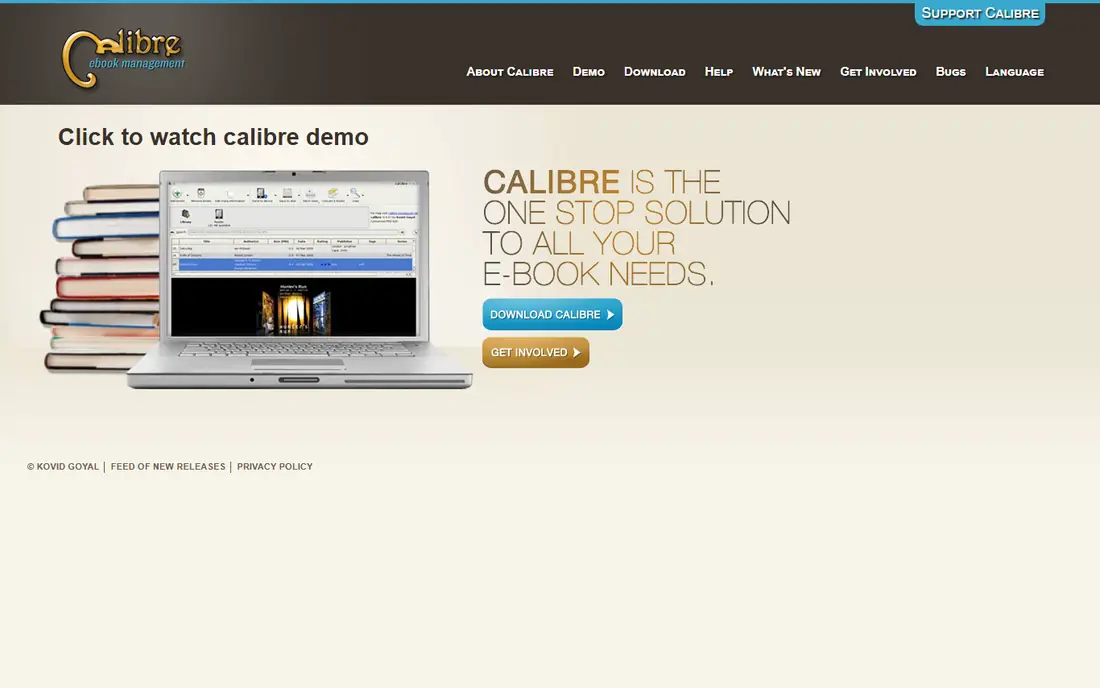
Calibre is the clearest format alternative for reading. It organizes ebooks, converts between common formats such as EPUB, MOBI, PDF, and DOCX, and sends books to an ereader. For a reader who wants text that reflows on a small screen, EPUB through Calibre is far easier to read than a fixed PDF page.
The trade-off is purpose. Calibre is not meant for writing a report or designing a form. It is a library and conversion tool, and its many options can feel busy on first use. If your goal is reading, organizing, and converting books, it is free, well maintained, and hard to beat.
- Free and open source
- Converts EPUB, MOBI, PDF, and DOCX
- Manages large ebook libraries
- Interface looks busy at first
- It is a library tool, not a word processor
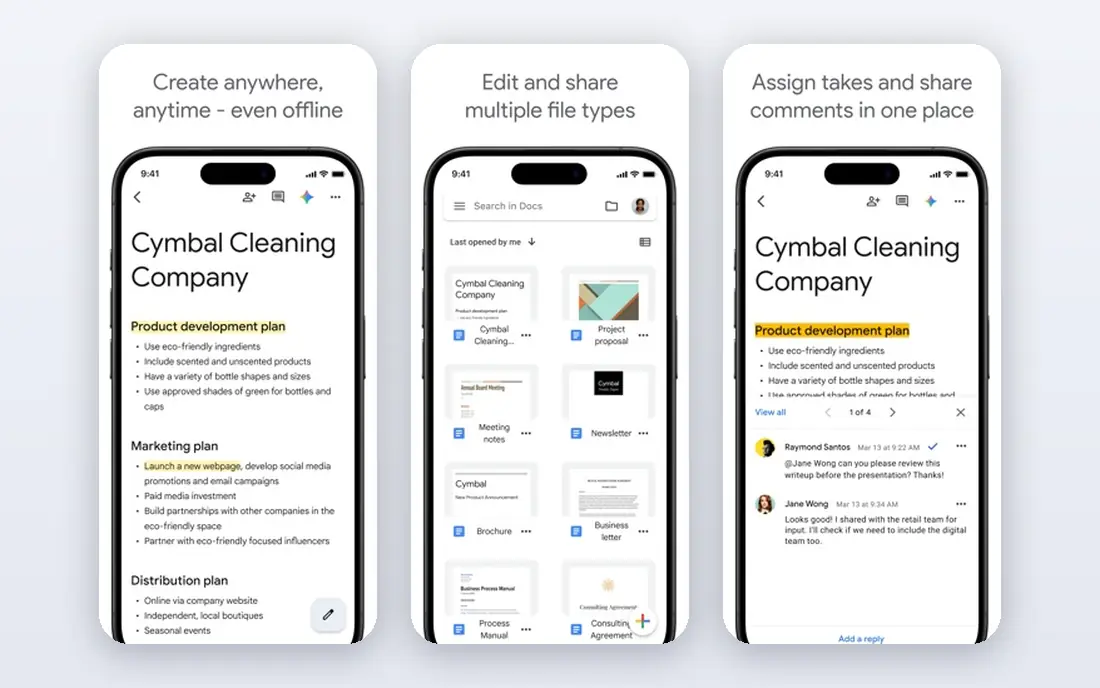
Google Docs replaces the need to send a fixed PDF for many everyday documents. You can write, comment, and edit with others in real time, then export to DOCX or PDF only when a final copy is needed. That workflow suits teams, students, and small businesses that revise documents often.
The limit is layout control. Google Docs handles most letters, reports, and drafts well, but it is not the best tool for complex print design or strict pagination. If your readers need a document they can edit and comment on, Docs is a strong, free default. If they need an exact printed page, Word or a PDF may still be better.
- Free with a Google account
- Real-time co-editing
- Exports DOCX and PDF when needed
- Print layout is less strict than Word
- Offline use needs setup in some cases
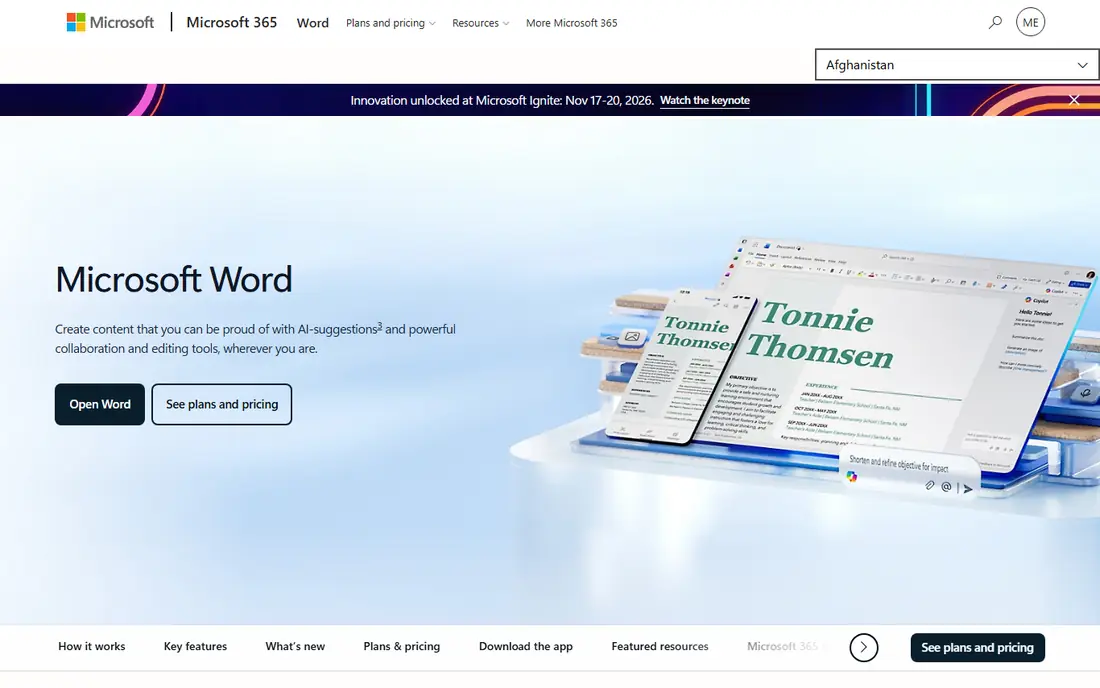
Word is the format alternative most workplaces already accept. A DOCX file is editable, searchable, and easy to share, and Word gives you precise control over styles, tables, headers, and page layout. For contracts, reports, and resumes that will be printed or filed, that control matters.
The cost is the main drawback, because Word is paid through Microsoft 365 or a separate license, with pricing that varies by plan and region. Free web access exists in some Microsoft accounts, but the full desktop version is not free. If compatibility and layout matter more than cost, Word remains the safe choice.
- Strong layout and formatting controls
- Broad compatibility
- Mature review and track changes tools
- Paid through Microsoft 365 or a license
- Collaboration needs a Microsoft account setup
LibreOffice Writer is a free desktop alternative to both Word and to PDF-only workflows. It opens and saves DOCX files, handles styles and tables, and exports to PDF when you need a fixed copy. For a writer who wants a local, offline tool without a subscription, it covers the core job well.
The catch is fidelity with complex files. Most documents transfer cleanly, but heavily formatted Word files can shift slightly in layout. Test a real document before you rely on it for a client-facing file. For everyday writing, drafting, and editing, Writer is a capable, no-cost option.
- Free and open source
- Strong DOCX support
- Works offline on Windows, Mac, and Linux
- Interface feels older than Word
- Complex Word files can shift in layout
Notion offers a different kind of alternative: a living document instead of a fixed file. Teams can build wikis, guides, and project docs with linked pages, databases, and comments, and update them without sending a new file each time. That suits internal documentation, handbooks, and shared knowledge bases.
The limit is portability. Notion exports to HTML, Markdown, and CSV, but it is not a print-layout tool and it is not ideal for a formal document that must look identical everywhere. If your audience is a team that needs to find and update information, Notion is strong. If your audience needs a signed, paginated file, keep a PDF or Word copy as well.
- Free plan for individuals
- Pages, databases, and wikis in one place
- Exports HTML, Markdown, and CSV
- Paid Plus from $10 per member per month billed yearly
- Browser use needs an internet connection
Foxit PDF Editor is for readers who still need PDF files but want a different editor. It lets you create, edit, convert, merge, split, and sign PDFs, with form tools and redaction for sensitive documents. The cloud plan starts at $10.99 per user per month in public listings, with annual desktop plans also listed.
The trade-off is price creep. The base editor covers most needs, but advanced tiers and AI add-ons raise the total. For a team that edits PDFs daily, Foxit is a capable, well-supported choice. For occasional edits, a free or browser tool in this list may be enough.
- Edits text and images in PDFs
- Forms, signatures, and redaction
- Desktop, web, and mobile options
- Higher tiers add cost
- AI features may cost extra
PDF-XChange Editor appeals to Windows users who dislike subscriptions. Its single-user license starts at $62 as a one-time purchase in public listings, with maintenance as a separate option. It handles viewing, annotation, editing, forms, and conversion with a light footprint, which suits older machines and busy desktops.
The limit is platform range. It is strongest on Windows, and Mac users should check the current version and feature parity before buying. If you work on Windows and want to pay once rather than monthly, this is one of the best value picks in the PDF editor group.
- One-time license option from $62
- Fast Windows performance
- Strong annotation and form tools
- Windows-focused
- Mac support is more limited than cross-platform rivals
Sejda is a browser tool for quick PDF jobs. You can merge, split, compress, edit, sign, and convert PDFs without installing software, which is handy on a shared computer or a Chromebook. A limited free tier covers occasional use, with paid plans for heavier work.
The catch is scale and privacy. Free use has daily limits, and uploading sensitive documents to any web tool needs care. For routine, non-sensitive tasks, Sejda is fast and simple. For confidential files or large batches, a desktop editor such as Foxit or PDF-XChange Editor is a safer pick.
- Works in the browser with no install
- Merge, split, compress, and edit tools
- Limited free use
- Free tier limits tasks per day
- Large or sensitive files suit a desktop tool better
Smallpdf is built for speed. Its web tools cover the jobs most people need from a PDF tool: compressing a file for email, converting to Word or images, merging pages, and signing a form. The interface is plain and the steps are short, which suits occasional users who do not want to learn a full editor.
The limit is the free tier. Heavy users will hit limits and need a paid plan, and pricing varies by billing choice. If you handle PDFs a few times a month, Smallpdf is a convenient choice. If you edit PDFs every day, a desktop editor will save time and give you more control.
- Simple web tools for common PDF tasks
- Compress, convert, sign, and edit options
- Works on any browser
- Free use is limited
- Full features need a paid plan
How we picked these
We compared official product pages, pricing pages, and app store listings for tools that either replace the PDF format or handle PDF files well. We kept tools that are live in October 2026, that open common document formats, and that offer a clear use case for readers, writers, or teams. We left out tools that only convert one format, tools with no current homepage, and tools that had retired.
What to check before you switch
Start with the reader. Ask who will open the file, on what device, and what they need to do with it. A student on a phone needs a reflowable format such as EPUB or a Google Doc. A client who must print and sign needs a fixed layout, which may still be PDF or Word.
Next, check editing needs. If the document will change often, pick an editable format such as DOCX, Google Docs, or Notion, and keep PDF only for the final copy. If the document must stay fixed, with signatures and page numbers, PDF remains the right choice, and the question becomes which editor to use.
Then test a real file. Convert or export a document you actually use, and check fonts, tables, images, and page breaks. Small shifts in layout are common when moving between Word, LibreOffice, and Google Docs, and it is better to find them on a test file than on a client file.
Finally, think about privacy. Browser tools are convenient, but they require uploads. Desktop tools keep files local. For contracts, medical forms, or financial documents, prefer a local editor or a trusted, paid web tool with clear data handling, and avoid uploading sensitive files to a free tool you have not checked.
Frequently asked questions
What are the best pdf alternatives?
For reading, EPUB through Calibre is a strong format alternative. For writing and collaboration, Google Docs, Word, LibreOffice Writer, and Notion are strong editable alternatives. For working with PDF files themselves, Foxit, PDF-XChange Editor, Sejda, and Smallpdf are practical tools.
What is an alternative to PDF format?
EPUB is the main reading alternative, because text reflows to fit the screen. DOCX and Google Docs are the main editing alternatives, because they stay editable and support comments and revisions. Markdown and HTML are also useful for web publishing and simple documents.
Can I replace PDF completely?
For many everyday documents, yes. Editable formats work better for drafts, collaboration, and reading on phones. For signed forms, print-ready files, and documents that must look identical everywhere, PDF still has a clear role, so a full replacement depends on your use case.
Which PDF alternative is free?
Calibre and LibreOffice Writer are free, Google Docs and Notion have free plans, and Sejda and Smallpdf offer limited free use. Foxit and PDF-XChange Editor offer trials, with paid plans for full editing.
Which PDF editor is best for Windows?
PDF-XChange Editor is a strong Windows pick with a one-time license from $62. Foxit PDF Editor is also strong on Windows and adds web and mobile options. Test both with your own files, because annotation and form handling can differ by document.
Are online PDF tools safe?
They can be safe for routine files, but they require uploads, so avoid them for sensitive documents unless you have checked the vendor's privacy and retention policy. For confidential work, use a desktop editor that keeps files on your device.
Sources
See where you really rank - block by block
ProMapRanker scans Google Maps across a grid of your service area. Simple monthly plans from $19, white-label on every plan.
Start freeKeep reading
 zoro.to alternatives
Best Zoro.to Alternatives in 2026
We compare the best zoro.to alternatives in 2026, listing only legal licensed anime streaming services, from Crunchyroll to free options for fans today.
Read → zip alternatives
Best Zip Alternatives in 2026
We compare the best zip alternatives for buy now, pay later in 2026, covering pay-in-4 plans, fees, spending limits, and credit reporting options today.
Read → yesware alternatives
Best Yesware Alternatives in 2026
Compare the best yesware alternatives for sales email tracking, templates, and sequences, with current pricing and honest tradeoffs for small sales teams.
Read →