 ProMapRanker
Best OBS Alternatives in 2026

Key takeaways
- Streamlabs Desktop is the easiest desktop step away from OBS, because it adds themes, alerts, and widgets to a familiar workflow.
- vMix and Wirecast suit professional productions, with vMix the stronger value for Windows studios and Wirecast the broadcast-oriented pick.
- StreamYard and Restream suit guest-led shows and multistreaming, with no install needed for guests.
- Ecamm Live is the Mac specialist, while XSplit, Lightstream, and SplitCam cover polished Windows workflows, console streaming, and free desktop use.
Quick comparison
| Pick | Great for | Pricing starts at | Free tier | |
|---|---|---|---|---|
 Streamlabs Desktop | Beginners and gamers | Free | Yes | Visit |
 vMix | Multi-camera Windows productions | $60 one-time | Free trial | Visit |
 XSplit Broadcaster | Polished Windows streaming | $14.99 per month | Yes | Visit |
 Wirecast | Broadcast-grade productions | See website | Free trial | Visit |
 StreamYard | Browser guest shows | $44.99 per month | Yes | Visit |
 Restream | Multistreaming to many platforms | $19 per month | Yes | Visit |
 Ecamm Live | Mac creators and interviews | $20 per month | Free trial | Visit |
 Lightstream | Console and low-spec streaming | See website | Free trial | Visit |
 SplitCam | Free desktop streaming | Free | Yes | Visit |
The best OBS alternatives
OBS Studio is free and powerful, but its setup can feel technical. These nine tools trade some of that control for easier onboarding, guest handling, or professional production features.
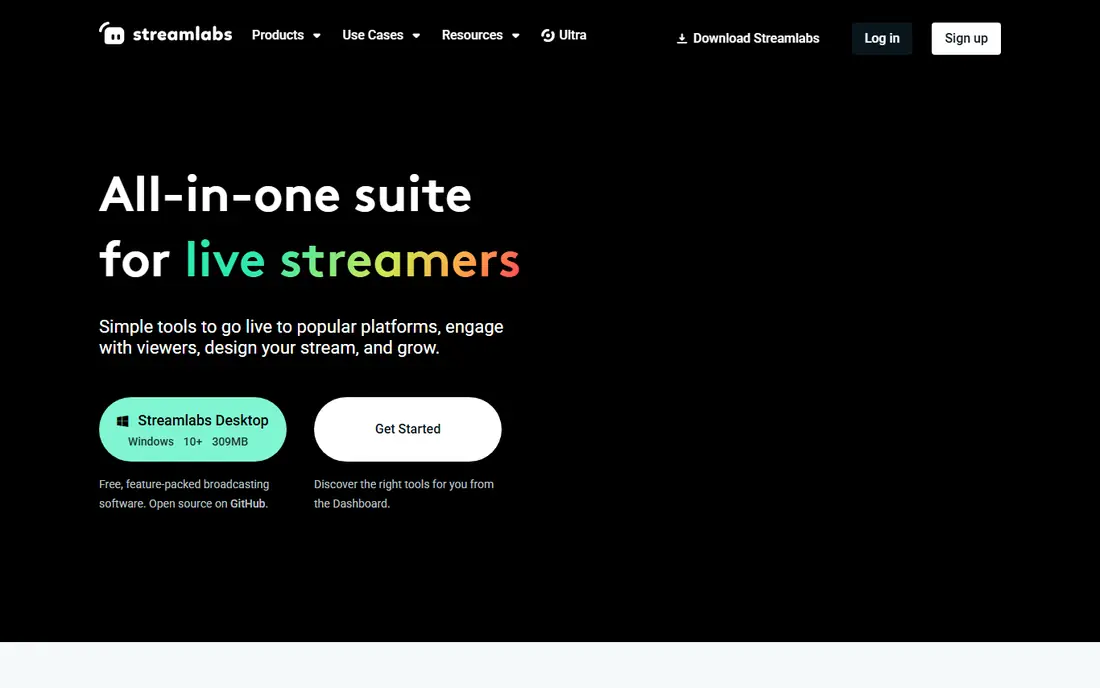
Streamlabs Desktop is built on OBS code, so an OBS user will recognise the scene and source layout, but it adds the creator tools that OBS leaves to plugins. Themes, alerts, chat widgets, and donation tools are built in, and setup walks a new streamer through scenes and sources instead of leaving a blank canvas. That guided start is why many beginners pick it first.
The cost is performance and upselling. Streamlabs Desktop can use more system resources than a lean OBS setup, and its best themes and multistreaming features sit behind the Ultra plan, which costs $189 per year. We would pick Streamlabs Desktop for a gamer or beginner who wants a fast, good-looking start, and we would keep OBS in mind if a low-end PC struggles.
- Built-in themes, alerts, and widgets
- Guided setup
- Free desktop app
- Heavier on system resources than OBS
- Best extras need a paid Ultra plan
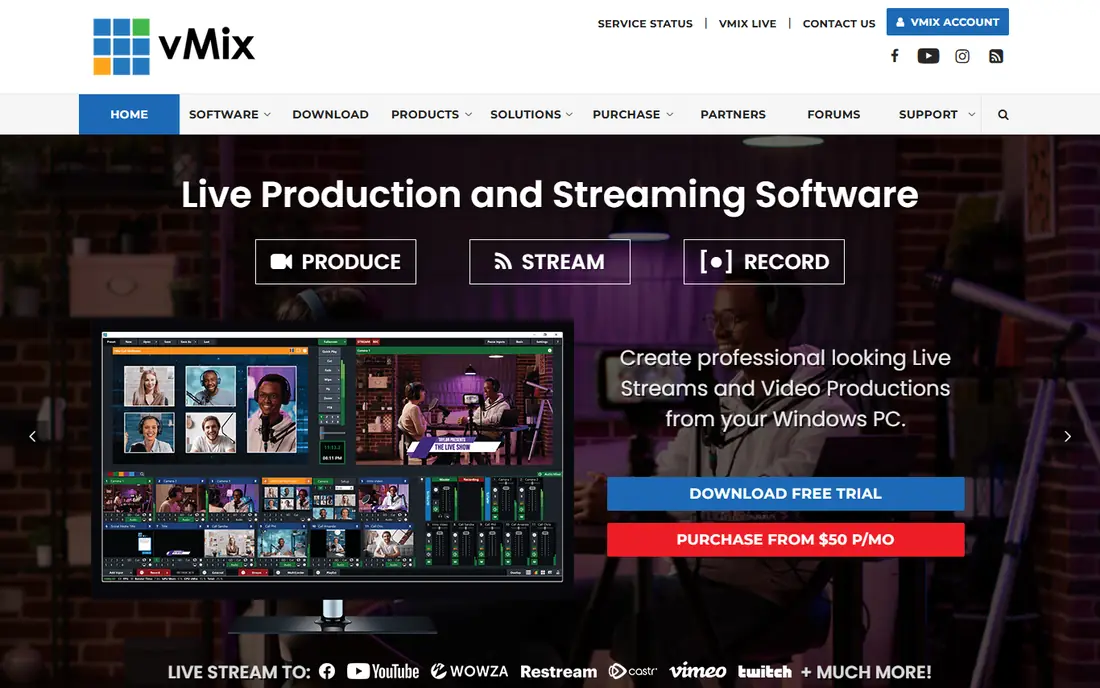
vMix is the professional production tool on this list for Windows studios. It handles multiple cameras, NDI sources, instant replay, virtual sets, and remote callers in one program, which makes it a fit for sports, events, churches, and live shows. Licences are one-time purchases, from Basic HD at $60 up to Pro at $1,200, with a subscription option as well, so a studio can own the software rather than rent it each month.
The trade-offs are platform and complexity. vMix runs on Windows only, needs strong hardware for a full show, and takes time to learn. A solo gamer does not need its depth. We would pick vMix for a production team that already works on Windows and needs camera switching, replay, and NDI in a single tool.
- Multi-camera switching, NDI, and instant replay
- One-time licences
- Free trial
- Windows only
- Complex interface and high hardware demands
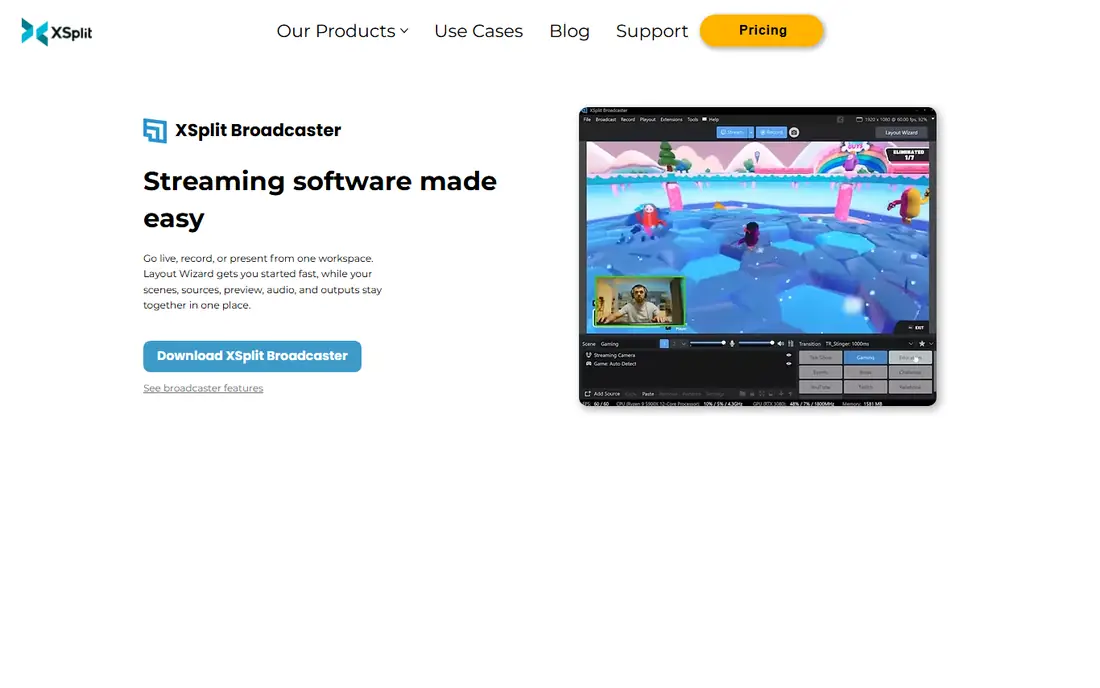
XSplit Broadcaster offers a cleaner, more guided desktop workflow than OBS, with scene presets, a virtual camera, and a layout that feels like a finished product rather than a toolkit. It is a good middle ground for a Windows streamer who wants control over scenes and sources without building everything from plugins. Paid plans remove the watermark and add multistreaming and other features.
The limits are platform and ecosystem. XSplit runs on Windows only, and its plugin range is thinner than OBS, so a creator who relies on a specific OBS plugin may not find a match. The free version watermark also makes it a poor choice for a finished public stream. We would pick XSplit for a Windows creator who values a polished interface and is willing to pay for the premium plan.
- Polished interface and scene presets
- Virtual camera
- Built-in multistreaming on paid plans
- Windows only
- Free version adds a watermark
- Smaller plugin range than OBS
Wirecast, from Telestream, is a broadcast-grade production tool for studios, schools, and event teams. It supports multi-camera switching, ISO recording of individual sources, graphics, and multi-stream presets, with a workflow that suits a small broadcast team. It runs on both Windows and Mac, which helps a mixed studio that cannot standardise on Windows for vMix.
Price and weight are the drawbacks. Wirecast costs more than Streamlabs or XSplit, and its classic broadcast workflow feels heavier than a browser studio for a simple talk show. A beginner will find it slow to learn. We would pick Wirecast for a production team that needs broadcast features and cross-platform support, and we would skip it for a casual gaming stream.
- Broadcast workflow with ISO recording
- Multi-stream presets
- Runs on Windows and Mac
- Higher price than desktop rivals
- Heavier and more complex than a beginner tool
StreamYard runs in a browser, so a guest joins with a link and no software install, which removes the biggest friction for interview shows. The host controls layout, branding, banners, and on-screen comments from a browser studio, and each guest can be recorded separately for editing later. That combination makes it a strong pick for podcasts, webinars, and marketing shows.
The price is higher than Restream for a similar browser job, and production control is lighter than a desktop encoder: you cannot build the same complex scene system as OBS or vMix. StreamYard also notes that recordings may not be available after a paid term ends, so a host should download recordings promptly. We would pick StreamYard for a guest-led show where ease for guests matters most.
- No install for guests
- Browser studio with branding
- Separate recordings
- Higher entry price
- Production control is lighter than a desktop encoder
Restream does two jobs: it relays one feed to many platforms, and it offers a browser studio for guest shows. A creator can send a feed from OBS or vMix through Restream and reach YouTube, Twitch, Facebook, LinkedIn, and custom destinations at once, with a unified chat window that pulls comments together. The free plan covers a small number of channels, which is enough to test multistreaming.
Quality caps matter. The free and Standard plans limit studio output to 720p, so a creator who wants full HD in the studio needs the Professional plan. Restream is also more of a distribution tool than a deep production studio, so complex scene work still belongs in a desktop encoder. We would pick Restream for a creator whose main goal is reaching many platforms at once.
- One stream to many platforms
- Browser studio plus encoder relay
- Unified chat
- Free and Standard plans cap quality at 720p in the studio
- Advanced features need higher plans
Ecamm Live is the Mac specialist here, and it shows in its polish. It handles scene switching, graphics, interview guests, and multistreaming from a Mac interface that feels native rather than ported. Interview mode is a strength: guests join by link, and the host can record isolated audio and video for editing. For a Mac-based podcaster or course creator, that workflow is hard to beat.
The limit is platform. Ecamm Live runs on Mac only, so a Windows team cannot use it, and there is no free plan beyond a trial. Standard starts at $20 per month and Pro at $40 per month, so a creator should check which interview and multistreaming features sit on each tier. We would pick Ecamm Live for a Mac creator who wants a polished, all-in-one production tool.
- Polished Mac production
- Interview mode with guests
- Multistreaming and recording
- Mac only
- No free plan beyond a trial
Lightstream runs production in the cloud, so a streamer does not need a powerful PC to add scenes, overlays, and guests. That design suits console streamers, who can route a console feed through Lightstream and add production without a capture PC, and low-spec PC users who struggle with a local encoder. Control happens in a browser, which keeps setup simple.
The trade-off is control. A cloud studio cannot match the plugin depth, source options, or encoding control of OBS or vMix, and pricing depends on the plan and features chosen. A creator who needs advanced audio routing or custom plugins will feel the limits quickly. We would pick Lightstream for a console or low-spec streamer who wants a simple, cloud-based show.
- Cloud-based production with low PC load
- Console streaming support
- Simple browser control
- Less control than a desktop encoder
- Pricing and limits vary by plan
SplitCam is a free desktop alternative that covers many of the features OBS users add through plugins. It includes built-in multistreaming, a virtual camera, AI background removal, and beauty filters, plus mobile apps that can act as extra cameras. On Windows it can import OBS scene collections in one click, which makes switching less painful than starting from scratch.
The limits are platform and ecosystem. SplitCam does not offer a Linux version, and its plugin range is smaller than OBS, so a power user with a custom OBS setup may miss specific tools. It is also a newer, smaller project than OBS, so long-term support is less certain. We would pick SplitCam for a Windows streamer who wants a free, easier desktop tool with multistreaming built in.
- Free with no watermark
- Built-in multistream and virtual camera
- Imports OBS scenes on Windows
- Windows focus with no Linux version
- Smaller plugin ecosystem than OBS
How we picked these
We compared official pricing pages, feature pages, and public documentation for streaming tools that are live in October 2026, and we checked each tool against the core OBS job: capturing sources, building scenes, encoding a stream, and recording locally. We favoured tools with a working free or trial option, published prices, and a clear fit for a specific use, from gaming to professional production. We did not run live broadcasts on each tool for this guide, and we did not claim hands-on testing that did not happen.
What to check before you switch
Start with your show type. A gaming stream, a guest interview, a multi-camera event, and a console stream need different tools, and a tool that is perfect for interviews can be a poor fit for a live event. List your must-have features, such as guest links, multistreaming, replay, or ISO recording, and check them against the plan you will buy.
Next, check your computer and platform. Desktop encoders need CPU and GPU headroom, browser studios need a stable upload link, and some tools are Windows-only or Mac-only. Test on the machine you will actually stream from, with the same cameras and audio, because a tool that runs well on a test PC may struggle on a show PC.
Finally, test the recording and output quality. Check the resolution cap on your plan, download a test recording, and watch it back on a large screen before you go live to an audience. A free plan watermark or a 720p cap is easy to miss in a feature list and hard to fix after a show.
Frequently asked questions
What are OBS alternatives?
OBS alternatives are streaming and recording tools that replace OBS Studio for building scenes, capturing sources, and going live. Streamlabs Desktop, vMix, XSplit, Wirecast, StreamYard, Restream, and Ecamm Live are common options. The best fit depends on your platform, your show type, and your budget.
Is there a free alternative to OBS?
Yes. Streamlabs Desktop and SplitCam are free desktop tools, and Restream and StreamYard offer free plans for browser streaming. OBS Studio itself is also free and open source, so a free alternative makes sense mainly if you want easier setup, built-in themes, or multistreaming without plugins.
Which OBS alternative is easiest for beginners?
Streamlabs Desktop is the easiest desktop step, because it adds guided setup, themes, and alerts to a familiar layout. StreamYard and Restream are even easier for guest shows, because guests join from a browser with no install. A beginner should start with one of those before moving to vMix or Wirecast.
Can I multistream without OBS?
Yes. Restream relays one feed to many platforms, StreamYard and Streamlabs offer multistreaming on paid plans, and SplitCam includes built-in multistreaming. You can also keep OBS as the encoder and use Restream only as the relay, which gives you OBS control plus wide distribution.
Do I need a powerful PC for these tools?
Desktop encoders such as vMix and Wirecast need strong hardware for a full show, while browser studios such as StreamYard and Restream shift the load to the cloud and need a stable upload link instead. Lightstream is the lightest option for a low-spec PC or a console setup, because production runs in the cloud.
Which alternative is best for Mac users?
Ecamm Live is the strongest Mac-specific pick, with a polished interface, interview mode, and multistreaming. Streamlabs Desktop, Wirecast, StreamYard, and Restream also run on Mac or in a browser. vMix and XSplit are Windows-only, so Mac users should rule those out early.
Sources
See where you really rank - block by block
ProMapRanker scans Google Maps across a grid of your service area. Simple monthly plans from $19, white-label on every plan.
Start freeKeep reading
 zscaler alternatives
Best Zscaler Alternatives in 2026
Looking for zscaler alternatives? We compare 9 SASE and zero trust platforms on architecture, data protection, pricing, and fit for your network and team.
Read → zapier alternatives free
Best Zapier Alternatives Free in 2026
Nine automation tools for zapier alternatives free in 2026, all with genuinely free tiers, plus free plan limits, starting prices and upgrade paths explained.
Read → which platform is best for online reputation
Which Platform Is Best for Online Reputation in 2026
Wondering which platform is best for online reputation? We compare 8 review, listing, and response tools for small and multi-location businesses and agencies.
Read →