 ProMapRanker
Best mSpy Free Alternatives in 2026


Android and Chromebook families · Pricing starts at: Free
Key takeaways
- Google Family Link, Apple Screen Time and Microsoft Family Safety are free, built-in starting points for Android, Apple and Windows households.
- Qustodio, OurPact, Mobicip, Kidslox and FamilyTime add cross-platform free tiers for mixed-device families.
- Every tool here is for lawful, disclosed parental control on a parent's own minor child's device, never for covert tracking of adults or any other person.
- No free tool replaces a conversation with your child about online safety, limits and why the rules exist.
Quick comparison
| Pick | Great for | Pricing starts at | Free tier | |
|---|---|---|---|---|
| Google Family Link | Android and Chromebook families | Free | Yes | Visit |
 Apple Screen Time | iPhone and iPad families | Free | Yes | Visit |
 Microsoft Family Safety | Windows and Xbox families | Free | Yes | Visit |
 Qustodio | Cross-platform free control | Free | Yes | Visit |
 OurPact | Simple schedules and blocking | Free | Yes | Visit |
 Mobicip | Mixed-device filtering | Free | Yes | Visit |
 Kidslox | Limits with rewards | Free | Yes | Visit |
 FamilyTime | Location and limits for young kids | Free | Yes | Visit |
The best mSpy free alternatives
These tools help a parent set limits, filter content and see activity on their own minor child's device. Monitoring must be disclosed to the child in an age-appropriate way, and must never be used for covert tracking of adults or any other person. This is not legal advice, and parents should check local laws and school rules before using any control tool.
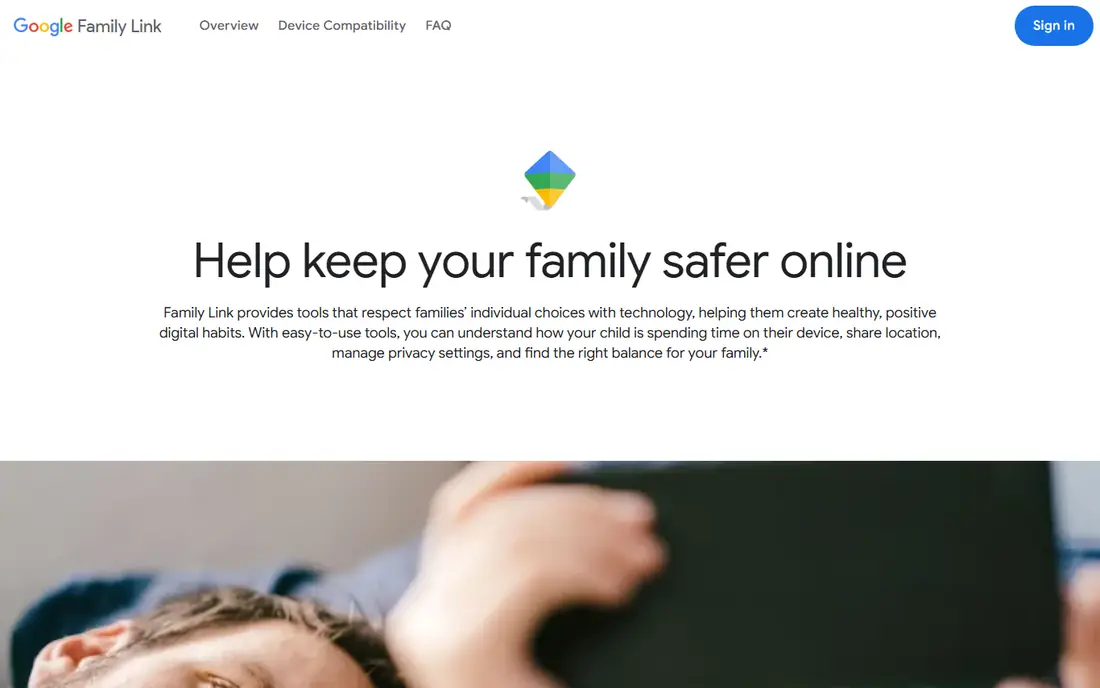
Google Family Link is the free starting point for Android families. A parent can approve app downloads, set daily limits and bedtime, block apps, and see location for a child's Android phone or Chromebook. Setup uses a Google family group, so rules follow the child's account across Android devices.
The limit is platform. Family Link does not supervise a child's iPhone or iPad in the same way, though a parent can manage an Android child device from an iPhone. Families with mixed phones will need a cross-platform tool as well.
We would pick Family Link first for any Android or Chromebook household. It covers the core controls at no cost, and it is the tool to try before paying for anything else.
- Free app approvals and screen limits
- Location and bedtime controls
- Works with Chromebook and Android
- Child device support is Android and Chromebook focused
- IPhone use is parent-side only

Apple Screen Time is built into iOS, iPadOS and macOS, so there is nothing extra to buy for an Apple household. Parents can set downtime, app limits, content restrictions, purchase approvals and communication limits from Family Sharing. Communication Safety can also blur sensitive images in messages for younger children.
The trade-off is that the settings are spread across several menus, and the tool only covers Apple devices. A child with an Android tablet or a Windows computer will need a second system for those devices.
We would pick Screen Time first for iPhone and iPad families. It is free, well integrated, and hard to beat for basic limits without another subscription.
- Built into iPhone and iPad at no cost
- Downtime, app limits and content controls
- Communication safety features
- Apple devices only
- Controls feel spread across settings menus
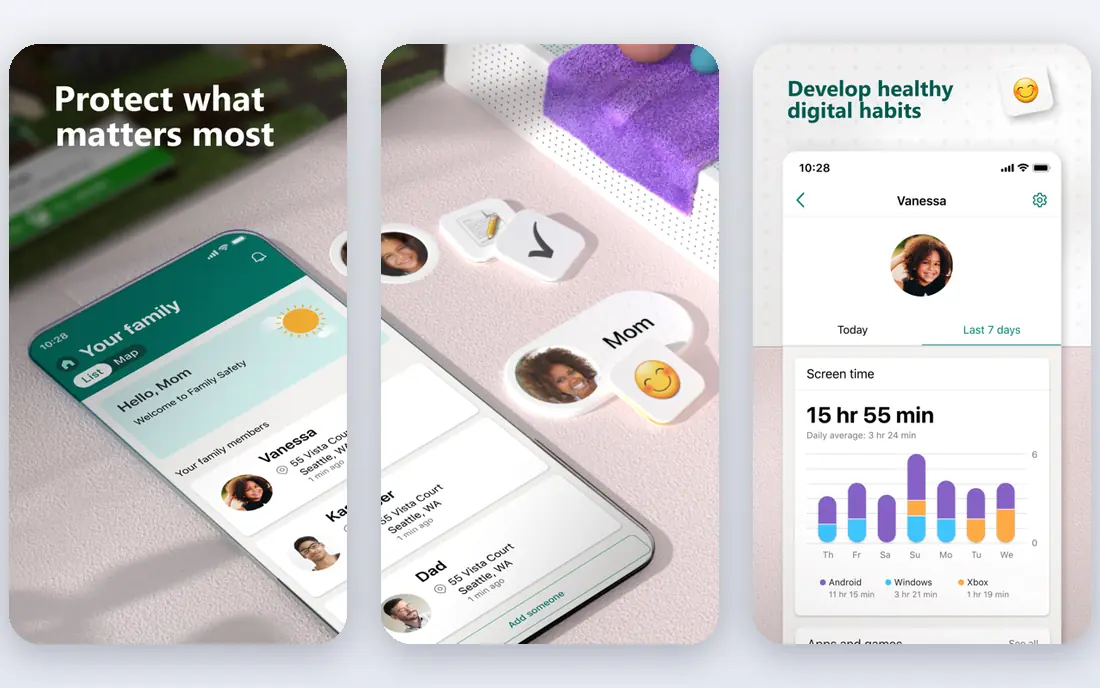
Microsoft Family Safety is the free option for Windows and Xbox households. Parents can set screen time across Windows and Xbox, limit apps and games, filter web content, and review activity reports from one family dashboard. It fits families that already use Microsoft accounts for school or gaming.
The limit is browser scope. Web filtering applies most fully in Edge, so a child using another browser may bypass that part of the control. Some location alert features also sit behind a Microsoft 365 subscription, though core limits remain free.
We would pick Family Safety first for Windows and Xbox families. It covers the main controls at no cost and pairs well with Screen Time or Family Link for phones.
- Free screen time and web filtering
- App and game limits for Windows and Xbox
- Activity reports
- Web filtering works best in Edge
- Some location alerts need a paid Microsoft 365 plan
Qustodio is the best free cross-platform step beyond built-in tools. Its free plan covers one device with web filtering, time limits and basic reports, while paid plans extend to many devices with location and broader controls. That makes it useful for a family with one shared tablet or a single phone to supervise.
The free limit is clear: one device only. Families with several children or many devices will need a paid plan or a mix of built-in tools. Parents should also tell the child that Qustodio is installed and what it does, as with every tool here.
We would pick Qustodio for a mixed-device family that wants one dashboard for its first supervised device. Test the free plan on that device before paying for wider coverage.
- Free plan for one device
- Web filtering, time limits and location
- Works across phones and computers
- Free plan covers only one device
- Fuller reports and features need a paid plan
OurPact focuses on the daily rhythm of screen time: block apps, set a schedule, and grant or remove access from a parent phone. The free plan lets a parent try that core job, including blocking and one schedule, without paying. That simplicity suits parents who mainly want bedtime and homework windows enforced.
The limit is depth. More schedules, location features and detailed reports sit on paid plans, and OurPact does not try to be a full content monitoring system. It is a schedule and blocking tool first.
We would pick OurPact for parents whose main need is simple, reliable schedules. Families that need web filtering or location tracking should compare Qustodio and FamilyTime as well.
- Free plan for basic blocking and one schedule
- Clear app management
- Parent app on phone
- Free plan is limited
- Fuller schedules and location need paid plans
Mobicip gives mixed-device families a free starting tier for web filtering, screen time and app blocking. It runs on Android, iOS, Windows, Mac, Chromebook and Kindle, which helps when children use different devices at home and school. Parents manage rules from one dashboard rather than learning each platform's settings.
The free tier is a starting point, not a full system. Device counts and advanced features are limited, and families with many children will need a paid plan for full coverage. As with all parental tools, the rules should be explained to the child, not hidden.
We would pick Mobicip for a mixed-device household that wants filtering across many platforms. Compare its free tier with Qustodio's one-device free plan to see which limit fits your family better.
- Free tier for basic filtering
- Works on phones, computers and Kindle
- Screen time and app blocking
- Free tier limits devices and features
- Fuller plans are paid
Kidslox adds a small motivational twist to screen limits: children can earn extra screen time for completing tasks or good habits set by a parent. That feature helps families who want limits to feel like a routine rather than a sudden lockout. Basic limits and schedules are available on a free plan.
The limit is platform variation. Filtering and control depth differ between iOS and Android, because Apple and Google give third-party apps different access. Parents should test the exact controls on their child's device type before relying on them.
We would pick Kidslox for younger children who respond well to earned screen time. Older children and teens may need the broader reporting of Qustodio or a built-in tool instead.
- Free plan for basic limits
- Screen-time rewards for good habits
- Works on iOS and Android
- Free plan is limited
- Content filtering depth varies by platform
FamilyTime suits parents of younger children who want location awareness beside basic limits. It offers app blocking, schedules and location features, including geofencing alerts on paid tiers, from a parent dashboard. That mix helps when a young child first gets a phone for school or activities.
The free plan is limited, and the overall feature set is simpler than Qustodio or the built-in platform tools. Families that need deep web filtering or detailed activity reports may find FamilyTime thin for older children.
We would pick FamilyTime for a first phone for a younger child, where location and simple limits matter most. Tell the child that location sharing is on, why it is on, and when it will be reviewed together.
- Free plan for basic controls
- Location and geofencing features
- App blocking and schedules
- Free plan limits features
- Interface and reports are simpler than larger rivals
How we picked these
We compared official pricing and feature pages, plus current parental control roundups that confirm free plans. We kept only tools with a genuinely free plan or free built-in controls, and only tools designed for disclosed parental control on a child's device. We excluded stalkerware and covert surveillance products entirely, and we excluded tools without a free plan, even if they are well known for parental control.
What to check before you choose
Start with the child's devices. A free built-in tool wins on its own platform, while a cross-platform free tier wins for mixed households. There is no need to pay before you have tested the built-in option on the actual device your child uses.
Next, agree the rules with your child in plain language. Explain what is limited, what is filtered, what location data is shared, and how to ask for an exception. Disclosed, agreed rules work better than hidden monitoring, and they protect trust as children grow older.
Finally, review the settings together every few months. Children outgrow limits, school needs change, and a rule that made sense at age eight may not fit at age thirteen. Keep the tool as one part of online safety, beside conversations about messages, strangers, passwords and what to do when something feels wrong online.
Frequently asked questions
Are these tools a legal replacement for mSpy?
These tools are parental control products for a parent's own minor child, with disclosed limits and filtering. They are not covert monitoring tools, and they must not be used to track adults or any other person secretly. Check local laws and your child's school rules if you are unsure.
Which free parental control tool is best for Android?
Google Family Link is the best free starting point for Android and Chromebook, with app approvals, limits and location at no cost. Qustodio and Mobicip add cross-platform free tiers if the family also uses Apple or Windows devices.
Which free parental control tool is best for iPhone?
Apple Screen Time is the best free starting point for iPhone and iPad, since it is built in and covers downtime, app limits and content controls. Qustodio, OurPact and Kidslox can add cross-platform controls beside it.
Should I tell my child that a parental control app is installed?
Yes. Explain in an age-appropriate way what the tool does, why the family uses it, and how to ask for changes. Disclosed use builds trust and teaches safer habits, while hidden monitoring can damage trust and may breach platform rules or laws.
Can a child bypass parental controls?
Determined children can sometimes find workarounds, especially on devices with many apps and browsers. No tool is perfect, so combine controls with conversations, device checks agreed in advance, and school or platform safety settings.
Do free plans cover more than one child?
Free plans vary. Google Family Link, Apple Screen Time and Microsoft Family Safety cover family accounts at no cost on their platforms, while Qustodio's free plan covers one device. Check device and child limits before choosing a cross-platform free tier.
Sources
See where you really rank - block by block
ProMapRanker scans Google Maps across a grid of your service area. Simple monthly plans from $19, white-label on every plan.
Start freeKeep reading
 zyte alternatives
Best Zyte Alternatives in 2026
These zyte alternatives cover managed scraping APIs, proxy networks and no code tools for lawful collection from your own or consented sources only in 2026.
Read → zerto alternatives
Best Zerto Alternatives in 2026
Compare the best zerto alternatives for disaster recovery and replication, with recovery targets, cloud options and honest trade-offs for teams in 2026.
Read → zerofox alternatives
Best ZeroFox Alternatives in 2026
We compared 9 zerofox alternatives for brand protection, phishing takedowns, dark web monitoring, and social impersonation, with clear coverage notes.
Read →