 ProMapRanker
Best Free PDF Editor Software Alternatives to Adobe in 2026

Key takeaways
- PDFgear, PDF24 Tools, LibreOffice Draw and PDFsam Basic give genuinely free editing and page tools without a paid plan for the core job.
- PDF-XChange Editor, Sejda, PDFescape, ILovePDF and Smallpdf offer free tiers, but some advanced features need a paid upgrade.
- Trial-only tools are excluded from this list, so every tool here can be used for free on an ongoing basis, within its stated limits.
- Desktop tools suit private or large files, while web tools suit quick edits on any device.
- Check file size limits, watermarks and export options before you edit an important document.
Quick comparison
| Pick | Great for | Pricing starts at | Free tier | |
|---|---|---|---|---|
 PDFgear | Free all-round editing | Free | Yes | Visit |
 PDF-XChange Editor | Windows power editing | Free | Yes | Visit |
 Sejda | Web editing without install | Free | Yes | Visit |
 PDF24 Tools | Free web page and file tools | Free | Yes | Visit |
 PDFescape | Quick web forms and annotation | Free | Yes | Visit |
 ILovePDF | Free web file tools | Free | Yes | Visit |
 Smallpdf | Simple web edits and conversion | Free | Yes | Visit |
 LibreOffice Draw | Free desktop editing | Free | Yes | Visit |
 PDFsam Basic | Free page splitting and merging | Free | Yes | Visit |
The best free PDF editor software alternatives to Adobe
Adobe Acrobat is a strong paid editor, but many readers only need to fix text, fill a form, sign a page or reorder pages. The tools below all have a genuinely free tier, so you can do real work without a trial countdown. Trial-only tools are excluded.
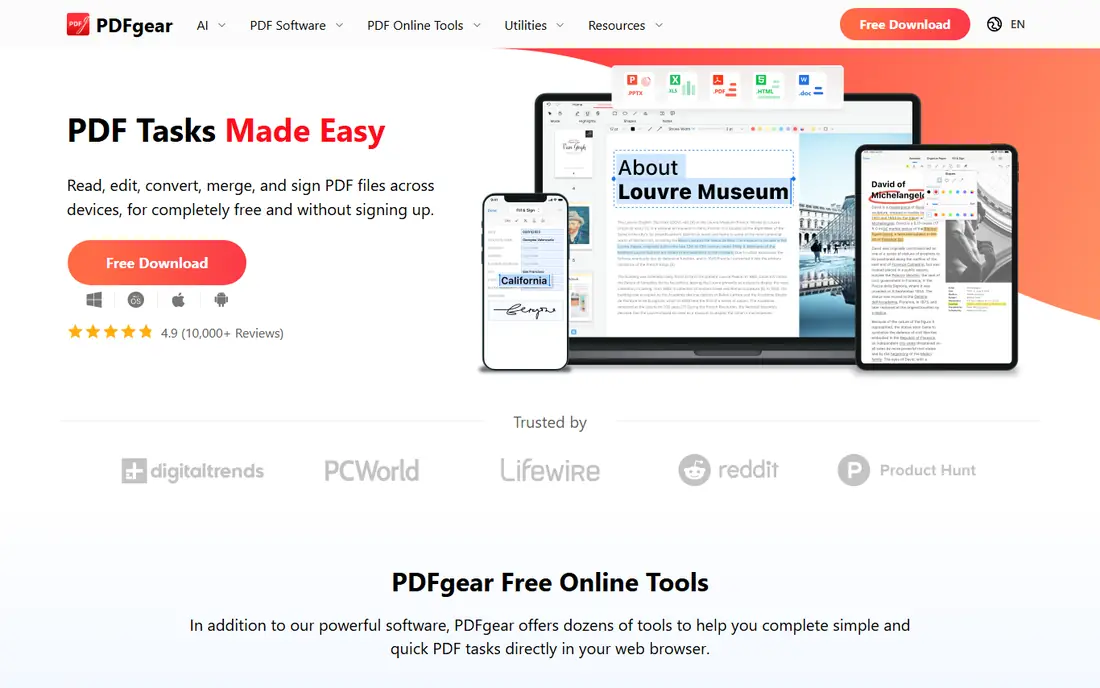
PDFgear is our pick for most people who want a free Adobe alternative without a catch. Its desktop app lets you change existing text, add text boxes, annotate, fill forms, sign and organise pages, while the web editor covers quick jobs on any device. The free model is unusually clear, with no watermark, sign-up or premium tier gating the core tools.
The main limit is practical rather than financial. Large or complex files can take longer to process, and AI help needs a connection. For everyday editing, forms and page work, PDFgear covers more ground for free than most rivals here.
- Free desktop and web editing
- No watermark on its free tools
- Editing, conversion, forms and signing in one place
- Some advanced AI features need an internet connection
- Very large files can be slower on older devices
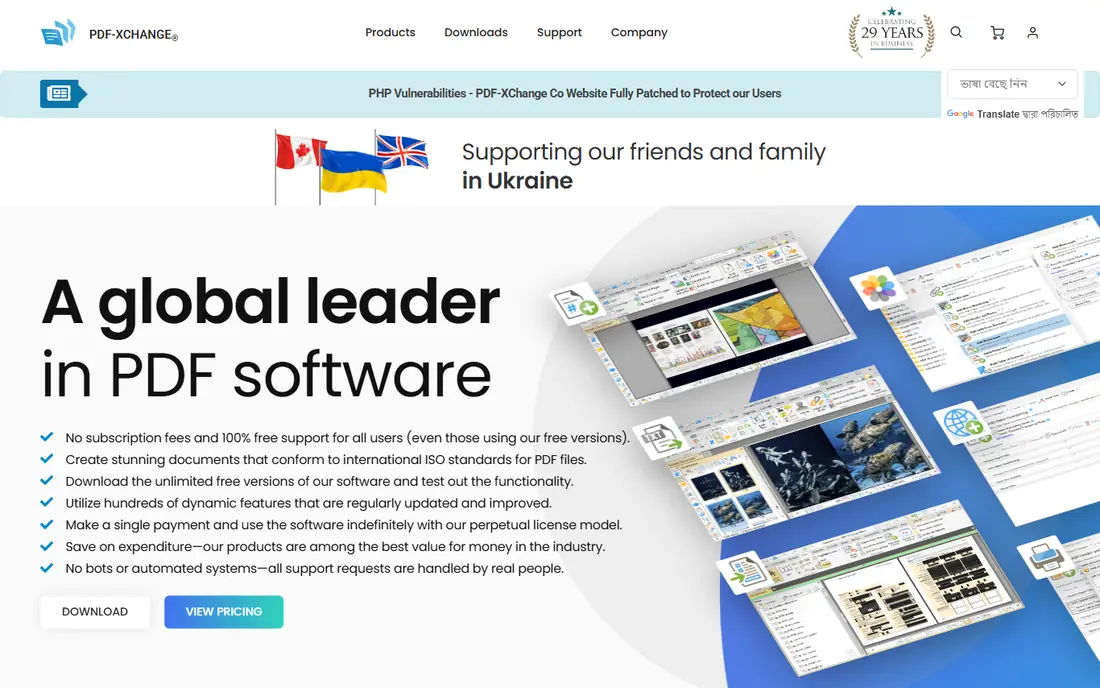
PDF-XChange Editor is a long running Windows tool with a free version that covers reading, commenting and everyday edits. It opens large files quickly, keeps comments organised, and handles form fields well, which makes it a good fit for reviewers and office workers on Windows. More than most free tools, it feels like a full desktop editor rather than a web toy.
The catch is platform and paid extras. It is not available as a native Mac or Linux app, and features marked as paid will watermark a file until you buy a licence. If you stick to the free feature set, it remains a strong free option.
- Fast opening and annotation
- Strong free editing and commenting
- Useful for forms and markup
- Windows only
- Some advanced features add a watermark until you buy a licence
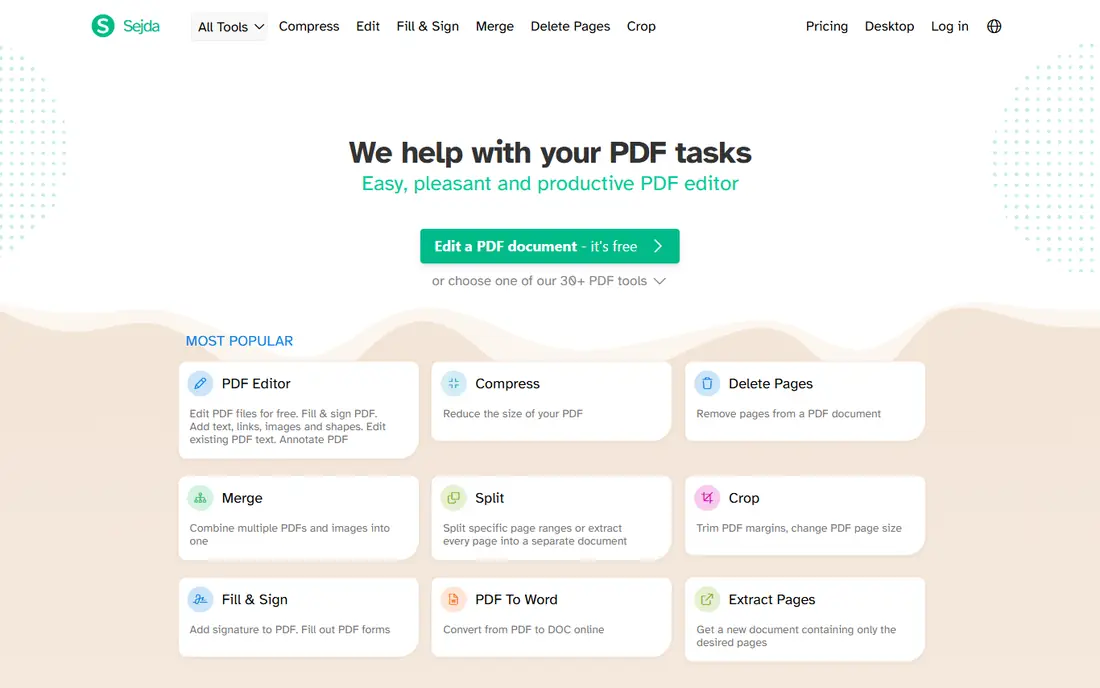
Sejda suits readers who edit PDFs only now and then and do not want to install software. Open the site, upload a file, edit text, add annotations, fill forms or reorder pages, then download the result. The web interface is clean, and the steps are easy to follow for a one-off task.
Free use is limited by daily allowances, so it is not the best pick for heavy daily work. If you edit a few files a week, those limits rarely bite. If you edit all day, a desktop free tool will serve you better.
- No install needed
- Clear web editing and page tools
- Useful for occasional jobs on any computer
- Free use has daily limits
- Larger jobs may need a paid plan
PDF24 Tools is a free web toolbox rather than a single editor. It covers the jobs many people actually need: merge files, split pages, compress a large PDF, convert to other formats, and add basic edits. The tools are free to use on the web, which makes it handy on a shared or borrowed computer.
It is less suited to rewriting long passages of text inside a PDF. For that job, PDFgear or PDF-XChange Editor on desktop will give you more control. For file and page tasks, PDF24 is fast and free.
- Wide free web tools for merging, splitting, compressing and converting
- No install needed
- Simple interface
- Text editing is more limited than a full desktop editor
- Needs an internet connection
PDFescape is a good quick fix tool. Its free web version lets you add text, highlight, draw shapes and fill forms without installing anything. That makes it useful for signing a form, adding a note or completing a short document on any computer.
The free tier has limits on file size and page count, and it is not built for deep text rewriting. Treat it as a fast form and annotation tool, and use a desktop editor when you need to rebuild pages or edit long text.
- Free web annotation and form filling
- No install for basic jobs
- Simple tools for adding text and shapes
- Free account has file size and page limits
- Advanced editing is limited
ILovePDF is another free web toolbox that covers file tasks well. Merge, split, compress, convert and protect PDFs from a browser, with a clear interface that suits non-technical users. It is a practical choice when you need to tidy a set of files quickly.
Free use is metered, so very heavy users may hit limits. Text editing is also more basic than in a desktop editor. Use ILovePDF for file handling, and keep a desktop tool for detailed text changes.
- Free web tools for merging, splitting, compressing and converting
- Easy batch handling
- Works on any device
- Free use has task limits
- Text editing is basic compared with desktop editors
Smallpdf is known for a clean, simple web experience. Its free tier covers basic editing, conversion and compression, and the steps are easy to follow even if you rarely work with PDFs. For a quick fix on a phone or a borrowed laptop, that simplicity matters.
The free tier is limited, so it suits occasional use rather than daily production work. If you need unlimited free use, PDFgear, PDF24 or LibreOffice Draw will be more comfortable.
- Clean web interface
- Free tools for editing, converting and compressing
- Easy to use on mobile and desktop
- Free use is limited per day
- Many advanced tools sit behind a paid plan
LibreOffice Draw is part of the free LibreOffice suite, and it can open and edit PDFs on desktop. It suits readers who want a fully free, offline tool and who already use LibreOffice for documents. You can edit text, add shapes, annotate and export a finished PDF without paying or signing up.
The honest catch is layout. Complex PDFs with unusual fonts or layouts may not look exactly the same after editing in Draw, so check the result before you send it on. For simple edits and forms, it is a dependable free option.
- Fully free and open source
- Desktop editing without a subscription
- Useful for text, shapes and page layout
- PDF editing can change layout in complex files
- Interface feels less polished than paid editors
PDFsam Basic does one family of jobs very well: split, merge, rotate, mix and extract PDF pages. If your main need is to take pages out of a long report, combine several files or reorder a document, it is free, clear and fast. The desktop app works offline and does not push a paid plan for these core page tools.
It is not a text editor, so do not choose it to rewrite paragraphs. Pair it with PDFgear or LibreOffice Draw when you need both page handling and text editing, both free.
- Fully free and open source
- Clear split, merge, rotate and extract tools
- Desktop use without a subscription
- Not a full text editor
- Focused on pages rather than rewriting content
How we picked these
We compared official product pages and free tier descriptions for PDF editors live in October 2026. We included only tools with a genuinely free tier that can be used on an ongoing basis, and we excluded trial-only tools even when a trial was generous. We favoured tools that cover editing, forms, signing or page work, and we noted limits on file size, daily use and watermarks where they apply.
What to check before you choose
Start with your most common job. If you rewrite text, choose a desktop editor such as PDFgear or PDF-XChange Editor. If you mainly merge, split or compress files, a free web toolbox such as PDF24 or ILovePDF may be enough. If you work offline or with private files, a desktop tool keeps files on your own computer.
Next, check limits that matter for your files. Look at the maximum file size, daily task limits, page limits and whether edited files carry a watermark. Test with a copy of a real document, not just a blank page, and check fonts, forms and signatures in the exported file. A free tool that changes your layout is not free if it costs you time to fix the result.
Frequently asked questions
Are these PDF editors really free, or just free trials?
Every tool in this list has a genuinely free tier that can be used on an ongoing basis, within its stated limits. Trial-only tools are excluded. Some tools offer paid upgrades for advanced features, but the core free tools listed here do not expire after a trial period.
Which free PDF editor is best for editing text?
PDFgear is the strongest free pick for changing existing text, with a desktop app that handles text, images and forms. PDF-XChange Editor is also strong on Windows. Web tools such as Sejda and PDFescape suit smaller text additions rather than long rewrites.
Can I sign a PDF for free?
Yes, several tools here support free signing, including PDFgear, Sejda and PDFescape within their free limits. Check whether the signature is a drawn image, a typed signature or a certified digital signature, since those options differ in legal weight and use.
Do free PDF editors add watermarks?
Some do for paid features, while others do not for their core free tools. PDFgear states its free tools have no watermark, while PDF-XChange Editor adds a watermark when you use a paid feature without a licence. Always export a test file and check it before you rely on a tool for client work.
Is it safe to edit private PDFs on a web tool?
Web tools upload your file to a server, so they suit general documents better than highly private ones. For private, legal or medical files, use a desktop tool such as PDFgear, PDF-XChange Editor, LibreOffice Draw or PDFsam Basic, which keeps the file on your own computer.
Sources
See where you really rank - block by block
ProMapRanker scans Google Maps across a grid of your service area. Simple monthly plans from $19, white-label on every plan.
Start freeKeep reading
 zoro.to alternatives
Best Zoro.to Alternatives in 2026
We compare the best zoro.to alternatives in 2026, listing only legal licensed anime streaming services, from Crunchyroll to free options for fans today.
Read → zip alternatives
Best Zip Alternatives in 2026
We compare the best zip alternatives for buy now, pay later in 2026, covering pay-in-4 plans, fees, spending limits, and credit reporting options today.
Read → yesware alternatives
Best Yesware Alternatives in 2026
Compare the best yesware alternatives for sales email tracking, templates, and sequences, with current pricing and honest tradeoffs for small sales teams.
Read →