 ProMapRanker
Best Free Alternatives to Adobe Photoshop in 2026

Key takeaways
- GIMP and Photopea come closest to a full layered editor, with GIMP installed on your computer and Photopea running in a browser.
- Krita is the strongest free choice for painting and illustration, while RawTherapee and Darktable suit photographers who work with raw files.
- Pixlr and Canva are faster for quick edits and social graphics, but their free tiers include ads or limits on premium assets.
- Paint.NET is a good middle step for Windows users who want layers and plugins without a steep learning curve.
- No free tool matches every paid feature, so pick based on the work you do most often, not on the longest feature list.
Quick comparison
| Pick | Great for | Pricing starts at | Free tier | |
|---|---|---|---|---|
 GIMP | Layered photo editing | Free | Yes | Visit |
 Photopea | Browser-based PSD editing | Free | Yes | Visit |
 Krita | Digital painting | Free | Yes | Visit |
 Paint.NET | Simple Windows editing | Free | Yes | Visit |
 Pixlr | Quick browser edits | Free | Yes | Visit |
 Canva | Social graphics and templates | Free | Yes | Visit |
 PhotoScape X | Fast everyday photo fixes | Free | Yes | Visit |
 RawTherapee | Raw photo processing | Free | Yes | Visit |
 Darktable | Photo catalog and raw editing | Free | Yes | Visit |
The best free alternatives to Adobe Photoshop
These picks all offer a genuinely free way to edit photos or create graphics. We compared official feature pages, pricing pages and app store listings, and we kept only tools that are still available and useful in October 2026.
GIMP is the free editor most people should try first when they want depth without a subscription. It handles layers, masks, selections, retouching and colour adjustments, and it opens and saves Photoshop PSD files for many common workflows. The toolset covers photo repair, compositing and graphic design, and the open source licence means there is no paywall waiting after you learn the basics.
The trade off is polish. Menus and tool names differ from Photoshop, so experienced Photoshop users may need time to relearn shortcuts and panel layouts. That cost is worth paying if you edit often and want a desktop program that stays free. Start with one small project, such as a retouch or a layered poster, before moving larger work into GIMP.
- Full layered editing at no cost
- Supports PSD files
- Large plugin and tutorial community
- Interface feels dated to some new users
- Learning curve is steeper than simpler editors
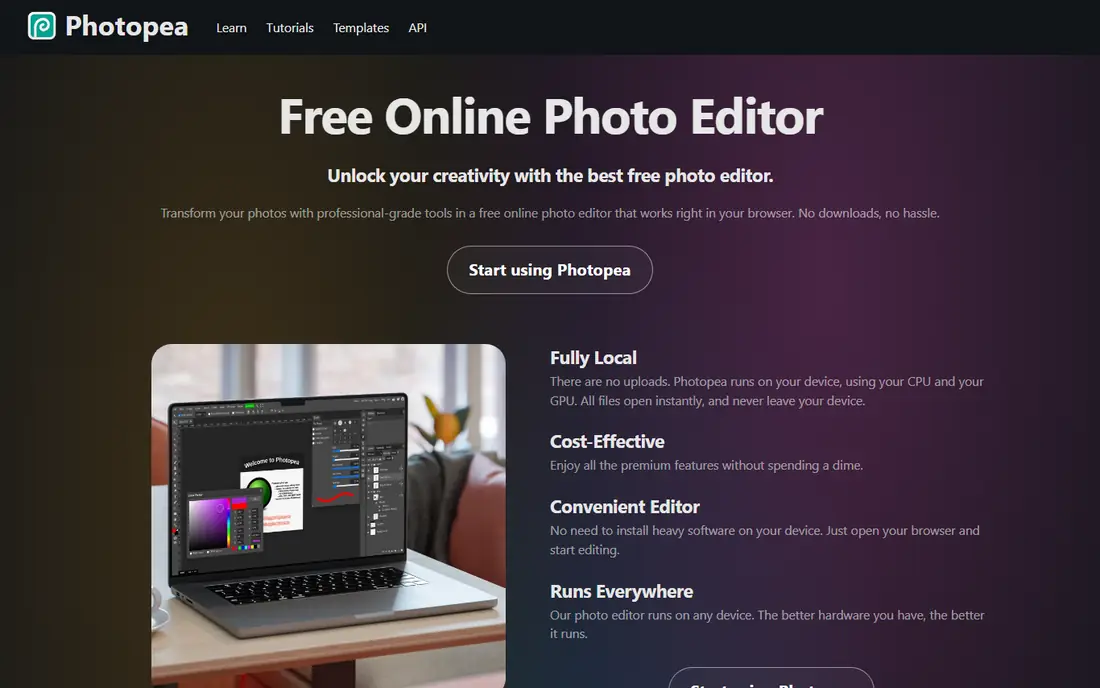
Photopea is the easiest way to edit a PSD file when you cannot or do not want to install software. It runs in a browser, offers layers, masks, smart objects, filters and text tools, and it processes files on your device rather than uploading every edit to a server. For students, Chromebook users and anyone on a shared computer, that combination is hard to beat.
The free version is ad supported, and very large or complex projects can feel slower than a desktop editor. Photopea also depends on a browser and a stable connection to load, even if editing itself happens locally. If you need quick edits, file conversion or occasional design work, it is an excellent free choice. For daily heavy work, pair it with a desktop tool such as GIMP.
- No install needed
- Familiar Photoshop-style layout
- Opens PSD, XCF and other formats
- Free version shows ads
- Large files can slow down in a browser
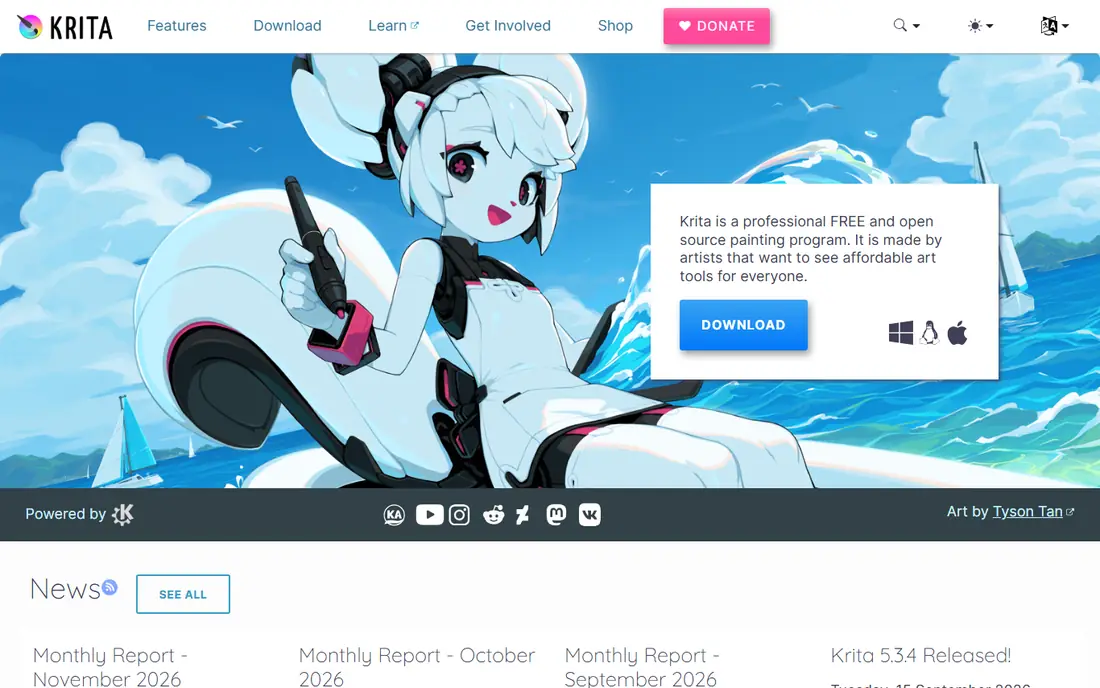
Krita is built for artists first, and that focus shows in its brushes, stabilisers and canvas tools. Illustrators, comic artists and concept artists get a large brush library, layer groups, masks and an animation timeline in one free program. It also imports and exports PSD files, which helps when sharing work with people who use other editors.
Krita can edit photos, but it is not the best pick if photo retouching is your main job. Its photo tools are solid for basic adjustments, yet GIMP or Photopea give you more depth there. Choose Krita when drawing, painting or animation is the priority, and keep a photo editor alongside it for detailed retouching.
- Strong brush engine for painting
- Animation tools included
- Supports PSD files
- Photo editing tools are less deep than GIMP
- Interface can feel busy at first
Paint.NET sits in a useful middle place between basic Paint and a full professional editor. Windows users get layers, effects, adjustments and unlimited undo in a program that opens quickly and stays easy to learn. Plugins extend it further, adding new effects and file format support without turning the core program into a maze.
The main limit is scope. It is Windows only, and it does not aim to match the full depth of GIMP for complex compositing or raw processing. That is fine for most everyday work, such as cropping, resizing, cleaning up photos and making simple graphics. If you want a free editor you can learn in an afternoon, Paint.NET is a strong starting point.
- Light and fast on Windows
- Layers and unlimited undo
- Useful plugin collection
- Windows only
- Fewer advanced tools than GIMP or Photopea
Pixlr is a good choice when speed matters more than depth. It offers a browser editor with layers, masks, filters and retouching, plus a simpler express editor for fast fixes. Background removal and other assisted tools help with product photos and social posts, and the same account works across web, desktop and mobile apps.
Free users should expect ads and a daily cap on saves, based on current published pricing summaries. Paid plans start low and remove ads while adding more AI credits, but the free tier alone covers many casual edits. Use Pixlr for quick jobs and social content, and move to GIMP or Photopea when a project needs many layers or precise control.
- Works in a browser and on mobile
- Layers and masks included
- Background removal tools
- Free tier shows ads and has save limits
- Some features need a paid plan
Canva is not a Photoshop clone, and that is why it earns a place here for many readers. It excels at posters, social posts, presentations and simple marketing graphics, with templates that save time when you start from a blank page. Photo tools cover cropping, filters, background removal on some plans and basic adjustments, which is enough for most social content.
The catch is that Canva is a design platform first. Detailed photo retouching, complex masking and raw processing are better done elsewhere. Free users also face limits on premium photos, fonts and brand tools. Use Canva to design fast and look polished, and use a dedicated editor from this list when the photo itself needs serious work.
- Huge template library
- Easy drag and drop design
- Good for teams and social posts
- Not a full photo editor
- Many premium assets and features need a paid plan
PhotoScape X is built for people who want to fix many photos quickly. It combines a viewer, editor, batch processor, collage maker and GIF tool, so you can rename, resize and adjust a whole folder without opening each file by hand. The interface is direct, and most everyday tasks take only a few clicks.
It will not replace a layered editor for complex composites or illustration. Some advanced features sit behind a paid Pro version, so check which tools are in the free edition before you plan a project around them. For family photos, listings and blog images, PhotoScape X is fast, friendly and genuinely useful at no cost.
- Batch editing and simple tools in one place
- Collage and GIF tools included
- Easy to learn
- Less depth for layered design work
- Some advanced features are paid
RawTherapee is a free raw processor for photographers who want control over exposure, colour, noise and detail. It uses high quality processing to protect dynamic range, and it supports many camera raw formats. Batch processing helps when you need a consistent look across a shoot, and the toolset rewards photographers who like to fine tune each setting.
There is no built in photo library, so you will need to organise files yourself or pair RawTherapee with a catalog tool such as Darktable. The interface also assumes some knowledge of raw editing, which can slow down a first session. If you shoot raw and want a free, serious processor, RawTherapee is one of the best options available.
- Detailed raw controls at no cost
- Batch processing
- Supports many camera formats
- No photo catalog or library tools
- Interface can feel technical for beginners
Darktable combines raw development with photo management, which makes it a closer free match for a Lightroom style workflow than a plain editor. You can import, rate, tag and organise photos, then edit non destructively, so your original files stay untouched while you test different looks. Modules cover tone, colour, sharpening, noise and lens correction.
New users should allow time to learn the module system, because Darktable gives you many controls and little hand holding. That depth is also its strength once you settle into a routine. If you want one free program to organise and develop raw photos, Darktable is the most complete choice on this list.
- Raw editing plus photo organisation
- Non destructive editing
- Free and open source
- Learning curve for new raw editors
- Fewer guided templates than paid catalog tools
How we picked these
We compared official feature pages, pricing pages and app store listings for tools that offer a real free tier in October 2026. We kept only products that are still available, that fit photo editing, design or painting, and that do not require a paid plan for basic use. We excluded tools that are discontinued, that only offer a short trial, or that hide core editing behind a paywall. Prices and free tiers can change, so check the vendor page before you commit to a workflow.
Choosing the right free editor for your work
Start with the job, not the brand. A painter, a photographer and a social media manager need different tools, even if all three call their work photo editing. Matching the tool to the task saves time and avoids frustration later.
Match the tool to the task
Use GIMP or Photopea for layered edits and composites. Use Krita for drawing and painting. Use RawTherapee or Darktable for raw files and photo organisation. Use Pixlr or Canva for fast social graphics. This simple split covers most readers, and it keeps you from forcing one program to do work it was not built for.
Check the free tier before you start
Free can mean fully free, ad supported, or limited to basic tools. GIMP, Krita, RawTherapee and Darktable are fully free and open source. Photopea and Pixlr are free with ads and some limits. Canva and PhotoScape X offer a free tier with paid extras. Read the pricing page, test the exact feature you need, and keep your original files so you can switch tools if a limit appears.
Plan for file compatibility
If you share files with clients or colleagues, check formats early. PSD support matters for design handoffs, while raw support matters for photography. Photopea, GIMP and Krita handle PSD files to varying degrees, and RawTherapee and Darktable handle many raw formats. Export a test file and open it in the other program before you start a large project.
Frequently asked questions
What are the best free alternatives to Adobe Photoshop?
GIMP and Photopea are the closest all round free matches for layered editing. Krita leads for painting, Darktable and RawTherapee lead for raw photography, and Canva and Pixlr lead for fast social graphics. The best pick depends on the work you do most, so try two tools on a real project before settling on one.
Are Adobe Photoshop alternatives free really free?
Some are fully free and open source, including GIMP, Krita, RawTherapee and Darktable, with no subscription or locked core features. Others, such as Photopea, Pixlr and Canva, offer a genuine free tier with ads, limits or paid extras. Always check the current pricing page for the feature you need, because free tiers change over time.
Which free Photoshop alternative is best for beginners?
Paint.NET is a good first step on Windows, because it is light, clear and easy to learn. Photopea is also friendly for beginners who already know Photoshop layout, and it needs no install. Canva suits beginners who want templates and fast design results rather than detailed photo retouching.
Can free alternatives open Photoshop PSD files?
Yes, several can. Photopea opens and saves PSD files with layers and masks for many projects. GIMP and Krita also support PSD files, though some advanced Photoshop features may not transfer perfectly. Test a sample file with your layers, text and effects before relying on PSD exchange for client work.
Which free alternative is best for photo editing on a phone?
For mobile work, browser tools such as Photopea and Pixlr work on phones, though small screens limit complex edits. A dedicated mobile editor may suit quick fixes better, and this list focuses on desktop and browser tools. For serious phone editing, start with a simple mobile app and move the file to GIMP or Photopea when you need layers.
Sources
See where you really rank - block by block
ProMapRanker scans Google Maps across a grid of your service area. Simple monthly plans from $19, white-label on every plan.
Start freeKeep reading
 zoro.to alternatives
Best Zoro.to Alternatives in 2026
We compare the best zoro.to alternatives in 2026, listing only legal licensed anime streaming services, from Crunchyroll to free options for fans today.
Read → zip alternatives
Best Zip Alternatives in 2026
We compare the best zip alternatives for buy now, pay later in 2026, covering pay-in-4 plans, fees, spending limits, and credit reporting options today.
Read → yesware alternatives
Best Yesware Alternatives in 2026
Compare the best yesware alternatives for sales email tracking, templates, and sequences, with current pricing and honest tradeoffs for small sales teams.
Read →