 ProMapRanker
Best Dataloader Alternatives in 2026

Key takeaways
- Dataloader.io suits browser-based scheduled loads, while Skyvia suits teams that need many connected apps in one place.
- Workbench and the Data Import Wizard suit smaller, hands-on jobs, but they lack the scheduling and automation of paid loaders.
- Spreadsheet tools like Coefficient, XL-Connector, and CloudExtend suit admins who already live in Sheets or Excel.
- Record limits, file-size limits, and scheduled-task limits matter more than headline price, so check all three before buying.
- Always test a load in a sandbox first, and export existing records before any bulk update or delete.
Quick comparison
| Pick | Great for | Pricing starts at | Free tier | |
|---|---|---|---|---|
 Dataloader.io | Scheduled browser-based loads | Free | Yes | Visit |
 Skyvia | Multi-app data integration | Free | Yes | Visit |
 Workbench | Developer checks and bulk work | Free | Yes | Visit |
 Salesforce Data Import Wizard | Simple standard-object imports | Free | Yes | Visit |
 Coefficient | Salesforce data in Google Sheets | See website | Yes | Visit |
 XL-Connector | Salesforce data in Excel | See website | Yes | Visit |
 CloudExtend Excel for Salesforce | Excel editing of Salesforce records | See website | No | Visit |
 G-Connector | Salesforce data in Google Sheets | See website | No | Visit |
 Jitterbit Harmony | Enterprise integration and migration | See website | No | Visit |
The best dataloader alternatives
We compared tools that move records into or out of Salesforce, including browser loaders, spreadsheet add-ins, and integration platforms. Salesforce Data Loader itself is not listed here, since this guide covers replacements and complements for that desktop tool.
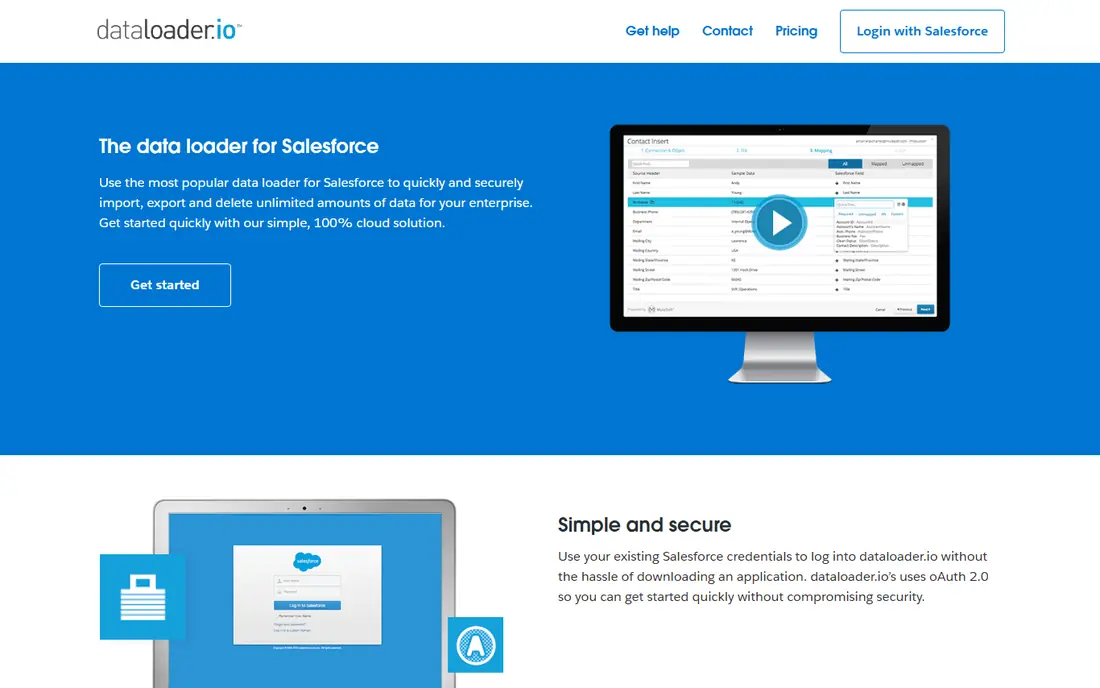
Dataloader.io is the closest direct replacement for a desktop loader when you want to work from any browser. You map CSV columns to Salesforce fields, set a schedule, and let recurring jobs run without keeping a desktop app open. That convenience is the main reason small teams choose it over a scripted desktop workflow.
The limit is scope. What is in the CSV is what lands in Salesforce, so cleaning, joining, and deduplication must happen before the file reaches the tool. Paid plans raise row and file limits and add scheduled tasks, but they do not turn the product into a full integration platform. For clean, recurring CSV loads, that trade is often fine.
- Runs in a browser with no desktop install
- Supports scheduled import and export jobs
- Handles CSV files from local drives and common cloud storage
- Free plan caps monthly rows and file size
- Does not transform or clean data before loading
- Paid plans are priced per user

Skyvia suits teams whose Salesforce data does not live in CSV files alone. It can sync Salesforce with other systems, replicate data to a warehouse, and run scheduled packages with filters and mapping. That breadth makes it a better long-term choice than a loader that only handles files.
For a single import, Skyvia may be more than you need. The free tier covers 10,000 records per month with daily scheduling, which is enough for small recurring jobs. Larger volumes move to paid plans priced by data volume, so model a realistic month before you commit.
- Connects Salesforce to many other cloud apps and databases
- Includes scheduling, mapping, and replication features
- Free tier covers small monthly volumes
- Paid plans rise quickly with record volume
- The broader platform can feel large for a single one-off load
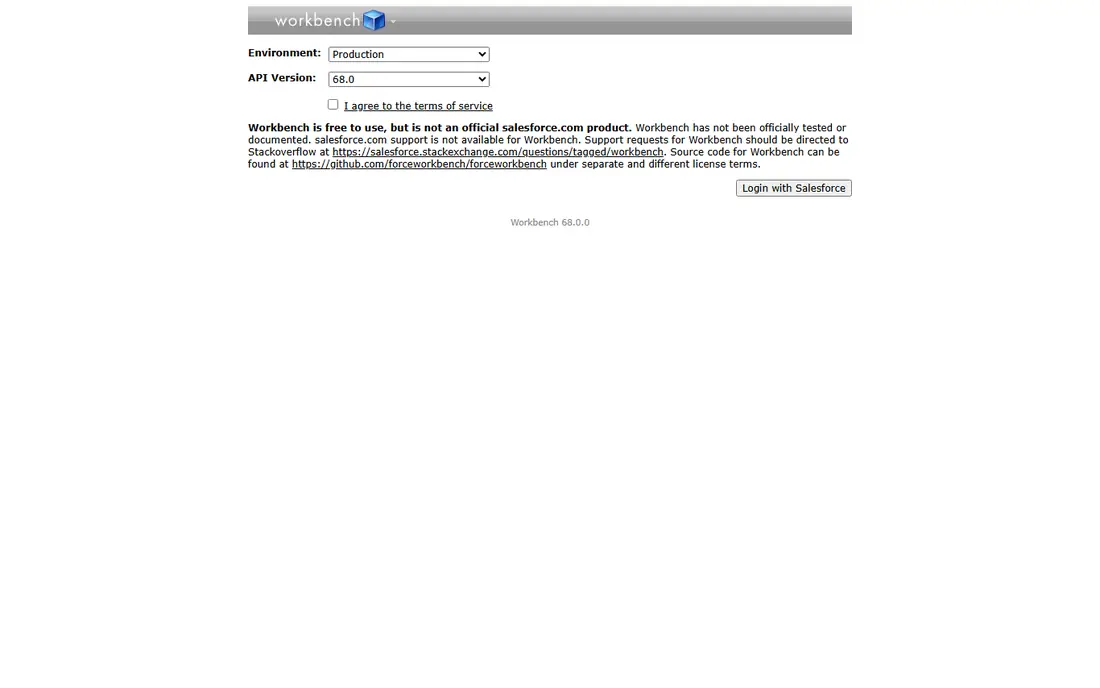
Workbench is a practical tool for admins and developers who already understand Salesforce objects and queries. It lets you run queries, inspect data, and carry out bulk operations from a browser, which is useful when you need to check a load before or after it runs. It also helps diagnose mapping problems that a simple loader hides.
Workbench is not a polished business-user product. Error handling is manual, scheduling is not its main job, and a careless bulk operation can change many records at once. Use it for spot work and validation, and use a scheduled loader or integration platform for recurring business processes.
- Free web tool for queries, bulk operations, and metadata checks
- Useful for testing SOQL and inspecting records
- No install needed
- Interface is technical and less friendly for business users
- Bulk work still needs care with API limits and error logs
The Data Import Wizard is the right starting point for occasional, simple imports. It lives inside Salesforce, walks through field mapping, and suits business users who do not want a separate tool. For a one-time list of leads or contacts, it is often the fastest path.
Its limits appear quickly. Custom objects, larger files, and recurring schedules need a different tool, and the 50,000-record cap per import can split a larger job into several runs. Treat the wizard as a handy built-in option, not as a replacement for a loader when loads become regular.
- Built into Salesforce with no extra install
- Guides users through mapping for standard objects
- Free for Salesforce customers within its limits
- Caps imports at 50,000 records per run and covers standard objects only
- Lacks scheduling and advanced automation
Coefficient changes the job from file handling to spreadsheet work. A team can pull accounts, opportunities, or custom objects into Sheets, refresh them, and share the result without exporting CSV files by hand. That workflow suits reporting, territory planning, and small bulk edits that are easier to review in a sheet.
It is not the best choice for a multi-million-record migration or for complex transformations. Spreadsheet rows have practical limits, and write-back needs careful permission control. For teams that already plan and report in Sheets, however, it removes a whole layer of manual export work.
- Pulls live Salesforce data into Google Sheets and refreshes it on a schedule
- Supports two-way updates on supported plans
- Familiar spreadsheet interface for non-technical users
- Best value sits in Sheets workflows, not in large migrations
- Write-back and automation features depend on plan level
XL-Connector is the Excel counterpart to a Sheets-based loader. Admins can pull, update, insert, and delete records from a workbook, schedule jobs, and work with metadata without switching tools. For finance, operations, and sales operations teams that already live in Excel, that fit is hard to beat.
The trade is platform lock-in to Excel. If your team uses Sheets, a different add-in will feel more natural, and if your loads need multi-system joins, a broader integration platform will fit better. Within Excel, though, XL-Connector covers a wide range of daily admin work.
- Manages Salesforce records directly from Excel, including mass operations
- Supports scheduling and metadata work for admins
- Familiar interface for Excel-heavy teams
- Excel-centric, so Sheets teams gain less from it
- Advanced features sit on paid plans and need admin setup
CloudExtend focuses on the editing job rather than the migration job. A user opens Excel, pulls the records they need, edits them in place, and sends changes back to Salesforce. Templates and validation reduce the chance of a bad bulk edit, which is a real risk when many rows change at once.
Large migrations still belong in a dedicated loader or integration platform, where error logs and batch controls are stronger. CloudExtend earns its place when the daily work is updating, correcting, and enriching records that a team already reviews in Excel.
- Lets users edit Salesforce records inside Excel with templates and validation
- Suits sales and operations users who prefer spreadsheets
- Supports bulk updates without CSV exports
- Paid product with no free tier for ongoing use
- Best for record editing rather than large-scale migration
G-Connector suits Google Workspace teams that want Salesforce reports in Sheets without manual exports. Scheduled pulls keep dashboards and shared sheets current, and automated reporting reduces the weekly export routine that many teams still do by hand. Setup is straightforward for a Sheets user.
The product is less useful outside that workflow. Excel teams should look elsewhere, and teams that need data cleaning or multi-system joins should use a broader platform. For a Sheets-first team with regular reporting needs, G-Connector is a clean, focused choice.
- Pulls Salesforce data into Google Sheets with scheduled refresh
- Supports automated reports and two-way sync on supported plans
- Simple setup for Sheets users
- Sheets-only focus limits Excel teams
- Pricing and feature limits need checking against your refresh frequency
Jitterbit Harmony is the step up when Salesforce is one part of a larger system, not the whole job. It can move data between Salesforce, databases, and other business systems on a schedule, with transformations and monitoring that a simple loader cannot provide. Large migrations and ongoing sync both fit this platform.
That power brings cost and complexity. Small teams with a monthly CSV load will find a browser loader faster and cheaper, and Jitterbit needs admin or developer time to set up well. When data quality, scale, and system-to-system sync matter, the extra setup pays for itself.
- Handles large migrations, recurring sync, and database integration
- Supports complex workflows beyond simple CSV loads
- Enterprise controls for security and monitoring
- Priced and scoped for larger teams, so small one-off loads are overkill
- Setup takes more time and expertise than a browser loader
How we picked these
We compared official product pages, pricing pages, and documentation for tools that import, export, or sync Salesforce records. We favored tools with a clear Salesforce connection, a documented record or file limit, and a current product page. We left out retired tools and tools that only handle a single unrelated system. Where pricing was not clearly published, we wrote See website.
What to check before you load data
Start with a sandbox and a small test file. Map every column, run the load, and check the error log before you touch production data. A test run often reveals date formats, lookup mismatches, and duplicate rules that a plan document misses. Export the records you plan to change first, so a bad load can be reversed.
Next, check limits in writing: monthly rows, file size, scheduled tasks, and Salesforce API use. A tool that fits a 5,000-row monthly job may fail on a 200,000-row migration, and a tool with one scheduled task may not cover daily, weekly, and monthly jobs at once. Confirm who can run loads, who can see error logs, and how failed rows are reported.
Finally, decide who owns data quality. A loader moves data, but it does not clean it. Agree on required fields, duplicate rules, and external IDs before the first bulk job, and keep a simple log of each load with date, file, record count, and errors. That log saves hours when a later report looks wrong.
Frequently asked questions
What is the difference between a data loader and an integration platform?
A data loader moves records in batches, usually from a CSV file, while an integration platform connects systems, transforms data, and syncs on a schedule. Loaders suit file-based jobs, while platforms suit ongoing system-to-system work. Choose by how often data moves and how much cleaning it needs.
Can I schedule Salesforce data loads?
Yes, with tools like Dataloader.io, Skyvia, and Jitterbit Harmony, which include scheduled jobs. The built-in Data Import Wizard does not schedule loads, and desktop loaders need external scripts or schedulers. Check scheduled-task limits on the plan you choose.
How many records can I load at once?
Limits vary by tool and plan, from 10,000 rows per month on some free tiers to millions on desktop and enterprise tools. The Data Import Wizard caps each import at 50,000 records. Always check monthly limits, file-size limits, and Salesforce API limits together.
Should I use Sheets or Excel for Salesforce data?
Use the spreadsheet your team already uses, since both have strong add-ins. Coefficient and G-Connector suit Google Sheets, while XL-Connector and CloudExtend suit Excel. Spreadsheet tools suit review and small bulk edits, while loaders suit larger migrations.
Do I need to back up Salesforce before a bulk load?
Yes. Export the records you plan to update or delete, and test in a sandbox first. Bulk updates and deletes are hard to undo without a good export, and error logs only help if you know what the data looked like before the load. Keep the export with your load log.
Can these tools clean duplicate records?
Some integration platforms include deduplication and transformation, but most simple loaders do not. Clean the file before loading, or use Salesforce duplicate rules and a dedicated data-quality step. Do not rely on a loader to fix bad source data on its own.
Sources
- https://dataloader.io
- https://skyvia.com
- https://workbench.developerforce.com
- https://www.salesforce.com
- https://coefficient.io
- https://xl-connector.com
- https://www.cloudextend.io
- https://g-connector.com
- https://www.jitterbit.com
- https://skyvia.com/blog/salesforce-data-loaders/
- https://www.integrate.io/blog/dataloaderio-review/
See where you really rank - block by block
ProMapRanker scans Google Maps across a grid of your service area. Simple monthly plans from $19, white-label on every plan.
Start freeKeep reading
 zyte alternatives
Best Zyte Alternatives in 2026
These zyte alternatives cover managed scraping APIs, proxy networks and no code tools for lawful collection from your own or consented sources only in 2026.
Read → zerto alternatives
Best Zerto Alternatives in 2026
Compare the best zerto alternatives for disaster recovery and replication, with recovery targets, cloud options and honest trade-offs for teams in 2026.
Read → zerofox alternatives
Best ZeroFox Alternatives in 2026
We compared 9 zerofox alternatives for brand protection, phishing takedowns, dark web monitoring, and social impersonation, with clear coverage notes.
Read →