 ProMapRanker
Best CrossClip Alternatives in 2026

Key takeaways
- Our reading of CrossClip here is the Streamlabs tool that reformats Twitch clips into vertical, square, or horizontal videos for TikTok, Reels, and Shorts.
- StreamLadder is the closest manual replacement, since it also starts from a clip you already picked and lets you control the layout.
- Eklipse, Opus Clip, and Clipbot suit streamers who want the tool to find moments or automate posting, rather than editing one clip at a time.
- Free tiers in this category almost always add a watermark, cap quality, or limit exports, so check those limits before you build a workflow around them.
- Music and clip rights still matter, so only post clips you have the right to use, and respect each platform's rules.
Quick comparison
| Pick | Great for | Pricing starts at | Free tier | |
|---|---|---|---|---|
 StreamLadder | Manual vertical clip editing | Free | Yes | Visit |
 Eklipse | AI highlights from full streams | $24.99 per month | No | Visit |
 Opus Clip | AI repurposing from long videos | Free | Yes | Visit |
 Kapwing | Browser editing and captions | Free | Yes | Visit |
 Clipbot | Automated Twitch clip posting | See website | No | Visit |
 Medal | Quick game clip capture | Free | Yes | Visit |
 Vizard | AI clips from recorded videos | See website | Yes | Visit |
 InShot | Mobile clip editing | Free | Yes | Visit |
 VEED | Fast captioned short edits | Free | Yes | Visit |
The best CrossClip alternatives
CrossClip, from Streamlabs, lets a streamer paste a Twitch clip link, trim it, pick a layout for facecam and gameplay, and export a vertical video for TikTok, Instagram Reels, or YouTube Shorts. Its free tier adds a watermark and caps quality, while paid tiers remove those limits. The tools below cover the same job from different angles, from manual editors to AI tools that scan a whole stream. We compared official feature pages, pricing pages, and public documentation, and we kept only tools still available in October 2026.
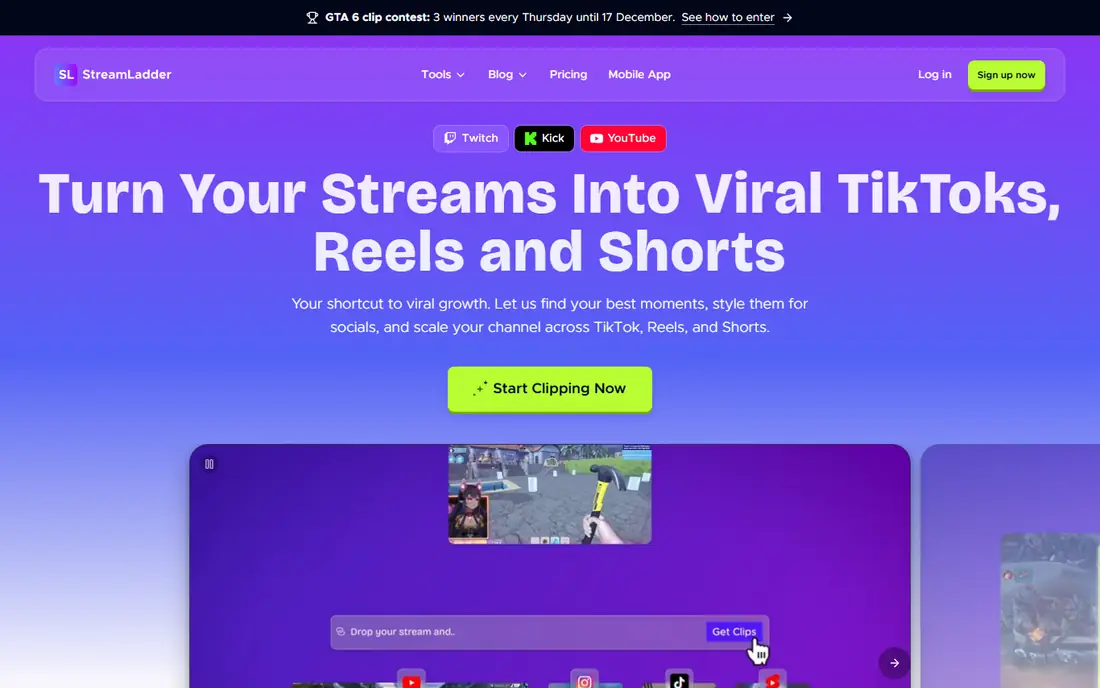
StreamLadder is the most direct manual replacement for CrossClip, because it starts the same way, with a clip you already chose. You can pull a clip from Twitch or Kick, arrange facecam and gameplay, add captions and stickers, and export a vertical video for short-form platforms. Its desktop and mobile workflow also suits creators who edit on a larger screen, where CrossClip felt more mobile-led.
The limit is effort. StreamLadder does not watch your stream and find moments for you on its free tier, so you still need to know which clip matters. Paid tiers add AI clip finding, which changes the workflow but also changes the price. If you like choosing the moment yourself, that manual control is a strength, not a flaw.
- Direct Twitch and Kick clip import
- Layout and caption controls
- Free tier with no watermark on basic edits in published comparisons
- Manual workflow
- AI clip finding sits on paid tiers
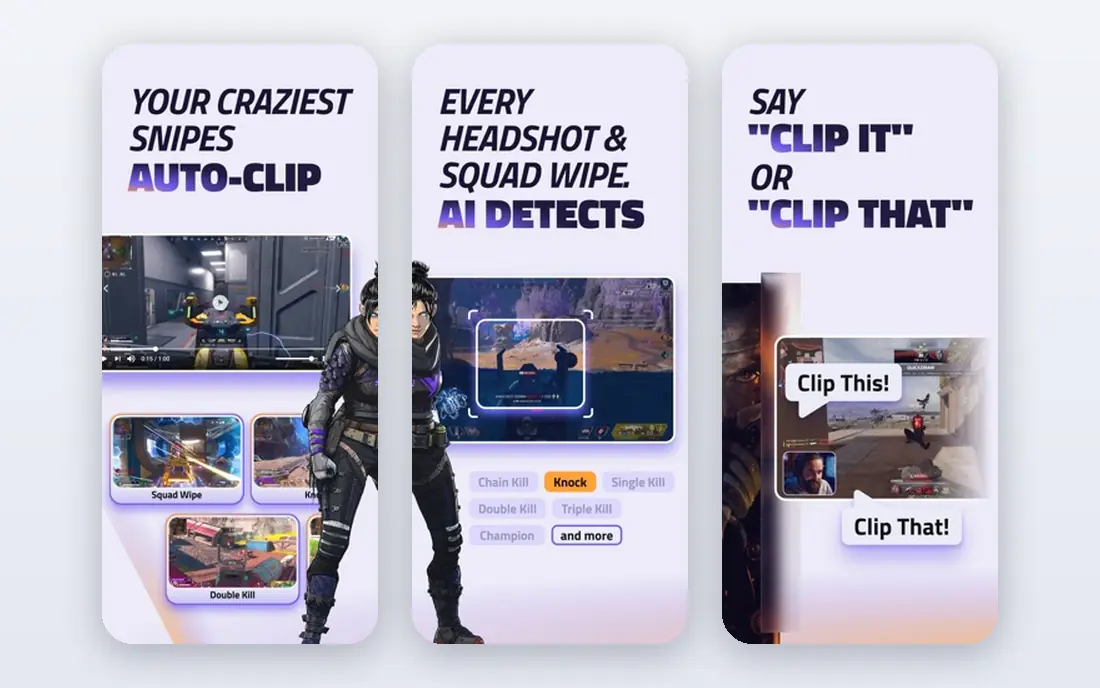
Eklipse flips the CrossClip workflow. Instead of pasting one clip, you connect a Twitch, Kick, or YouTube channel and let its AI scan full streams for highlights, then edit and post the results. That volume matters for a streamer who broadcasts for hours and cannot review every minute. Its editor, templates, and posting tools also keep the work in one place.
The catch is price and commitment. Signing up is free, but clipping itself is paid, with Premium at $24.99 per month or about $14.99 per month on annual billing in published comparisons. A casual streamer who only posts one clip a week may not need that volume. A regular streamer who posts daily will likely save more time than the subscription costs.
- Game-aware AI highlight detection
- Full mobile and web editor
- Scheduling and posting tools
- No free clipping plan
- Monthly price is higher than simple editors
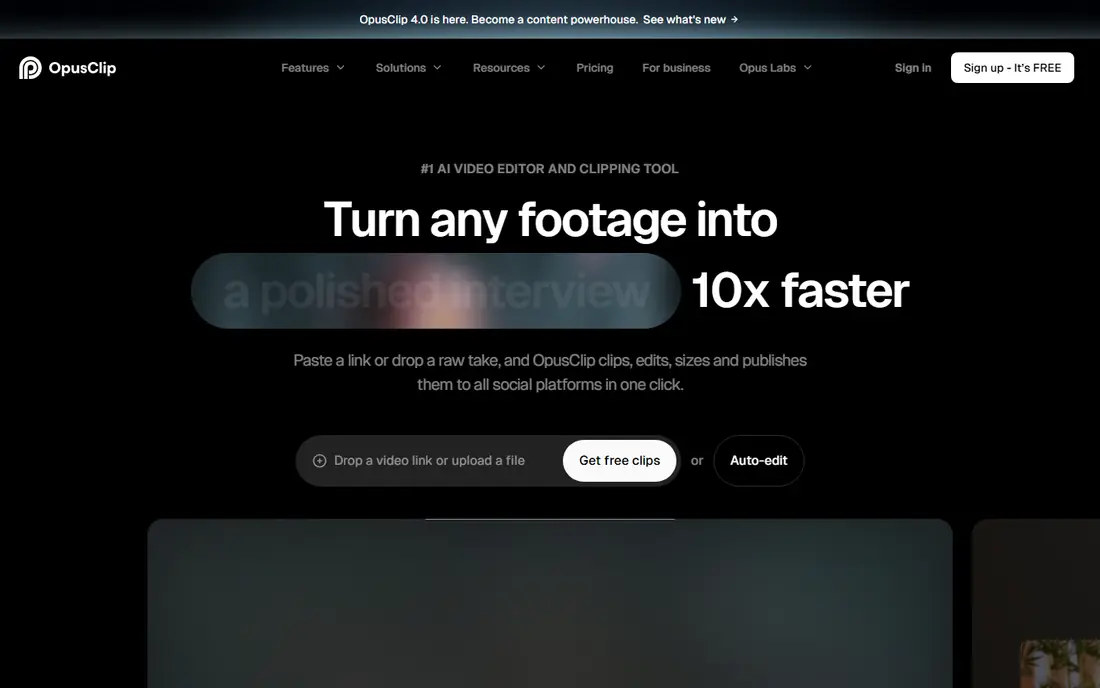
Opus Clip suits creators whose source is a long recorded video, not just a live stream clip. It analyses the video, picks moments, adds animated captions, and reframes the result for vertical platforms. That approach works well for podcasts, interviews, and talking-head videos, where the best moment is buried in a long recording.
Metering is the honest downside. Plans are measured in processing minutes or credits, and the free tier is watermarked with a limited export window in published comparisons. A multi-hour stream can therefore cost more than a flat monthly editor. If your source is usually under an hour and you want AI selection, Opus Clip is a strong fit.
- AI clip selection with virality scoring
- Animated captions
- Scheduling and social posting on higher tiers
- Credits meter by minutes
- Free exports are watermarked and time-limited
Kapwing is a general browser video editor that handles the CrossClip job well, even though it is not a Twitch-only tool. You can upload or link a clip, resize it to vertical, add captions, text, and safe-zone guides, and export for TikTok, Reels, or Shorts. Its template and collaboration tools also help a small team that shares editing work.
The trade-off is focus. Kapwing does not find Twitch highlights for you, and its free tier watermarks exports, so a streamer who only needs a quick reformat may find StreamLadder simpler. A creator who also edits other video types, though, gets more value from one editor that covers both jobs.
- Full browser editor
- Caption and template tools
- Team collaboration options
- Free exports carry a watermark
- Not built only for Twitch clips
Clipbot is built for streamers who want posting to happen while they sleep. It pulls real Twitch clips, edits them for vertical video, and uploads them to YouTube Shorts and TikTok on a schedule. A clip hotkey also lets a streamer mark the last 30 seconds during a live session, so the moment is captured without stopping play.
Automation is also its limit. A creator who wants tight control over every caption, cut, and layout may find an automated pipeline too hands-off. Pricing is also less easy to compare at a glance than the free tiers here. For a streamer who values consistent daily posting over manual craft, Clipbot is the most set-and-forget option in this list.
- Overnight automation to Shorts and TikTok
- Clip hotkey for live moments
- Works from real Twitch clips
- Pricing is less prominent
- Automation suits regular streamers more than occasional ones
Medal starts earlier in the workflow than CrossClip, by capturing gameplay clips as they happen. That local capture suits PC gamers who want a reliable record of a play without relying on a stream platform clip. Clips can then be shared or edited for short-form platforms, and the free tier covers casual use.
Medal is not a full vertical editor on its own. A creator still needs to reframe, caption, and polish a clip for TikTok or Shorts, often in another tool. That extra step is worth naming, since it changes the time cost. If your main problem is missing the moment, Medal solves it, and you can pair it with an editor below.
- Fast local game capture
- Easy clip sharing
- Free tier for casual use
- Capture-first tool
- Vertical reformatting still needs editing work
Vizard is another AI repurposing tool, and it suits creators who work from recorded videos rather than live Twitch clips. You upload a long video, Vizard finds engaging moments, crops them vertically, and produces several short clips for social platforms. Podcasters, educators, and business creators often fit this workflow better than a Twitch-only editor.
The upload-first design is the limit for live streamers. Vizard does not replace a live capture tool, and its paid limits need checking against your video length and clip volume. If your content is recorded first and posted second, Vizard is a clean alternative to Opus Clip, with a different editor and pricing structure.
- AI extraction from long videos
- Vertical reframing
- Useful beyond gaming streams
- Upload-first workflow
- Paid limits vary by plan
InShot is the phone-first pick for a creator who edits on the go. After downloading a Twitch clip, you can trim it, resize it, add text and stickers, and export a vertical video from your phone. That workflow suits short clips and quick posts, and it needs no desktop software.
It is fully manual, so it does not find highlights or automate posting. You also need the clip file first, which adds a download step that StreamLadder and CrossClip avoid. For a creator who already edits on a phone and posts one or two clips at a time, InShot is fast, simple, and free to start.
- Fast mobile editing
- Text, stickers, and music tools
- Familiar phone workflow
- Manual editing only
- Needs a downloaded clip first
- Free tier has limits and ads
VEED rounds out the list as a browser editor with a clear strength in captions. Word-by-word captions help muted viewers follow a clip, which matters on TikTok and Reels, and its templates speed up repeat formats. A creator can upload a clip, caption it, resize it, and export without installing software.
Free exports are watermarked, and the fuller AI and editing features sit on paid plans, so a regular poster should budget for a subscription. VEED also does not scan live streams for highlights. As a polished, caption-led editor for clips you already have, it is a dependable CrossClip alternative.
- Browser editor with strong caption tools
- Templates for Shorts and Reels
- Easy sharing
- Free tier watermarks exports
- AI and premium features need paid plans
How we picked these
We compared official feature pages, pricing pages, and public documentation for tools that turn stream or long-form video into vertical short-form clips in October 2026. We required a working path from a Twitch clip or a recorded video to a vertical export for TikTok, Reels, or Shorts. We left out tools that had shut down, including Athenascope, Combo, and Powder, and tools that only download clips without editing them.
What to check before you switch
Decide first whether you want to pick the moment or have it picked for you. Manual editors such as StreamLadder, Kapwing, InShot, and VEED give control and cost less, while AI tools such as Eklipse, Opus Clip, and Vizard save review time but meter usage or charge more. That single choice narrows the list faster than any feature table.
Next, test the free tier on a real clip from your own stream. Check the watermark, the export quality, the caption style, and whether the facecam layout survives the vertical crop. A tool that looks good in a demo can still crop your gameplay badly. Finally, confirm posting rights and platform rules for any music or game footage you use, since a good edit does not fix a rights problem.
Frequently asked questions
What is CrossClip?
CrossClip is a Streamlabs tool that converts Twitch clips into vertical, square, or horizontal videos for TikTok, Instagram Reels, YouTube Shorts, and Facebook. You paste a clip link, trim it, choose a layout, and export the result. Its free tier adds a watermark and caps export quality, while paid tiers remove those limits.
What is the closest free alternative to CrossClip?
StreamLadder is the closest free manual alternative, since it also imports Twitch and Kick clips and lets you control the layout and captions. Opus Clip, Kapwing, InShot, and VEED also offer free tiers, but each adds a watermark or other limits. Test the export on your own clip before you rely on a free tier.
Which alternative finds highlights automatically?
Eklipse scans full Twitch, Kick, or YouTube streams for highlights using game-aware detection. Opus Clip and Vizard find moments in uploaded long videos, which suits recorded content more than live streams. Clipbot automates posting from Twitch clips you already have, rather than scanning a full stream.
Can these tools post directly to TikTok and YouTube Shorts?
Some can, including Eklipse and Clipbot, which offer scheduling or automated posting, and Opus Clip on higher tiers. Manual editors such as StreamLadder, Kapwing, InShot, and VEED mainly export a file for you to post yourself. Check the posting options on the plan you intend to buy, since they vary by tier.
Do I need permission to post a Twitch clip elsewhere?
You should only post clips you have the right to use, including your own gameplay and any music in the clip. Other streamers' clips, licensed music, and game footage can all carry separate rights. When in doubt, use your own stream and royalty-free audio, and follow each platform's rules.
Which tool is best for a streamer who posts every day?
Eklipse and Clipbot suit daily posting best, because they reduce the time spent finding moments or uploading each clip. A manual editor can still work for daily posting if you already know your best clip each session. Measure the time per clip, not just the monthly price, when you compare them.
Sources
- https://www.streamladder.com/blog/cross-clip-review-best-editor-short-form-videos
- https://streamlabs.com/content-hub/post/automatically-convert-twitch-clips-to-tiktok-with-cross-clip
- https://eklipse.gg/compare/eklipse-vs-crossclip/
- https://blog.eklipse.gg/streaming-tips/twitch-to-tiktok-automatically.html
- https://clipbot.tv/blog/clipbot-vs-vizard-comparison-twitch-highlights
- https://blog.eklipse.gg/streaming-tips/is-eklipse-worth-it.html
- https://creati.ai/ai-tools/opus-clip-ai/alternatives/opus-clip-ai-vs-crossclip-comprehensive-video-clipping-tool-comparison/
See where you really rank - block by block
ProMapRanker scans Google Maps across a grid of your service area. Simple monthly plans from $19, white-label on every plan.
Start freeKeep reading
 zyte alternatives
Best Zyte Alternatives in 2026
These zyte alternatives cover managed scraping APIs, proxy networks and no code tools for lawful collection from your own or consented sources only in 2026.
Read → zerto alternatives
Best Zerto Alternatives in 2026
Compare the best zerto alternatives for disaster recovery and replication, with recovery targets, cloud options and honest trade-offs for teams in 2026.
Read → zerofox alternatives
Best ZeroFox Alternatives in 2026
We compared 9 zerofox alternatives for brand protection, phishing takedowns, dark web monitoring, and social impersonation, with clear coverage notes.
Read →