 ProMapRanker
Best Camtasia Alternatives in 2026

Key takeaways
- OBS Studio is the strongest free starting point for recording, but it has no built-in editor, so pair it with a separate editing tool.
- Loom and ScreenPal win for fast sharing, since a link replaces a file export and a separate upload step for most team messages.
- Descript and Kapwing suit creators who edit speech or work in a browser, while Bandicam and Movavi suit simple desktop recording.
- Count the limits that matter to you, such as recording length, watermark rules and export resolution, before paying for a year.
Quick comparison
| Pick | Great for | Pricing starts at | Free tier | |
|---|---|---|---|---|
 OBS Studio | Free recording and streaming | Free | Yes | Visit |
 Loom | Fast team video messages | $15 per user per month | Yes | Visit |
 ScreenPal | Affordable recording and editing | $4 per month | Yes | Visit |
 Movavi Screen Recorder | Simple desktop recording | $34.95 per year | Free trial | Visit |
 Descript | Editing video through a transcript | $16 per person per month | Yes | Visit |
 Kapwing | Browser-based team editing | $16 per member per month | Yes | Visit |
 Clipchamp | Simple free Windows editing | Free | Yes | Visit |
 Bandicam | High frame rate game capture | $33.26 per year | Yes | Visit |
The best camtasia alternatives
Camtasia pairs a recorder with a timeline editor, so a good replacement depends on which half you use most. Some people need clean screen capture and little editing, while others need captions, zooms and callouts. The tools below cover both sides, and none of them is Camtasia itself. We kept only tools that exist and work in October 2026.

OBS Studio is our pick for most people who mainly need to record. It captures the screen, a webcam and audio on separate tracks, supports scenes for switching between views, and streams live to common platforms. There is no subscription, no watermark and no recording cap imposed by the tool itself, which makes it hard to beat on value.
The gap is editing. OBS records well, but you still need another tool to cut mistakes, add captions or build a polished tutorial. If you already edit in another app, that split is fine. If you want one app for recording and editing, look at ScreenPal or Descript instead, and keep OBS for the capture step.
- Free and open source
- Multi-source recording and live streaming
- No watermark or time limit
- No built-in video editor
- Setup takes more time than a simple recorder
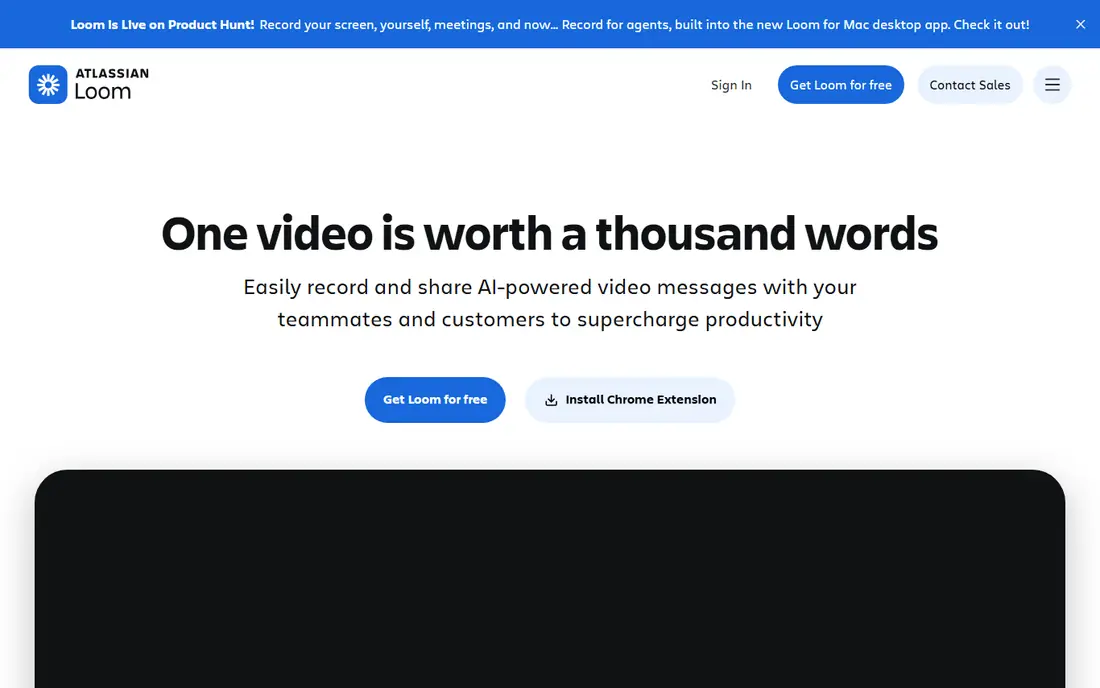
Loom is built for speed rather than polish. You record your screen and webcam, get a link, and send it to a colleague or a customer without exporting a file or uploading it elsewhere. Viewers can comment at a time stamp, which makes it useful for feedback, bug reports and short walkthroughs that do not need a full tutorial treatment.
For a formal course, Loom will feel thin. Its editing tools cover trims and simple touches, not multi-track production with callouts and zooms. Use it for day-to-day messages and short explainers, and keep a desktop editor for anything you plan to sell or publish as a course.
- Record and share by link in minutes
- Webcam and screen in one capture
- Comments and reactions built in
- Editing is basic compared with a desktop editor
- Free plan limits video count and length
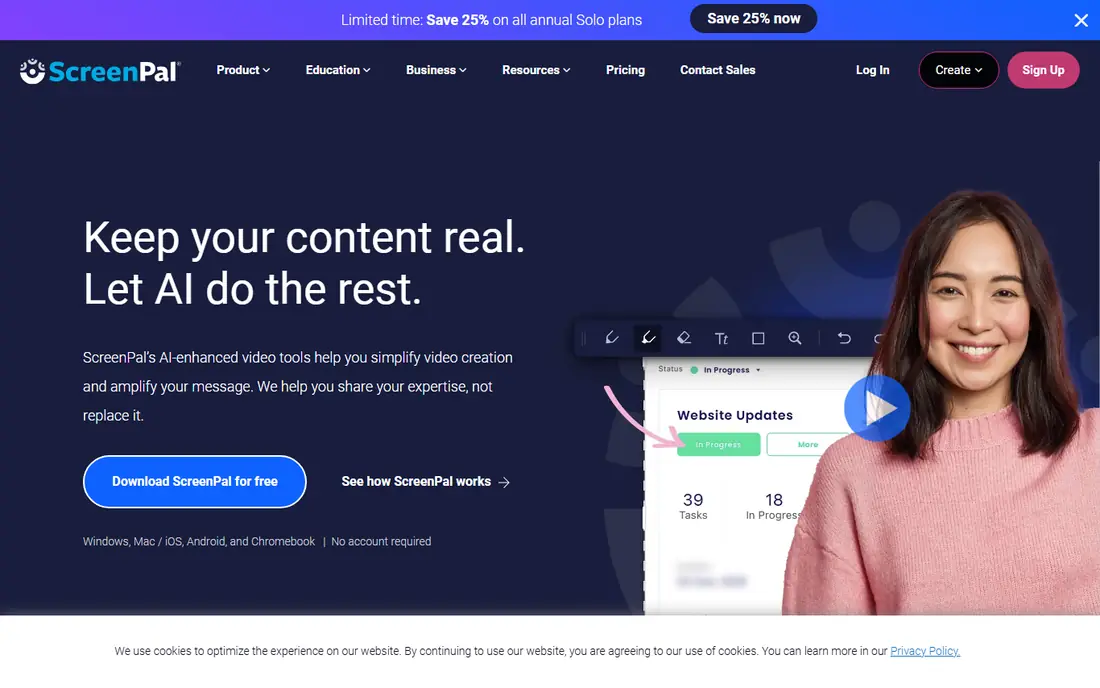
ScreenPal, formerly Screencast-O-Matic, is the closest budget match to the all-in-one idea. It records the screen and webcam, offers an editor for cuts, captions and overlays, and hosts the finished video so you can share a link. The entry price is low, which makes it a sensible choice for teachers, support teams and small businesses that publish how-to videos often.
It will not replace a heavy desktop editor for complex projects. Long recordings, large libraries and advanced effects belong elsewhere. For short tutorials, onboarding clips and support answers, though, the combination of price, editing and hosting is hard to fault.
- Recorder, editor and hosting in one place
- Low entry price
- Free plan covers short recordings
- Free plan limits recording length and hosted videos
- Advanced editing is lighter than a desktop suite
Movavi Screen Recorder suits people who want to press record and get a clean file without learning a complex tool. It captures a full screen or a selected area, records webcam and microphone audio, and can schedule a recording to start at a set time. That scheduled option helps for webinars and live sessions you cannot attend in person.
The limit is what happens after capture. Movavi sells separate editing software, so a tutorial that needs cuts, captions and callouts will need a second purchase or a free editor. If your videos need only light trimming, a free editor covers that. If you edit every week, a combined tool may cost less in time.
- Simple capture controls
- Scheduled recording
- Webcam and audio capture in one app
- No full timeline editor included
- Trial exports carry a watermark
Descript changes how editing feels for talking-head videos. You record or import footage, get a transcript, and cut a sentence by deleting its words. Filler-word removal, silence trimming and audio cleanup are built in, which saves a large amount of time on interviews, podcasts and course lessons where speech carries the content.
It is less suited to visual-heavy tutorials with many effects, animations and precise cuts. Media hours also count every minute you upload or record, not just the finished length, so heavy raw footage can eat a plan quickly. For speech-led tutorials, it is one of the strongest picks here. For screen demos with constant zooms, pair it with a recorder such as OBS.
- Edit by deleting words in a transcript
- Strong filler-word and noise cleanup
- Captions built in
- Media hour caps apply on every plan
- Visual effects work is lighter than a timeline editor
Kapwing is a browser editor that also handles screen recording, which makes it a good fit for small teams that share projects and comment on drafts. It offers captions, templates, resizing for different platforms and stock media, so a marketing or support team can turn a raw recording into a publishable clip without installing desktop software.
The free plan is for testing, not production, since exports are watermarked and limited in length and storage. Paid plans remove those limits and add longer exports and more transcription time. If your team works across Windows, Mac and Chromebooks, the browser route avoids install problems, but keep an eye on upload size and export time for long videos.
- Full browser editor with captions and templates
- Team collaboration
- No install needed
- Free exports are watermarked and limited
- Large projects can feel slow in a browser
Clipchamp is the easiest free route for Windows users who need light editing. The free tier exports up to 1080p without a watermark, and the timeline covers trims, text, transitions and basic audio work. Screen and webcam recording are built in, so a short tutorial can go from capture to export in one browser-based app.
It is not a full desktop suite. Advanced features, stock media and 4K export require a paid Microsoft 365 plan, and users on Linux or older Mac hardware use the browser editor rather than a desktop app. For short, clean tutorials on a Windows machine, though, the free tier alone may be all you need.
- Free exports up to 1080p with no watermark
- Simple timeline
- Screen and webcam recording
- Premium features sit behind a Microsoft 365 plan
- No Linux or desktop app for older Macs
Bandicam is the specialist pick for game capture and other fast-moving screen content. It records at high frame rates with modest system load, offers device, screen and game capture modes, and keeps the interface simple enough to start quickly. For creators who record gameplay, software demos with rapid motion, or long sessions that need steady performance, that focus matters.
The limits are clear. Bandicam runs on Windows only, the free version caps clip length, and editing is basic, so most creators export to another editor for a finished video. If you record on a Mac or need a full editor in the same app, choose another tool here. If you record games on Windows, Bandicam is a strong, affordable capture tool.
- Strong game and high frame rate capture
- Low impact on performance
- Simple capture modes
- Windows only
- Free version limits recording length
- Editing tools are basic
How we picked these
We compared official pricing pages, feature pages and public reviews, and we kept only tools that record, edit or share tutorial-style video and that work in October 2026. We excluded Camtasia itself, since this is an alternatives list, and we excluded tools that only take screenshots. Prices are the entry paid plan where a vendor publishes one, and free plan details reflect the limits that most affect a tutorial maker.
How to choose the right replacement
Start by splitting your work into capture and editing. If you record far more than you edit, a strong free recorder such as OBS plus a light editor may beat a single paid suite. If you publish polished courses, a combined recorder and editor, or a transcript editor such as Descript, will save more time than the subscription costs.
Next, test the exact video you plan to publish. Record a five-minute lesson, add captions and a zoom or callout, then export it at the resolution you need. Check the watermark, the export time and how the file looks on a phone. A tool that feels fast on a short test but slows down on a 30-minute lesson is a poor buy for a course business, no matter how low the price looks.
Frequently asked questions
What is the best free Camtasia alternative?
OBS Studio is the best free recorder, and Clipchamp is the best free route for light editing on Windows. Pairing the two covers capture and basic editing at no cost, though you will still need a separate step for captions on longer lessons.
Can I make a full course with these tools?
Yes, but pick by editing load. Descript suits speech-led courses, ScreenPal suits short how-to lessons, and OBS plus a desktop editor suits long, visual courses. Test one full lesson before committing to a tool for a whole course.
Do any of these tools add a watermark?
Yes, several free plans do, including Kapwing and Movavi trial exports, while OBS and the free Clipchamp tier do not watermark in the way described above. Always check the export on your plan, since watermark rules differ between trial, free and paid tiers.
Is Loom a replacement for Camtasia?
Loom replaces the quick sharing part of Camtasia, not the full editing part. It is ideal for team messages and short explainers, while polished tutorials still need a timeline or transcript editor.
Which alternative is best for teachers?
ScreenPal is a strong classroom pick because of its low price, simple editor and hosting. Loom also works well for feedback videos, and OBS is a good free option for teachers who already have an editor they like.
Sources
See where you really rank - block by block
ProMapRanker scans Google Maps across a grid of your service area. Simple monthly plans from $19, white-label on every plan.
Start freeKeep reading
 zscaler alternatives
Best Zscaler Alternatives in 2026
Looking for zscaler alternatives? We compare 9 SASE and zero trust platforms on architecture, data protection, pricing, and fit for your network and team.
Read → zapier alternatives free
Best Zapier Alternatives Free in 2026
Nine automation tools for zapier alternatives free in 2026, all with genuinely free tiers, plus free plan limits, starting prices and upgrade paths explained.
Read → which platform is best for online reputation
Which Platform Is Best for Online Reputation in 2026
Wondering which platform is best for online reputation? We compare 8 review, listing, and response tools for small and multi-location businesses and agencies.
Read →