 ProMapRanker
Best YouTube Video Editing Software in 2026

Key takeaways
- DaVinci Resolve gives the strongest free professional editor, while Premiere Pro suits teams inside the Adobe range.
- Final Cut Pro suits Mac creators who want a one-time purchase and fast Apple Silicon performance.
- Filmora, CapCut, and Clipchamp suit beginners and short-form creators who need speed over deep control.
- Check export settings, captions, and audio tools, since those shape YouTube watch time more than effects alone.
- The best software for youtube video editing is the one you can finish videos in on a regular schedule.
Quick comparison
| Pick | Great for | Pricing starts at | Free tier | |
|---|---|---|---|---|
 DaVinci Resolve | Free professional editing | Free | Yes | Visit |
 Adobe Premiere Pro | Professional teams and Adobe workflows | $22.99 per month | Free trial | Visit |
 Final Cut Pro | Mac creators, one-time purchase | $299.99 one-time | Free trial | Visit |
 Filmora | Beginners and YouTubers | See website | Free trial | Visit |
 CapCut | Shorts and mobile-first editing | Free | Yes | Visit |
 CyberLink PowerDirector | Windows creators wanting effects | See website | Free trial | Visit |
 Clipchamp | Windows and browser editing | Free | Yes | Visit |
 iMovie | Free Mac and iPhone editing | Free | Yes | Visit |
 Descript | Talking-head and transcript editing | See website | Yes | Visit |
The best youtube video editing software
YouTube editing has two jobs: cut a clear story, and export it in a format that looks good on phones, laptops, and TVs. The tools below cover that range, from free editors that handle 4K exports to professional suites with colour, audio, and effects depth. Prices and free tiers are taken from vendor pages and public listings checked for this guide.
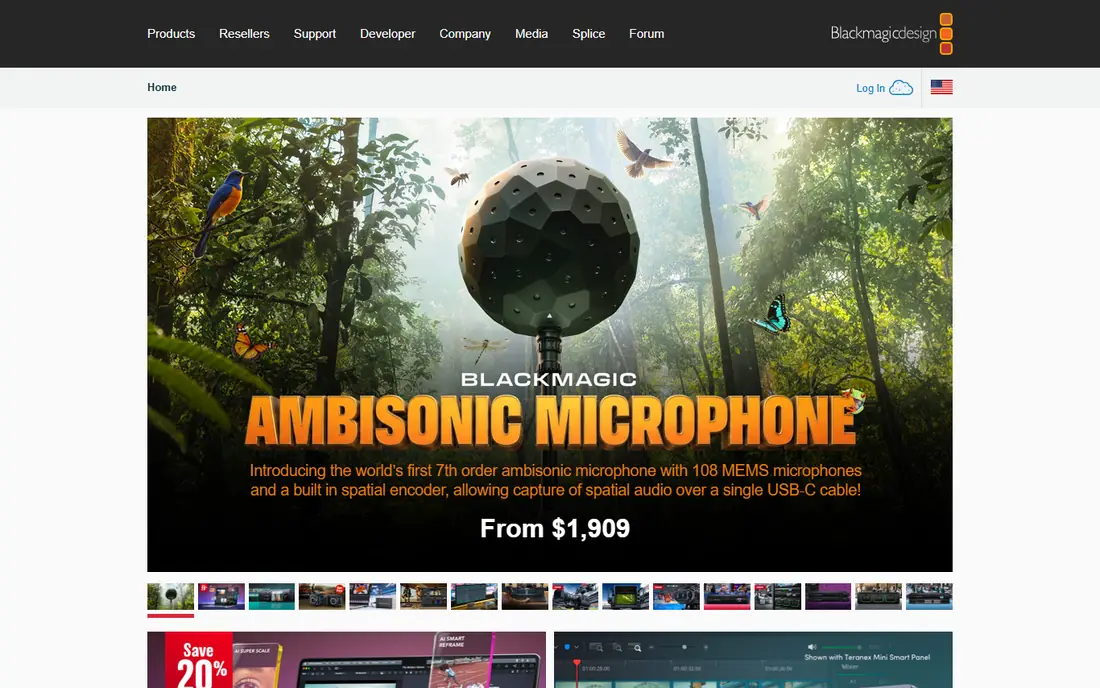
DaVinci Resolve is the strongest free starting point for serious YouTube creators. Its free version covers editing, colour grading, audio mixing, and effects, with 4K exports and no watermark, which is rare for a free editor. The Cut page suits fast assembly, while the Edit and Colour pages give depth for creators who want a polished look. For a creator on a budget, it removes the need to pay a subscription to make professional-looking videos. The catch is hardware and learning time. Resolve rewards a capable computer and a willingness to learn its page-based workflow. The paid Studio version, at $295 one-time, adds AI tools and higher-end features, but most YouTubers can start free and upgrade only when those features become a real need.
- Full free editor with no watermark
- Strong colour and audio tools
- 4K exports
- High system needs
- Learning curve for colour and effects pages
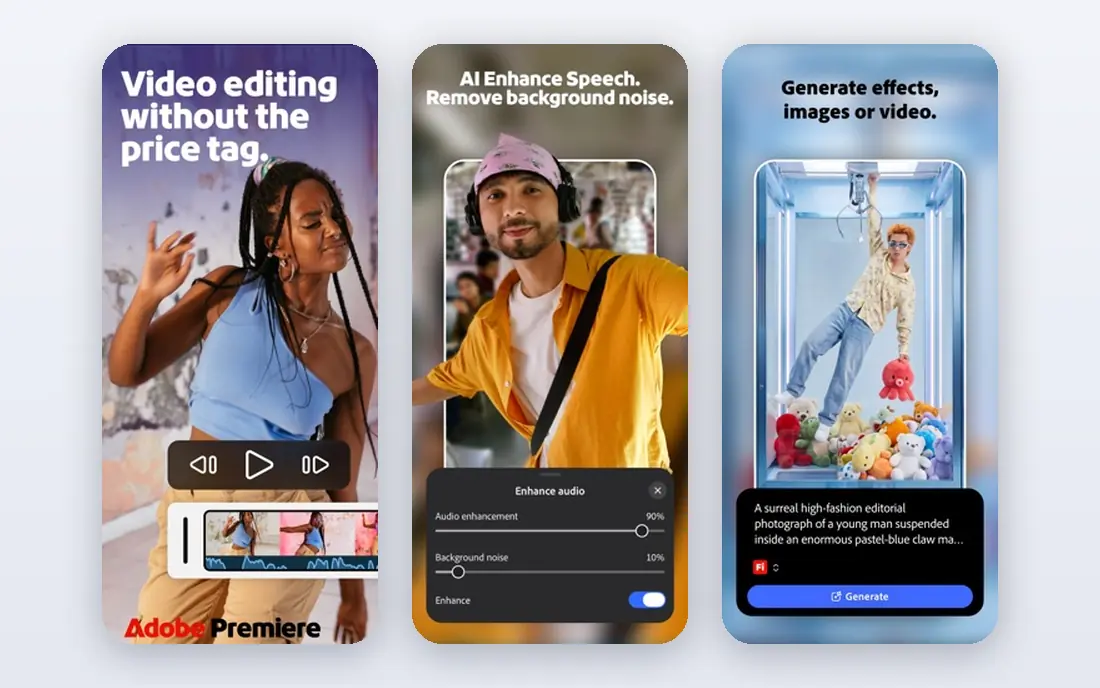
Adobe Premiere Pro remains the default professional editor for many YouTube teams, agencies, and creators who also use After Effects, Photoshop, and Audition. Its timeline is flexible, its title and caption tools suit YouTube workflows, and its cloud and team features help when editors, producers, and thumbnail designers share a project. At $22.99 per month on an annual plan, it is a recurring cost, but it buys a mature, widely supported editor. The honest catch is that cost never stops. Stop paying and access to the full editor ends, and heavy projects need a strong machine. For solo creators on a tight budget, DaVinci Resolve free may serve better. For teams already inside Adobe, Premiere Pro keeps the workflow in one family.
- Industry-standard timeline
- Deep Adobe integration
- Strong team workflows
- Subscription only
- Needs a capable computer for heavy projects

Final Cut Pro suits Mac creators who want speed and a one-time purchase. Its magnetic timeline keeps clips in place as edits change, and its performance on Apple Silicon makes 4K editing feel smooth on machines that struggle with heavier editors. At $299.99 one-time, it pays for itself over time compared with a monthly subscription, provided the creator stays on Mac. The trade-off is platform lock-in. Final Cut Pro does not run on Windows, and teams that mix Mac and Windows machines will face workflow friction. For a Mac-only YouTuber who publishes weekly, its speed and one-time price make it one of the best video editing software for vlogging and long-form work on Apple hardware.
- Fast on Apple Silicon
- Magnetic timeline
- No subscription
- Mac only
- Smaller plugin range than Premiere Pro for some workflows
Filmora is built for creators who want to edit quickly without learning a professional suite. Its timeline is clear, its templates and effects cover intros, titles, and transitions, and its AI tools help with captions and audio cleanup. For a new YouTuber publishing tutorials, vlogs, or explainer videos, Filmora shortens the path from raw footage to a finished upload. The catch is depth and trial limits. Trial exports carry a watermark, and creators who grow into advanced colour or audio work may outgrow Filmora. That is a fair trade for its ease: start here to build a publishing habit, then move to Resolve or Premiere Pro if a project demands deeper control.
- Easy timeline
- Templates and effects library
- AI captions and tools
- Free trial exports carry a watermark
- Advanced colour control is limited
CapCut is the fastest route from phone footage to a YouTube Short, with templates, auto-captions, and vertical formats built in. Its free tier covers much of the short-form workflow, and its mobile app suits creators who film, edit, and publish from a phone. For Shorts, Reels-style cuts, and quick vlog edits, CapCut keeps the process short. The honest catch is professional depth. Long-form projects with complex audio, colour, and multi-camera work will feel limited next to Resolve or Premiere Pro, and some templates and pro features need a paid plan. Use CapCut for Shorts and fast edits, and a fuller editor for long-form videos that need careful sound and colour work.
- Fast mobile and desktop editing
- Templates and auto-captions
- Shorts-friendly formats
- Pro features sit behind a paid tier
- Desktop depth is lower than pro suites
CyberLink PowerDirector is a strong Windows choice for creators who want effects, titles, and AI helpers without a professional learning curve. Its rendering speed is a practical advantage for weekly publishers, and its effects library covers many YouTube styles, from travel vlogs to tech reviews. AI captions, background removal, and audio tools shorten common editing chores. The trade-off is interface density. PowerDirector packs many panels and options into each screen, so new users should allow a short learning period. Pricing also varies by plan and billing term, so check the current vendor page for the subscription or perpetual option that fits your publishing volume.
- Fast rendering on Windows
- Large effects library
- AI tools for captions and audio
- Interface can feel busy
- Subscription pricing varies by plan
Clipchamp is Microsoft's video editor, built into Windows and available in the browser, which makes it an easy first editor for Windows creators. Its free tier covers basic trimming, titles, templates, and exports, and its stock library and text-to-speech options help creators who need b-roll or voiceover without extra tools. For casual YouTube videos and school or work projects, it is a practical starting point. The catch is depth. Advanced filters, brand kits, and higher-quality exports sit on paid plans, and browser editing depends on a stable connection and a capable machine. Clipchamp suits creators who want to start free on Windows and publish simple videos regularly, rather than creators who need deep colour or audio control.
- Free tier built into Windows
- Browser editing
- Templates and stock options
- Advanced features need a paid plan
- Browser performance depends on connection
iMovie is free on Mac, iPhone, and iPad, and it remains the simplest way for an Apple user to make a first YouTube video. Its timeline covers trimming, titles, transitions, and basic audio, and its trailer templates help beginners learn pacing. For family vlogs, school projects, and first channels, iMovie removes cost and complexity from the first upload. The honest catch is growth. Creators who need multi-track audio control, advanced colour, or complex effects will outgrow iMovie, and the natural next step on Apple hardware is Final Cut Pro. That path is a strength for Apple users: start free in iMovie, learn the basics, and upgrade only when a project demands more.
- Free on Mac and iOS
- Simple timeline
- Good for first videos
- Limited advanced control
- Mac and iOS only
Descript changes the editing job for talking-head videos: edit the transcript, and the video follows. That makes it ideal for tutorials, interviews, podcasts with video, and explainer channels where words carry the content. Its caption tools, filler-word removal, and overdub-style fixes save hours on spoken content, and its free plan lets creators test the transcript workflow. The trade-off is cinematic scope. Descript is not the best choice for travel films, music videos, or heavy visual effects, where timeline editing in Resolve or Premiere Pro gives more control. For a creator whose channel is built on clear spoken explanation, Descript can be the fastest editor in this guide.
- Edit video by editing text
- Strong captions
- Good for interviews and tutorials
- Less suited to cinematic editing
- Paid plans for longer projects
How we picked these
We compared official pricing pages, free tier terms, platform support, and YouTube-relevant features such as captions, audio cleanup, 4K export, and Shorts formats. We kept only live editors in October 2026 that can export a finished YouTube video, and we used See website where pricing varies by plan or region. We did not claim hands-on testing; findings reflect official pages, pricing, and public reviews.
How to choose for your channel
Match the editor to your format
Shorts creators need speed, captions, and vertical formats, while long-form creators need audio control, colour, and reliable 4K exports. A vlogger who films daily needs a fast, simple editor, while a documentary-style creator needs depth. Pick for the format you publish most, not for the format you hope to try once.
Check your computer before you pay
Professional editors need storage, memory, and graphics power that budget laptops may lack. Check system requirements, test a real project on the free tier or trial, and watch export times before buying. A free editor that runs well on your machine beats a paid suite that stutters on every timeline scrub.
Build captions and audio into the workflow
Captions help viewers who watch without sound, and clean audio keeps viewers watching longer than fancy effects do. Favour editors with reliable auto-captions, noise removal, and loudness tools, and review captions for errors before publishing. That habit improves accessibility and watch time at the same time.
Frequently asked questions
What is the best youtube video editing software for beginners?
Filmora, CapCut, and iMovie are strong beginner picks, depending on platform. Filmora suits Windows and Mac creators who want templates, CapCut suits mobile and Shorts creators, and iMovie suits free Mac and iPhone editing. The best software for editing youtube videos for a beginner is the one that lets you finish and publish regularly without a steep learning curve.
Is DaVinci Resolve really free for YouTube?
Yes, the free version of DaVinci Resolve covers editing, colour, audio, and 4K exports without a watermark for most YouTube work. The paid Studio version adds AI features and higher-end tools at $295 one-time. Most YouTubers can start free and upgrade only when a Studio feature becomes essential to their workflow.
What is the best video editing software for vlogging?
For vlogging, Final Cut Pro suits Mac creators who want speed, DaVinci Resolve suits creators who want free professional tools, and CapCut suits mobile-first vloggers who publish Shorts. The best video editing software for vlogging depends on your device, your format, and how much colour and audio control you want in each video.
Do I need a paid editor to grow on YouTube?
No. Many growing channels use free editors such as DaVinci Resolve, iMovie, or Clipchamp, and invest time in story, audio, and thumbnails instead. Paid editors help when a workflow demands team collaboration, advanced effects, or faster turnaround at scale. Grow the channel first, then pay for the feature that removes a real bottleneck.
What are the best youtube video editing apps for Shorts?
CapCut is the strongest Shorts-first app in this guide, with templates, auto-captions, and vertical formats on mobile and desktop. Clipchamp and Filmora also handle short-form work well. For Shorts, favour speed and caption quality over deep effects, since viewers decide in the first seconds whether to keep watching.
Can I edit YouTube videos in a browser?
Yes. Clipchamp runs in the browser and on Windows, and other browser editors exist for simple projects. Browser editing suits short, simple videos and teams that share projects online, but it depends on connection quality and may limit export options. For long or complex projects, a desktop editor usually gives smoother playback and faster exports.
Sources
See where you really rank - block by block
ProMapRanker scans Google Maps across a grid of your service area. Simple monthly plans from $19, white-label on every plan.
Start freeKeep reading
 zscaler alternatives
Best Zscaler Alternatives in 2026
Looking for zscaler alternatives? We compare 9 SASE and zero trust platforms on architecture, data protection, pricing, and fit for your network and team.
Read → zapier alternatives free
Best Zapier Alternatives Free in 2026
Nine automation tools for zapier alternatives free in 2026, all with genuinely free tiers, plus free plan limits, starting prices and upgrade paths explained.
Read → which platform is best for online reputation
Which Platform Is Best for Online Reputation in 2026
Wondering which platform is best for online reputation? We compare 8 review, listing, and response tools for small and multi-location businesses and agencies.
Read →