 ProMapRanker
Best YouTube to MP3 Converter Apps in 2026


Official offline listening · Pricing starts at: $15.99 per month
Key takeaways
- YouTube Premium is our first choice for offline listening, because it is the official route and it keeps creators paid.
- For your own uploaded videos, YouTube Studio and Google Takeout give you the source files without a third party download tool.
- VLC, HandBrake, Audacity and FFmpeg convert video files you already own into MP3 on your own computer, with no upload needed.
- Do not use a converter to copy music or videos you do not own or do not have permission to use.
- A web converter can suit one small file, but a desktop tool is better for repeated work and larger files.
Quick comparison
| Pick | Great for | Pricing starts at | Free tier | |
|---|---|---|---|---|
| YouTube Premium | Official offline listening | $15.99 per month | Free trial | Visit |
 YouTube Studio | Downloading your own uploads | Free | Yes | Visit |
 Google Takeout | Exporting your own YouTube data | Free | Yes | Visit |
 VLC Media Player | Quick free conversion on any computer | Free | Yes | Visit |
 HandBrake | Controlled video to audio conversion | Free | Yes | Visit |
 Audacity | Editing and exporting your own audio | Free | Yes | Visit |
 FFmpeg | Batch conversion and precise control | Free | Yes | Visit |
 Any Video Converter | Simple conversion for beginners | Free | Yes | Visit |
 CloudConvert | One-off conversion without installing software | Free | Yes | Visit |
The best YouTube to MP3 converter apps
We framed this list around legal use only. That means your own videos, public domain material, Creative Commons material used within its licence, and official offline viewing. We did not list tools built to strip audio from other creators' work.
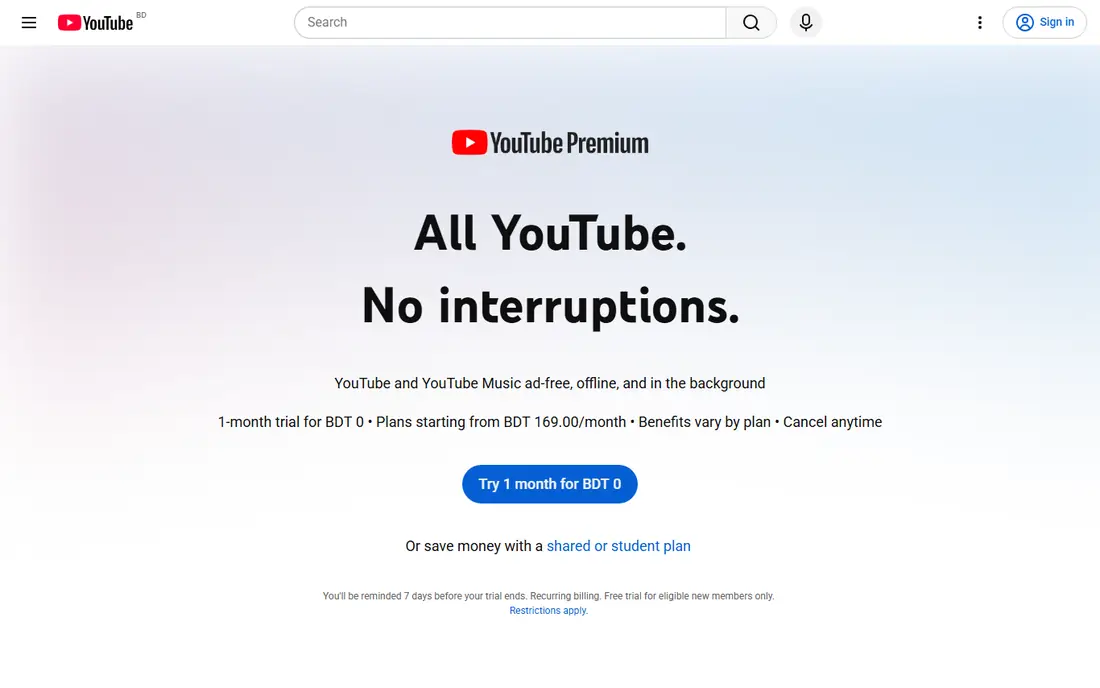
YouTube Premium is the plain answer for most people who want to listen offline. You download inside the official app, you keep the creator in the loop, and you do not have to trust a random converter site with your device. The individual plan was $15.99 per month in the United States at the time of our check, with family and student plans also listed on the official page.
The catch is clear, and it matters for this topic. Premium does not give you a portable MP3 file to move to another player. If your goal is a file you can edit, archive, or play in a car stereo that needs MP3 files, Premium alone will not do it. It is still our top pick, because it solves the listening problem in the way YouTube intends.
- Official offline downloads in the YouTube app
- Includes YouTube Music
- Ad-free viewing and background play
- Downloads stay inside the app
- It is not a tool for making standalone MP3 files
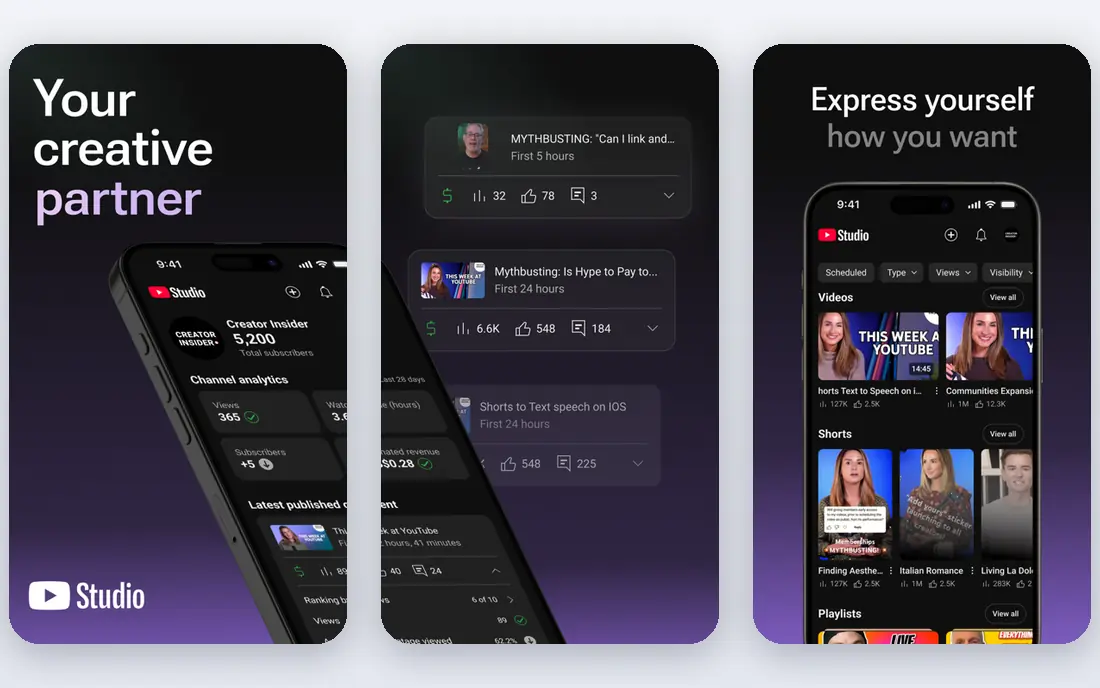
YouTube Studio is the tool creators already have, and it is the right starting point for your own channel. Sign in, open your content list, and download the video files you uploaded. From there, a desktop converter on this list can turn the audio track into MP3 for your own podcast feed, edit, or archive.
The limit is also the point. Studio is not a general YouTube downloader, and it will not help with other channels. That is a good thing for this list, because it keeps the workflow inside your own rights. If you run a channel, start here before you look at any other tool.
- Built for creators
- Downloads your own videos
- No extra software to install
- Only works for videos you uploaded
- Download quality and options depend on the original upload
Google Takeout is a backup route rather than a quick converter. You select YouTube, choose what to export, and Google prepares an archive of your own content. That archive can then feed into VLC, HandBrake, or Audacity for MP3 creation. It is a sound choice when you want a full copy of your channel rather than one clip.
The trade-off is patience. A large channel export can take time to prepare, and you still need a second step to get MP3 audio. Takeout also covers more than video, so check your selections before you start. For a one-off song or clip, it is more work than needed.
- Exports your own uploads and account data
- Useful for backup
- No third party tool in the middle
- Exports can be large and slow
- It is a backup tool, not a daily converter
VLC is probably already on your computer, and its Convert and Save feature handles the common case well. Add a video file you own, pick the Audio MP3 profile, choose a destination, and start the job. It costs nothing, it does not upload your file to a website, and it runs on the three main desktop systems.
The interface is the weak point. The profile list is long, and a wrong pick can give you a file with the wrong container or a low bitrate. Test with one short file first, then check the result before you run a whole folder. For occasional jobs, that small test is worth the minute it takes.
- Free and open source
- Works on Windows, Mac, and Linux
- Converts local video files to MP3
- Conversion settings are plain and easy to mis-set
- It is a player first, not a dedicated editor
HandBrake gives you more control than VLC when you care about the result. You can pick a preset, adjust audio settings, and repeat the same job across many files with a queue. That matters if you convert a series of your own talks, lessons, or podcast videos on a regular basis. The program is free, it runs on Windows, Mac, and Linux, and it has a long track record.
New users should expect a learning curve. The main window is aimed at video encoding, so finding the audio-only path is less direct than in a simple converter. Once you save a preset, though, later jobs are fast. Keep the source file safe, and name outputs clearly so you do not overwrite the original.
- Free and open source
- Clear presets and quality controls
- Good for repeated jobs
- The settings can feel deep for a first-time user
- It is built for video work, so audio-only jobs take a few clicks
Audacity fits when the MP3 is not the end of the job. You can trim silence, cut a long recording into parts, adjust levels, and then export a clean MP3 of your own material. That makes it a strong pick for creators who record talks, interviews, or music they own and want a polished audio file at the end.
The catch is setup. Audacity itself is free, but MP3 export on some systems needs the LAME encoder, and the steps vary by platform. Follow the official Audacity guide for your system rather than a random download link. If you only need a straight conversion with no edits, VLC or HandBrake will be quicker.
- Free and open source
- Strong editing tools
- Exports MP3 with the right encoder installed
- It is an editor, not a one-click converter
- MP3 export needs an extra setup step on some systems
FFmpeg is the tool behind many other converters, and using it direct gives you full control. A single command can pull the audio from a video file you own, and a short script can process a whole folder while you do other work. It is free, it is kept current, and it supports a wide set of formats. Power users who convert often will get the most from it.
The barrier is the command line. There is no friendly button for most jobs, and you need to learn the basic flags before you trust it with important files. Work on copies, test one file, and keep the command you used in a note. If that sounds like too much work, pick a graphical tool from this list instead.
- Free and open source
- Handles batches and exact settings
- Runs on Windows, Mac, and Linux
- Command line only for most users
- A typo can overwrite a file or pick the wrong codec
Any Video Converter is a good middle ground for people who want buttons, not commands. Drop in video files you own, pick MP3, and convert. The layout is easier to follow than VLC or HandBrake for a first job, and batch work is built in. That plain flow is why it stays on this list for beginners.
Watch the free version limits. Paid features will be offered, and some output options sit behind them. Read each screen before you click, and stick to the official download page. Used for your own files, it is a fine, low-friction choice.
- Clear interface for local files
- Supports many formats
- Batch conversion for a folder of files
- The free version has limits and prompts for paid features
- It converts files you have, it does not fetch YouTube videos
CloudConvert suits the one file you need today on a borrowed computer. Upload a video file you own, pick MP3, set the quality, and download the result. There is no install, and the format list is broad. For a single lesson or talk, it is hard to beat for speed.
The limits are real. Free use is capped, and larger or repeated jobs will push you toward a paid plan, so check the pricing page before you start a batch. Also think about privacy. Do not upload private or sensitive recordings to any web converter when a desktop tool can do the same job offline.
- No install needed
- Many format options
- Works in a browser on any system
- Free use has limits
- Uploading private files to a web service is not ideal for sensitive material
How we picked these
We compared official feature pages, pricing pages, and app store listings, and we left out any tool whose main purpose is copying other creators' work. Each product on this list either gives you official offline access, gives you your own uploaded files, or converts a local file you already have the right to use. We checked that the official sites were live and matched the product named, and we used See website in other articles in this batch where a price could not be tied to a vendor page.
What to check before you convert anything
Start with rights, not with software. Ask who owns the video, and what the licence allows. Your own uploads are the clear case. Public domain work is also clear in most cases, but check the specific recording, because a new performance of an old work can still be protected. Creative Commons work is usable only within the terms on that work, and that often means giving credit in the way the licence asks.
Next, match the tool to the job. If you only want to listen offline, YouTube Premium is the simplest legal route, and you can stop there. If you need a portable MP3 of your own video, take the file from Studio or Takeout, then convert it on your computer. If you need to edit, Audacity is the better second step. If you need many files, FFmpeg or HandBrake will save time.
Quality settings that matter
Pick a bitrate you can defend. For speech, 128 kbps MP3 is often enough, and it keeps files small. For music you own, 192 kbps or 256 kbps will sound better on good headphones, at the cost of larger files. Keep the original video file until you have checked the MP3, because a bad setting is easy to redo only if the source is still there.
Safety notes for web converters
Use the official site, not a lookalike. Many converter sites carry aggressive ads, bundled installers, or fake download buttons, and some are built to harvest clicks rather than convert files. If a site asks you to install a browser extension or a separate player to get your file, close it. A desktop tool from this list is safer for repeated use, and it keeps your files on your own machine.
Frequently asked questions
Is it legal to convert a YouTube video to MP3?
It depends on rights. Converting your own videos, public domain material, and Creative Commons material used within its licence is a different case from copying music or videos you do not own. When in doubt, use official offline viewing in the YouTube app, or ask the rights holder for permission.
What is the best YouTube to MP3 converter app for offline listening?
YouTube Premium is the best choice for offline listening, because downloads stay in the official app and the plan includes YouTube Music. It does not create a standalone MP3 file, so use a desktop converter on this list only for files you have the right to convert.
Can I download my own YouTube videos as MP3?
You can download your own uploads as video files through YouTube Studio or Google Takeout, then convert the audio track to MP3 with VLC, HandBrake, Audacity, or FFmpeg. That two-step route keeps the work inside your own rights and gives you a file you control.
Do I need to install software to convert a video to MP3?
No, CloudConvert can handle a single file in a browser. A desktop tool is still better for private files, large files, and repeated jobs, because the file never leaves your computer and there is no upload cap to hit.
Why do some converter sites look unsafe?
Many converter sites earn money from ads and bundled software, and some copy the look of a known tool to trick visitors. Stick to official domains, avoid extra installers, and prefer a desktop tool when you convert often. If a site feels pushy, that feeling is useful information.
Sources
See where you really rank - block by block
ProMapRanker scans Google Maps across a grid of your service area. Simple monthly plans from $19, white-label on every plan.
Start freeKeep reading
 zoho inventory alternatives
6 Alternatives to Zoho Inventory, Compared on Price and Fit
Zoho Inventory alternatives: 6 tools compared on price, free plans and fit. Katana leads the list for manufacturers. Fit and flaws are laid out for each entry.
Read → zoho crm alternatives
Best Zoho CRM Alternatives (2026)
Need Zoho CRM alternatives? We compare 7 tools on cost, free access and who each suits. Every pick gets a straight assessment. Built for quick decisions.
Read → zelle alternatives
Best Zelle Alternatives in 2026
Compare the best Zelle alternatives for sending money to friends, paying sellers and moving funds abroad, with honest notes on fees, speed and safety in 2026.
Read →