 ProMapRanker
Best WiFi Analyzer App in 2026

Key takeaways
- For a home user, a free phone app such as WiFiman or Fing will answer the main question: which channel is crowded and where is the signal weak.
- For a home office or small business, NetSpot is the strongest choice for heatmaps, because a floor plan survey shows dead zones that a single scan cannot.
- Desktop tools such as WiFi Explorer, inSSIDer and Acrylic give more detail on channels, signal strength and security than most phone apps.
- Only scan networks you own or have permission to test, and never use an analyzer to access a network that is not yours.
Quick comparison
| Pick | Great for | Pricing starts at | Free tier | |
|---|---|---|---|---|
 NetSpot | Heatmaps and site surveys | Free | Yes | Visit |
 WiFi Explorer | Detailed Mac network scans | See website | No | Visit |
 inSSIDer | Channel and security analysis | See website | No | Visit |
 Fing | Home network device checks | Free | Yes | Visit |
 WiFiman | Free phone and desktop scans | Free | Yes | Visit |
 Network Analyzer | Phone network tools in one app | See website | Free trial | Visit |
 Acrylic Wi-Fi Analyzer | Windows channel analysis | Free | Yes | Visit |
 analiti | Power user phone analysis | Free | Yes | Visit |
 WiFi Scanner | Simple Windows and Mac scans | See website | Free trial | Visit |
The best wifi analyzer apps
We compared official product pages and app listings, and we kept only analyzers that are live in October 2026 and scan networks you own or manage.

NetSpot is our pick for anyone who needs more than a list of networks. Load a floor plan, walk through the space taking samples, and NetSpot builds a heatmap that shows strong and weak areas in colour. That picture makes it easy to decide where to move a router, add an access point, or change a channel.
The free version covers basic discovery scans, while Home and Pro plans add heatmaps, exports and deeper reporting, with prices listed on the vendor site. A survey is only as good as the samples you take, so walk slowly, cover each room, and repeat the survey after you move equipment. For a single room problem, a free phone app may be enough, but for a house or office, NetSpot earns its place.
- Visual heatmaps on a floor plan
- Discovery scans with channel and signal detail
- Works on Mac and Windows
- Heatmaps and full reporting need paid plans
- Surveys take time to walk and record properly
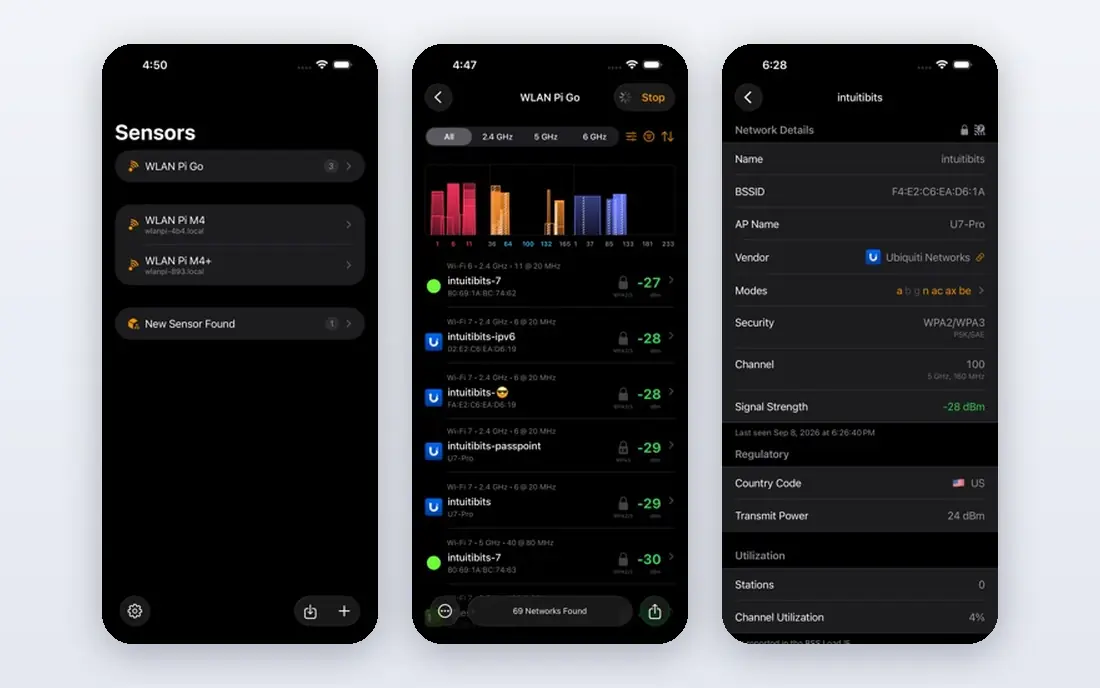
WiFi Explorer is a long running Mac tool for people who want a detailed, readable scan. It lists nearby networks with signal strength, noise, channel width and security, and it graphs signal over time so you can see whether a network is stable or dropping. Filters let you focus on one band, one security type or one vendor, which helps in a crowded apartment building.
We list pricing as See website because the Mac App Store price and any Pro version details change over time. WiFi Explorer is best for Mac owners who troubleshoot networks often. If you only need a one off channel check, try WiFiman or Fing first and move to WiFi Explorer when you need deeper detail.
- Clear list of networks with signal, noise and channel detail
- Graphs for signal over time
- Filters by band, security and vendor
- Mac only
- Paid app, so home users may prefer a free phone tool first
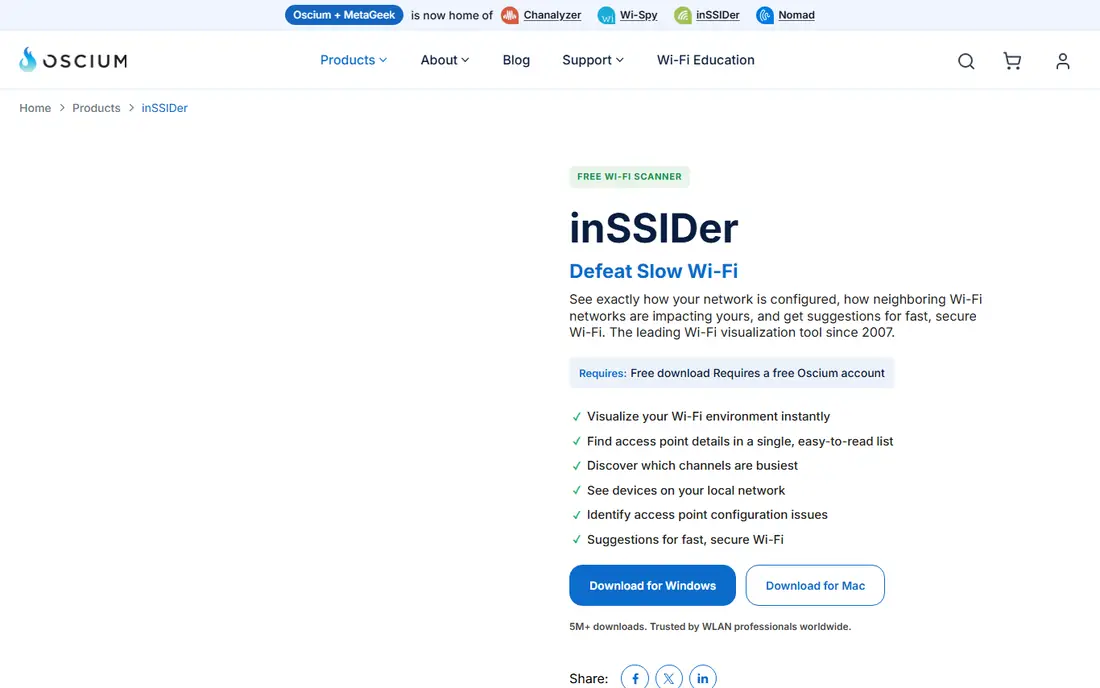
inSSIDer from MetaGeek is built for channel work. It shows which channels are crowded, how networks overlap, and which security settings each network uses, so you can pick a cleaner channel for your own router. That focus makes it useful in flats and offices where many networks share the same airspace.
Pricing varies by plan, so we list it as See website and recommend checking the vendor page for the current offer. inSSIDer is less of a heatmap tool than NetSpot, but for the specific job of choosing a channel and checking security settings, it is one of the clearest desktop tools available.
- Clear channel graphs and overlap view
- Security and signal detail for each network
- Long track record in network troubleshooting
- Pricing is quote based for some plans
- Less focused on heatmaps than NetSpot
Fing is a good first app for a home user who wants to know what is on their network. It scans your own network, lists connected devices, and helps you spot an unknown device that should not be there. Speed tests and outage alerts add useful context when the internet feels slow.
Fing is not a full channel analyzer in the same way as NetSpot or inSSIDer, so use it for device checks and basic troubleshooting, then move to a desktop tool for detailed channel work. The free tier covers the core scan, while premium features sit behind a subscription. Only scan networks you own or manage.
- Free network scan and device list
- Shows devices on your own network
- Internet speed and outage checks
- Less detailed channel analysis than desktop analyzers
- Some advanced features need a subscription
WiFiman from Ubiquiti is the best free analyzer for most phone users. It scans nearby networks, shows channel use and signal strength, and includes a speed test and a view of devices on your network. The interface is clean, and the app does not charge for the core scan.
WiFiman works for general use, not only for Ubiquiti owners, although owners of Ubiquiti access points get extra integration. It does not build NetSpot style heatmaps, so use it for channel checks and spot checks around a home. For a free, no fuss first scan, WiFiman is hard to beat.
- Free with no ads in the app
- Channel graphs and signal detail
- Speed test and device discovery
- Made by Ubiquiti, so some features fit Ubiquiti gear best
- No full site survey heatmaps
Network Analyzer by Techet is for people who want network tools beyond a WiFi scan. Alongside channel and signal detail, it offers ping, traceroute, DNS lookup and port scanning, which help a technician find whether a problem is WiFi, routing or a device. That breadth makes it a useful field tool on an iPhone or iPad.
Pricing varies by store and version, so we list it as See website. Beginners may find the toolset busy, and a simpler app such as WiFiman will answer a basic channel question faster. Technicians who already use ping and traceroute will appreciate having those tools beside the WiFi scan.
- WiFi scan plus ping, traceroute and port tools
- Useful for technicians who need more than a channel list
- Works on iOS
- Paid Pro version for full features
- Interface is technical rather than beginner friendly
Acrylic Wi-Fi Analyzer is a free Windows tool that gives a detailed view of nearby networks, including channel, signal strength, security and supported standards. It suits Windows users who want desktop detail without buying a survey tool. The scan view is clear, and the channel graphs help you pick a less crowded channel.
Professional features such as heatmaps and advanced reporting sit in paid Acrylic products, so this free analyzer is best for channel and signal work rather than full site surveys. If you use Windows and want a free desktop scan, Acrylic is a solid starting point before you consider NetSpot.
- Free Windows analyzer with channel and signal views
- Detailed network information
- Useful for Windows only households
- Windows only
- Advanced professional features sit in paid Acrylic products
analiti is a power user app for Android that goes further than a basic scanner. It shows channel graphs, signal strength over time, and network tools such as speed tests, all from a phone. That depth helps when you are standing in a weak spot and want to know whether the problem is channel crowding, distance or interference.
Phone scans have limits: a phone cannot detect every kind of interference, and results depend on the phone's WiFi hardware. The free version is ad supported, with a paid option to remove ads and add features. Use analiti for detailed phone checks, and a desktop survey tool when you need a full heatmap.
- Detailed phone based analysis including channel graphs
- Speed tests and network tools
- Supports newer WiFi bands on capable phones
- Free version shows ads
- Phone hardware limits what a mobile scan can detect
WiFi Scanner from LizardSystems is a straightforward desktop scanner for occasional use. It lists nearby networks with signal strength, channel and security information, without the survey workflow of NetSpot. That simplicity suits a home user or small office that needs a clear answer a few times a year.
It does not match NetSpot for heatmaps or inSSIDer for deep channel analysis, and pricing varies by licence, so we list it as See website. If you want a simple desktop scan and do not need a survey, WiFi Scanner is a low friction choice.
- Simple network list with signal and channel detail
- Works on Windows and Mac
- Easy for occasional troubleshooting
- Less advanced than NetSpot or inSSIDer
- Pricing varies by licence
How we picked these
We compared official product pages and app listings, and we kept only analyzers that are live in October 2026 and focus on networks you own or manage. We excluded tools built for unauthorised network access, and we excluded outdated scanners that no longer support current WiFi standards. We weighted scan clarity, channel detail, heatmap ability, platform support, and whether the free tier answers a real question without forcing a purchase.
How to use a WiFi analyzer
Start by scanning from the spot where the problem happens, not from beside the router. Note the channel, signal strength in dBm, and how many networks share that channel. A signal near minus 50 dBm is strong, while a signal near minus 80 dBm is weak and likely to drop.
Then change one thing at a time: try a less crowded channel, move the router away from thick walls and metal, or add an access point in a dead zone. Rescan after each change and compare the numbers, rather than relying on how the connection feels for a few minutes. Only scan and test networks you own or have permission to manage.
Frequently asked questions
What is the best free WiFi analyzer app?
WiFiman is the best free analyzer for most phone users, because it covers channel graphs, signal detail and speed tests without charging for the core scan. Fing is also free and useful for checking devices on your own network.
What are the best WiFi analyzer apps?
The strongest set is NetSpot for heatmaps, WiFi Explorer and inSSIDer for desktop detail, WiFiman and Fing for free phone scans, and analiti for power users on Android. Acrylic and WiFi Scanner are good Windows and Mac options for simpler scans.
What is the best network analyzer app?
A network analyzer covers more than WiFi, including ping, traceroute and device discovery. Network Analyzer by Techet and Fing both fit that wider job, while NetSpot and inSSIDer focus more narrowly on WiFi channels and coverage.
Can a WiFi analyzer improve my internet speed?
An analyzer does not increase your internet plan speed, but it can help you pick a cleaner channel, move a router, or find a dead zone. Those fixes can improve WiFi performance in your home, even though the broadband speed from your provider stays the same.
Is it legal to use a WiFi analyzer?
Scanning networks that appear in your area to view public broadcast details is a normal troubleshooting step, but you should only connect to, test or change networks you own or have permission to manage. Never use an analyzer to access someone else's network.
Why is my WiFi signal weak in one room?
Weak signal in one room is often caused by distance, thick walls, metal objects, or interference from nearby networks on the same channel. A heatmap or a scan from that room will show whether the issue is signal strength, channel crowding, or both.
Sources
See where you really rank - block by block
ProMapRanker scans Google Maps across a grid of your service area. Simple monthly plans from $19, white-label on every plan.
Start freeKeep reading
 zscaler alternatives
Best Zscaler Alternatives in 2026
Looking for zscaler alternatives? We compare 9 SASE and zero trust platforms on architecture, data protection, pricing, and fit for your network and team.
Read → zapier alternatives free
Best Zapier Alternatives Free in 2026
Nine automation tools for zapier alternatives free in 2026, all with genuinely free tiers, plus free plan limits, starting prices and upgrade paths explained.
Read → which platform is best for online reputation
Which Platform Is Best for Online Reputation in 2026
Wondering which platform is best for online reputation? We compare 8 review, listing, and response tools for small and multi-location businesses and agencies.
Read →