 ProMapRanker
Best Web Developer Tools in 2026

Key takeaways
- Visual Studio Code, GitHub, and Chrome DevTools form the core stack for most web developers in 2026.
- Figma and Tailwind CSS cover design and styling, while Docker and Postman cover environments and API testing.
- GitHub Copilot adds AI completion inside editors, but code review and testing still matter for every suggestion.
- Most tools here offer strong free tiers, so a beginner can build a full workflow before paying for anything.
- Pick tools that fit your stack and team, not the longest list. A small, well-used toolkit beats a large, unused one.
Quick comparison
| Pick | Great for | Pricing starts at | Free tier | |
|---|---|---|---|---|
 Visual Studio Code | Everyday code editing | Free | Yes | Visit |
 GitHub | Version control and collaboration | Free | Yes | Visit |
 Chrome DevTools | Browser debugging | Free | Yes | Visit |
 Figma | Interface design and handoff | Free | Yes | Visit |
 Tailwind CSS | Utility-first styling | Free | Yes | Visit |
 GitHub Copilot | AI code completion | See website | Free trial | Visit |
 Docker | Consistent dev environments | Free | Yes | Visit |
 Postman | API design and testing | Free | Yes | Visit |
The best web developer tools
Web developer tools cover editing, version control, debugging, design, styling, AI help, environments, and API testing. We kept only tools that are live, widely used, and able to support real production work in 2026, and we looked for a mix that works for beginners and professionals alike.
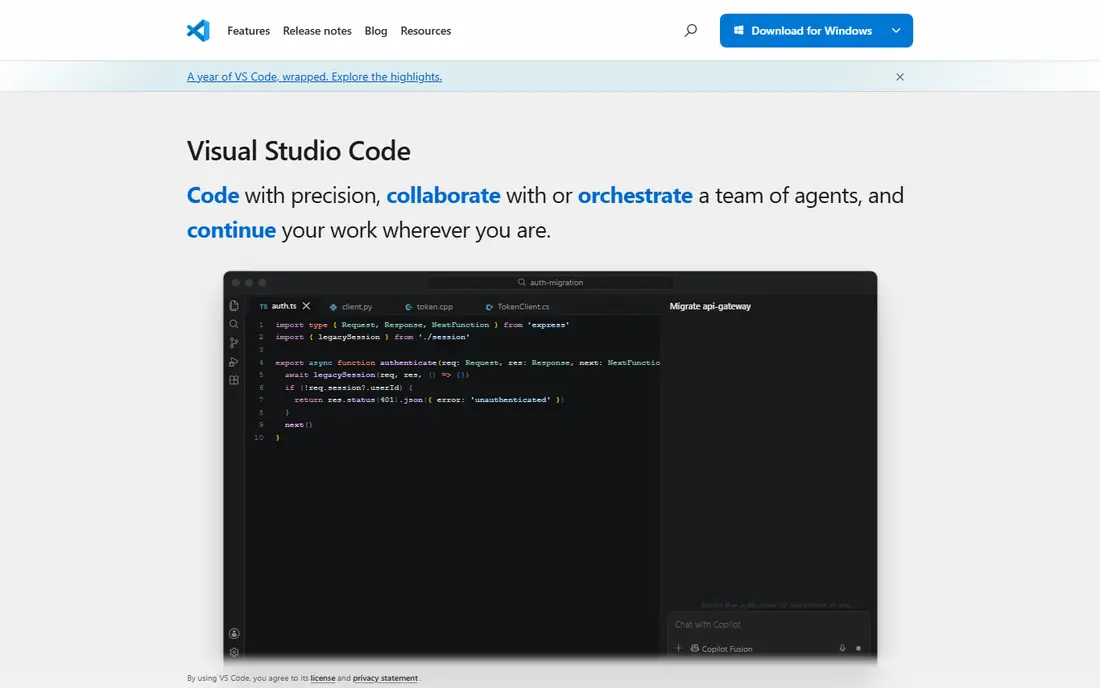
Visual Studio Code is our pick for most web developers because it does the core job well and costs nothing. Editing, debugging, Git, and terminal work sit in one window, and extensions add support for almost every language, framework, and linter. For a beginner, that means one editor for HTML, CSS, JavaScript, and back-end work.
The catch is extension sprawl. A setup with dozens of extensions can slow startup and create conflicting settings. Start with a small set: a formatter, a linter, and language support for your stack, then add tools only when a real pain appears. VS Code rewards a tidy setup with a fast, reliable daily workflow.
- Free and open source
- Huge extension library
- Strong Git, debugging, and terminal support
- Heavy extension setups can slow startup
- Settings take time to tune well
GitHub is the default home for web code in 2026. Repositories, branches, pull requests, and code review give teams a clear workflow, and Actions add testing and deployment without a separate service. For solo developers, GitHub also acts as a portfolio and backup.
The limit is plan tiers. Free plans cover a great deal, but advanced team controls, larger Actions usage, and some enterprise features need paid plans. Learn branching, pull requests, and clear commit messages early, since those habits matter more than any single feature. GitHub is not just storage; it is how modern teams review and ship code.
- Standard for code hosting and review
- Pull requests and actions
- Large open-source community
- Advanced team features need paid plans
- Private project limits vary by plan
Chrome DevTools is the fastest way to find out why a page looks or behaves wrong. Inspect elements, edit CSS live, trace network requests, and step through JavaScript without leaving the browser. Performance and accessibility panels help you spot slow loads and common issues before users do.
The catch is browser scope. A fix that works in Chrome may still fail in Firefox or Safari, so cross-browser testing remains essential. Beginners should start with Elements, Console, and Network panels, then learn Performance and Lighthouse checks over time. DevTools turns guesswork into evidence, which is why it belongs in every web workflow.
- Built into Chrome at no cost
- Live HTML, CSS, and JavaScript inspection
- Performance and network panels
- Chrome-specific quirks need cross-browser checks
- Panels can overwhelm beginners
Figma suits teams where designers and developers share one workspace. Designers build interfaces in the browser, stakeholders comment in place, and developers inspect specs, colours, spacing, and assets for handoff. Prototyping lets a team test a flow before writing production code.
The free tier covers solo work and small teams well, but larger organisations will need paid plans for advanced libraries, branching, and controls. Figma also needs a solid internet connection for smooth collaboration. For a team that wants design and development in the same conversation, Figma is the clearest choice.
- Browser-based collaboration
- Strong prototyping
- Clear developer handoff with specs and assets
- Advanced team features need paid plans
- Large files can slow on weak hardware
Tailwind CSS changes how many developers write styles. Instead of naming custom classes for every button and card, you apply small utility classes directly in markup, which speeds up building and keeps spacing and colour consistent. It pairs well with React, Vue, and modern build tools.
The trade-off is markup density. A component with many utilities can look long, and newcomers need time to learn class names. Component extraction and good editor support help a great deal. If you build interfaces often and want speed without a heavy design system, Tailwind is a strong pick.
- Fast styling with utility classes
- Consistent design tokens
- Strong framework support
- HTML can look crowded with long class lists
- Learning curve for class naming
GitHub Copilot is the most useful AI addition to a web workflow in 2026. It suggests code as you type, explains snippets in chat, and handles boilerplate such as forms, tests, and data handling faster than manual typing. Inside VS Code, it feels like part of the editor rather than a separate tool.
The honest limit is trust. Copilot can suggest plausible code that is wrong, insecure, or out of date, so every suggestion needs reading, testing, and review. It is best for speeding up known patterns, not for designing architecture on its own. Check current pricing on GitHub, since plans and free allowances change. Used with discipline, Copilot saves real time.
- Context-aware code suggestions in editors
- Chat help for explanations
- Speeds up boilerplate work
- Suggestions need review and testing
- Subscription cost for full use
- Output quality varies by task
Docker solves the classic problem of code that works on one machine and fails on another. Containers package an app with its dependencies, so a team shares the same Node version, database, and services. Local setup becomes a command or two, and deployment follows the same image.
The learning curve is real. Containers, images, volumes, and networking take time to understand, and Docker can use noticeable disk and memory on a weaker laptop. Start with one container for your database, then containerise the app itself. For teams and full-stack projects, Docker removes a whole class of setup problems.
- Same environment on every machine
- Easy database and service setup
- Strong deployment story
- Learning curve for containers and networking
- Resource use on weaker machines
Postman is the standard tool for working with APIs. Build requests, save them in collections, test responses, and share workspaces with a team. Automated tests and documentation turn a loose set of endpoints into a reliable API workflow, which matters for any app that talks to a back end.
For a single quick request, Postman can feel heavier than a browser tool or command-line call. Its value grows with collections, environments, and tests that you reuse across a project. Free plans cover solo and small-team work well. If your app depends on APIs, Postman belongs in your toolkit.
- Easy API requests and collections
- Automated tests and docs
- Team workspaces
- Advanced team features need paid plans
- Interface can feel heavy for simple requests
How we picked these
We compared official product pages, pricing pages, documentation, and public usage for October 2026. We kept only tools that are live, maintained, and widely used for real web work, and we sought a mix covering editing, collaboration, debugging, design, styling, AI help, environments, and APIs. We weighed free tiers, ecosystem depth, learning curve, and fit for beginners and professionals. We did not claim hands-on testing, and we did not invent usage counts, ratings, or feature claims.
How to build a web developer toolkit that stays useful
Start with the core trio: VS Code, GitHub, and Chrome DevTools. Add Figma if you design interfaces, Tailwind CSS if you style often, and Postman if you work with APIs. Add Docker when environment differences start costing you time, and add Copilot when boilerplate slows you down. That order keeps your toolkit tied to real pain, not fashion.
Next, standardise the small things. Use a formatter and linter, write clear commit messages, and keep a README that explains setup in a few steps. Test in more than one browser, check accessibility basics, and review AI-generated code before you commit it. A toolkit is only useful if a new team member can set it up, run it, and ship a change without asking for help every step.
Frequently asked questions
What are the best web developer tools for beginners?
Visual Studio Code, GitHub, and Chrome DevTools are the best starting trio, since they are free and cover editing, version control, and debugging. Add Figma for design and Postman for APIs as you need them. Learn one tool well before adding another, and practise with small projects.
What is the best web development tool for front-end work?
VS Code plus Figma and Tailwind CSS covers most front-end work, with Chrome DevTools for debugging. GitHub handles version control and collaboration. That stack suits React, Vue, and plain HTML and CSS projects alike, and all four tools offer free tiers.
What are the best tools for web developers in 2026 for AI help?
GitHub Copilot is the most established AI coding tool, with completion and chat inside VS Code and other editors. Treat its output as a draft: read it, test it, and review it for security and correctness. AI help speeds up boilerplate, but design, testing, and review remain human work.
Do I need Docker as a web developer?
Not always. Docker helps most when you run databases, multiple services, or team projects where environments must match. A solo static site or simple front-end project may not need it. Add Docker when setup differences, database versions, or deployment friction start costing you time.
What is the best website development tool for teams?
GitHub leads for team collaboration, with pull requests, review, and Actions for testing and deployment. Figma covers design collaboration, and Postman covers API teamwork. Together they give a team shared code, shared design, and shared API collections in one workflow.
Are free web developer tools good enough for professional work?
Yes, in most cases. VS Code, GitHub, Chrome DevTools, Figma, Tailwind CSS, Docker, and Postman all offer free tiers that support professional projects. Paid plans add team controls, larger usage limits, and advanced features, so pay when a limit or control actually blocks your work.
Sources
See where you really rank - block by block
ProMapRanker scans Google Maps across a grid of your service area. Simple monthly plans from $19, white-label on every plan.
Start freeKeep reading
 zoho inventory alternatives
6 Alternatives to Zoho Inventory, Compared on Price and Fit
Zoho Inventory alternatives: 6 tools compared on price, free plans and fit. Katana leads the list for manufacturers. Fit and flaws are laid out for each entry.
Read → zoho crm alternatives
Best Zoho CRM Alternatives (2026)
Need Zoho CRM alternatives? We compare 7 tools on cost, free access and who each suits. Every pick gets a straight assessment. Built for quick decisions.
Read → zelle alternatives
Best Zelle Alternatives in 2026
Compare the best Zelle alternatives for sending money to friends, paying sellers and moving funds abroad, with honest notes on fees, speed and safety in 2026.
Read →