 ProMapRanker
Best VM Software in 2026: 9 Tools Compared

Key takeaways
- VirtualBox and VMware Fusion cover most home and lab use at no cost, while Parallels Desktop remains the most polished route to Windows on a Mac.
- VMware Workstation Pro is now free for personal and commercial use in the form Broadcom distributes it, which changes the value comparison with VirtualBox.
- Hyper-V suits Windows Pro and Enterprise users who want virtualization built into Windows, with no separate download to manage.
- QEMU, UTM, and Proxmox VE reward users who want more control, but they ask for more setup time than the mainstream desktop tools.
- Check the guest operating system you need before you pay, because support for Windows on Arm, older Windows versions, and macOS guests varies a lot.
Quick comparison
| Pick | Great for | Pricing starts at | Free tier | |
|---|---|---|---|---|
 VirtualBox | Free cross-platform labs | Free | Yes | Visit |
 VMware Workstation Pro | Windows and Linux power users | Free | Yes | Visit |
 Parallels Desktop | Windows on Mac | $99.99 per year | Free trial | Visit |
 VMware Fusion | Free Windows on Mac | Free | Yes | Visit |
 Hyper-V | Windows Pro and Enterprise users | Free | Yes | Visit |
 QEMU | Linux users who want full control | Free | Yes | Visit |
 UTM | Open-source virtualization on Mac | Free | Yes | Visit |
 GNOME Boxes | Simple Linux virtual machines | Free | Yes | Visit |
 Proxmox VE | Small server and homelab setups | Free | Yes | Visit |
The best VM software
Virtual machine software lets one computer run another operating system inside a window, so you can test software, run a work app, or keep an old system alive without a second machine. We compared official feature pages, pricing, and platform support to build this list.
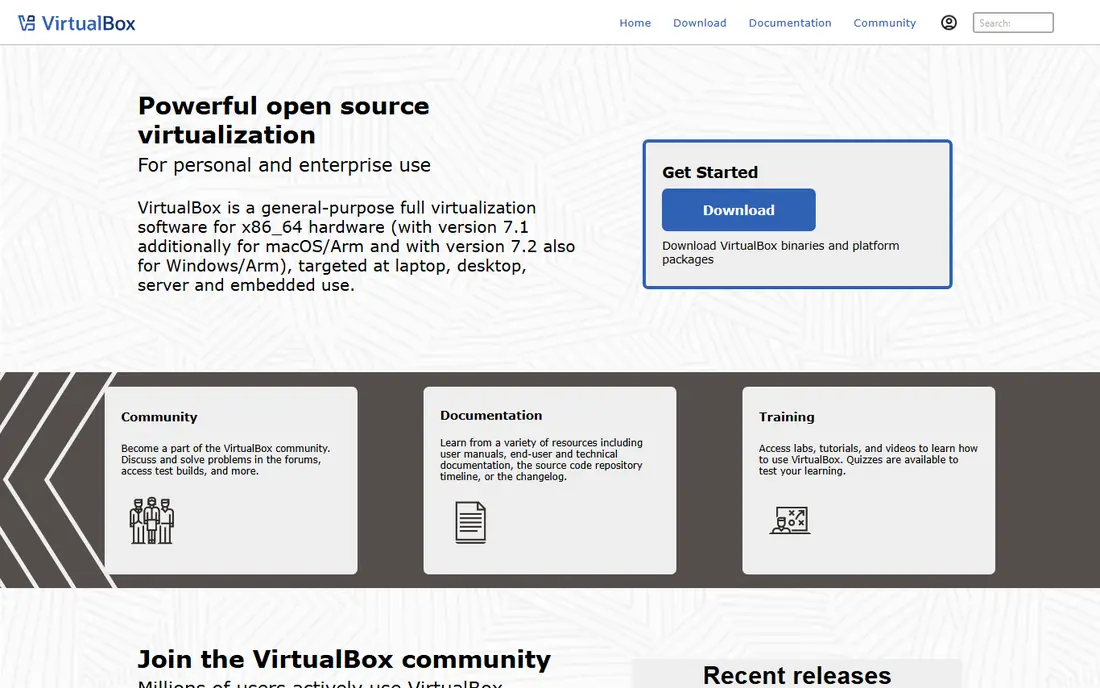
VirtualBox is the default first stop for most people, and for good reason. It runs on Windows, macOS, and Linux, it costs nothing for the core product, and it handles a long list of guest systems, from current Linux distributions to much older Windows releases. Snapshots let you save a machine state before a risky change, and shared folders and clipboard sharing cover everyday movement of files between host and guest.
The trade-off is performance and polish. Graphics-heavy work, including games and demanding design apps, runs better in paid tools, and setup of USB devices and the Extension Pack can confuse first-time users. If your main need is a safe place to test software, learn Linux, or keep an old system running, VirtualBox is hard to beat for the price. If you run Windows daily on a Mac, look at Parallels Desktop or VMware Fusion first.
- Free and open source
- Runs on Windows, macOS, and Linux
- Wide guest operating system support
- Graphics performance trails paid rivals
- Some advanced features need the separate Extension Pack
VMware Workstation Pro has long been the workhorse of Windows and Linux desktop virtualization. It handles multiple virtual machines at once, supports snapshots and clones for testing, and gives developers fine control over virtual networks, disks, and hardware settings. That depth matters when you test software across several operating systems or build a small lab on one workstation.
Broadcom now distributes Workstation Pro free of charge, which removes the old price objection for most users. The catch is support: without a paid support contract, help comes from community forums and documentation rather than a vendor support desk. For a home lab, a development workstation, or a small business with in-house IT skill, that trade is easy to accept. For a team that needs a support number to call, factor that in before standardizing on it.
- Mature snapshot and cloning tools
- Strong Windows and Linux guest support
- Now free to download for personal and commercial use
- Support is community based unless you hold a support contract
- Heavier than VirtualBox for a single light guest
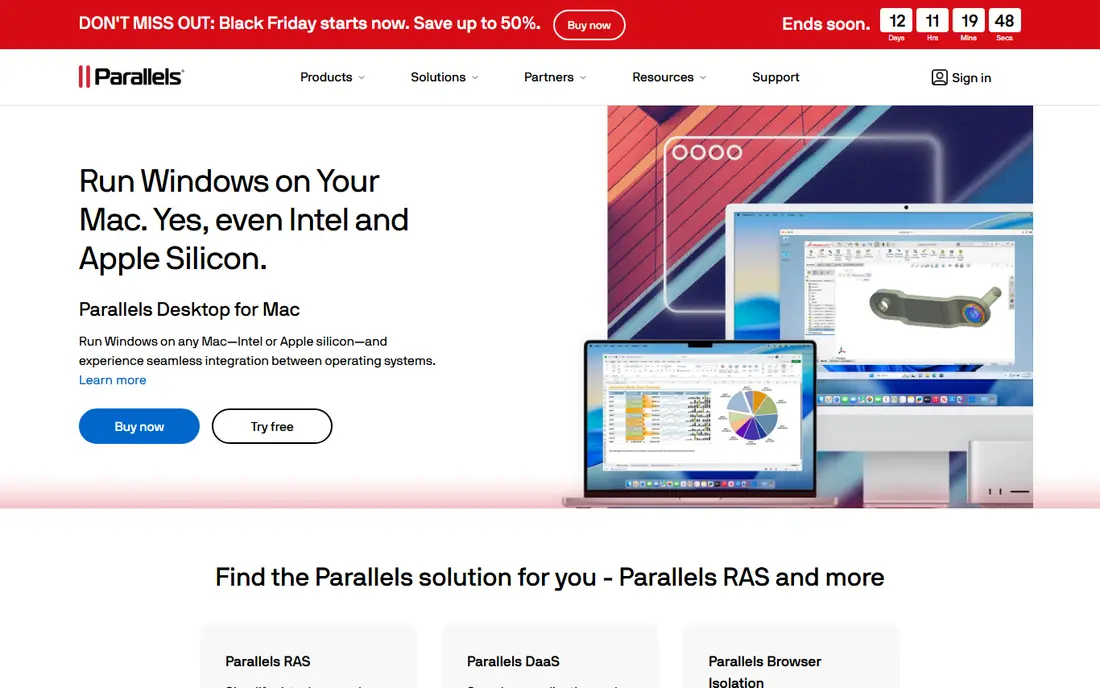
Parallels Desktop is the option we would point most Mac users to first. Installation walks you through a Windows 11 setup, and Coherence mode lets Windows apps sit beside Mac apps instead of trapping you inside a full Windows desktop. That makes it practical for daily work, not just occasional testing, and Microsoft authorizes Parallels as a route to Windows 11 on Arm for Apple Silicon Macs.
The cost is the main drawback. The Standard edition starts at $99.99 per year, with Pro at $119.99 per year and Business at $149.99 per year, and a machine running Windows plus macOS at once needs generous memory, ideally 16 GB or more. If you only need Windows once in a while, the free alternatives below may be enough. If Windows is part of your working day on a Mac, Parallels earns its price through setup speed and day-to-day smoothness.
- Most polished Windows on Mac setup
- Coherence mode blends Windows apps with macOS
- Strong Apple Silicon support
- Subscription pricing on most editions
- Virtual machines demand plenty of RAM
VMware Fusion is the free answer to Parallels for Mac users. It runs Windows, Linux, and macOS guests, supports DirectX 11 graphics for many Windows apps and games, and handles snapshots and clones in the same way Workstation Pro does on Windows and Linux. Since VMware made Fusion free for all uses, the value case is strong.
Fusion does not blend Windows apps into the Mac desktop in the way Parallels Coherence mode does, so Windows stays inside its own window or full-screen space. That is a workflow difference rather than a deal breaker, and many users prefer the cleaner separation. Pick Fusion if you want a capable Mac virtualization tool without a yearly subscription, and accept community support in place of a vendor help desk.
- Full-featured and free for all uses
- Runs Windows, Linux, and macOS guests
- Solid Apple Silicon support
- No Coherence-style app blending
- Support is community based without a contract
Hyper-V is Microsoft virtualization built into Windows Pro, Enterprise, and Server editions, so many Windows users already own it without knowing it. Turn the feature on, create a virtual machine, and you can run Windows or Linux guests with checkpoints, virtual switches, and dynamic memory. For IT testing, training labs, and isolated software trials on a Windows PC, it is a clean fit.
The limits are real. Windows Home does not include Hyper-V, and passing a USB device straight into a guest is more awkward than in VirtualBox or VMware tools. The management console also assumes some IT comfort. If you run Windows Pro or Enterprise and your guests are mainly Windows or Linux, Hyper-V is worth trying before you install anything else. If you run Windows Home, start with VirtualBox or Workstation Pro instead.
- Built into supported Windows editions
- No separate download
- Good for Windows and Linux guests
- Not included in Windows Home
- USB device pass-through is limited
- Interface feels built for IT staff
QEMU is a machine emulator and virtualizer that Linux users lean on when they need flexibility other desktop tools do not offer. It can emulate different processor architectures, run guests through KVM for near-native speed on Linux, and slot into tools such as virt-manager for a graphical front end. Developers and testers use it to run systems that do not match their host hardware.
Beginners should know what they are getting into. QEMU on its own is driven from the command line, and the friendlier experience comes from adding a front end and learning its settings. That effort buys control over hardware models, disk formats, and network setups that simpler tools hide. Choose QEMU if you work on Linux and want that control. Choose VirtualBox or GNOME Boxes if you want a virtual machine running in minutes.
- Free and open source
- Emulates many processor architectures
- Pairs well with KVM on Linux
- Command-line setup can be steep for beginners
- No polished all-in-one desktop interface of its own
UTM brings QEMU to the Mac with a graphical interface, and it is the open-source pick for Apple Silicon users who want more than a basic virtual machine. It runs Arm guests natively for good speed, and it can emulate other architectures when you need to run a system built for different hardware. The direct download is free, while the Mac App Store version costs $9.99 and helps fund development.
Emulation is slower than native virtualization by nature, so an emulated x86 guest will not feel like a native Arm guest. UTM also lacks the hand-holding of Parallels, so setup of some guests takes patience and reading. For Mac users who value open source, want to run Linux guests, or need occasional emulation of another architecture, UTM is a strong free choice. For daily Windows work on a Mac, Parallels or Fusion will feel smoother.
- Free and open source
- Native Apple Silicon support
- Can emulate other architectures through QEMU
- Paid Mac App Store version costs $9.99
- Performance varies by guest
- Smaller support community than Parallels
GNOME Boxes is the simplest way to run a virtual machine on a Linux desktop. Pick an installer image or download a system from inside the app, and Boxes handles most settings for you. The interface stays out of the way, which makes it a good fit for trying a new Linux distribution, testing an app in a clean system, or giving a student a first virtual machine.
Simplicity is also the limit. Boxes hides the detailed hardware, network, and snapshot controls that VirtualBox and QEMU expose, so power users will outgrow it. It is also mainly a Linux desktop tool, not a cross-platform product. If you want a virtual machine with almost no learning curve on Linux, start here. If you need clones, complex networks, or Windows and Mac hosts, move up to VirtualBox or VMware tools.
- Very easy to set up
- Clean interface
- Free and open source
- Fewer advanced settings than VirtualBox or QEMU
- Linux focused, with limited appeal on Windows or Mac
Proxmox VE is a different kind of pick: it turns a spare computer or server into a virtualization host you manage from a browser. From one web interface you can run virtual machines and Linux containers, schedule backups, and group hosts into a cluster. That makes it popular for homelabs, small offices, and test servers where several systems must stay running around the clock.
It is not a desktop tool you install beside your everyday apps. Proxmox VE expects its own machine, and setup rewards some server knowledge. A paid enterprise support subscription is available, but the software itself is free to download and use. Pick Proxmox VE when the goal is a small server that hosts several systems. Pick a desktop tool above when the goal is a virtual machine inside the computer you already use every day.
- Free and open source
- Manages virtual machines and containers from a web interface
- Built-in backup and clustering tools
- Built for servers, not a desktop app
- Needs a dedicated machine or server
- Paid support subscriptions are separate
How we picked these
We compared official product pages, pricing pages, and platform support notes, and we favored tools that are actively maintained and run on current hardware in October 2026. We kept the list to desktop virtualization and small-server use, so we left out large enterprise-only platforms and compatibility layers that do not run a full guest operating system. Where pricing had changed recently, as with VMware products becoming free to download, we used the current vendor position rather than older paid prices.
What to check before you install
Start with your host and your guest. A Mac with Apple Silicon runs Arm guests best, so confirm that your Windows or Linux guest has an Arm build before you commit to a tool. A Windows Home PC cannot use Hyper-V, and a machine with 8 GB of RAM will struggle to run a host and a Windows guest at the same time, so plan for 16 GB or more for daily use.
Next, match the tool to the job. Daily Windows work on a Mac points to Parallels or Fusion. A lab, a course, or a test system points to VirtualBox, Workstation Pro, or GNOME Boxes. A server that must stay on points to Proxmox VE. Finally, test with a trial or a free edition before you pay. Install one guest, try the apps you actually use, and check USB devices, shared folders, and printing, because those everyday details decide if a tool fits better than any feature list.
Frequently asked questions
What is the best VM software for most people?
VirtualBox is the safest free starting point on Windows, Mac, and Linux, and VMware Workstation Pro and Fusion are strong free alternatives on their platforms. Mac users who run Windows every day will usually prefer Parallels Desktop for its smoother setup and Coherence mode. The best choice depends on your host system and how often you use the guest.
What is the best free VM software?
VirtualBox, VMware Workstation Pro, VMware Fusion, QEMU, UTM, GNOME Boxes, and Proxmox VE all have free editions that cover real work. VirtualBox wins for cross-platform simplicity, while Fusion and Workstation Pro offer more polished commercial-grade features at no download cost. Free does not mean limited here, though paid support and some convenience features remain paid.
Can I run Windows 11 on a Mac with VM software?
Yes, on Apple Silicon Macs you can run Windows 11 on Arm through Parallels Desktop or VMware Fusion, and Parallels is the Microsoft-authorized route for that setup. You still need a valid Windows license, and some older x86 Windows apps run through emulation inside Windows on Arm. On Intel Macs, the older virtualization tools also run standard Windows guests.
How much RAM do I need for a virtual machine?
Plan for 16 GB of total system memory if you run a Windows guest alongside your normal apps, with at least 4 GB assigned to the guest. Lighter Linux guests can run well with less, and a host with 8 GB can still handle one small guest for testing. If the host starts swapping to disk, the guest will feel slow no matter which tool you use.
Is Hyper-V better than VirtualBox?
Hyper-V is better for Windows Pro and Enterprise users who want virtualization built into Windows with no extra install. VirtualBox is better for Windows Home users, for Mac and Linux hosts, and for guests that need easy USB pass-through. Both are capable, so the host system and the guest mix matter more than a single winner.
Sources
See where you really rank - block by block
ProMapRanker scans Google Maps across a grid of your service area. Simple monthly plans from $19, white-label on every plan.
Start freeKeep reading
 zoho inventory alternatives
6 Alternatives to Zoho Inventory, Compared on Price and Fit
Zoho Inventory alternatives: 6 tools compared on price, free plans and fit. Katana leads the list for manufacturers. Fit and flaws are laid out for each entry.
Read → zoho crm alternatives
Best Zoho CRM Alternatives (2026)
Need Zoho CRM alternatives? We compare 7 tools on cost, free access and who each suits. Every pick gets a straight assessment. Built for quick decisions.
Read → zelle alternatives
Best Zelle Alternatives in 2026
Compare the best Zelle alternatives for sending money to friends, paying sellers and moving funds abroad, with honest notes on fees, speed and safety in 2026.
Read →