 ProMapRanker
Best Video Tutorial Software in 2026

Key takeaways
- Camtasia is the most complete tutorial tool here, with recording and full editing, quizzes and captions in one app.
- OBS Studio is free and powerful for recording, but it has no built-in editor, so you need a second app to cut and polish.
- Loom and ScreenPal suit quick how-to videos shared by link, while Camtasia and ScreenFlow suit polished courses.
- iSpring Suite suits corporate training teams that need quizzes and SCORM output for a learning management system.
- Descript suits narration-heavy tutorials, since you can edit video by editing the transcript text.
Quick comparison
| Pick | Great for | Pricing starts at | Free tier | |
|---|---|---|---|---|
 Camtasia | Polished tutorial courses | $179.88 per year | Free trial | Visit |
 Loom | Quick videos shared by link | $15 per user per month | Yes | Visit |
 ScreenPal | Affordable all-round recording | $4 per month | Yes | Visit |
 OBS Studio | Free professional recording | Free | Yes | Visit |
 ScreenFlow | Mac creators who edit lessons | $199 one-time | Free trial | Visit |
 iSpring Suite | SCORM courses with quizzes | $970 per year | Free trial | Visit |
 Descript | Editing by transcript | $16 per person per month | Yes | Visit |
 Movavi Screen Recorder | Simple one-off recordings | $34.95 per year | Free trial | Visit |
 Screencastify | Browser-based classroom videos | $7 per user per month | Yes | Visit |
The best video tutorial software
Video tutorial software needs to record your screen clearly, capture your voice cleanly, and let you fix mistakes without re-recording the whole lesson. Some tools focus on fast sharing, others on full editing, and a few on tracked courses. We compared official pricing pages, feature lists and public reviews for tools used by teachers, trainers and course creators.
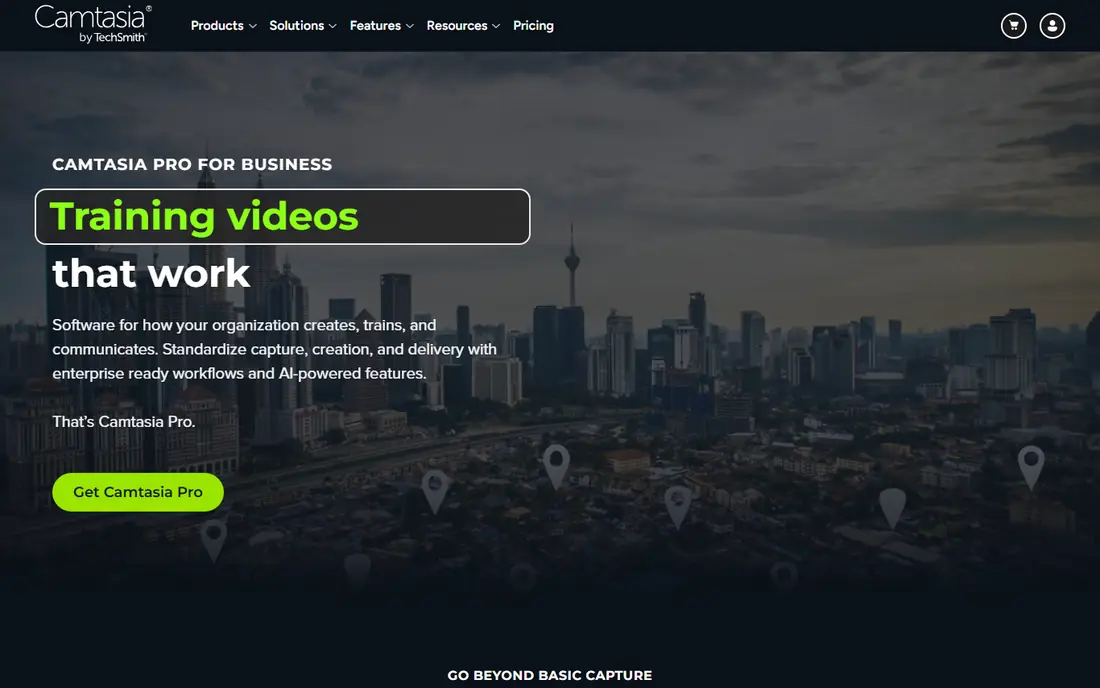
Camtasia is the standard choice for polished tutorials because it combines recording and editing without forcing you to move files between apps. You can record screen, microphone and webcam on separate tracks, cut mistakes, add zooms, callouts and captions, and export a finished lesson. Quizzes and templates help course creators build structured training, not just single videos.
The price and system needs are the catch. Essentials starts at $179.88 per year, and the free version exports with a watermark, so it works as a trial rather than a free tool. TechSmith recommends at least 8GB of RAM, with 16GB for comfort. If you produce tutorials weekly, the time saved in editing justifies the cost.
- Recorder and full editor in one app
- Quizzes, captions and callouts
- Separate tracks for screen, voice and webcam
- Higher price than lightweight recorders
- Needs decent hardware for smooth editing
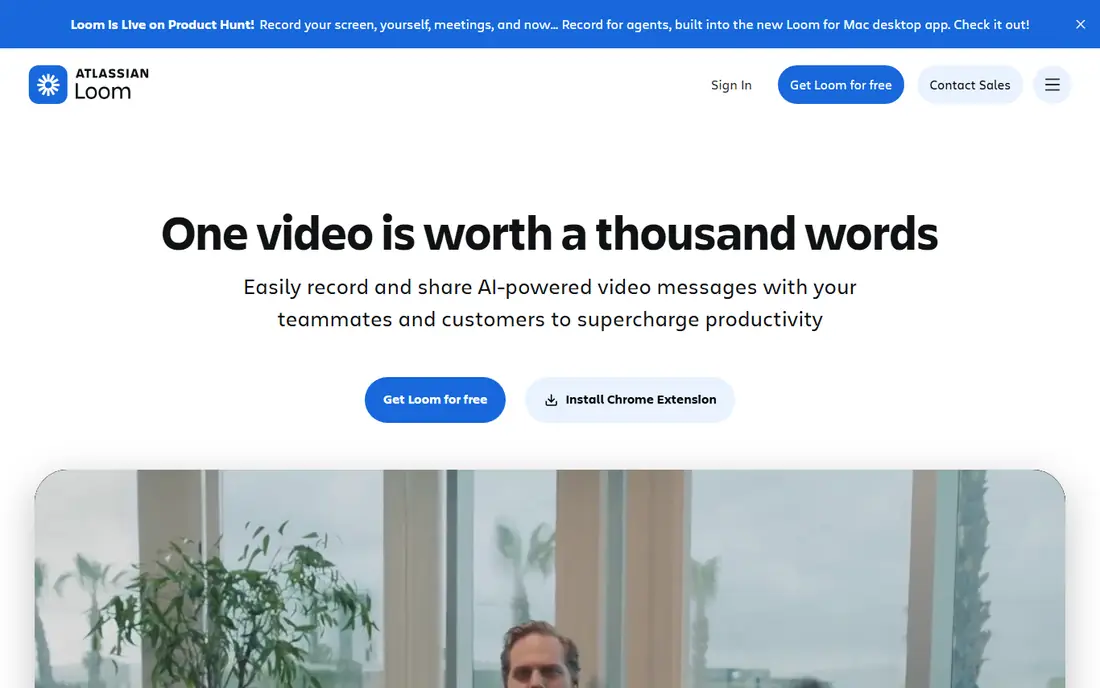
Loom is built for speed. You record your screen and webcam, and the video is ready to share by link in moments, with no export and upload step. That loop suits support answers, internal how-to clips and feedback videos where the point is to explain quickly, not to produce a polished course. Viewers can comment at timestamps, which helps teams discuss a specific step.
The free plan limits recording length and video count, and editing is basic compared with Camtasia or ScreenFlow. Paid plans start at $15 per user per month billed annually and remove those limits. If your tutorials are short and frequent, Loom is the fastest tool here.
- Fast record-and-share loop
- Viewer comments and reactions
- AI summaries on paid plans
- Free plan limits video length and count
- Editing is lighter than Camtasia
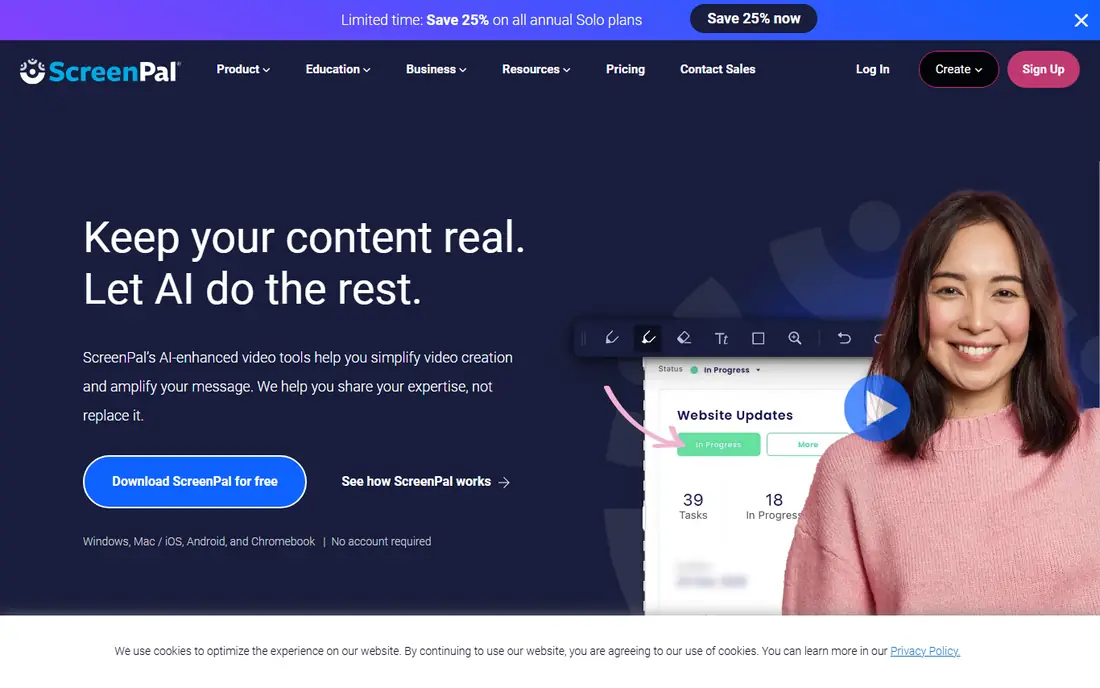
ScreenPal, formerly Screencast-O-Matic, offers remarkable value for schools and small teams. Solo Deluxe starts at $4 per month billed annually and includes recording, light editing, hosting, captions and quizzes. The free plan allows 15-minute recordings, which is enough to test the workflow before paying.
Editing is lighter than Camtasia, so complex multi-track courses will feel limited. The free plan also caps hosted videos. For classroom lessons, internal training and support videos at a low price, ScreenPal is one of the best value picks in this list.
- Low price
- Recording, editing and hosting together
- Quizzes and captions on paid plans
- Editing is lighter than Camtasia
- Free plan limits hosted videos
OBS Studio is free, open source and powerful, with no watermarks, time limits or paid tiers. It records multiple sources, switches scenes, captures games and apps, and streams live, which makes it popular with tutorial creators who also stream. Advanced users can fine-tune audio, video and encoding to a high standard.
The trade is editing and ease. OBS does not include a video editor, so you need a second app to cut mistakes, add titles and export a polished lesson. Setup also takes longer than Loom or ScreenPal. If you have an editing app already and want the best free recorder, OBS is unmatched.
- Completely free and open source
- Unlimited recording
- Scenes, sources and live streaming
- No built-in video editor
- Learning curve is steep for beginners
ScreenFlow is the Mac answer to Camtasia. It records screen, webcam and audio, then offers a full multi-track editor with titles, transitions, callouts and captions, all tuned for macOS. The one-time price of $199 appeals to creators who prefer to buy once rather than pay yearly, and performance on Apple hardware is smooth.
Windows users cannot use it, which is the main limitation. It also lacks the course-specific quiz and SCORM focus of Camtasia and iSpring. For a Mac creator building polished lessons without a subscription, ScreenFlow is an excellent choice.
- One-time purchase
- Full editor for Mac
- Smooth performance on Apple hardware
- Mac only
- Windows users need Camtasia instead
iSpring Suite suits corporate training teams that must track completion and scores. It works as a PowerPoint add-in, so trainers can turn slides into interactive courses with quizzes, dialogue simulations and screen recordings, then export SCORM packages for a learning management system. That tracking is essential when training must be certified.
The price is high at $970 per author per year, and the PowerPoint focus suits Windows teams best. Casual creators do not need this depth. If your tutorials must be scored, tracked and reported in an LMS, iSpring is the right specialist tool.
- PowerPoint-based course authoring
- Quizzes and SCORM output
- Screen recording included
- High price per author
- Windows and PowerPoint focus
Descript changes how you edit. It transcribes your narration, and you cut video by deleting words in the transcript, which feels natural for narration-heavy tutorials. Filler-word removal, studio sound cleanup and caption tools help polish a lesson quickly, and the free plan lets you test the workflow with monthly limits.
Screen effects, zooms and callouts are thinner than Camtasia, so software demos with heavy cursor work may suit another tool better. Paid plans start at $16 per person per month billed annually. For talking-head and voiceover tutorials, Descript can cut editing time sharply.
- Edit video by editing text
- Filler-word removal
- Good caption and transcription tools
- Less suited to complex screen effects
- Price rises with transcription hours
Movavi Screen Recorder suits people who need a simple, reliable recording without a full editing suite. The interface is clear, scheduled recording lets you capture a live session without sitting at the desk, and the app is light on system resources. The yearly price of $34.95 is easy to justify for occasional use.
Editing is basic, and the trial exports with a watermark, so plan to pay for finished work. It also lacks the course tools of Camtasia and iSpring. For one-off tutorials, support clips and quick demos, Movavi is a low-fuss choice.
- Simple interface
- Scheduled recording
- Lightweight on system resources
- Editing is basic
- Trial exports carry a watermark
Screencastify runs as a browser tool, which makes it ideal for schools using Chromebooks. Teachers can record screen, webcam and voice without installing desktop software, then share directly to Google Drive or Classroom. The interface is simple enough for students to use for assignments as well as for teachers to make lessons.
Advanced editing is limited by the browser format, and the free plan restricts length and count. Paid plans start at $7 per user per month billed annually. For classroom and Chromebook use, that browser simplicity outweighs the editing limits.
- Runs in the browser
- Good for Chromebooks and classrooms
- Easy sharing to Google Drive
- Browser limits on advanced editing
- Free plan limits video length and count
How we picked these
We compared official pricing pages, feature lists and public reviews for screen recorders and tutorial editors. We favored tools with clear audio capture, caption support, sharing options and editing that matches the use case, from quick clips to tracked courses. We used See website only where pricing was unclear, and we quoted published prices where vendors list them.
What to check before you buy
Start with your tutorial length and polish level. Quick support clips need Loom or ScreenPal, while a paid course needs Camtasia, ScreenFlow or iSpring. Check audio quality first, since viewers forgive average video but leave when narration is hard to hear. A decent USB microphone matters more than a camera upgrade.
Test captions and export formats, especially if learners watch without sound or on phones. If training must be tracked, confirm SCORM output before buying, since only iSpring here focuses on that. Finally, record a real lesson during any trial, including a mistake you need to cut, since that shows whether the editor fits your workflow.
Frequently asked questions
What is the best software for video tutorials?
Camtasia is the most complete choice for polished courses, while Loom and ScreenPal suit quick how-to videos. OBS Studio is best if you want a free recorder and already have an editor.
What is the best video tutorial software for beginners?
ScreenPal and Loom are the easiest starting points, with low prices and simple sharing. Movavi is also simple for one-off recordings, while Camtasia takes longer to learn but rewards regular creators.
Can I make video tutorials for free?
Yes, OBS Studio is completely free for recording, and Loom, ScreenPal, Descript and Screencastify offer free plans with limits. Free plans usually limit length, hosted videos or export quality, so check those limits before relying on them.
Do I need SCORM output for tutorials?
Only if your training must be tracked in a learning management system with scores and completion records. iSpring Suite focuses on SCORM, while Camtasia also supports course features. For YouTube or internal sharing, SCORM is not needed.
What equipment do I need for video tutorials?
A decent USB microphone, a quiet room and a clear screen recording matter most. A webcam helps for presenter-led lessons, but many tutorials work well with screen and voice alone. Good lighting helps if you appear on camera.
Sources
See where you really rank - block by block
ProMapRanker scans Google Maps across a grid of your service area. Simple monthly plans from $19, white-label on every plan.
Start freeKeep reading
 zscaler alternatives
Best Zscaler Alternatives in 2026
Looking for zscaler alternatives? We compare 9 SASE and zero trust platforms on architecture, data protection, pricing, and fit for your network and team.
Read → zapier alternatives free
Best Zapier Alternatives Free in 2026
Nine automation tools for zapier alternatives free in 2026, all with genuinely free tiers, plus free plan limits, starting prices and upgrade paths explained.
Read → which platform is best for online reputation
Which Platform Is Best for Online Reputation in 2026
Wondering which platform is best for online reputation? We compare 8 review, listing, and response tools for small and multi-location businesses and agencies.
Read →