 ProMapRanker
Best Video Recording Software in 2026


Free professional capture and streaming · Pricing starts at: Free
Key takeaways
- OBS Studio gives the most capable free recording, while paid tools win on editing and sharing.
- Loom is the fastest choice for short team updates, and Camtasia is the stronger pick when a recording needs a polished edit.
- ScreenFlow suits Mac users who want editing without a subscription, and ScreenPal suits tight budgets.
- Free plans often cap length, quality, or hosted videos, so check those limits before you commit.
Quick comparison
| Pick | Great for | Pricing starts at | Free tier | |
|---|---|---|---|---|
| OBS Studio | Free professional capture and streaming | Free | Yes | Visit |
 Loom | Fast async video messages for teams | $15 per user per month | Yes | Visit |
 Camtasia | Polished tutorials and training videos | See website | Free trial | Visit |
 ScreenFlow | Mac recording and editing in one purchase | See website | Free trial | Visit |
 ScreenPal | Affordable all-in-one recording and hosting | $4 per month | Yes | Visit |
 Descript | Editing recordings by editing text | $16 per person per month | Yes | Visit |
 Snagit | Quick annotated screenshots and simple clips | See website | Free trial | Visit |
 Screencastify | Browser-based recording for classrooms | $7 per user per month | Yes | Visit |
The best video recording software
We compared recording quality, editing, sharing, platform support, and price, using vendor pricing pages and feature pages. The right pick depends on how long your videos run and how much editing they need.
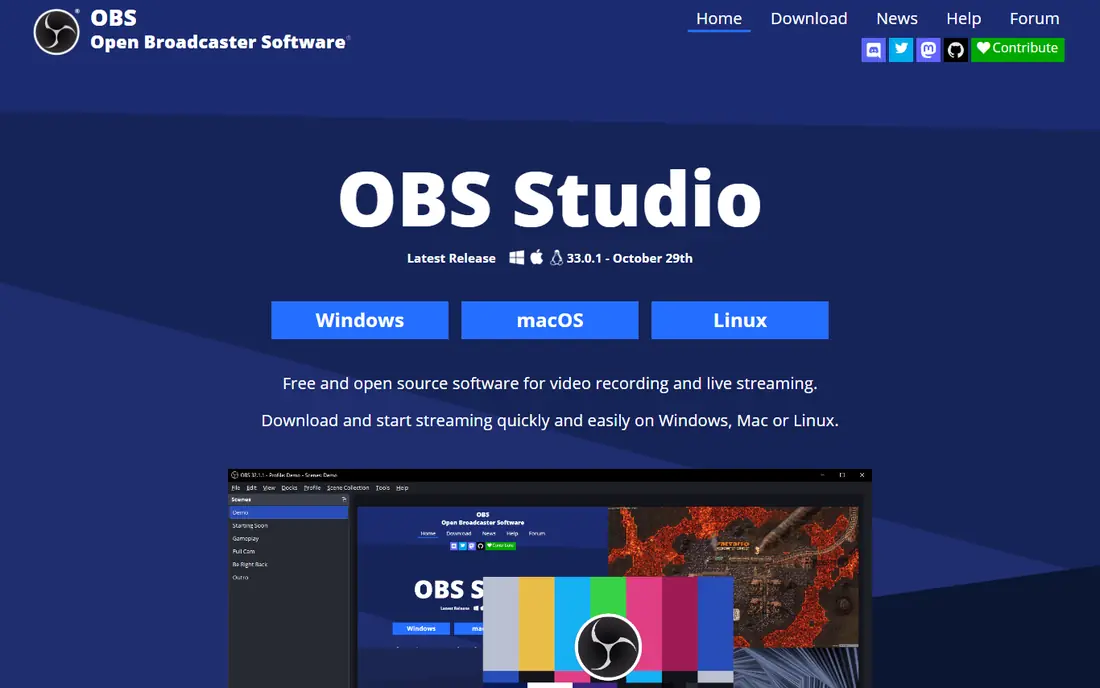
OBS Studio is the pick for people who want serious capture without paying anything. It records screen, webcam, and multiple audio sources, and it handles live streaming to common platforms. The scene system lets you switch between a full screen, a window, and a webcam view during a session.
The catch is the learning curve. You will need to set up sources, audio levels, and output settings yourself, and you will need a separate editor for cuts and titles. For a creator who already edits elsewhere, that trade is easy to accept. For a beginner who wants one click and a share link, a simpler tool will feel kinder.
- No cost and no watermark
- Multi-source scenes and live streaming
- Works on Windows, Mac, and Linux
- No built-in video editor
- Setup takes patience for new users
Loom wins when speed matters more than polish. You record your screen and face, stop, and paste a link into chat or email. Viewers watch in a browser without installing anything, and they can comment at a specific moment in the video.
The free plan is best for occasional use, since it limits the number of videos and the length of each recording. Paid plans remove those caps and add transcription and AI summaries. If your team sends video updates every day, the paid plan is the realistic cost. If you only send a few a month, the free plan may be enough.
- Records and shares from a link in minutes
- Viewer comments and reactions
- Transcripts and summaries on paid plans
- Free plan caps videos and length
- Recordings live on Loom servers
Camtasia is built for people who publish training videos on a schedule. You capture screen, webcam, and system audio in one pass, then edit on a timeline with transitions, callouts, and zoom effects. That single workflow saves time compared with moving files between a recorder and a separate editor.
The price is the main barrier. Occasional creators may find it hard to justify for a handful of videos a year, and the full editor takes longer to learn than a simple recorder. Regular tutorial makers, trainers, and course creators get the most value from it, because the editing tools are used every week.
- Recording and multi-track editing in one app
- Annotations, zooms, and callouts
- Captions and transcript editing
- Priced for regular producers
- Heavier than a quick capture tool
ScreenFlow is the natural Camtasia alternative for Mac users who dislike subscriptions. It captures screen, webcam, and audio, then offers a layered timeline with transitions and motion graphics. Long lectures and demos record smoothly, and click effects help viewers follow software tutorials.
The limit is the platform. If your team mixes Mac and Windows, ScreenFlow cannot cover everyone, and shared projects become awkward. For a solo Mac creator, though, the one-time purchase model and the depth of the editor make it a strong long-term choice.
- Strong Mac editing timeline
- Smooth long recordings on Apple silicon
- Captures iOS devices
- Mac only
- No Windows or Linux version
ScreenPal is a practical middle ground between free tools and expensive editors. It records screen and webcam, offers basic editing, and hosts videos you can share by link. The low monthly price makes it easy to try for a small team or a solo creator.
Editing depth is the trade. You can trim, add text, and make simple changes, but complex multi-track projects will feel limited. If your videos are short explainers and demos, that is rarely a problem. If you build full courses, a dedicated editor will serve you better.
- Low entry price
- Recording, editing, and hosting in one place
- Works on web, Windows, and Mac
- Free plan limits hosted videos and length
- Editing is lighter than Camtasia
Descript changes how editing feels. Instead of scrubbing a timeline, you delete words from a transcript and the video follows. That approach is fast for interviews, lessons, and talking-head videos, and filler word removal cleans up rough takes with little effort.
The model fits spoken content best. A silent screen demo with little narration gains less from transcript editing, and the free plan limits how much media you can process each month. For podcast-style videos and narrated tutorials, Descript can cut editing time in a way few other tools match.
- Transcript-based editing speeds up cuts
- Filler word removal
- Captions and publishing tools
- Free plan has monthly media limits
- Best for spoken content, not silent demos
Snagit is the tool for documentation work. You capture a screen region, add arrows, text, and highlights, and share it in seconds. Short video clips work the same way, which makes it useful for bug reports, how-to notes, and support replies.
It is not a replacement for Camtasia or Descript when a video needs real editing. Think of Snagit as a capture and annotation tool that happens to record video, rather than a video production suite. Teams that write guides and answer support questions will use it daily. Teams that publish courses will need something else alongside it.
- Fast capture and annotation
- Good for documentation
- Simple video clips
- Not a full video editor
- Paid after the trial
Screencastify suits teachers, trainers, and anyone who works mainly in a browser. You install the extension, record a tab or desktop, and share a link. Students and colleagues can watch without new software, which removes a common barrier in classrooms.
The free plan is limited, so regular classroom use usually needs a paid plan. Advanced capture, such as multi-source production or deep editing, is outside its scope. For quick lessons, feedback videos, and simple demos, its simplicity is the point.
- Runs in the browser with no heavy install
- Easy sharing for students
- Simple editing
- Free plan limits videos and length
- Browser focus limits advanced capture
How we picked these
We compared official pricing pages, feature pages, and app listings, and we favored tools that still work in October 2026 across common platforms. We looked at recording quality, editing depth, sharing, free plan limits, and price, and we left out tools that only record audio or only edit existing video. Each pick had to fit video recording as its main job, not as a side feature.
What to check before you pay
Start with length and sharing. A free plan that caps recordings at five minutes will frustrate a trainer who records hour-long lessons, while a tool without easy link sharing will slow down a team that sends updates all day. Check whether recordings stay on your computer or live on a vendor server, and check whether exports carry a watermark on the free plan.
Next, match editing to your output. If you publish raw walkthroughs, a simple trim tool is enough. If you publish courses, you need captions, zooms, and a timeline that will not fight you. Finally, check platform support. A Mac-only tool is fine for a solo creator, but a mixed team needs a tool that runs everywhere its members work.
Recording quality and audio
Good audio matters more than a slightly sharper picture. A clear microphone and quiet room will improve a tutorial more than a higher resolution setting. Check that your tool records system audio and microphone audio on separate tracks when you need to fix one without touching the other.
Storage and privacy
Ask where videos are stored and who can view them. Team tools that host videos in the cloud make sharing easy, but they also mean your recordings live outside your computer. If you record sensitive screens, prefer local recording and check the vendor privacy policy before you upload.
Frequently asked questions
What is the best free video recording software?
OBS Studio is the strongest free option for most people, because it records without a watermark and without a time limit. ShareX is another free Windows option for quick captures. Browser and built-in tools also work for very short clips, but they lack the control OBS Studio offers.
What is the best screen recording app for tutorials?
Camtasia is a strong choice when tutorials need editing, captions, and callouts in one app. ScreenFlow is the closest Mac alternative, and Descript is the fastest choice when the tutorial is mostly spoken narration. Pick based on how much editing each lesson needs.
Can I record video on a PC without installing software?
Yes, in many cases. Windows includes a built-in game bar capture tool, and browser extensions such as Screencastify record without a full desktop install. Built-in tools are fine for short clips, but they offer less control over audio sources and output settings than dedicated software.
What is the best video recording app for PC?
For a free PC tool, OBS Studio covers most needs, including streaming and multi-source capture. For paid PC recording with editing, Camtasia is the fuller choice. For quick team messages, Loom is faster than either, because sharing is built in.
Does Loom have a free plan?
Yes, Loom offers a free plan with limits on the number of videos and the length of each recording. Paid plans remove those caps and add transcription and AI summaries. Check the current Loom pricing page before you rely on the free plan for daily use.
How do I choose between a recorder and a video editor?
Choose a recorder when your main need is capturing the screen quickly and sharing it. Choose an editor, or a combined tool such as Camtasia, when your videos need cuts, captions, titles, and polished pacing. Many creators use a simple recorder for capture and a separate editor for final videos.
Sources
See where you really rank - block by block
ProMapRanker scans Google Maps across a grid of your service area. Simple monthly plans from $19, white-label on every plan.
Start freeKeep reading
 best website platform for seo
Best Website Platform for SEO in 2026
Compare the best website platform for SEO in 2026, from WordPress and Webflow to Wix, Squarespace and Shopify, judged on SEO control, speed and ease today.
Read → best website hosting services
Best Website Hosting Services in 2026
We compared the best website hosting services for small business, blogs and stores, with starting prices, renewal traps, free domains and support trade-offs.
Read → best web analytics tools
Best Web Analytics Tools in 2026
Compare the best web analytics tools for traffic, privacy, and product insights, including Google Analytics, Matomo, Plausible, Fathom, and Mixpanel for 2026.
Read →