 ProMapRanker
Best Video Recording and Editing Software in 2026

Key takeaways
- The best tool depends on your main job: recording your screen, filming yourself, or editing footage shot elsewhere.
- Screen recorders with a built in editor save time for tutorials, while pro editors win for polished client work.
- Free tiers are strong in this category, but check export quality, watermarks and stock limits before you commit.
- Test your own footage in the trial, since performance varies a lot by computer, file size and export settings.
Quick comparison
| Pick | Great for | Pricing starts at | Free tier | |
|---|---|---|---|---|
 Camtasia | Tutorials and training videos | $179.88 per year | Free trial | Visit |
 ScreenPal | Quick screen videos on a budget | $3 per user per month | Yes | Visit |
 Descript | Editing video by editing text | $16 per month | Yes | Visit |
 Clipchamp | Easy free editing on Windows | Free | Yes | Visit |
 CapCut | Short form social video | $19.99 per month | Yes | Visit |
 Adobe Premiere Pro | Professional client work and teams | $22.99 per month | Free trial | Visit |
 DaVinci Resolve | Pro editing and colour grading for free | Free | Yes | Visit |
 Final Cut Pro | Mac editors who want a one time purchase | $299.99 one-time | Free trial | Visit |
 Loom | Quick team video messages | See website | Yes | Visit |
 Filmora | Beginners wanting templates and AI help | $9.99 per month | Yes | Visit |
The best video recording and editing software
We compared tools that both record video, usually screen or webcam, and edit it, from quick message tools to full professional editors. The list covers tutorial makers, course creators, social creators and professional editors, so you can match the pick to the videos you actually make.
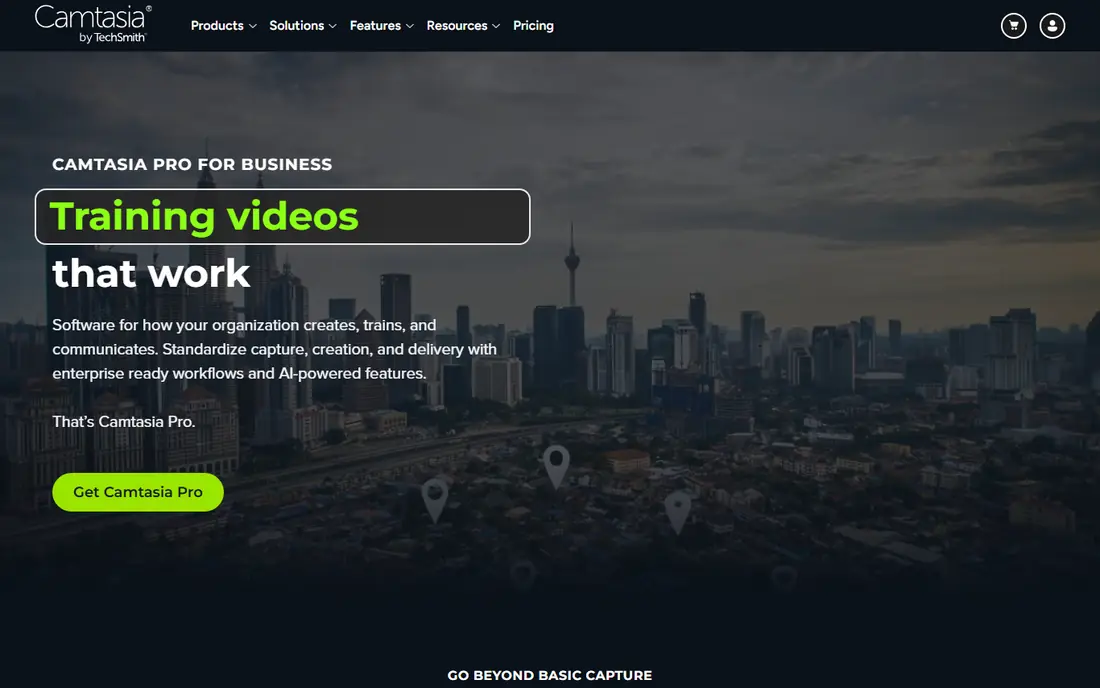
Camtasia is the tutorial standard for a reason. It records screen, webcam and audio in one pass, then opens the result in a multi track editor where you can cut, zoom, smooth cursor moves, add callouts and clean up audio. For training videos and software demos, that recording plus editing workflow in one tool saves the round trip between a recorder and a separate editor.
The cost is the main trade off. The full editor sits on an annual subscription, and stock assets and some AI features sit on higher tiers. A team that only needs quick screen messages may find ScreenPal or Loom cheaper, while a course creator who needs polish will find Camtasia worth the price.
- Screen recording plus multi track editing
- Cursor effects and zoom
- SCORM support for courses
- Annual subscription for the full editor
- Stock assets cost extra on lower tiers
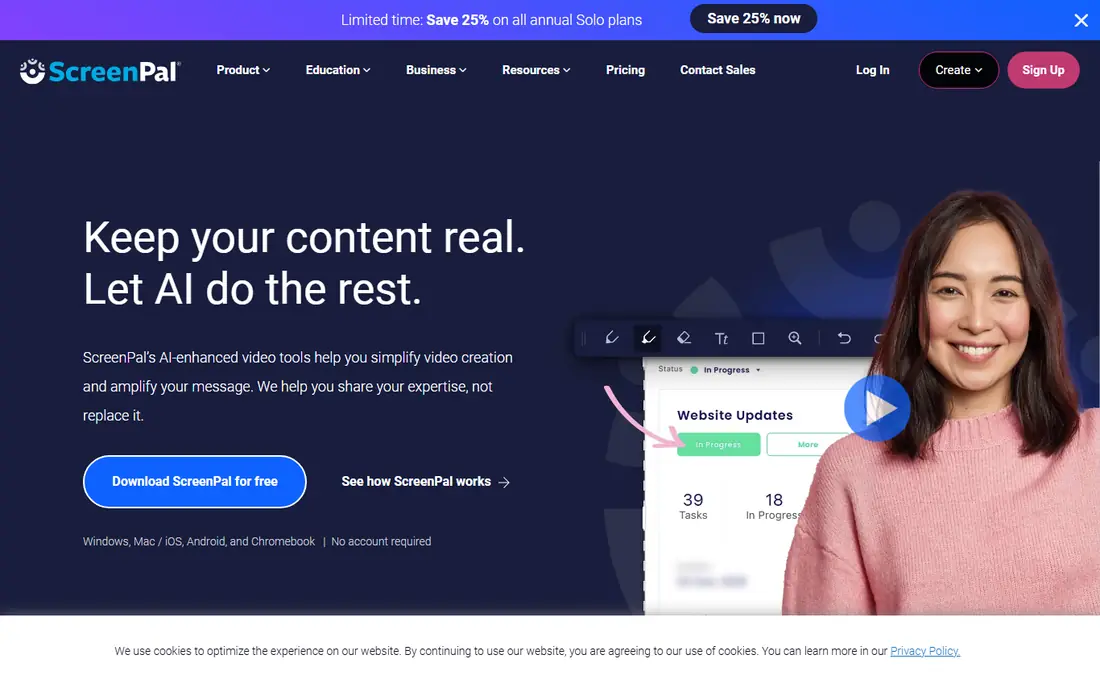
ScreenPal, formerly Screencast-O-Matic, records screen and webcam, edits the result, hosts the video and adds captions, quizzes and stock content on higher tiers. Its free tier covers short recordings, and paid tiers start at a low monthly rate, which makes it one of the cheapest ways to make polished screen videos. That value is why schools, support teams and small businesses pick it.
Editing depth is the limit. ScreenPal handles cuts, text, green screen and captions well, but it lacks the fine control of Camtasia for complex tutorials or the depth of a pro editor for client films. For quick feedback, internal updates and classroom videos, that depth is rarely needed.
- Very low price
- Screen recording plus editor and hosting
- Captions and quizzes
- Less editing depth than Camtasia or pro editors
- Advanced AI features cost more
Descript changes the editing model. It transcribes your video, then lets you cut, rearrange and clean up the video by editing the transcript, removing filler words and retakes with a few keystrokes. It also records screen and remote podcast or video sessions, and its Studio Sound tool cleans up noisy audio. For talking head videos, interviews and podcasts, that workflow is far faster than scrubbing a timeline.
The limits are usage and visual depth. Paid plans are based on transcription hours and AI credits, so heavy users need a higher tier, and complex visual effects, colour grading and multi camera edits still suit a traditional editor better. Descript works best as the main tool for conversation led video, or as a rough cut step before a pro editor.
- Text based video editing
- Studio Sound audio cleanup
- Screen and remote recording
- Paid tiers are usage based
- Heavy visual effects work needs a traditional editor
Clipchamp is Microsoft browser based editor that records screen and webcam, then edits with a timeline, text, transitions and templates. Its free tier offers unlimited 1080p exports with no watermark, which is generous for a free editor, and its premium features, including 4K export and a larger stock library, come through a standalone premium plan or Microsoft 365. For a Windows user who wants simple edits fast, it is an easy start.
Recording is simpler than Camtasia or ScreenPal, and heavy pro features are limited. Clipchamp fits social clips, school projects, internal videos and simple marketing edits, while a creator who needs advanced colour, audio mixing or complex screen tutorials should look at DaVinci Resolve, Premiere Pro or Camtasia.
- Free 1080p exports with no watermark
- Browser based
- Templates and stock on paid tiers
- Recording is basic compared with Camtasia
- Premium features need Microsoft 365
CapCut is the default for short form social video, with a free tier that covers editing and 1080p export, plus templates, auto captions, effects and trending audio tools. Its Pro tier adds 4K export, advanced AI tools, cloud storage and premium assets across mobile, desktop and web. For TikTok, Reels and Shorts, CapCut gets a clip from phone to post faster than most pro editors.
The trade off is long form depth. CapCut is built for short, trend led clips, not for feature length edits, complex colour work or large team post production. Pro pricing also varies by region and device, so check the price in your app store or on the CapCut site before you budget for a team.
- Fast short form editing
- Templates, captions and effects
- Mobile, desktop and web versions
- Pro price varies by region and device
- Social focus over long form pro editing
Adobe Premiere Pro is the professional editor for client work, agencies and teams that hand projects to other editors or post houses. It offers a deep timeline, colour, audio, graphics and effects tools, plus tight links to After Effects, Photoshop and Audition. Recording is not its core job, but it pairs with screen recorders and camera footage for a full production workflow, and it is the tool many clients expect.
It is subscription only, with a monthly price on an annual plan, and it needs a capable computer for 4K and multi camera work. A solo creator who only makes short social clips may find CapCut or Clipchamp faster and cheaper, while a pro team that needs collaboration and a standard pipeline will find Premiere Pro worth the cost.
- Industry standard timeline
- Deep After Effects and Audition links
- Team collaboration
- Subscription only
- Needs a capable computer for large projects
DaVinci Resolve is Blackmagic free editor that covers editing, colour grading, visual effects and audio in one app, with a Studio version available as a one time purchase. The free version exports 4K with no watermark and handles most creator and pro work, which makes it the best value editor on this list for anyone willing to learn it. Recording is not its main job, but it edits screen recordings, camera footage and audio with pro depth.
The catch is hardware and learning curve. Resolve is demanding on older computers, and its colour and effects pages take time to learn. A beginner who wants templates and fast social edits may prefer Filmora or CapCut, while a creator who wants pro tools without a subscription should start with Resolve free and buy Studio only if its extra features are needed.
- Free version is very capable
- Colour, audio and effects in one app
- Studio is a one time purchase
- Needs a strong computer
- Learning curve for new editors
Final Cut Pro is Apple professional editor for Mac, sold as a one time purchase with a free trial period. Its magnetic timeline, fast performance on Apple silicon and pro colour and audio tools make it a strong pick for Mac owners who want to own their editor rather than rent it. It edits camera footage, screen recordings and social clips with speed, and it suits creators who stay in the Apple ecosystem.
It is Mac only, so Windows teams cannot use it, and screen recording for tutorials usually needs a separate recorder such as ScreenPal or the built in Mac screen recorder. A Mac editor who wants a buy once pro tool will find it compelling, while a cross platform team should pick Premiere Pro or DaVinci Resolve instead.
- One time purchase for Mac
- Fast on Apple silicon
- Magnetic timeline for quick edits
- Mac only
- Recording needs a separate screen recorder for tutorials
Loom is built for quick team video messages, not for polished films. It records screen, webcam or both, then shares an instant link with comments, reactions and basic trimming, captions and editing. That speed makes it ideal for feedback, bug reports, async updates and short explanations that would take longer to write than to show.
Editing depth is the limit. Loom trims and tidies a message, but it does not offer a multi track timeline, advanced effects or pro colour tools. Use Loom for messages and quick explainers, and pair it with Camtasia, Descript or a pro editor when a video needs a polished, structured edit.
- Fast screen and webcam messages
- Instant sharing links
- Basic trimming and captions
- Editing is basic
- Not a full timeline editor for polished videos
Filmora is a beginner friendly editor from Wondershare with a timeline, templates, effects, titles and AI tools, plus screen recording for tutorials. Its free tier lets new creators try editing, and paid plans start at a low monthly rate, which makes it a low risk step up from a free editor. For YouTube creators and small businesses that want polished videos without learning a pro editor, Filmora hits a useful middle ground.
The limits are watermark and depth on the free tier, and pro features on paid tiers. A creator who needs advanced colour, audio mixing or team post production will outgrow Filmora, while a beginner who wants templates, fast edits and AI help will find it easier than DaVinci Resolve or Premiere Pro.
- Beginner friendly timeline
- Templates, effects and AI tools
- Screen recording included
- Paid tiers needed for full features and no watermark exports
- Pro depth is limited
How we picked these
We compared official product and pricing pages for video tools that are live in October 2026 and that record, edit or both, with a focus on tools that cover both jobs in one workflow or pair well together. We kept tools with a documented free tier, trial or published price, and we used See website where pricing varied by plan or region. We left out camera only apps, pure hosting tools with no editor, and tools that had closed.
What to check before you buy video recording and editing software
Start with the video type. A tutorial needs screen recording, cursor control and captions, a social clip needs templates and fast captions, and a client film needs colour, audio and collaboration. A tool that is perfect for one type can be slow for another, so shortlist by your most common video, not by the longest feature list.
Next, test performance on your computer. Edit a real clip at your usual length and export setting, and check render time, preview smoothness and file size. A free editor that stutters on your machine will cost more in time than a paid editor that runs well, and a pro editor that needs new hardware should be priced with that hardware in mind.
Finally, check export and sharing limits. Ask about resolution, watermark, stock use, caption export and hosting, and whether your projects can move to another editor if you switch. A tool that locks projects in a single format can make a later switch painful, even if the monthly price looks low.
Frequently asked questions
What is the best video recording and editing software for beginners?
For beginners, Filmora, Clipchamp and CapCut are easy starts, while ScreenPal is best for simple screen tutorials. DaVinci Resolve free is more capable but takes longer to learn, so pick by how much time you want to spend learning versus editing.
Can I record and edit in the same tool?
Yes, with tools such as Camtasia, ScreenPal, Descript, Clipchamp, Loom and Filmora, which record screen or webcam and offer an editor in the same app. Pro editors such as Premiere Pro, DaVinci Resolve and Final Cut Pro focus on editing, and usually pair with a separate recorder for screen tutorials.
How much does video recording and editing software cost?
Free tiers are strong, with paid plans from about $3 to $10 per month for simple tools, $16 to $23 per month for Descript and Premiere Pro, and one time purchases of about $295 to $300 for DaVinci Resolve Studio and Final Cut Pro. Check export limits and watermarks on free tiers before you rely on them.
Do I need a powerful computer for video editing?
It depends on the tool and the footage. Simple 1080p social edits run on most modern laptops, while 4K, multi camera and pro colour work need more memory, storage and graphics power. Test your own footage in the trial before you buy a subscription or new hardware.
What is the best free video editor?
DaVinci Resolve free is the most capable free editor for pro style work, while Clipchamp free offers simple 1080p editing with no watermark on Windows. CapCut free is best for short form social video, and ScreenPal free covers short screen recordings.
Can I edit video on a phone?
Yes, CapCut, Clipchamp and other mobile editors handle short form edits on a phone, with captions, templates and effects. For long form, multi track or pro colour work, a desktop editor is still faster and more precise.
Sources
See where you really rank - block by block
ProMapRanker scans Google Maps across a grid of your service area. Simple monthly plans from $19, white-label on every plan.
Start freeKeep reading
 zoro.to alternatives
Best Zoro.to Alternatives in 2026
We compare the best zoro.to alternatives in 2026, listing only legal licensed anime streaming services, from Crunchyroll to free options for fans today.
Read → zip alternatives
Best Zip Alternatives in 2026
We compare the best zip alternatives for buy now, pay later in 2026, covering pay-in-4 plans, fees, spending limits, and credit reporting options today.
Read → yesware alternatives
Best Yesware Alternatives in 2026
Compare the best yesware alternatives for sales email tracking, templates, and sequences, with current pricing and honest tradeoffs for small sales teams.
Read →