 ProMapRanker
Best Video File Sharing Services in 2026

Key takeaways
- For a one-off video, a transfer tool is faster than setting up shared storage and permissions.
- For ongoing work, synced storage with preview and comments saves more time than repeated uploads.
- Large video files need attention to per-file limits, link expiry, and download speed, not just total storage.
- Privacy controls, password protection, and expiry dates matter most when sharing client or unreleased video.
Quick comparison
| Pick | Great for | Pricing starts at | Free tier | |
|---|---|---|---|---|
 WeTransfer | Simple one-off video transfers | See website | Yes | Visit |
 Google Drive | Google Workspace users | $1.99 per month | Yes | Visit |
 Dropbox | Sync plus video transfer | $11.99 per month | Yes | Visit |
 Microsoft OneDrive | Microsoft 365 users | $6.99 per month | Yes | Visit |
 Box | Regulated and enterprise teams | $15 per user per month | Yes | Visit |
 Smash | Very large files without an account hassle | See website | Yes | Visit |
 Filemail | Large transfers with tracking | $6 per month | Yes | Visit |
 Sync.com | Private video storage | $6 per month | Yes | Visit |
 Send Anywhere | Direct device-to-device sharing | $5.99 per month | Yes | Visit |
The best video file sharing services
Video files are large, slow to upload twice, and awkward to send by email. We compared official feature pages, pricing pages, app store listings, and public reviews to find services that handle video well today. Our pick for most people is a service that previews video in the browser, keeps links under control, and does not force the recipient to install software.
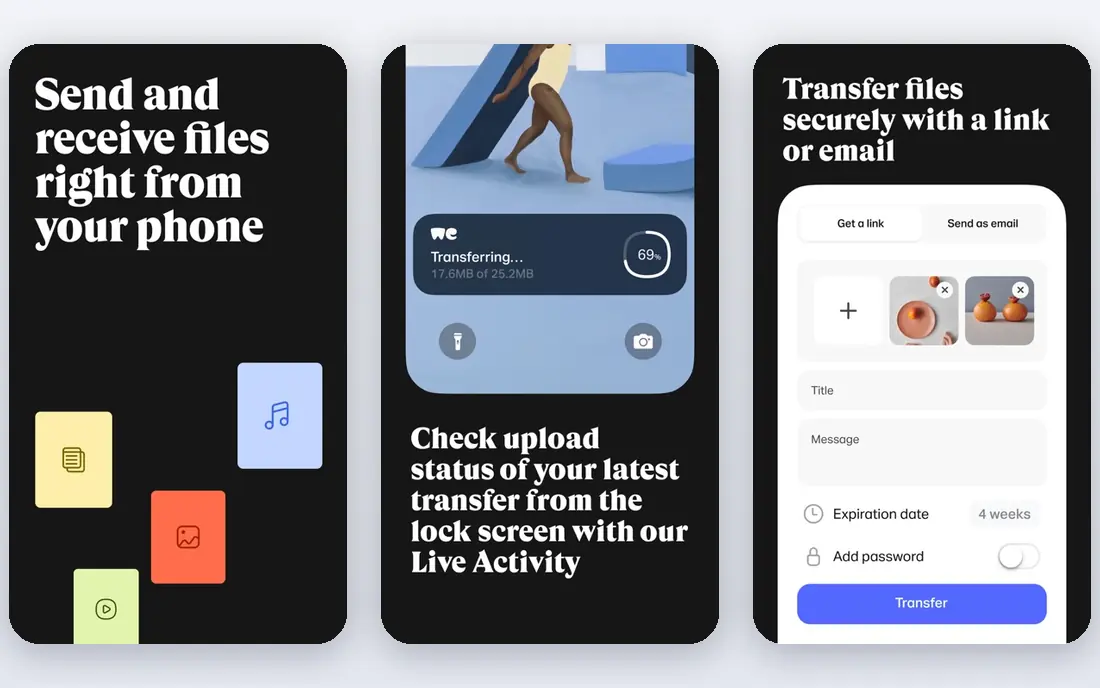
WeTransfer fits the common case of sending a finished video to a client or colleague once. The sender uploads the file, shares a link or sends it by email, and the recipient downloads it without creating an account. That simplicity matters when the recipient is not technical and the video just needs to arrive intact.
The catch is that it is a transfer tool, not a library. Free links expire, and organizing many versions over months is harder than in synced storage. Paid plans extend storage and transfer size, but teams that review video daily will still want comments and version control elsewhere.
- Very simple sending with no account needed for basic transfers
- Link and email delivery
- Paid plans add larger transfers and longer storage
- Free transfers expire
- Less suited to long-term team storage and review
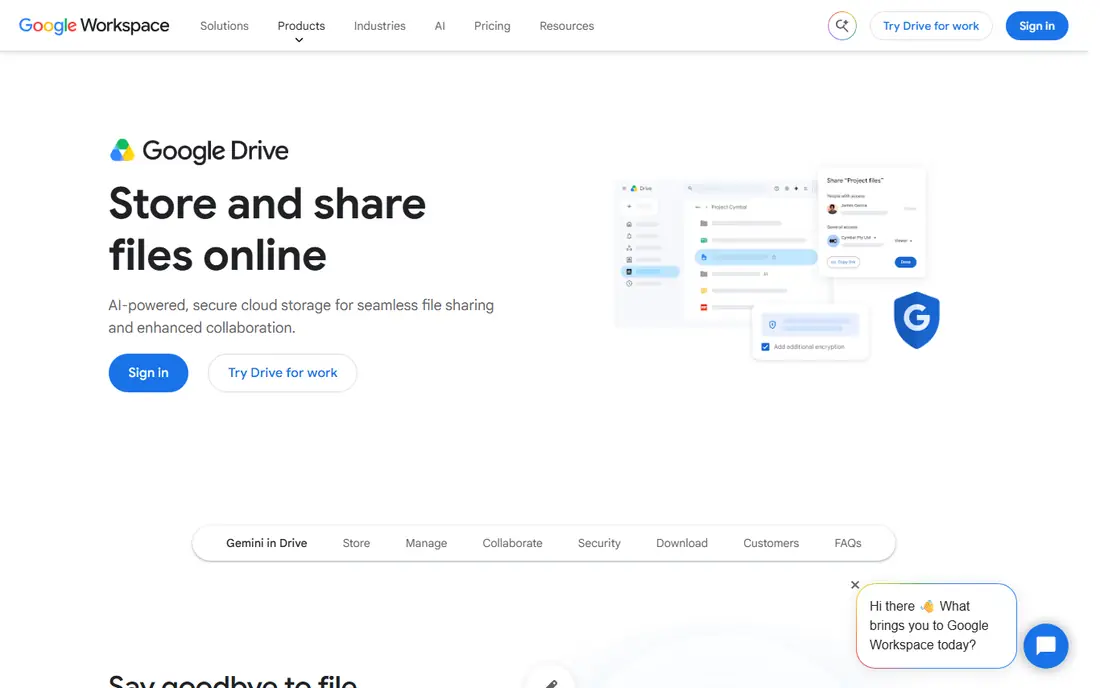
Google Drive works well when a team already uses Gmail, Docs, and Meet, since sharing a video is as simple as sharing a folder. Recipients can preview video in the browser, leave comments on files, and download only what they need. Sharing controls let owners limit access to named people, set expiry where supported, and turn off downloads for sensitive files.
The weakness is storage math. Video eats the free 15 GB quickly, and the paid 100 GB plan at $1.99 per month is a starting point, not a home for a large video archive. Teams with raw footage should plan storage by project and archive finished work elsewhere.
- 15 GB free shared across Google services
- Video preview in the browser
- Strong search and sharing controls
- Free storage fills fast with video
- Large uploads can be slow on weak connections
Dropbox suits people who want one service for both storing video and sending it. Files sync to desktop and mobile, so a video edited on one machine is ready on another without a fresh upload. Dropbox Transfer sends large files with link controls, and Replay adds time-stamped comments for video review on supported plans.
The honest catch is price and plan detail. The $11.99 per month personal starting price covers storage and sync, while some review features sit higher up the range. Check which plan includes the transfer size and review tools you actually need before committing a team.
- Reliable sync across devices
- Transfer for sending large files
- Video preview and Replay review tools on higher plans
- Paid personal pricing is higher than some rivals
- Review tools may need an add-on or higher plan
OneDrive is the natural choice for households and offices already paying for Microsoft 365, since the personal plan pairs 1 TB of storage with Office apps. Video can be previewed, shared by link, and opened on Windows, Mac, and mobile without extra software. Sharing settings help owners control who can view or edit a folder.
The limit is that the free tier alone is too small for serious video work, so the value depends on using the wider Microsoft bundle. Teams outside that ecosystem may find a simpler transfer tool or a cheaper storage plan a better fit.
- Tight Microsoft 365 and Office integration
- Video preview and sharing controls
- 1 TB on the common personal plan
- Best value only inside Microsoft 365
- Free plan storage is small for video
Box fits teams that share video under strict rules, such as agencies, legal teams, and health or finance clients. Folder permissions, watermarking options on higher plans, and activity logs give managers a clear record of who viewed or downloaded a file. Preview and commenting keep review inside the shared folder instead of scattered across email.
The trade-off is cost and setup. At $15 per user per month for business entry, a large team pays more than it would for a simple transfer service. Small teams that only need to send a video once will find Box heavier than necessary.
- Strong permissions, audit trails, and compliance options
- Video preview and collaboration
- Client portals on business plans
- Per-user pricing adds up
- Some features need higher business tiers
Smash appeals to senders with very large video files who do not want to split a project into parts. The service presents itself around large transfers, with a free tier for smaller needs and paid plans for larger, longer-available sends. Recipients get a link and can preview or download without a long setup.
The weakness is that free sends are less convenient, with queuing and limited availability, so regular senders should expect to pay. As with any transfer service, confirm the current file size, storage period, and password options on the pricing page before sending client work.
- No size limit on paid transfers in the vendor's description
- Simple link sharing
- Preview for recipients
- Free transfers have a queue and shorter availability
- Pricing and limits should be checked on the current page
Filemail suits senders who want proof of delivery as well as a large transfer. The service tracks downloads, supports password protection, and offers desktop apps for sending big video files without keeping a browser tab open. Personal and pro plans scale transfer size and storage, which helps freelancers who send video weekly.
The catch is plan detail. Free transfers are limited, and the best limits sit on higher tiers, so compare transfer size, storage days, and recipient limits together. For occasional sends, a simpler free tool may be enough.
- Large per-transfer sizes on paid plans
- Delivery tracking and download notices
- Desktop and mobile apps
- Storage and transfer limits vary by plan
- Interface is more functional than polished
Sync.com fits people who share video that should stay private, such as family footage, client rushes, or internal training. Its zero-knowledge design means the vendor cannot read stored files in the usual way, and link controls add passwords and expiry dates. The $6 per month starting price gives a reasonable amount of private storage for regular use.
The honest weakness is collaboration. Preview, commenting, and real-time editing are thinner than in the big office suites. It is a strong vault and sharing service, but not the best pick for a team that reviews video together every day.
- Zero-knowledge encryption for stored files
- Sharing links with passwords and expiry
- Good value for private storage
- Video preview and collaboration are more basic than in Google Drive or Dropbox
- Upload speed depends on connection and file size
Send Anywhere works well for moving a video from one device to another, such as from a phone to a laptop or to a colleague nearby. A short numeric key pairs the devices, which avoids uploading to a shared folder and then downloading again. The apps cover the main platforms, and the service also offers link sharing for recipients who are not online at the same time.
The limit is workflow. Direct transfer is ideal for a quick move, but it is less suited to long-term client delivery or team review. Paid plans add storage and link features, so check whether your main need is a quick move or a lasting shared link.
- Direct transfers with a short key
- Works across Windows, Mac, Linux, iOS, and Android
- No account needed for basic sends
- Recipient must be available for direct transfers in some modes
- Link-based sends have their own limits
How we picked these
We compared official feature pages, pricing pages, app store listings, and public reviews for services live in October 2026. We favored services with browser video preview, clear per-file or transfer limits, password and expiry controls, and reliable download behavior. We used See website where pricing pages were unclear or varied by region, and we left out services that no longer operate or that do not truly handle large video files.
How to choose for video work
Start with the recipient, not the storage number. If the recipient only needs to watch or download once, a transfer service with a password and expiry date is enough. If the recipient needs to comment, approve, or return edits, pick synced storage or a review tool with time-stamped comments. Check the largest single file you send, not just total storage, since some plans cap individual uploads well below the headline storage figure.
Test a real file before a deadline. Upload a video of typical size, share it with a colleague, and check preview quality, download speed, and link controls. Set link expiry for client work, use passwords for unreleased material, and keep a local backup of the original, since a shared link is not an archive.
Frequently asked questions
What is the easiest way to share a large video file?
Use a transfer service and send a link, rather than attaching the video to email. Upload once, set a password and expiry date where offered, and confirm the recipient can preview or download it. Keep the original file backed up locally.
How large a video file can I share for free?
Free limits vary by service and change over time, so check the current pricing page before a big send. Some free tiers allow a few gigabytes per transfer, while others focus on storage rather than transfer size. Paid plans usually raise both limits.
Is Google Drive good for sharing video?
Yes, for teams already in Google Workspace, since preview, comments, and sharing controls are built in. The free 15 GB fills fast with video, so regular video users usually need a paid storage plan. For a single large send, a transfer tool can be simpler.
Should I password-protect a video link?
Yes for client work, unreleased material, or anything with personal information. A password plus an expiry date limits the harm if a link is forwarded. For public marketing video, an open link is fine once the video is meant to be public.
Why does my video look worse after sharing?
Some services transcode preview video for fast playback, while the downloaded original keeps its quality. If quality matters, tell the recipient to download the file rather than judge it from a browser preview. Check the service preview settings before sending a final cut.
Do I need a review tool for video feedback?
Not for a single approval, where comments by email can work. For repeated rounds, a review tool with time-stamped comments saves confusion about which moment a note refers to. Pick the tool that matches how often you revise, not the one with the longest feature list.
Sources
See where you really rank - block by block
ProMapRanker scans Google Maps across a grid of your service area. Simple monthly plans from $19, white-label on every plan.
Start freeKeep reading
 worlds best local seo company
8 Worlds Best Local SEO Companies for Map Pack Growth in 2026
Compare the worlds best local seo company options for Google Business Profile work, citations, reviews, and multi-location rankings and reporting in 2026.
Read → world's best web hosting company
World's Best Web Hosting Company in 2026
Searching for the world's best web hosting company? We compared 10 hosts on price, renewal rates, speed, and support to help you choose well today in 2026.
Read → who's got the best nanny tax services
Who's Got the Best Nanny Tax Services in 2026
We answer who's got the best nanny tax services, comparing full filing, back taxes, software, and pricing so families can handle nanny taxes correctly.
Read →