 ProMapRanker
Best Video Enhancer App in 2026

Key takeaways
- Topaz Video AI offers the most control for serious restoration, but it needs a strong computer and a yearly plan.
- HitPaw VikPea and AVCLabs are easier starting points for beginners with old or blurry clips.
- Free tools can upscale, but they often lack face restoration, stabilization, and batch processing.
- AI enhancement creates plausible detail, it does not recover detail the camera never recorded.
- Only use these tools on video you own or have permission to edit, and get consent from people who appear in it before you publish or share enhanced footage.
Quick comparison
| Pick | Great for | Pricing starts at | Free tier | |
|---|---|---|---|---|
 Topaz Video AI | Professional control | $299 per year | Free trial | Visit |
 HitPaw VikPea | Beginners and face repair | See website | Free trial | Visit |
 AVCLabs Video Enhancer AI | Archival restoration | $119.95 per year | Free trial | Visit |
 UniFab Video Upscaler AI | All-in-one toolkit | See website | Free trial | Visit |
 VideoProc Converter AI | Budget all-in-one | $25.95 per year | Free trial | Visit |
 Nero AI Video Upscaler | Animation and general use | See website | Free trial | Visit |
 CapCut | Social video enhancement | $9.99 per month | Yes | Visit |
 VEED | Online quick enhancement | See website | Yes | Visit |
 Remini | Mobile photo and video touch-ups | See website | Free trial | Visit |
The best video enhancer apps
We focused on tools that upscale, denoise, stabilize, or restore video, from desktop pro tools to mobile and browser options.
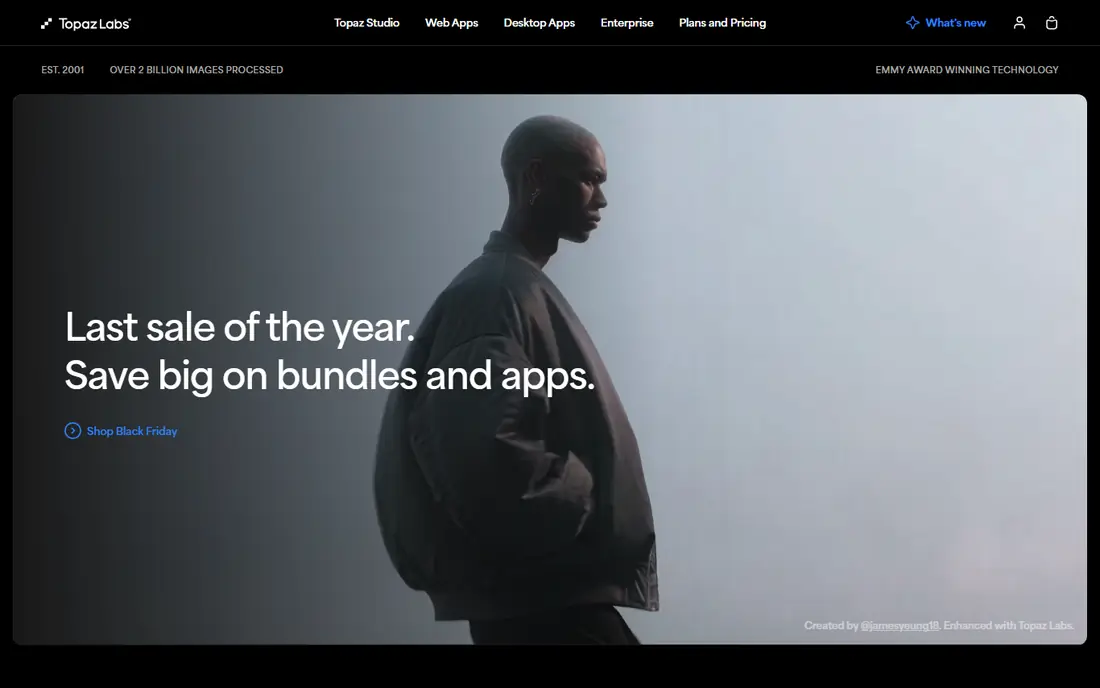
Topaz Video AI is our pick for people who need fine control. Separate models handle denoising, deinterlacing, face recovery, and frame rate, and you can adjust settings rather than accept one automatic result. That control matters for film, archive, and client work.
The cost is time as well as money. Long clips on a modest computer can take hours, so test with a short clip before committing to a full project. Check whether you need the desktop app or the web version, since Topaz sells them under separate plans.
- Many specialized AI models
- Upscaling to 16K
- Frame interpolation and stabilization
- Needs a powerful GPU for fast renders
- Subscription only since October 2025
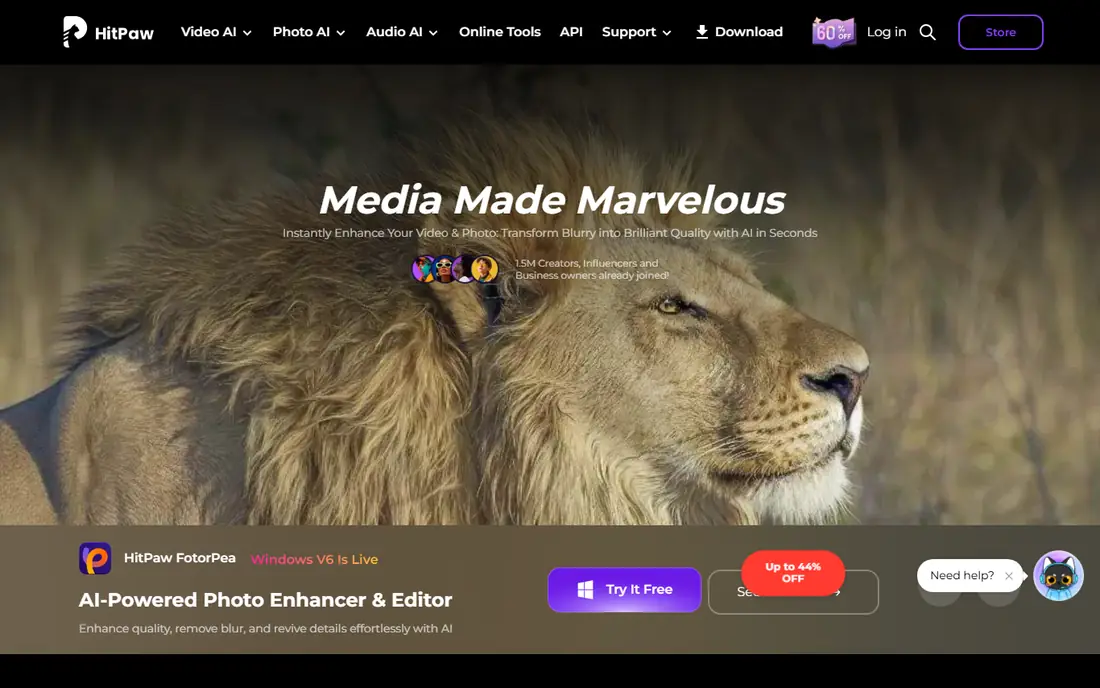
HitPaw VikPea suits someone who wants a better-looking video without learning a pro editor. Upload a clip, pick a model, and preview the result. Face repair and black-and-white colorization are useful for family footage.
Preview carefully at full size. AI sharpening can add halos around edges, so compare the original and enhanced versions before exporting a long video.
- Easy interface
- Face restoration and colorization
- Windows, Mac, web, and mobile versions
- Pricing varies by plan and term
- Aggressive sharpening can look artificial on some clips
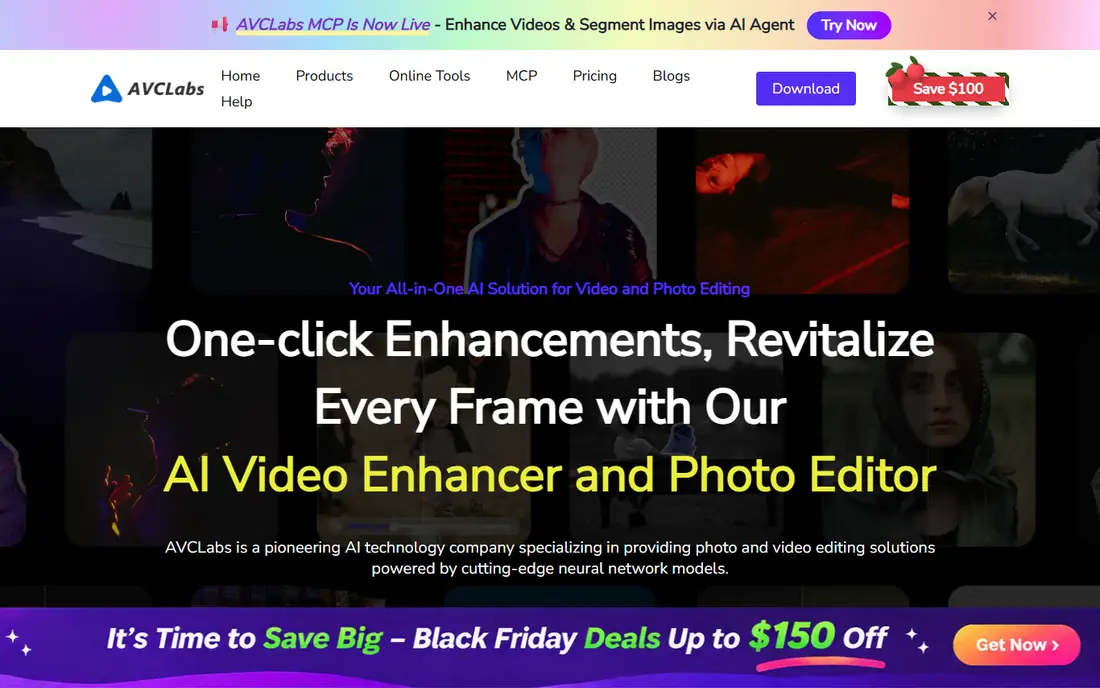
AVCLabs is a strong choice for old tapes and phone clips that need several fixes at once. It handles blur, noise, and low resolution in one pass, and its face model helps with older footage where faces are soft.
Plan for render time and check which product a plan covers. AVCLabs sells its enhancer and its face-blur tool separately, so confirm you are buying the enhancer if that is what you need.
- Upscaling to 4K and 8K
- Denoise, face restoration, and stabilization
- Multi-frame processing
- Slower exports on mid-range machines
- Blur tool sold separately
UniFab appeals to users who want enhancement plus conversion, editing, and other video tools in one place. The cloud option helps if your computer lacks a strong GPU, since processing does not all depend on local hardware.
Compare the single upscaler price against the full suite price. If you only need upscaling, the suite may cost more than a focused tool.
- Upscaling to 16K
- Cloud processing option
- Many video tools in one suite
- Suite pricing can be confusing
- Best value depends on which tools you use
VideoProc Converter AI is the budget pick for casual use. It combines enhancement with the everyday jobs of converting and compressing video, so one purchase covers several needs.
For badly damaged footage, expect a smaller improvement than from a dedicated restoration tool. For modern phone clips that just need a sharper export, it is often enough.
- Low yearly price
- Upscaling to 4K
- Conversion, compression, and basic editing included
- Fewer specialized AI models than Topaz
- Quality ceiling is lower on difficult footage
Nero AI Video Upscaler stands out for animation and cartoons, where generic models often smear line work. The animation model, face model, and restoration model let you match the tool to the footage type.
Batch processing helps when you have a folder of clips to improve. Check platform support first, since this is primarily a Windows product.
- Six specialized models
- Animation model
- Frame interpolation to 120 FPS
- Batch processing
- Windows only for the desktop app
- Pricing varies by offer
CapCut is the right choice if enhancement is one step in making social videos, not the whole job. You can upscale, trim, caption, and export in one app, which saves time for creators posting often.
Do not expect archive-grade restoration. For short social clips, the convenience outweighs the lower ceiling. For a family archive project, use a desktop tool instead.
- Easy mobile and desktop editing
- AI upscaling and enhancement built in
- Free tier for basic use
- Enhancement is part of a wider editor, not a dedicated restoration tool
- Cloud features need an account
VEED suits teams and creators who work in a browser and need a fast result. You can upload, enhance, subtitle, and share a link without installing software or worrying about GPU specs.
Large or sensitive footage is a weaker fit, since uploads take time and you are processing in the cloud. For short marketing or training clips, the speed is worth it.
- No install needed
- Browser editing and enhancement
- Good for teams and quick turnarounds
- Uploading large files takes time
- Advanced enhancement is limited compared with desktop tools
Remini is best for quick mobile fixes: an old family photo, a short clip, or a social post that needs a sharper face. The app is simple, and results arrive fast on a phone.
It is not built for long-form restoration or batch archive work. Use it for individual clips, and move to a desktop tool for a full project.
- Very easy mobile workflow
- Strong face enhancement on old photos and short clips
- Quick results
- Mobile-first, not a pro desktop workflow
- Subscription needed for regular use
How we picked these
We compared official feature and pricing pages, plus October 2026 comparison coverage of AI upscalers. We kept tools that still offer video enhancement, that state their max resolution and core models, and that provide a trial or free tier to test. We excluded tools marketed for altering people in images without consent, and tools that only upscale still images.
We also weighed export and trial limits, since those decide whether a test tells you anything useful. A trial that caps resolution or adds a watermark cannot show how a full export will look, so we noted those limits where they matter. We also favored tools that explain their models in plain terms, such as denoising, face repair, or frame interpolation, over tools that promise a vague quality boost. Where yearly prices differed across sources, we used See website rather than picking the lowest figure we found.
What to check before you buy
Start with a test clip that matches your real footage: old tape, low-light phone video, or animation. Enhancement quality varies a lot by source, and a tool that shines on one type can struggle on another. Check render speed on your own machine, since desktop AI tools depend heavily on GPU power.
Also check export limits on trials, including watermarks and resolution caps. A trial that only exports short or watermarked clips will not tell you how a full export looks. Finally, respect consent and privacy: only enhance video you have rights to use, and do not publish enhanced footage of identifiable people without their permission.
One more practical step helps: keep the original files untouched and work on copies. Enhancement is a one-way creative step, and a model can introduce artifacts you only notice on a larger screen later. If you keep the original, you can try a different tool or different settings without losing the source. Label exports clearly with the tool and settings used, so you can repeat a good result or avoid repeating a bad one.
Frequently asked questions
What is the best free video enhancer app?
CapCut and VEED offer free tiers for basic enhancement, and several desktop tools offer limited trials. A truly free, unlimited desktop upscaler is rare, and free options usually cap resolution or add watermarks.
What is the best video enhancer software for old videos?
Topaz Video AI and AVCLabs are strong for old footage because they combine denoising, stabilization, and face restoration. Test both on the same clip if you can, since results vary by tape condition.
Can AI video enhancers restore blurry video perfectly?
No. They predict plausible detail based on patterns, which can look sharper, but they cannot recover information the camera never captured. Do not use enhanced video as evidence or as proof of fine detail.
Do I need a powerful computer for video enhancement?
For desktop tools, yes, a modern GPU helps a lot. Browser and cloud tools such as VEED and UniFab cloud processing shift the work off your machine, but uploads and subscriptions then matter more.
Is upscaling to 4K or 8K worth it?
It helps on large screens if the source is decent, but upscaling a very low-resolution clip will not make it look like native 4K. Start with 1080p or 4K output and compare, rather than jumping straight to 8K.
How long does video enhancement take?
It depends on clip length, resolution, and your hardware or cloud plan. A short clip may take minutes, while a long 4K export on a modest computer can take hours. Test with a short clip first to set expectations.
Sources
See where you really rank - block by block
ProMapRanker scans Google Maps across a grid of your service area. Simple monthly plans from $19, white-label on every plan.
Start freeKeep reading
 zscaler alternatives
Best Zscaler Alternatives in 2026
Looking for zscaler alternatives? We compare 9 SASE and zero trust platforms on architecture, data protection, pricing, and fit for your network and team.
Read → zapier alternatives free
Best Zapier Alternatives Free in 2026
Nine automation tools for zapier alternatives free in 2026, all with genuinely free tiers, plus free plan limits, starting prices and upgrade paths explained.
Read → which platform is best for online reputation
Which Platform Is Best for Online Reputation in 2026
Wondering which platform is best for online reputation? We compare 8 review, listing, and response tools for small and multi-location businesses and agencies.
Read →