 ProMapRanker
Best Video Editing Software PC in 2026


Professional editing, colour and audio · Pricing starts at: Free
Key takeaways
- DaVinci Resolve is our pick for most PC editors, with a full professional editor, colour tools and audio in a free version.
- Adobe Premiere Pro suits teams and professionals who already work in the Adobe ecosystem and need shared projects.
- Filmora, PowerDirector and CapCut suit creators who want templates, fast exports and social formats without a steep learning curve.
- Free PC editors such as Shotcut and Clipchamp are good for simple cuts, but they lack the depth needed for long-form professional work.
Quick comparison
| Pick | Great for | Pricing starts at | Free tier | |
|---|---|---|---|---|
| DaVinci Resolve | Professional editing, colour and audio | Free | Yes | Visit |
 Adobe Premiere Pro | Professional teams and Adobe workflows | $22.99 per month | Free trial | Visit |
 Filmora | Beginners and YouTube creators | See website | Free trial | Visit |
 CyberLink PowerDirector | Fast editing for enthusiasts | See website | Free trial | Visit |
 CapCut | Short-form social video | Free | Yes | Visit |
 Clipchamp | Simple free editing on Windows | Free | Yes | Visit |
 VEGAS Pro | PC creators who want a one-time style purchase | See website | Free trial | Visit |
 Shotcut | Free open source editing | Free | Yes | Visit |
The best video editing software pc
We compared these editors on PC compatibility, editing depth, colour and audio tools, export options, and pricing. All eight run on Windows, so this list avoids Mac-only editors. Our pick for most PC users is DaVinci Resolve, while Premiere Pro, Filmora and CapCut each win for a specific workflow.
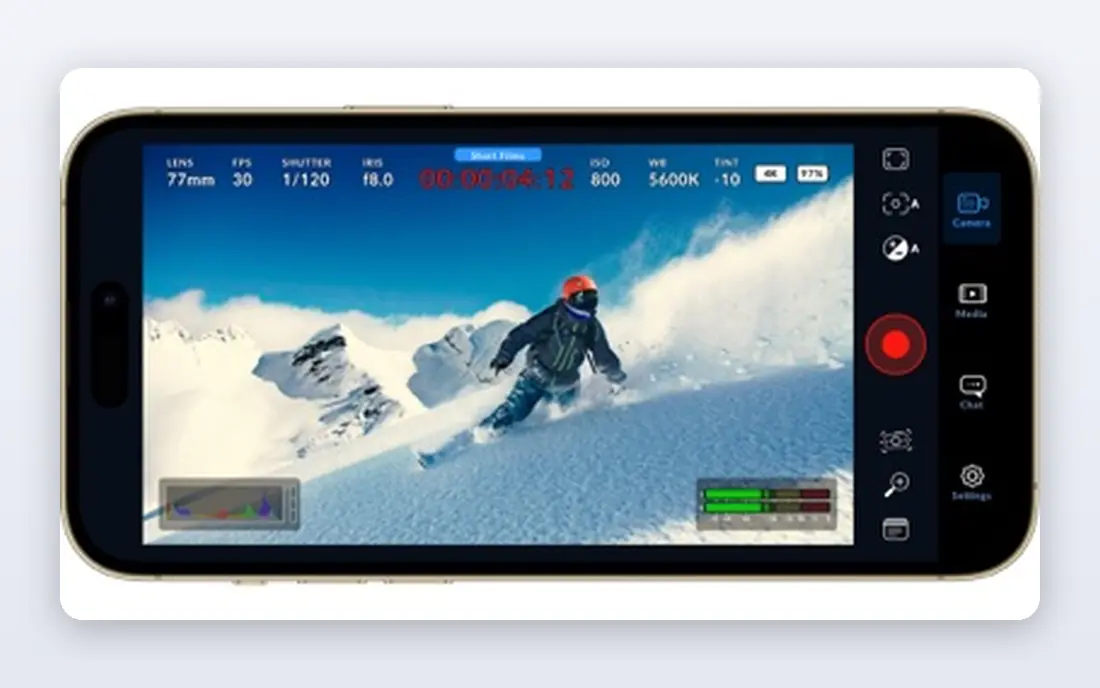
DaVinci Resolve is the strongest free editor available for PC, and it is also a professional tool in its own right. The free version includes editing, colour grading, visual effects and Fairlight audio, with no watermark on exports. That combination means a creator can start for free and grow into professional work without switching apps, which is rare in this category.
The catch is hardware and learning time. Resolve rewards a PC with a good graphics card and enough memory, especially for 4K timelines, and its colour and Fusion pages take time to learn. The Studio version, priced as a one-time purchase, adds advanced AI tools and multi-GPU support. For most PC editors, the free version is the best place to start, and Studio is a sensible upgrade when the work demands it.
- Full editing, colour, effects and audio in one app
- Free version with no watermark
- Studio version is a one-time purchase
- Needs a capable PC for smooth 4K work
- Learning curve for colour and Fusion tools
- Some advanced AI tools need Studio
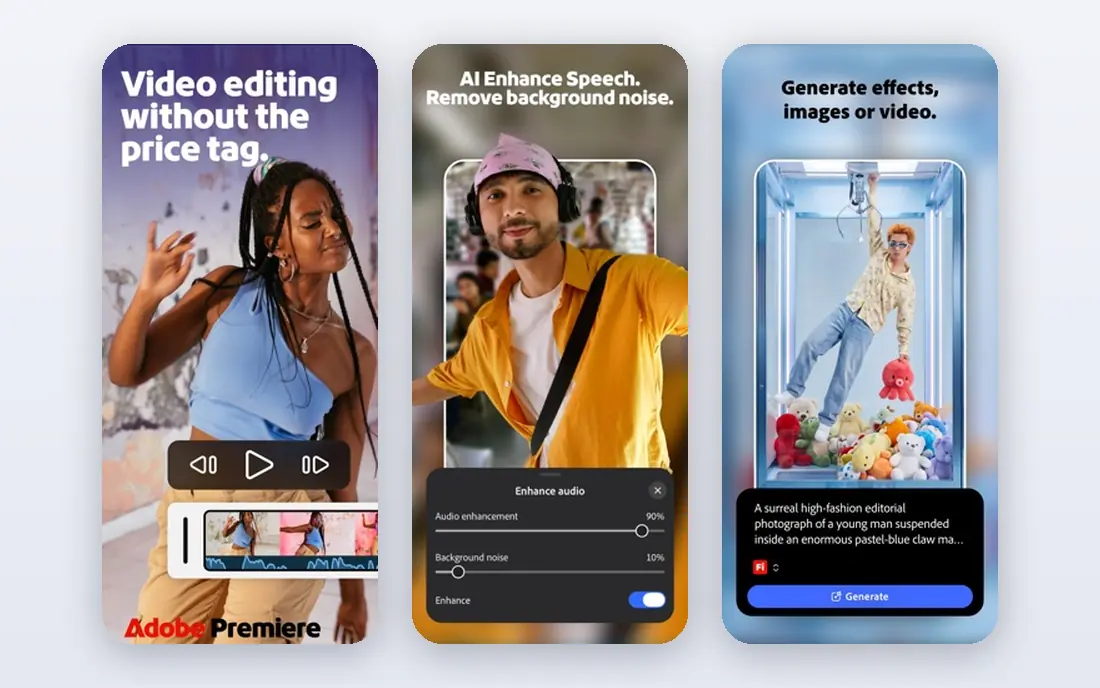
Premiere Pro remains the standard for many professional teams, and its strength is the ecosystem around it. A project can move from Premiere Pro to After Effects for motion graphics, to Photoshop for stills, and to Audition for audio, without leaving Adobe's workflow. Shared projects and team features help agencies and studios where several editors work on the same material.
The price is a subscription, billed monthly on an annual plan, and there is no one-time purchase. A powerful PC is also needed for smooth editing, especially with high-resolution footage. For a solo creator on a budget, DaVinci Resolve will usually be better value. For a team already invested in Adobe, Premiere Pro is the natural choice.
- Industry-standard timeline and workflow
- Deep integration with After Effects and Photoshop
- Strong for team projects and shared media
- Subscription only
- Needs a powerful PC
- Beginners may find the interface large and complex
Filmora is built for creators who want to publish quickly. The interface is simpler than Premiere Pro or Resolve, with templates, transitions, titles and effects that can be applied without learning a professional colour or audio page. AI tools for captions and for cutting silences help YouTube creators turn a long recording into a watchable video faster.
The free trial is useful for learning the interface, but exports from the trial carry a watermark, so a paid plan is needed for published work. Filmora also lacks the depth of Resolve for colour grading and audio mixing, which matters for longer or more polished projects. For a beginner or a YouTube creator who values speed over depth, it is a strong and friendly choice.
- Simple interface with templates and effects
- AI tools for captions and editing help
- Good for YouTube and social creators
- Free trial exports carry a watermark
- Advanced colour and audio tools are thinner than Resolve
- Pricing tiers need checking
PowerDirector has long been a favourite for PC enthusiasts who want speed. It renders quickly on many Windows PCs, offers a large library of effects, transitions and templates, and handles 4K editing without the learning curve of a full professional suite. For a creator who edits family videos, YouTube content or short films, it hits a useful middle ground between a basic editor and a professional one.
The full version is sold as a subscription under the PowerDirector 365 name, so the long-term cost needs checking against a one-time purchase such as Resolve Studio. The interface, with its many panels and effects, can also feel busy at first. For a PC user who values fast exports and a rich template library, PowerDirector is worth a trial.
- Fast rendering on many PCs
- Wide effect and template library
- Good for enthusiasts who want more than a basic editor
- Subscription model for the full 365 version
- Interface can feel busy
- Professional colour tools are less deep than Resolve
CapCut is the default for short-form social video, and its PC version brings the same fast workflow to a larger screen. Templates, auto-captions, trending effects and vertical formats make it easy to turn a clip into a TikTok, Reel or Short in minutes. The free version covers much of what a social creator needs, without a watermark on many exports.
The limit is length and depth. CapCut is not built for a feature-length documentary or a complex multi-camera project, and its colour and audio tools are simpler than Resolve or Premiere Pro. Some advanced features also sit behind a Pro plan. For social video, though, speed matters more than depth, and CapCut is the fastest route from clip to post.
- Fast short-form editing with templates
- Auto-captions and social formats
- Free version covers many social needs
- PC and mobile versions
- Less suited to long-form professional editing
- Some advanced features need a Pro plan
- Template-led work can look similar across creators
Clipchamp is the easiest free editor for a Windows user who needs a simple video quickly. It is built into Windows, opens in the browser or as an app, and offers templates for social clips, presentations and work videos. The free tier allows editing and exporting without a watermark on many projects, which makes it a good choice for school, work or family videos.
For larger or more complex projects, Clipchamp shows its limits. The browser-based workflow can feel slower with long timelines or high-resolution footage, and its colour, audio and effects tools are simpler than a desktop professional editor. Premium features, including some stock media and advanced exports, need a paid plan. For simple PC editing, it is hard to beat for convenience.
- Built into Windows and easy to start
- Free editing with no watermark on many exports
- Templates for social and work videos
- Microsoft 365 integration
- Browser-based workflow can feel slower for large projects
- Advanced editing features are limited
- Premium features need a paid plan
VEGAS Pro has a loyal PC following, built on a timeline that many creators find intuitive for audio and video together. Its audio tools are stronger than those in many consumer editors, which helps creators who record voiceovers, music and sound design in the same project. For a YouTube creator or enthusiast who wants a dedicated PC editor, VEGAS Pro remains a credible alternative to the subscription tools.
The main drawback is pipeline fit. Large studios and agencies more often use Premiere Pro or Resolve, so collaboration and shared projects can be harder with VEGAS Pro. Pricing and upgrade terms should also be checked on the vendor site, since purchase options have changed over time. For a solo PC creator who likes its workflow, it is still a solid choice.
- Long-standing PC editing workflow
- Strong audio tools
- Good for YouTube creators and enthusiasts
- Familiar timeline for former Sony Vegas users
- Pricing and upgrade terms need checking
- Less common in large studio pipelines than Premiere Pro
- Learning resources are thinner than for Resolve
Shotcut is a free, open source editor that runs well on older PCs and covers the basics without cost or watermark. It handles cutting, trimming, transitions, filters and exports in common formats, and it supports a wide range of codecs. For a student, a hobbyist or a creator on a tight budget, Shotcut removes the price barrier to learning video editing.
The trade-off is polish. Shotcut's interface is less refined than Filmora or PowerDirector, and it lacks the templates, AI captions and stock libraries that speed up social work. Large 4K projects can also strain a modest PC. For simple edits and for learning the basics, however, Shotcut is one of the best free PC options available.
- Completely free and open source
- Runs on Windows, Mac and Linux
- No watermark
- Good for simple cuts and older PCs
- Interface is less polished than paid rivals
- Fewer templates and AI tools
- Performance depends on PC hardware and project size
How we picked these
We compared official product pages, pricing pages and public reviews, and we kept only editors that run on PC and that exist and work in October 2026. We favoured editors with a clear PC version, a usable free or trial option, and a real use case, from professional colour work to short-form social video. We excluded Mac-only editors, since this article is about PC editing. Prices that could not be verified from a vendor page are listed as See website.
How to choose a PC editor
Start with your PC, not with the feature list. Check your graphics card, memory and storage against the editor's system requirements, and test a real project with your own footage before buying. A professional editor on a weak PC will frustrate you more than a simpler editor that runs smoothly. If you edit 4K, use proxy files or a lower preview resolution, and keep media on a fast drive.
Next, match the editor to the video you make most. Long-form YouTube videos and short films need a strong timeline, colour and audio tools, which points to Resolve or Premiere Pro. Social clips need templates, captions and fast exports, which points to CapCut or Filmora. Simple family or work videos need only Clipchamp or Shotcut. Buying a professional tool for simple cuts wastes money and learning time.
Finally, think about the total cost over three years. A subscription such as Premiere Pro adds up, while a one-time purchase such as Resolve Studio or a free tool such as Shotcut costs far less over time. Factor in storage, stock media and any plug-ins you will need. The cheapest editor is not always the best value, but a subscription you do not use is the most expensive option of all.
Frequently asked questions
What is the best video editing software for PC?
DaVinci Resolve is our pick for most PC users, thanks to its free professional editor and one-time Studio upgrade. Premiere Pro suits professional teams in the Adobe ecosystem. Filmora and PowerDirector suit beginners and enthusiasts, while CapCut suits short-form social video. Choose by your main video type, not by brand alone.
What is the best free video editing software for PC?
DaVinci Resolve offers the most professional features for free, with no watermark on exports. Shotcut is a good free open source alternative for simple cuts, and Clipchamp is the easiest free option built into Windows. For social video, CapCut's free tier also covers many needs. Test each with your own footage to see which runs best on your PC.
Is Premiere Pro available on PC?
Yes, Premiere Pro runs on Windows as well as Mac, and it is widely used by professional teams on PC. It requires a subscription and a capable PC for smooth editing. Check Adobe's system requirements before subscribing, especially for 4K and multi-camera work.
What is the best editing software for PC for beginners?
Filmora and Clipchamp are the easiest starting points for beginners on PC, thanks to templates and a simple interface. CapCut is also easy for short-form video. Once you outgrow templates, DaVinci Resolve offers a free path into professional editing without switching to a new paid tool.
Do I need a powerful PC for video editing?
You need a capable PC for 4K and for professional colour work, but not for simple 1080p cuts. A good graphics card, at least 16 GB of memory and fast storage help most editors run smoothly. Use proxy editing and lower preview quality if your PC struggles, and test the editor with your own footage before buying.
Is DaVinci Resolve really free?
Yes, the base version of DaVinci Resolve is free and includes editing, colour, effects and audio, with no watermark on exports. The Studio version is a one-time purchase that adds advanced AI tools, multi-GPU support and other professional features. Most creators can start with the free version and upgrade only if they need those Studio features.
Sources
- https://www.blackmagicdesign.com/products/davinciresolve
- https://www.adobe.com/products/premiere.html
- https://www.filmora.com
- https://www.cyberlink.com/products/powerdirector-video-editing-software
- https://www.capcut.com
- https://www.clipchamp.com
- https://www.vegascreativesoftware.com
- https://www.shotcut.org
See where you really rank - block by block
ProMapRanker scans Google Maps across a grid of your service area. Simple monthly plans from $19, white-label on every plan.
Start freeKeep reading
 outreach alternatives
Outreach Alternatives in 2026
Compare outreach alternatives for 2026, from Salesloft and Apollo to HubSpot and Lemlist, with pricing, channels, features, limits, and honest trade-offs.
Read → best web conference tools
Best Web Conference Tools in 2026
Compare the best web conference tools for meetings, webinars and team calls, with current pricing, free plans and honest limits for each option here today.
Read → best voice cloning tools
Best Voice Cloning Tools in 2026
Compare the best voice cloning tools in 2026, from ElevenLabs and Descript to Resemble and Cartesia, with consent rules, pricing, licenses, and limits.
Read →