 ProMapRanker
Best Video Editing Software for Vloggers in 2026

Key takeaways
- CapCut and DaVinci Resolve give most vloggers a strong free starting point, with very different learning curves.
- Adobe Premiere Pro and Final Cut Pro suit creators who already work in those ecosystems and want deeper control.
- Filmora, Clipchamp, and Movavi suit beginners who want templates and guided tools more than a full pro timeline.
- Check your computer and phone first, since the best editor on paper is a poor pick if it runs slowly on your machine.
Quick comparison
| Pick | Great for | Pricing starts at | Free tier | |
|---|---|---|---|---|
 CapCut | Short-form social vlogs | See website | Yes | Visit |
 DaVinci Resolve | Free pro-level editing and color | Free | Yes | Visit |
 Adobe Premiere Pro | Pro YouTube and team workflows | $22.99 per month | Free trial (7 days) | Visit |
 Final Cut Pro | Mac vloggers who want a one-time purchase | $299.99 one-time | Free trial | Visit |
 Filmora | Beginners who want guided editing | See website | Yes | Visit |
 iMovie | Apple beginners on a tight budget | Free | Yes | Visit |
 Clipchamp | Windows users who want browser editing | See website | Yes | Visit |
 CyberLink PowerDirector | Enthusiasts who want effects and speed | See website | Free trial | Visit |
 Movavi Video Editor | Casual creators who want simple edits | See website | Free trial | Visit |
The best video editing software for vloggers
Vloggers need an editor that is fast on a normal day, not only on a showcase project. We compared tools for cutting talking-head clips, adding captions, and exporting for YouTube, Shorts, and Reels, and we kept the focus on price, platform, and the daily editing routine.

CapCut fits creators who publish short social clips every week. Its clearest strength is quick captions and templates, which matters when you publish short clips often. We compared the official feature pages, pricing pages, and app store listings rather than relying on marketing claims alone, and that comparison is what shapes the view below. The honest catch is some advanced features need a paid plan. That does not rule it out, but it does shape who should choose it. If you publish short clips often is your main work, CapCut deserves a short trial before you commit, and you should check the current pricing page for the plan that matches your volume. For most readers, the deciding question is simple: does this fit your budget, your device, and your publishing pace? Answer those three points first, and the rest of the comparison gets easier.
- Fast mobile and desktop editing
- Large template and caption tools
- Easy social export
- Some advanced features need a paid plan
- Desktop and mobile features differ
DaVinci Resolve fits vloggers who want pro tools without a subscription. Its clearest strength is color grading and audio in one place, which matters when you want pro control without a monthly fee. We compared the official feature pages, pricing pages, and app store listings rather than relying on marketing claims alone, and that comparison is what shapes the view below. The honest catch is steep learning curve. That does not rule it out, but it does shape who should choose it. If you want pro control without a monthly fee is your main work, DaVinci Resolve deserves a short trial before you commit, and you should check the current pricing page for the plan that matches your volume. Before you pay, check the current plan page and the device requirements. A tool that fits your daily routine will beat a stronger tool that you avoid opening.
- Free version covers most editing needs
- Strong color tools
- Audio and effects in one app
- Steep learning curve
- Needs a capable computer for larger projects
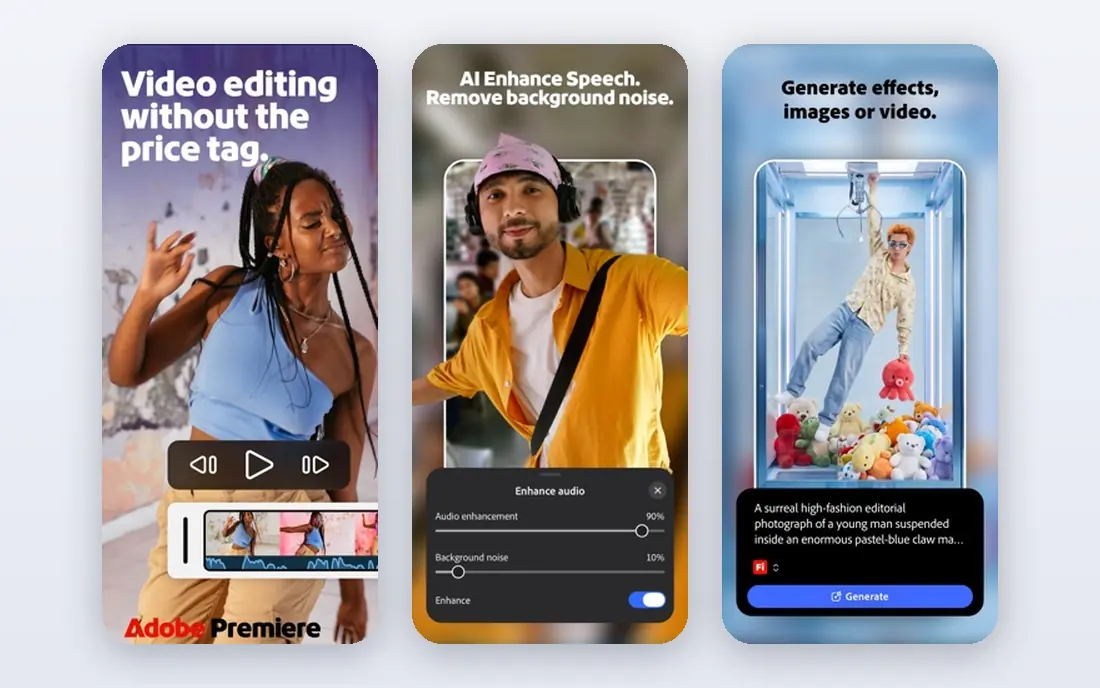
Adobe Premiere Pro fits creators who edit long-form work or collaborate with a team. Its clearest strength is timeline control and format support, which matters when you edit long videos or share projects with others. We compared the official feature pages, pricing pages, and app store listings rather than relying on marketing claims alone, and that comparison is what shapes the view below. The honest catch is subscription cost adds up. That does not rule it out, but it does shape who should choose it. If you edit long videos or share projects with others is your main work, Adobe Premiere Pro deserves a short trial before you commit, and you should check the current pricing page for the plan that matches your volume. Try the free option or trial first, with one real project, and judge it on that result. A short, honest test tells you more than a long feature list.
- Deep editing control
- Wide plugin and format support
- Works well with other Adobe apps
- Subscription cost adds up
- Needs a strong computer and time to learn
Final Cut Pro fits Mac owners who want to buy once and keep the app. Its clearest strength is speed on Apple Silicon, which matters when you edit on a Mac and dislike subscriptions. We compared the official feature pages, pricing pages, and app store listings rather than relying on marketing claims alone, and that comparison is what shapes the view below. The honest catch is mac only. That does not rule it out, but it does shape who should choose it. If you edit on a Mac and dislike subscriptions is your main work, Final Cut Pro deserves a short trial before you commit, and you should check the current pricing page for the plan that matches your volume. For most readers, the deciding question is simple: does this fit your budget, your device, and your publishing pace? Answer those three points first, and the rest of the comparison gets easier.
- Fast on Apple Silicon Macs
- One-time purchase
- Strong magnetic timeline
- Mac only
- Smaller plugin range than some rivals for some workflows
Filmora fits new vloggers who want a guided first editor. Its clearest strength is templates and guided tools, which matters when you are learning to edit and want quick results. We compared the official feature pages, pricing pages, and app store listings rather than relying on marketing claims alone, and that comparison is what shapes the view below. The honest catch is free exports carry a watermark. That does not rule it out, but it does shape who should choose it. If you are learning to edit and want quick results is your main work, Filmora deserves a short trial before you commit, and you should check the current pricing page for the plan that matches your volume. Before you pay, check the current plan page and the device requirements. A tool that fits your daily routine will beat a stronger tool that you avoid opening.
- Simple timeline
- Templates, effects, and AI helpers
- Good for fast YouTube edits
- Free exports carry a watermark
- Some AI features need a paid plan
iMovie fits Apple users making simple vlogs with no budget. Its clearest strength is simple, free editing on Apple devices, which matters when you want a free, simple editor on an iPhone or Mac. We compared the official feature pages, pricing pages, and app store listings rather than relying on marketing claims alone, and that comparison is what shapes the view below. The honest catch is limited advanced tools. That does not rule it out, but it does shape who should choose it. If you want a free, simple editor on an iPhone or Mac is your main work, iMovie deserves a short trial before you commit, and you should check the current pricing page for the plan that matches your volume. Try the free option or trial first, with one real project, and judge it on that result. A short, honest test tells you more than a long feature list.
- Free with Apple devices
- Simple and stable
- Good for basic cuts and titles
- Limited advanced tools
- Apple devices only
Clipchamp fits Windows users who want a quick browser editor. Its clearest strength is browser editing without a heavy install, which matters when you edit on different Windows machines. We compared the official feature pages, pricing pages, and app store listings rather than relying on marketing claims alone, and that comparison is what shapes the view below. The honest catch is needs a stable connection for browser work. That does not rule it out, but it does shape who should choose it. If you edit on different Windows machines is your main work, Clipchamp deserves a short trial before you commit, and you should check the current pricing page for the plan that matches your volume. For most readers, the deciding question is simple: does this fit your budget, your device, and your publishing pace? Answer those three points first, and the rest of the comparison gets easier.
- Runs in a browser on Windows
- Templates and stock media
- Simple sharing
- Needs a stable connection for browser work
- Advanced tools are limited
CyberLink PowerDirector fits Windows creators who want effects and fast exports. Its clearest strength is effects and rendering speed, which matters when you want a large effects library on Windows. We compared the official feature pages, pricing pages, and app store listings rather than relying on marketing claims alone, and that comparison is what shapes the view below. The honest catch is subscription pricing can confuse. That does not rule it out, but it does shape who should choose it. If you want a large effects library on Windows is your main work, CyberLink PowerDirector deserves a short trial before you commit, and you should check the current pricing page for the plan that matches your volume. Before you pay, check the current plan page and the device requirements. A tool that fits your daily routine will beat a stronger tool that you avoid opening.
- Fast rendering on many PCs
- Large effects library
- Guided and full modes
- Subscription pricing can confuse
- Interface feels busy at first
Movavi Video Editor fits casual vloggers who want simple, tidy edits. Its clearest strength is a clear interface for quick edits, which matters when you want simple edits without a long learning curve. We compared the official feature pages, pricing pages, and app store listings rather than relying on marketing claims alone, and that comparison is what shapes the view below. The honest catch is free version limits exports. That does not rule it out, but it does shape who should choose it. If you want simple edits without a long learning curve is your main work, Movavi Video Editor deserves a short trial before you commit, and you should check the current pricing page for the plan that matches your volume. Try the free option or trial first, with one real project, and judge it on that result. A short, honest test tells you more than a long feature list.
- Clear interface
- Quick cuts, titles, and transitions
- Light learning curve
- Free version limits exports
- Fewer pro color tools than rivals
How we picked these
We compared official pricing pages, platform support, and feature pages, plus app store listings where they clarified mobile use. We favored tools that are still sold and supported in October 2026, that export in common formats, and that fit a vlogging routine rather than only a film or advertising routine. We did not claim hands-on testing that did not happen. Instead, we weighed the free tier, the paid entry point, the platform limits, and the honest weakness of each tool, so a reader can see the trade-off before downloading anything.
How to choose a vlogging editor without overspending
Start with your publishing pattern. A daily short-form creator needs fast captions, templates, and phone editing. A weekly long-form creator needs a stable timeline, good audio tools, and reliable exports. Write down how many videos you publish each month before you compare prices. Next, match the editor to your device. Mac owners get a different shortlist from Windows owners, and phone-first creators need a strong mobile app, not only a desktop program. Check the system requirements on the vendor page, and try a short test project on your own machine. Then compare the true cost. A free tool with a watermark may cost you time in re-edits, while a subscription may cost more over a year than a one-time purchase. Look at the plan you would actually use, not the cheapest headline price, and note what the free plan leaves out. Finally, keep your workflow simple. Pick one editor for your main channel, learn its shortcuts, and keep a second simple tool only for quick social cuts. Switching editors every month slows you down more than any single missing feature.
Frequently asked questions
What is the best video editing tool for vloggers on a budget?
DaVinci Resolve and CapCut are strong free starting points, and iMovie is free for Apple users. DaVinci Resolve suits creators who want pro depth, while CapCut suits fast social clips. Try the free tier first and pay only when a limit blocks your routine.
Which editor is best for YouTube vlogs?
For long YouTube vlogs, DaVinci Resolve, Premiere Pro, and Final Cut Pro offer deeper timelines and audio control. For short YouTube Shorts, CapCut and Clipchamp are faster. Your video length and device matter more than any single brand name.
Is CapCut good for vloggers?
CapCut is good for short-form vlogs, captions, and templates, and it works on phones and computers. It is less suited to long, complex projects than a full desktop timeline. Check which features sit behind the paid plan before you build a routine around it.
Do I need a paid editor to start vlogging?
No. A free editor can cover cuts, titles, music, and basic color for early videos. Pay when you need watermark-free exports, advanced audio, or a feature you use every week. Starting free also helps you learn what you actually need.
What should vloggers check before buying an editor?
Check the platform, the export limits, the watermark rules, and the renewal price. Also check the computer requirements and the refund or trial terms. Those four checks prevent most bad purchases in this category.
Sources
- https://www.capcut.com
- https://www.blackmagicdesign.com/products/davinciresolve
- https://www.adobe.com/products/premiere.html
- https://www.apple.com/final-cut-pro
- https://filmora.wondershare.com
- https://www.apple.com/imovie
- https://www.clipchamp.com
- https://www.cyberlink.com/products/powerdirector
- https://www.movavi.com/video-editor
See where you really rank - block by block
ProMapRanker scans Google Maps across a grid of your service area. Simple monthly plans from $19, white-label on every plan.
Start freeKeep reading
 zscaler alternatives
Best Zscaler Alternatives in 2026
Looking for zscaler alternatives? We compare 9 SASE and zero trust platforms on architecture, data protection, pricing, and fit for your network and team.
Read → zapier alternatives free
Best Zapier Alternatives Free in 2026
Nine automation tools for zapier alternatives free in 2026, all with genuinely free tiers, plus free plan limits, starting prices and upgrade paths explained.
Read → which platform is best for online reputation
Which Platform Is Best for Online Reputation in 2026
Wondering which platform is best for online reputation? We compare 8 review, listing, and response tools for small and multi-location businesses and agencies.
Read →