 ProMapRanker
Best Video Editing Software for 4K Videos in 2026


Professional team work and Adobe workflows · Pricing starts at: $22.99 per month
Key takeaways
- For 4K work, hardware matters as much as software, because smooth playback and fast exports need a capable processor, graphics card, memory and fast storage.
- DaVinci Resolve free version is the strongest free 4K editor, while Final Cut Pro and DaVinci Resolve Studio are the best one-time purchases.
- Premiere Pro suits teams and Adobe workflows, while Filmora, CapCut and PowerDirector suit creators who want faster, simpler 4K edits.
- Check export limits before you buy, because some free and lower tiers cap resolution, add watermarks or limit 4K export to paid plans.
- Proxy editing and optimised media can make 4K workable on a mid-range computer, even when full-resolution playback is not smooth.
Quick comparison
| Pick | Great for | Pricing starts at | Free tier | |
|---|---|---|---|---|
| Adobe Premiere Pro | Professional team work and Adobe workflows | $22.99 per month | Free trial | Visit |
 DaVinci Resolve | Free professional 4K editing and colour | Free | Yes | Visit |
 Final Cut Pro | Mac editors who want to buy once | $299.99 one-time | Free trial | Visit |
 Filmora | Beginners who want templates and AI help | $49.99 per year | Yes | Visit |
 CapCut | Short-form and social 4K video | Free | Yes | Visit |
 PowerDirector | Feature-rich Windows editing | See website | Free trial | Visit |
 VEGAS Pro | Windows editors who want audio depth | See website | Free trial | Visit |
The best video editing software for 4k videos
These nine editors all handle 4K timelines and exports, but they differ on price model, platform, learning curve and how much hardware they demand for smooth 4K work.
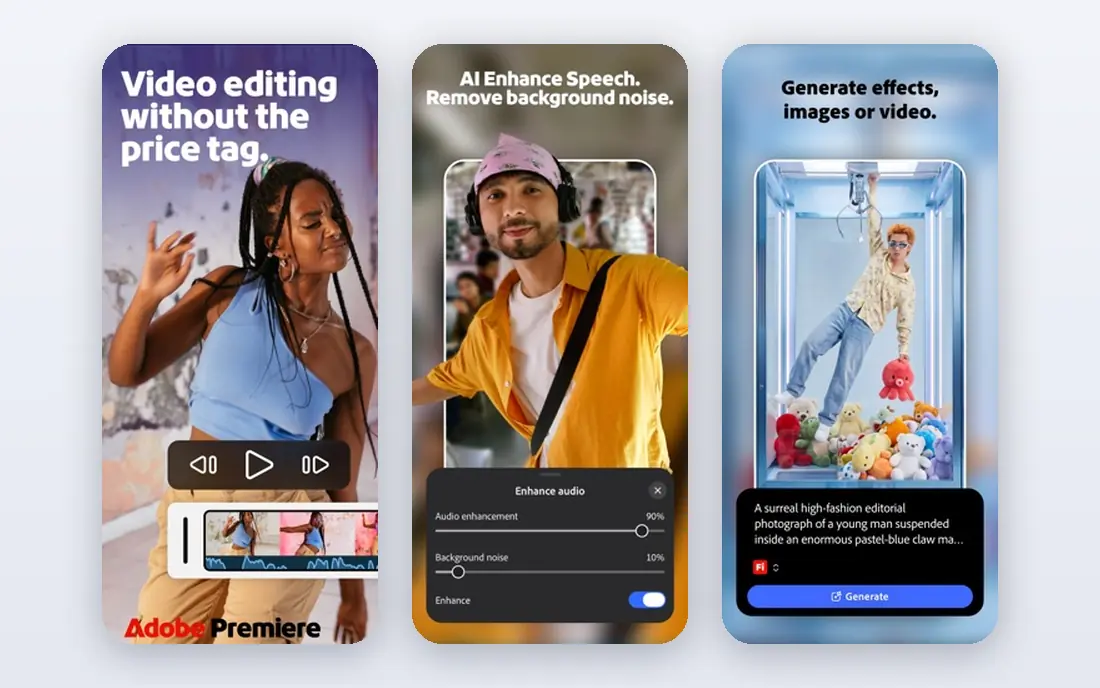
Premiere Pro remains the default professional editor for teams, agencies and freelancers who work inside the Adobe system. It handles 4K timelines, proxies, colour, audio and effects in one timeline, and it links cleanly with After Effects for motion work, Audition for audio and Photoshop for graphics. For client work where files move between editors and collaborators, that shared Adobe workflow is a real advantage, and its format support covers most camera and delivery formats a 4K editor will meet.
The costs are subscription and hardware. At $22.99 per month on an annual plan, the five-year cost is far higher than a one-time purchase, and 4K playback still needs a capable computer, with enough memory, graphics power and fast storage to stay smooth. New editors also face a steeper learning curve than with Filmora or CapCut. If you work in teams, use Adobe tools daily or deliver client work at scale, Premiere Pro earns its price. If you edit alone and want to own your tool, Resolve or Final Cut Pro will cost less over time.
- Industry-standard timeline for professional work
- Deep integration with After Effects, Audition and Photoshop
- Strong format, proxy and export options
- Subscription only, at $22.99 per month on an annual plan
- Demands strong hardware for smooth 4K playback
- Learning curve for new editors

DaVinci Resolve is our pick for most 4K editors, because the free version is genuinely professional, with timeline editing, colour grading, audio and effects in one app, and 4K UHD export with no watermark. Its colour tools are the best in this list, and its audio page and effects page mean many editors never need a second app for a finished video. For a creator moving from a simple editor to serious 4K work, Resolve offers the most capability for no upfront cost.
The trade-offs are hardware and learning time. Resolve is graphics heavy, and smooth 4K playback needs a capable graphics card and plenty of memory, though proxy workflows help on weaker machines. The interface also asks more of a new editor than Filmora or CapCut, especially in colour and effects. Studio, at $295 one-time, adds advanced features for professionals, but most creators can start free and upgrade only when a Studio feature becomes a real need.
- Free version exports 4K UHD with no watermark
- Editing, colour, audio and effects in one app
- Studio at $295 one-time adds advanced tools
- Demands strong graphics and memory for 4K work
- Learning curve, especially for colour and Fusion
- Studio features sit behind the paid upgrade

Final Cut Pro is the best one-time purchase for Mac editors who work in 4K. At $299.99 one-time, with free updates, it costs far less over five years than a subscription editor, and its performance on Apple silicon is fast, with smooth 4K playback and quick exports on modern Macs. The magnetic timeline, which keeps clips connected as you edit, speeds up many common tasks once you learn it, and its built-in colour, audio and title tools cover most creator needs without extra apps.
The limits are platform and habit. Final Cut Pro runs only on Mac and iPad, so a Windows editor cannot use it, and editors used to a traditional track-based timeline may need time to adjust to the magnetic approach. Some advanced finishing workflows still benefit from companion tools. For a Mac owner who wants a fast, owned 4K editor with no subscription, Final Cut Pro is the clearest pick in this list, with a 90-day free trial to test it properly.
- One-time purchase at $299.99 with free updates
- Fast performance on Apple silicon
- Magnetic timeline speeds up many edits
- Mac only, so Windows editors cannot use it
- Magnetic timeline feels different for editors used to track-based tools
- Some advanced workflows need companion apps
Filmora is the easiest paid path to a finished 4K video for beginners and social creators. Its timeline is straightforward, templates and effects speed up common projects, and AI helpers such as auto captions and background removal cut time on routine tasks. Paid plans start at $49.99 per year, with a perpetual option also listed, so creators can choose between a yearly plan and a one-time purchase, though the terms of each should be read carefully at checkout.
The limits are depth and free export terms. Free exports carry a watermark, and colour grading, audio mixing and effects depth are thinner than in Resolve or Premiere Pro. For a creator who wants fast, good-looking 4K social and YouTube videos without learning a professional editor, Filmora is a strong, friendly pick. For film, client or colour-critical work, start with Resolve free version instead and accept the longer learning curve.
- Easy timeline with templates, effects and AI helpers
- 4K export on paid plans
- Available on Windows, Mac and mobile
- Free exports are watermarked
- Paid pricing has annual and perpetual options that need reading
- Colour and audio depth are thinner than pro editors
CapCut is the default editor for short-form social video, and it handles 4K projects on desktop and mobile with a speed that longer-form editors rarely match. Templates, auto captions, effects and AI helpers make it fast to turn a shoot into a finished vertical or social video, and the free plan is generous enough that many creators never pay. For TikTok, Reels and Shorts, where speed and trend-ready tools matter, CapCut is hard to beat.
The limits show up in longer or more polished work. Colour and audio tools are basic beside Resolve or Premiere Pro, and Pro pricing is listed at $19.99 per month, which has risen over time, so creators should check whether Pro features are truly needed. For a social creator who edits short 4K clips daily, CapCut is the fastest tool here. For a YouTube documentary, wedding film or client project, a timeline editor such as Resolve or Final Cut Pro will give more control.
- Free plan covers many short-form needs
- Fast templates, captions and AI tools
- Available on desktop, web and mobile
- Pro pricing has risen, listed at $19.99 per month
- Colour and audio tools are basic compared with pro editors
- Best for short-form, not long-form work
PowerDirector is a feature-rich editor for Windows creators who want a lot of effects, titles and tools without moving to a professional suite. It offers guided modes for new editors and full manual control for experienced users, with fast rendering and a large effects library that suits YouTube, family and enthusiast projects. Its 4K editing and export support covers the formats most creators use, and its template and motion tools speed up polished results.
Pricing is the part to check closely, because PowerDirector is sold as both a subscription and a perpetual licence, with different prices reported across sources, so we list See website for the current terms. The interface can also feel crowded, with many panels and options competing for attention. For a Windows creator who wants a rich, fast editor and does not need professional colour or team tools, PowerDirector is a strong mid-range pick.
- Large effects library and fast rendering
- Guided and manual editing modes
- 4K editing and export with strong format support
- Pricing varies between subscription and perpetual options
- Interface can feel crowded
- Mac support is narrower than Windows
VEGAS Pro has long been a Windows favourite for editors who care about audio as much as video, with a fast timeline, strong audio mixing and customisable layouts that suit experienced editors. It handles 4K timelines and exports, and its audio tools make it a good fit for music, podcast-style and dialogue-heavy projects where sound quality matters. Perpetual licence options beside subscriptions also appeal to editors who want to own their tool.
The key caution in 2026 is change of ownership, with VEGAS Pro moving to Boris FX and perpetual pricing reported around $219, so buyers should confirm current terms, upgrade policy and support on the vendor page before buying. It is also Windows only, and its interface feels dated beside newer editors. For a Windows editor who values audio depth and a customisable timeline, VEGAS Pro remains a solid choice, provided the current licence terms suit you.
- Fast, customisable timeline for Windows editors
- Strong audio editing and mixing
- Perpetual licence options beside subscriptions
- Windows only
- Pricing and ownership terms changed with its move to Boris FX in 2026, so confirm current terms
- Interface feels dated to some editors
How we picked these
We compared official feature and pricing pages, plus recent video editing guides, and we kept only editors that are live in October 2026 and genuinely support 4K timelines and exports. We included free, one-time and subscription editors, across Windows, Mac and Linux, so readers can match price model and platform to their computer. Where pricing varied across sources, we wrote See website rather than presenting one conflicting figure as a vendor price.
We did not claim hands-on testing, and we did not invent export limits, hardware needs or prices. 4K performance depends heavily on your computer, codec and project complexity, so we note proxy workflows and hardware needs as general guidance, not as a guarantee for any single machine. Confirm current pricing, export limits and system requirements with each vendor before buying, and test with your own 4K footage during any trial.
What to check before you buy video editing software for 4K videos
Start with your computer, not the editor. Check processor, graphics card, memory and storage against the vendor system requirements for 4K, and test playback with your own footage, because codec choice, such as H.264, HEVC or ProRes, changes playback load a lot. If playback stutters, learn the proxy workflow for your chosen editor, because proxies let you edit smoothly and export at full quality, and they make 4K workable on many mid-range machines.
Next, check export terms. Confirm that 4K export is included in the plan you will buy, whether exports are watermarked on free tiers, and which codecs and frame rates your delivery platforms need. Then test the editing style with a real project, including cuts, titles, colour and audio, because an editor that feels fast for a short clip may feel slow for a 20-minute project. Finally, compare five-year cost, not just the first month, since subscriptions, one-time purchases and free tools give very different totals over time.
Frequently asked questions
What is the best video editing software for 4K videos?
For most editors, DaVinci Resolve free version is the best starting point, because it exports 4K UHD with no watermark and includes professional colour and audio tools. Mac owners who want to buy once should look at Final Cut Pro at $299.99, while teams and Adobe users should look at Premiere Pro. The best choice depends on your platform, budget and whether you edit short social clips or long-form projects.
Can I edit 4K video on a mid-range computer?
Yes, in many cases, especially with proxy editing. Proxies are lower-resolution copies used for smooth editing, while the final export uses your full-quality 4K files. Check your editor proxy workflow, use fast storage such as an SSD, and close other heavy apps while editing. If your computer still struggles, consider editing in 1080p proxies and exporting in 4K, or upgrading memory and graphics before buying new software.
Is DaVinci Resolve really free for 4K editing?
Yes, the free version of DaVinci Resolve supports 4K UHD editing and export with no watermark for most projects. Studio, at $295 one-time, adds advanced features such as higher-resolution support beyond UHD, advanced noise reduction and stereoscopic tools, but most creators do not need those features to finish a 4K video. Check the current Studio feature list if you need a specific advanced tool.
Do I need a subscription to edit 4K video?
No. DaVinci Resolve free version, Final Cut Pro at $299.99 one-time and DaVinci Resolve Studio at $295 one-time both avoid a subscription. Premiere Pro and CapCut Pro are subscription-based, while Filmora and PowerDirector offer both subscription and perpetual options. Compare five-year cost, not just the first payment, before you choose a model.
What hardware do I need for smooth 4K editing?
Vendor requirements vary, but most 4K editors recommend at least 16 GB of memory, a capable graphics card with several GB of video memory, a modern multi-core processor and fast SSD storage. Resolve and Premiere Pro are the most demanding in this list, while Filmora and CapCut run better on modest hardware. Test with your own footage and codec during a trial, because real playback matters more than any minimum specification.
Sources
See where you really rank - block by block
ProMapRanker scans Google Maps across a grid of your service area. Simple monthly plans from $19, white-label on every plan.
Start freeKeep reading
 zscaler alternatives
Best Zscaler Alternatives in 2026
Looking for zscaler alternatives? We compare 9 SASE and zero trust platforms on architecture, data protection, pricing, and fit for your network and team.
Read → zapier alternatives free
Best Zapier Alternatives Free in 2026
Nine automation tools for zapier alternatives free in 2026, all with genuinely free tiers, plus free plan limits, starting prices and upgrade paths explained.
Read → which platform is best for online reputation
Which Platform Is Best for Online Reputation in 2026
Wondering which platform is best for online reputation? We compare 8 review, listing, and response tools for small and multi-location businesses and agencies.
Read →