 ProMapRanker
Best Video Editing Software in 2026


Professional color grading and editing · Pricing starts at: Free
Key takeaways
- DaVinci Resolve gives beginners and professionals a strong free starting point, while its paid Studio version stays a one-time purchase.
- Adobe Premiere Pro suits editors who work inside Adobe tools and need broad format support, but it requires an ongoing subscription.
- Final Cut Pro and iMovie suit Mac users who want speed and a one-time or free option, while CapCut and Clipchamp suit short social videos.
- Filmora, PowerDirector, and Lightworks fill the middle ground for creators who want guided tools, effects, and a clearer price path.
- The best editing software depends on your device, your export needs, and how much time you want to spend learning the timeline.
Quick comparison
| Pick | Great for | Pricing starts at | Free tier | |
|---|---|---|---|---|
| DaVinci Resolve | Professional color grading and editing | Free | Yes | Visit |
 Adobe Premiere Pro Adobe Premiere Pro | Adobe workflows and client work | $22.99 per month | Free trial | Visit |
 Final Cut Pro Final Cut Pro | Mac editors who want speed | See website | Free trial | Visit |
 CapCut CapCut | Short social videos | Free | Yes | Visit |
 Filmora Filmora | Beginners who want templates | See website | Yes | Visit |
 Clipchamp Clipchamp | Quick Windows and browser edits | Free | Yes | Visit |
 PowerDirector PowerDirector | Guided effects and AI tools | See website | Free trial | Visit |
 Lightworks Lightworks | Film style timeline editing | Free | Yes | Visit |
 iMovie iMovie | Simple free Mac and iOS edits | Free | Yes | Visit |
The best video editing software
We compared desktop editors, browser editors, and mobile friendly tools that cover simple cuts, social clips, and longer professional projects. Our picks balance ease of use, export quality, format support, and price.
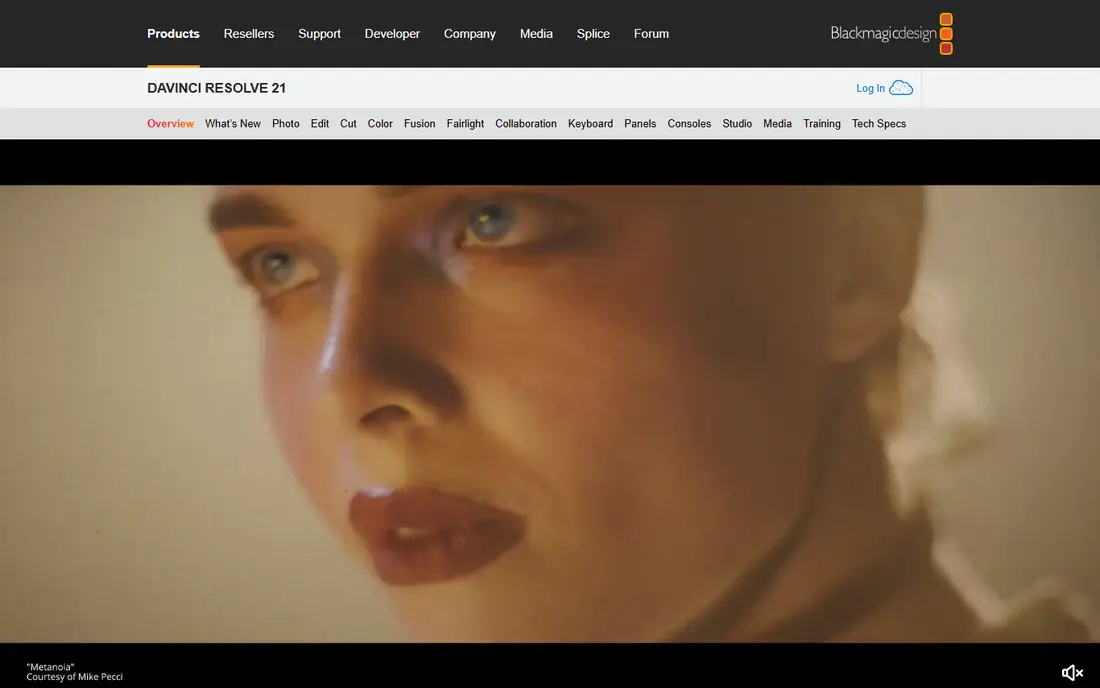
DaVinci Resolve stands out because the free version covers far more than a trial. You get a full timeline editor, color tools, visual effects, and audio mixing in one download, and exports can reach 4K in the free version. That makes it a sensible first choice for people who want to learn professional editing without paying at the start. The catch is time and hardware. The interface has several pages for editing, color, effects, and audio, and new users may need tutorials before they feel comfortable. Large projects can also run slowly on older machines. If you later need higher frame rates, advanced AI tools, and extra collaboration features, Studio is a one-time purchase rather than a monthly plan, which keeps long term costs clearer.
- Strong free version with no watermark
- Editing, color, effects, and audio in one app
- One-time Studio purchase
- Steep learning curve for new editors
- Needs a capable computer for large projects
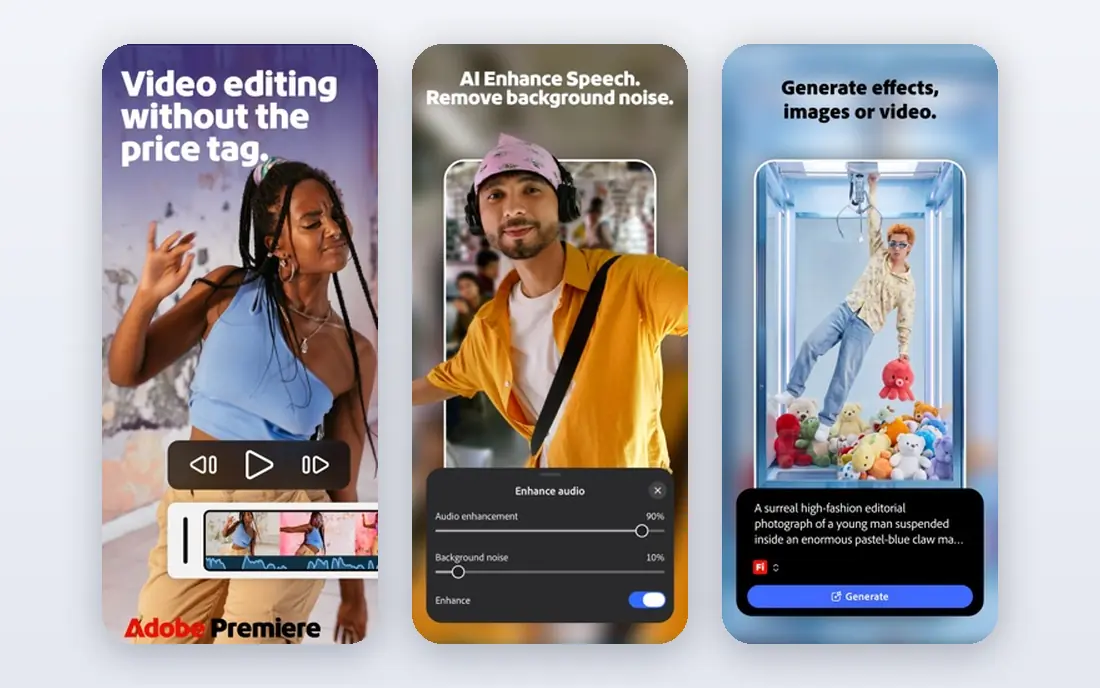
Premiere Pro remains a common choice in studios and agencies because it fits into a wider Adobe workflow. Editors can move projects, graphics, and audio between Adobe apps, and the app supports a wide range of camera formats and export settings. For client work where files may pass between editors, that shared workflow matters. The main drawback is the subscription. You keep access only while you pay, so the cost adds up over years, and casual editors may find that hard to justify. Performance also depends on your hardware and media, so proxy editing can help with high resolution footage. If you already use Adobe tools for design or audio, Premiere Pro makes more sense than it does as a standalone purchase.
- Broad format support and regular updates
- Works well with After Effects, Photoshop, and Audition
- Strong caption and audio tools
- Subscription only
- Can feel heavy on modest computers
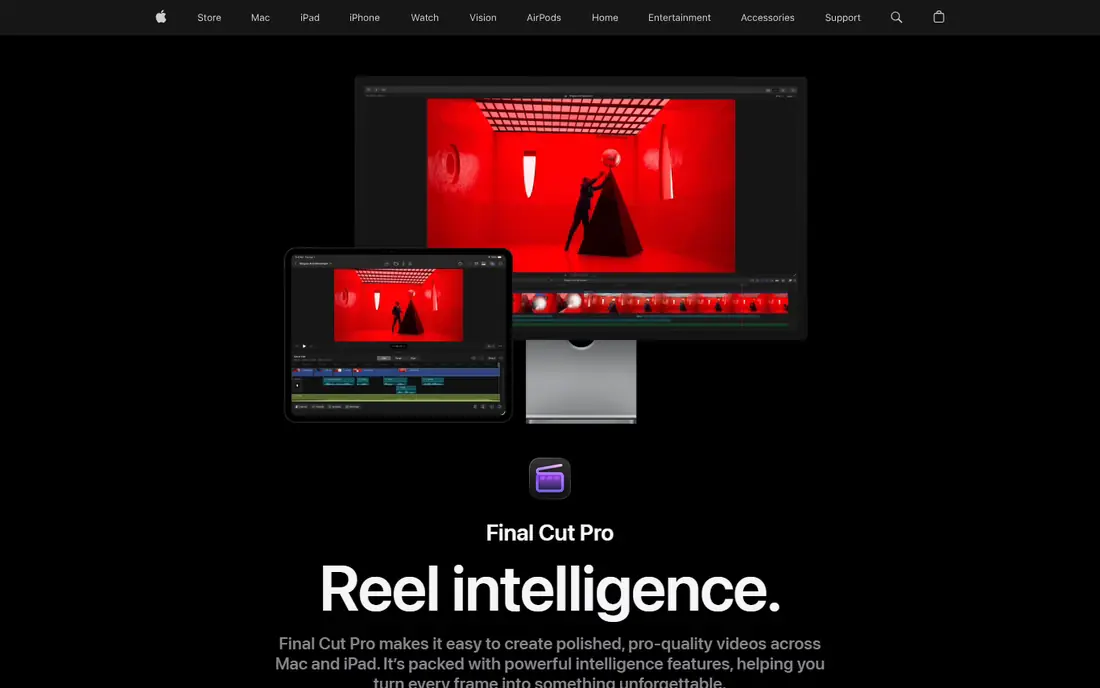
Final Cut Pro is built for Mac users who want professional tools without a monthly fee. Its magnetic timeline reduces gaps and overlaps as you move clips, which can speed up simple assembly and rough cuts. On Apple Silicon machines, playback and export often feel quick, even with 4K footage. The limits are platform and habit. If you work on Windows, or if your team shares Premiere Pro projects, Final Cut Pro will not fit that workflow. Editors moving from a track based timeline may also need time to adjust to the magnetic approach. For solo Mac editors and YouTube creators, though, the one-time price and a 90-day trial make it easier to test before buying.
- Fast performance on Apple Silicon Macs
- Magnetic timeline keeps clips organized
- One-time purchase for Mac
- Mac only
- Smaller plugin and template market than Premiere Pro in some areas
CapCut is hard to beat for speed when the goal is a short vertical video. Templates, trending effects, auto captions, and background removal help creators finish a clip quickly, and the mobile app suits phone footage. Desktop and web versions extend the same workflow to larger screens. For longer or client projects, the trade-offs grow. Some advanced AI tools, higher resolution exports, and premium assets sit behind paid plans, and prices can differ by region and store. Creators who use stock music or templates for paid work should also read the license terms for each asset. If your main output is TikTok, Reels, or Shorts, CapCut is a practical daily editor.
- Fast templates, auto captions, and effects for social video
- Works on mobile, desktop, and web
- Easy sharing to social platforms
- Paid plan pricing varies by region and platform
- Check asset licenses before commercial use
Filmora targets creators who want a polished result without learning a professional suite first. The layout is plain, effects and titles are easy to find, and AI tools can draft captions, cut highlights, and add music. That combination suits YouTube beginners, teachers, and small business owners. The free version is best treated as a trial for exports, because exported videos carry a watermark until you pay. Paid plans are annual or perpetual in some regions, so check the current plan page for your country before you commit. Mobile and desktop subscriptions may also differ, so confirm that one purchase covers the devices you plan to use.
- Clear interface and large template library
- AI captions, music, and effects
- Available on Windows, Mac, and mobile
- Free exports carry a watermark
- AI credits and plan details vary by tier
Clipchamp suits people who edit in a browser and want a finished video without installing a heavy program. The free plan covers unlimited projects and 1080p exports without a watermark, plus screen recording, captions, and basic stock assets. That is enough for training clips, class projects, and simple social posts. The limits show up when you need 4K, premium stock, or a brand kit. Those features come through Microsoft 365 Personal or Family in many regions, so the value depends on whether you already pay for that bundle. Browser performance also depends on your computer and connection, and large projects may feel slower than in a desktop editor.
- Free 1080p exports without a watermark
- Screen and webcam recording built in
- Auto captions and text to speech
- Browser only for many users, with no current iOS app
- 4K and premium stock need a paid Microsoft 365 plan
PowerDirector sits between a beginner app and a professional suite. It offers a timeline editor with effects, transitions, titles, and AI tools such as speech to text and background removal, plus multicam editing for event footage. The guided modes help new users, while the full editor leaves room to grow. Price clarity is the main thing to check. CyberLink lists subscription and lifetime paths, and the amount of stock content and cloud storage can differ between them. If you edit often and use new effects, the subscription may suit you. If you prefer a fixed version and use AI tools less often, compare the lifetime option on the official store page for your region.
- Wide effects library and AI tools
- Multicam, motion tracking, and color tools
- Subscription or lifetime options in some regions
- Pricing and included stock vary by plan and region
- Can feel busy for simple edits
Lightworks has a different feel from template driven editors. Its timeline and trimming tools suit editors who like precise control, and it runs on Windows, Mac, and Linux, which helps mixed device households and studios. The free version lets you learn the workflow before paying. New users should expect a learning period, because the layout and terms differ from apps built for social video. The free tier also limits export resolution in some versions, so check the current plan page if 4K delivery matters. For editors who value control over templates, Lightworks remains a credible, lower cost path into serious editing.
- Long history in film editing
- Works on Windows, Mac, and Linux
- Flexible timeline and trimming tools
- Interface feels less modern than newer apps
- Higher tiers needed for 4K export and advanced titles
iMovie is the best easy video editing software for many Apple users because it is already free and simple. You can trim clips, add titles and music, use trailers and themes, and export in common formats without learning a professional timeline. It also works well as a first step before Final Cut Pro. The trade-off is control. Advanced color grading, detailed audio mixing, and complex multicam work are limited, and Windows and Android users cannot use it. If your projects stay short and simple, iMovie may be all you need. If you start to need precise control, DaVinci Resolve or Final Cut Pro are natural next steps on a Mac.
- Free with Apple devices
- Very easy to learn
- Good trailers, titles, and basic color tools
- Apple only
- Limited advanced color, audio, and multicam control
How we picked these
We compared official feature pages, pricing pages, app store listings, privacy policies, and public reviews for editors that work on desktop, mobile, or in a browser. We looked for clear free tiers, honest export limits, format support, and a fit for beginners, social creators, and professional editors. We did not claim hands-on testing, and we treated vendor pages as the source for prices and plan limits where they were available.
What to check before you choose
Start with your device and your usual video length. A free desktop editor may suit long YouTube videos, while a mobile or browser editor may suit daily social clips. Check export resolution, watermark rules, and whether your paid plan covers all your devices, since those details change the real cost. Next, think about learning time. Template apps help you publish quickly, but they can limit you later. Professional editors take longer to learn, yet they give you more control over color, audio, and exports. If you are unsure, start with a free plan, finish two or three real projects, and only pay when a limit blocks work you actually do.
Match the editor to the project
For short social videos, prioritize captions, templates, and fast export. For tutorials and training, prioritize screen recording, clear audio, and simple titles. For client films and long documentaries, prioritize color tools, audio mixing, project organization, and reliable exports in the formats your clients need.
Watch the price details
Monthly prices can look low, but annual totals and renewal terms matter more. One-time purchases can look high, but they may cost less over three years than a subscription. Check whether stock assets, AI credits, cloud storage, and future major updates are included, and confirm the price in your region before you pay.
Frequently asked questions
What is the best video editing software for beginners?
For beginners, DaVinci Resolve, Filmora, and iMovie are strong starting points for different reasons. DaVinci Resolve is free and powerful, Filmora adds templates and guided tools, and iMovie is the simplest option on Apple devices. The best editing software for beginners is the one you will actually finish projects in, so start with the free option that matches your device.
What is the best video editing software free?
DaVinci Resolve has one of the strongest free tiers for desktop editing, with a full timeline, color tools, and 4K exports. Clipchamp also offers free 1080p exports without a watermark, and CapCut covers free social editing on mobile and desktop. If you need a free plan with no watermark and room to grow, start with DaVinci Resolve or Clipchamp.
What is the best video editing app for social media?
CapCut is a strong choice for short social videos because of its templates, auto captions, and mobile workflow. Filmora and Clipchamp also suit social creators who want more timeline control or browser editing. For the best video editing apps on social platforms, test how each app handles vertical formats, captions, and export quality for your channel.
What is the best video editing software for PC?
On PC, DaVinci Resolve, Adobe Premiere Pro, Filmora, PowerDirector, and Lightworks all work well, and the right choice depends on budget and skill. DaVinci Resolve suits editors who want professional tools for free, while Premiere Pro suits Adobe users and client work. For Windows users who want a lighter start, Clipchamp covers many simple projects in a browser.
Is Final Cut Pro better than Premiere Pro?
Final Cut Pro can be better for solo Mac editors who want speed and a one-time purchase, while Premiere Pro can be better for teams and editors who share files with Adobe users. The choice depends on your device, your collaborators, and whether you prefer a subscription or a single purchase. Both are professional tools, so project needs matter more than brand preference.
Do I need a paid editor to make good videos?
No, paid tools are not required for good videos, and many creators publish strong work with free editors. Paid plans mainly add higher resolution exports, premium assets, AI credits, and advanced tools that save time. Start free, learn framing, pacing, and clear audio, and pay only when a free limit blocks a project you need to deliver.
Sources
- https://www.blackmagicdesign.com/products/davinciresolve
- https://www.adobe.com/products/premiere.html
- https://www.apple.com/final-cut-pro/
- https://www.capcut.com
- https://filmora.wondershare.com
- https://www.clipchamp.com
- https://www.cyberlink.com/products/powerdirector-video-editing-software
- https://lwks.com
- https://www.apple.com/imovie/
See where you really rank - block by block
ProMapRanker scans Google Maps across a grid of your service area. Simple monthly plans from $19, white-label on every plan.
Start freeKeep reading
 youtube alternatives
Best YouTube Alternatives in 2026
Looking for youtube alternatives in 2026? We compare Vimeo, Dailymotion, Twitch, Rumble, and more on price, audience, monetization, control and privacy.
Read → what's the best ai tool for photo editing
What Is the Best AI Tool for Photo Editing in 2026
What is the best AI tool for photo editing? We compare ten tools for 2026, from Photoshop and Lightroom to Luminar, Topaz, Canva and mobile editors today.
Read → twitter alternatives
Best Twitter Alternatives in 2026
Compare the best twitter alternatives for 2026, from Bluesky, Threads, and Mastodon to Reddit, Tumblr, and Micro.blog, with free plans and audience notes.
Read →