 ProMapRanker
Best Video Editing Apps for Mobile and Desktop in 2026

Key takeaways
- CapCut is the easiest cross-device pick for short social video, with phone, desktop, and web versions.
- DaVinci Resolve is the strongest free desktop editor for colour and audio work, with an iPad version for mobile edits.
- Adobe Premiere suits teams already in Adobe apps, but it is subscription only and needs a capable computer.
- Filmora and PowerDirector sit between phone apps and pro suites, with templates and AI helpers for faster edits.
- iMovie and LumaFusion are strong Apple-focused picks, but check platform limits before you plan a cross-device workflow.
Quick comparison
| Pick | Great for | Pricing starts at | Free tier | |
|---|---|---|---|---|
 CapCut | Short social video on phone and computer | Free | Yes | Visit |
 DaVinci Resolve | Free professional editing and colour work | Free | Yes | Visit |
 Adobe Premiere | Professional teams in the Adobe system | See website | No | Visit |
 Filmora | Beginners who want templates and AI helpers | Free | Yes | Visit |
 PowerDirector | Feature-rich editing for enthusiasts | See website | Yes | Visit |
 Clipchamp | Quick edits on Windows and the web | Free | Yes | Visit |
 iMovie | Simple free editing on Apple devices | Free | Yes | Visit |
 LumaFusion | Pro control on iPad and iPhone | See website | No | Visit |
 VN Video Editor | Detailed edits on a phone | Free | Yes | Visit |
The best video editing apps mobile and desktop
The best video editing apps mobile and desktop are not all the same kind of tool. Some are phone-first editors for short clips, some are desktop suites for long projects, and a few work across both. We compared official pricing, platform support, export limits, and free plans to find picks that cover a real phone-to-computer workflow.
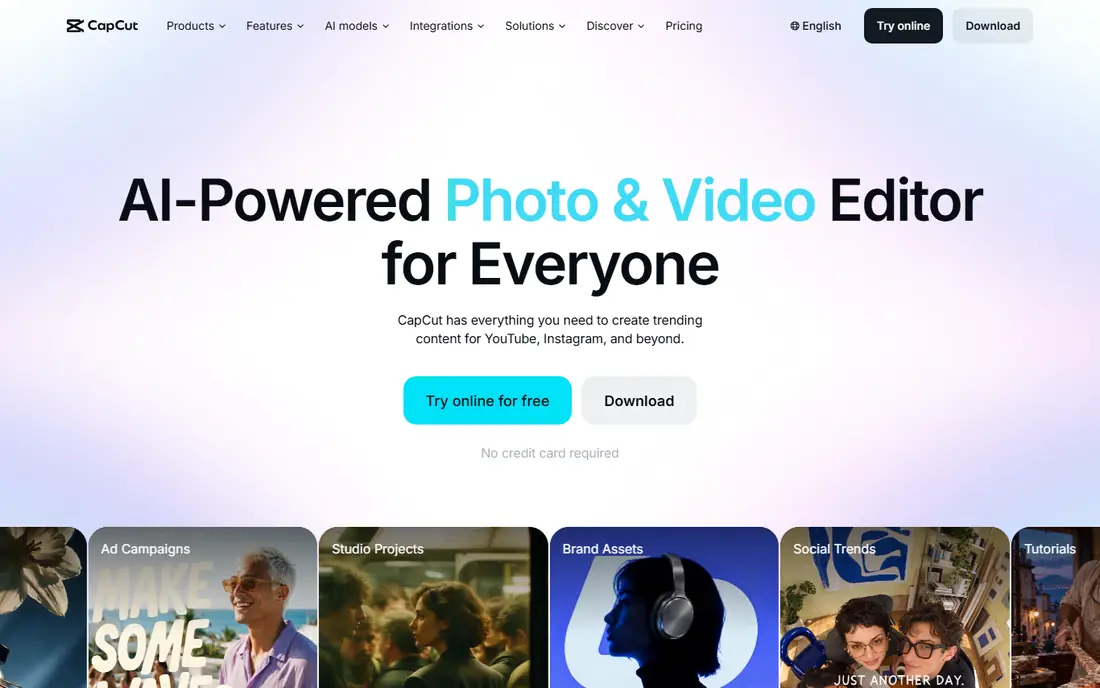
CapCut is a strong fit for creators who publish short social video often. Templates, auto captions, and a phone-to-desktop workflow make short edits fast. Pricing starts at Free, and the free plan status is Yes. That combination makes it worth a short test on a real task before you commit to a wider rollout. The catch is that the free plan locks some templates and export settings behind Pro, so check before a paid project. Edit a draft on your phone, finish it on desktop, and export a test clip to check quality first. If that trade-off fits your routine, it is easy to recommend. If it does not, one of the other picks in this list is a better match.
- Phone, desktop, and web versions
- Templates and captions
- Free plan for basic edits
- Pro templates, effects, and 4K export need a paid plan
- Colour and audio tools are basic
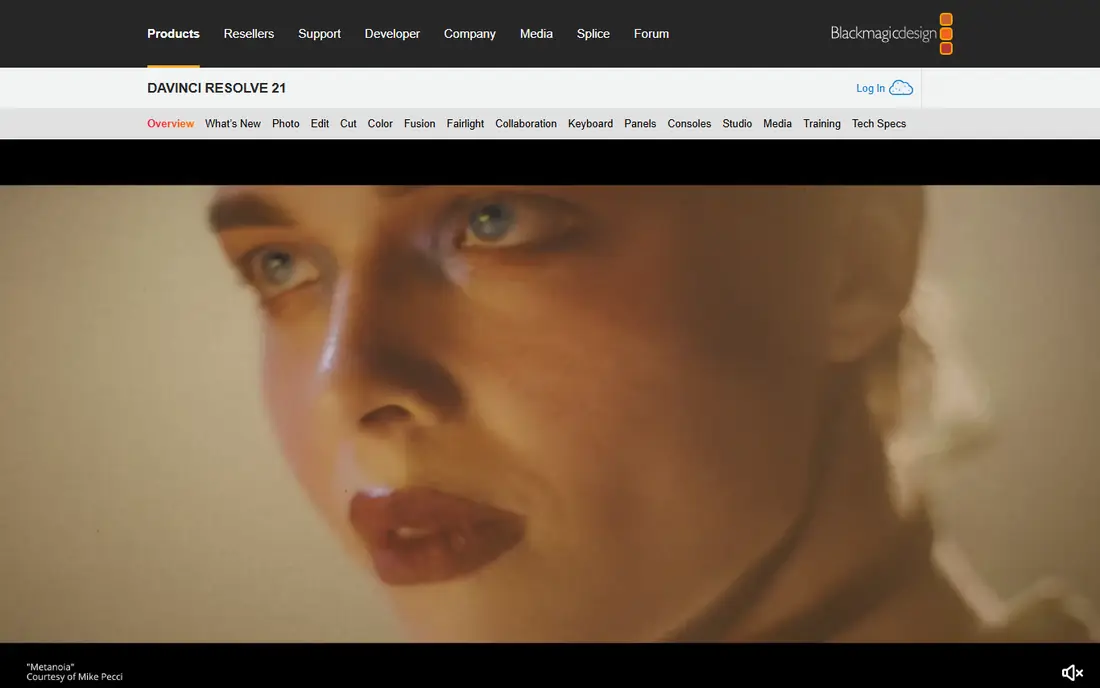
For editors who want pro power without a subscription, DaVinci Resolve deserves a close look. Colour grading and Fairlight audio sit in the same free app, which is rare at this price. Pricing starts at Free, and the free plan status is Yes. The key question is whether its strengths match the job you do most often. The catch is that the interface is dense, and Studio-only effects need the paid version. Start with the free version, learn the Cut and Edit pages first, and add colour work once the timeline feels familiar. If that trade-off fits your routine, it is easy to recommend. If it does not, one of the other picks in this list is a better match.
- Full editing, colour, effects, and audio in one app
- Free version with no watermark on most exports
- IPad version
- Steep learning curve
- Needs a capable computer for heavy projects
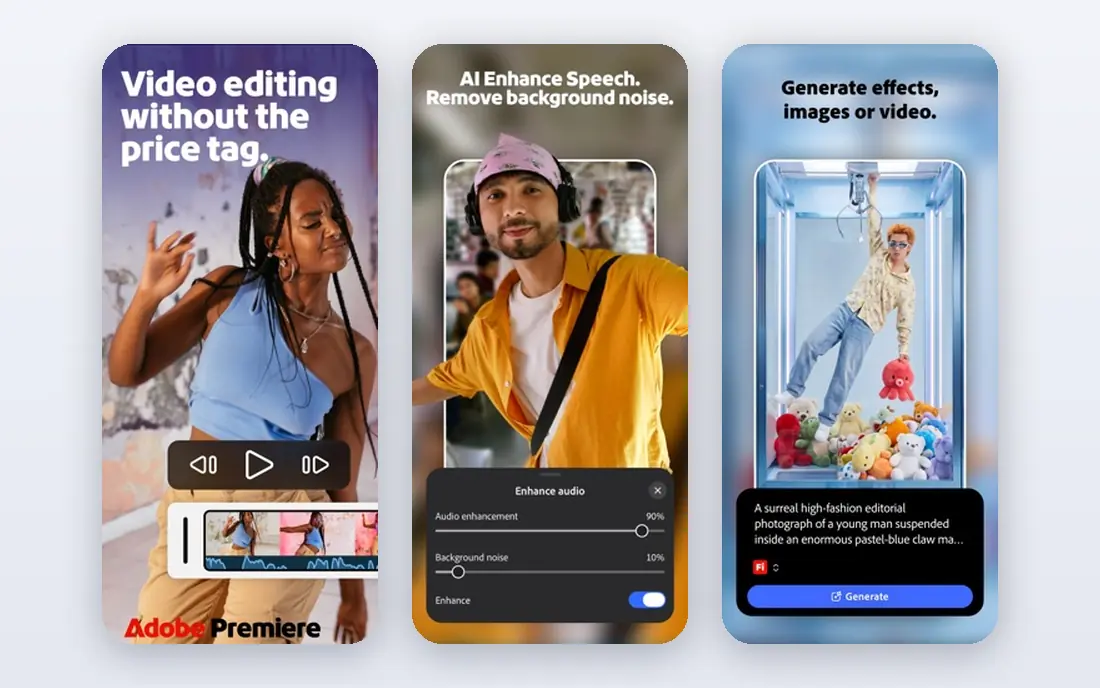
Start with Adobe Premiere if you are looking for a tool for professional editors and agency teams already using Adobe apps. Project sharing and Adobe app links help teams move work between editors, designers, and audio staff. Pricing starts at See website, and the free plan status is No. It is not perfect for every use, but it covers the core job well. The catch is that the subscription adds up over time, and there is no one-time purchase option. Check the current plan price, test text-based editing on a real interview, and confirm your computer meets the needs of your footage. If that trade-off fits your routine, it is easy to recommend. If it does not, one of the other picks in this list is a better match.
- Strong timeline editing
- After Effects, Audition, and Photoshop links
- Text-based editing and captions
- Subscription only
- Needs a powerful machine for demanding projects
Filmora is a strong fit for beginners, vloggers, and small marketing teams. Templates and AI helpers shorten the first edit, and the phone app keeps the same project style on the go. Pricing starts at Free, and the free plan status is Yes. That combination makes it worth a short test on a real task before you commit to a wider rollout. The catch is that free exports carry a watermark, so the free plan is best for learning rather than publishing. Try the free version to learn the timeline, then pay only when you need clean exports. If that trade-off fits your routine, it is easy to recommend. If it does not, one of the other picks in this list is a better match.
- Phone and desktop versions
- Templates and AI tools
- Easy timeline for vlogs and marketing video
- Free exports are watermarked
- Paid plans needed for full exports
For enthusiasts who want many features without a pro learning curve, PowerDirector deserves a close look. Multicam and motion tracking cover projects that phone apps cannot handle, while rendering stays fast. Pricing starts at See website, and the free plan status is Yes. The key question is whether its strengths match the job you do most often. The catch is that the number of options can feel crowded at first, and the best value sits in the yearly plan. Use the free version to test multicam on a real project, and hide tools you do not use to keep the screen clear. If that trade-off fits your routine, it is easy to recommend. If it does not, one of the other picks in this list is a better match.
- Windows and Mac versions plus mobile apps
- Multicam, motion tracking, and 360-degree support
- Fast rendering
- Interface can feel crowded
- Full feature set needs a subscription plan
Start with Clipchamp if you are looking for a tool for Windows and Microsoft 365 users who need quick, clean edits. Free 1080p exports without a watermark make it a strong pick for tutorials and short marketing clips. Pricing starts at Free, and the free plan status is Yes. It is not perfect for every use, but it covers the core job well. The catch is that it is not built for complex film edits, and 4K export needs a subscription. Sign in with a Microsoft account, test a 1080p export, and check stock access before a larger project. If that trade-off fits your routine, it is easy to recommend. If it does not, one of the other picks in this list is a better match.
- Free 1080p exports with no watermark when signed in
- Web and Windows access
- Templates for tutorials and marketing
- 4K export and full stock library need a paid plan
- Weaker for complex film projects
iMovie is a strong fit for Apple users who want a free, simple editor. It is free, simple, and stable for short projects, family video, and school work. Pricing starts at Free, and the free plan status is Yes. That combination makes it worth a short test on a real task before you commit to a wider rollout. The catch is that two video tracks limit complex edits, and there is no Windows or Android version. Use it for short projects, and move to LumaFusion or Resolve when you need more tracks and control. If that trade-off fits your routine, it is easy to recommend. If it does not, one of the other picks in this list is a better match.
- Free on Mac, iPhone, and iPad
- Simple timeline and trailers
- Easy sharing to Apple devices
- Only two video tracks
- Apple devices only
- Updates are infrequent
For mobile editors who want desktop-style control on a tablet, LumaFusion deserves a close look. Multi-track control on an iPad is close to desktop editing, without a monthly subscription on the main purchase. Pricing starts at See website, and the free plan status is No. The key question is whether its strengths match the job you do most often. The catch is that desktop parity is limited, so a phone-to-computer workflow needs a plan for project transfer. Edit on iPad with a keyboard and stylus if you have them, and export a test file before a client project. If that trade-off fits your routine, it is easy to recommend. If it does not, one of the other picks in this list is a better match.
- Multi-track editing on mobile
- Strong trimming and colour tools
- One-time purchase model on supported stores
- Apple-focused history with limited desktop parity
- Learning curve is higher than iMovie
Start with VN Video Editor if you are looking for a tool for phone editors who want fine control without a desktop suite. Keyframes and speed curves give phone edits a level of control that many social apps lack. Pricing starts at Free, and the free plan status is Yes. It is not perfect for every use, but it covers the core job well. The catch is that the desktop story is thinner than CapCut or Filmora, so cross-device work needs checking. Learn keyframes on a short clip first, and check the current Pro price on your app store before a long project. If that trade-off fits your routine, it is easy to recommend. If it does not, one of the other picks in this list is a better match.
- Keyframes, speed curves, and multi-track editing on phone
- No watermark on free exports in many cases
- Low-cost Pro option
- Desktop version is less established than phone apps
- Ads appear on Android free use
How we picked these
We compared official feature pages, pricing pages, and app store listings, and we favoured products that exist and work today and truly fit the topic. We checked free tiers, starting prices, and platform support, and we used See website where a price could not be verified from a vendor page. We did not claim hands-on testing, and we did not invent features, prices, or awards. Where products overlap, we kept the pick with the clearest fit for a distinct reader need. We also weighed honest weaknesses. A tool with a strong free plan but a narrow platform, or a powerful platform with quote-based pricing, can still earn a place if the trade-off is clear. That is why each product above names a best fit and a catch, so you can match the list to your own budget, devices, and workflow rather than chasing the highest feature count.
What to check before you choose
Start with the device you edit on most, then check the second device. A phone app that cannot open the same project on a computer will slow you down if you finish edits at a desk. Check export limits before you fall in love with a free plan, since watermarks, resolution caps, and locked effects are common. For social video, templates, captions, and fast export matter more than colour tools. For longer video, timeline control, audio mixing, and stable 4K export matter more. Test with a real clip, not a sample project, and export it at the size you will publish. If the app stutters on your phone or computer, a simpler editor will serve you better than a powerful one you cannot run smoothly. Check the current vendor page for price, free plan, and platform support before you buy or sign up, since terms change. A short trial on a real task will tell you more than a feature list, and it will reveal problems with speed, accuracy, or support before they affect a larger project. Keep your current tool running during the trial, so you can switch back if the new pick does not fit.
Frequently asked questions
What are the best video editing apps mobile and desktop?
CapCut, Filmora, and PowerDirector cover phone and computer well for most creators. DaVinci Resolve and Adobe Premiere are stronger for desktop-led work, with mobile versions or companion apps for lighter edits. Pick by project length and device, not by feature count alone.
Is there a free video editor that works on phone and computer?
Yes. CapCut, DaVinci Resolve, Filmora, and Clipchamp all offer free versions, but free exports may carry a watermark, a resolution cap, or locked effects. DaVinci Resolve free has no watermark on most exports, while Filmora free exports are watermarked. Check the current free terms on the vendor site.
Which video editor is best for beginners?
Filmora and CapCut are the easiest starting points for most beginners, thanks to templates and guided tools. iMovie is the simplest Apple option. DaVinci Resolve is more powerful but takes longer to learn, so it suits beginners who plan to grow into longer projects.
Can I edit the same project on my phone and computer?
It depends on the app. CapCut, Filmora, and Clipchamp support cross-device workflows through accounts and cloud projects, while iMovie and Final Cut-style tools are Apple-only. Check project sync for your exact devices before you start a long edit, and keep original clips backed up.
Do I need a powerful computer for video editing?
For short phone-style clips, no, but 4K desktop editing needs a capable computer with enough memory and storage. DaVinci Resolve and Adobe Premiere are the most demanding picks here. If your computer struggles, edit with proxy files where offered, or finish short clips on your phone.
Sources
- https://www.capcut.com
- https://www.blackmagicdesign.com/products/davinciresolve
- https://www.adobe.com/products/premiere.html
- https://filmora.wondershare.com
- https://www.cyberlink.com/products/powerdirector-video-editing-software
- https://www.microsoft.com/clipchamp
- https://www.apple.com/imovie/
- https://luma-touch.com
- https://www.videoshop.net
- https://cloudinary.com/guides/video-effects/best-video-editing-software
See where you really rank - block by block
ProMapRanker scans Google Maps across a grid of your service area. Simple monthly plans from $19, white-label on every plan.
Start freeKeep reading
 zoho inventory alternatives
6 Alternatives to Zoho Inventory, Compared on Price and Fit
Zoho Inventory alternatives: 6 tools compared on price, free plans and fit. Katana leads the list for manufacturers. Fit and flaws are laid out for each entry.
Read → zoho crm alternatives
Best Zoho CRM Alternatives (2026)
Need Zoho CRM alternatives? We compare 7 tools on cost, free access and who each suits. Every pick gets a straight assessment. Built for quick decisions.
Read → zelle alternatives
Best Zelle Alternatives in 2026
Compare the best Zelle alternatives for sending money to friends, paying sellers and moving funds abroad, with honest notes on fees, speed and safety in 2026.
Read →