 ProMapRanker
Best Uncensored AI Image Editing Tools in 2026

Key takeaways
- This list covers only legitimate creative tools that let adult users edit their own images with fewer cloud content filters, mostly by running locally on your own computer.
- ComfyUI, Invoke AI, Fooocus, and Stable Diffusion Web UI are the strongest local options, because you choose the model and your files stay on your machine.
- Krita, GIMP, DiffusionBee, and Draw Things suit artists who want a familiar editor with AI features, rather than a node-based workflow.
- Consent rule for every tool here: never use them on photos of real people without consent, never for non-consensual intimate imagery, and never to create sexual content involving real people.
- We did not list tools whose main purpose is undressing people, explicit generation of real people, or bypassing safety rules to produce sexual content involving real people.
Quick comparison
| Pick | Great for | Pricing starts at | Free tier | |
|---|---|---|---|---|
 ComfyUI | Flexible node-based local editing | Free | Yes | Visit |
 Invoke AI | Friendly local editing and inpainting | Free | Yes | Visit |
 Fooocus | Simple local image editing | Free | Yes | Visit |
 Stable Diffusion Web UI | Classic local editing interface | Free | Yes | Visit |
 Krita | Painting plus AI-assisted editing | Free | Yes | Visit |
 GIMP | Free editor with plugin-based AI help | Free | Yes | Visit |
 DiffusionBee | Easy local editing on Mac | Free | Yes | Visit |
 Draw Things | Local editing on Apple devices | Free | Yes | Visit |
The best uncensored AI image editing tools
We compared official project pages and public documentation for tools that allow adult users to edit their own images for lawful creative purposes with fewer style and content filters than typical cloud generators. Every tool in this list is a legitimate creative editor, and most run locally, which means you control the model, the settings, and the files. Please read this plain warning before you use any of them: never use these tools on photos of real people without their consent, never for non-consensual intimate imagery, and never to create sexual content involving real people. Do not use a tool that is marketed for undressing people or for explicit generation of real people, and do not use a legitimate editor to bypass safety rules for that purpose. If a workflow needs a photo of a real person, get clear consent first, and keep the edit lawful and respectful.
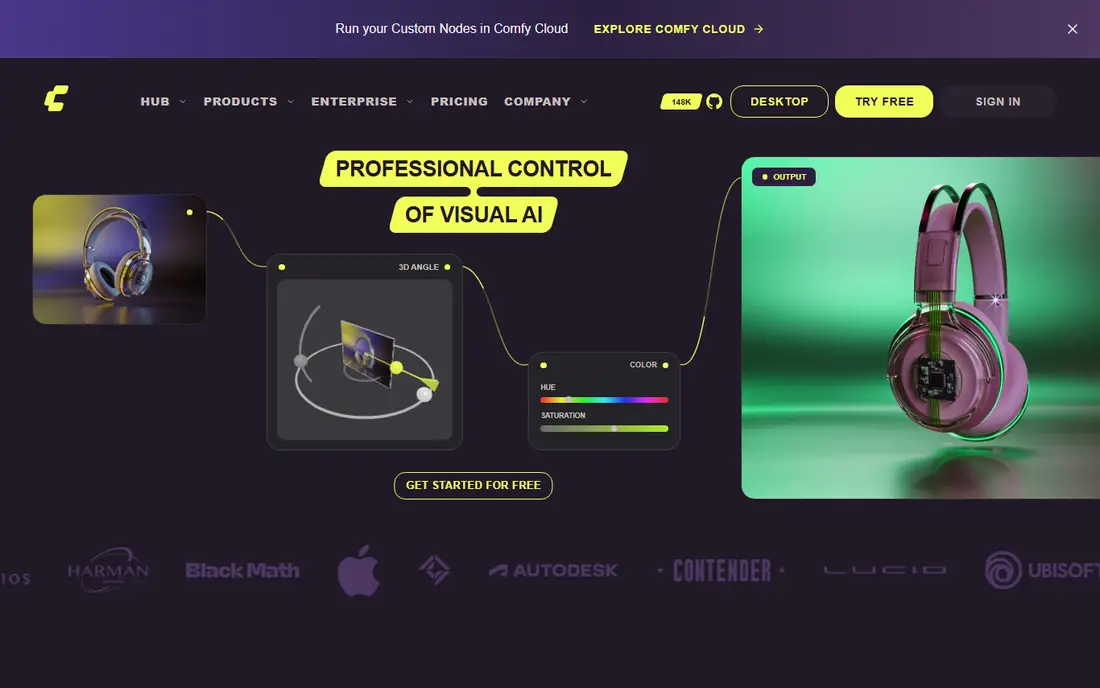
ComfyUI is our pick for editors who want control over every step of an image edit. You build a workflow from nodes that load a model, take an image and a prompt, apply inpainting or upscaling, and save the result, and you can save and reuse that workflow for later projects. Because it runs locally, your images do not pass through a cloud filter queue, and you choose which openly licensed model to run.
The trade-off is complexity. A node graph looks technical at first, and larger models need a modern graphics card with enough memory to run at a practical speed. Start with a small model and a simple inpainting workflow, learn how each node changes the result, and expand only when the basics feel comfortable. ComfyUI rewards patience with a level of control that cloud editors rarely offer.
- Full control over models and workflows
- Runs locally for privacy
- Large community of shared workflows
- Node interface takes learning
- Needs a capable graphics card for larger models
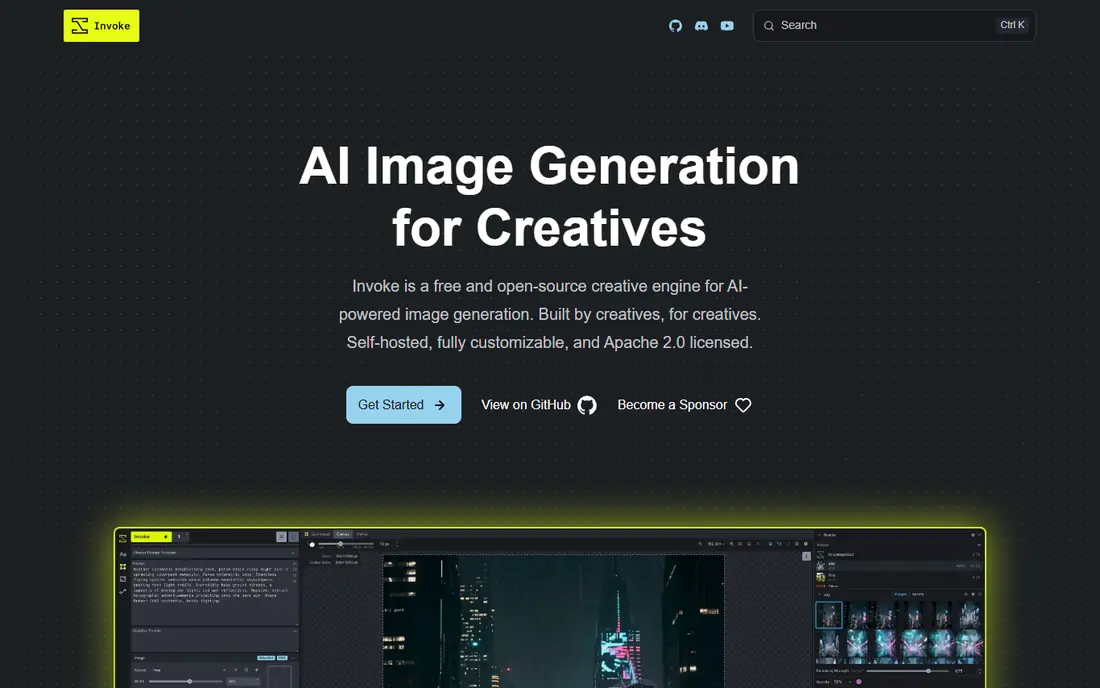
Invoke AI suits creators who want local editing without building node graphs. Its interface centres on a canvas where you can paint a mask over part of an image, describe the change, and regenerate only that region, which is the core of practical AI image editing. Outpainting extends an image beyond its edges, and the unified canvas keeps variations organised in one workspace.
Invoke AI is open source and free to download, but it still runs on your own hardware, so setup and graphics requirements matter. Results also depend heavily on the model you install, so check the licence and intended use of any model before you use it for client work. For personal creative edits and learning local AI editing, Invoke AI is the friendliest entry point in this list.
- Clearer interface than node-based tools
- Strong inpainting and outpainting
- Runs locally
- Still needs local setup and a capable computer
- Model choice affects results heavily
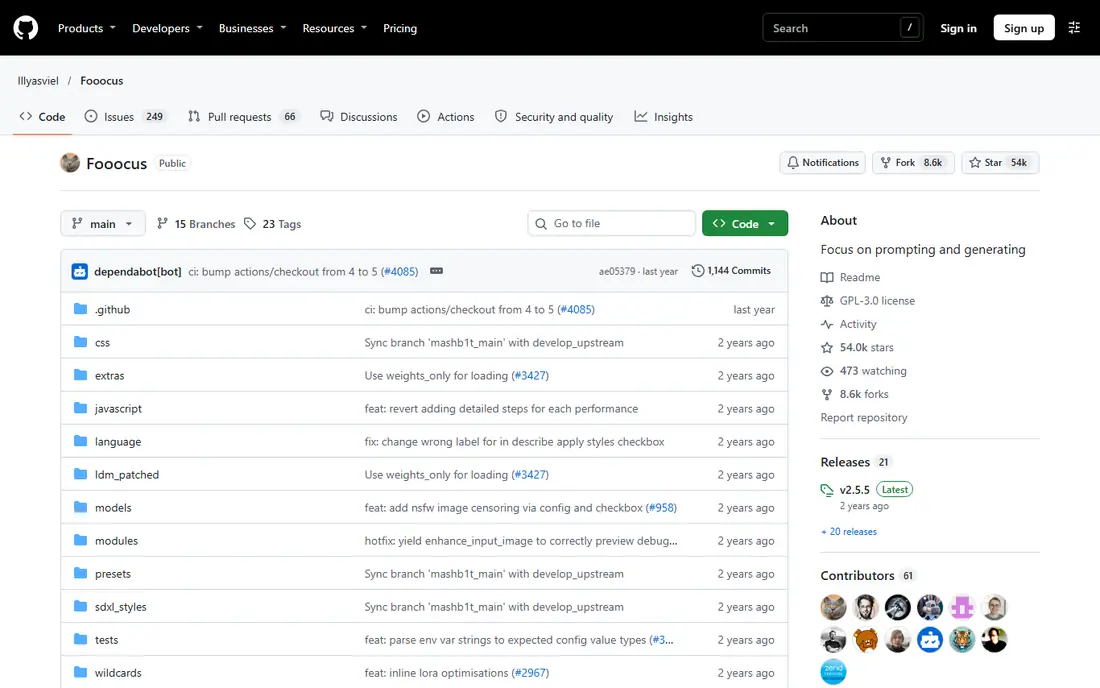
Fooocus is the simplest local tool here, and that simplicity is the point. Open it, load an image, describe a style or change, and generate variations without configuring nodes or a complex canvas. For quick creative edits, style tests, and learning how image-to-image editing behaves, Fooocus removes most of the setup friction that puts beginners off local tools.
The limit is control. Fooocus deliberately hides many settings, so editors who need precise masks, layered workflows, or fine control over sampling will outgrow it. It is also a community open-source project hosted on a code platform, so support comes from documentation and community discussion rather than a commercial help desk. Use Fooocus to learn and to make quick edits, then move to Invoke AI or ComfyUI when you need finer control.
- Very simple interface for beginners
- Runs locally
- Good for quick image-to-image edits
- Fewer advanced controls than ComfyUI or Invoke AI
- Community project, so support is forum-based
Stable Diffusion Web UI, often called AUTOMATIC1111 after its original author, is the classic browser-based interface for running diffusion models locally. It covers text-to-image generation, image-to-image editing, inpainting with masks, outpainting, and upscaling, with a large library of community extensions for control, posing, and style. Many tutorials and workflows still use this interface, so help is easy to find.
The interface is functional rather than polished, and managing extensions and model files takes care. It also runs locally, so you need a capable computer and you must choose models with licences that fit your use.
- Widely used interface with many extensions
- Strong inpainting and image-to-image tools
- Runs locally
- Interface feels dated
- Setup and extension management take time
Krita is first a painting and illustration program, and its AI diffusion plugin adds generation, inpainting, and outpainting inside that familiar canvas. That combination suits illustrators who want to sketch, paint over, and refine an AI edit by hand, rather than accepting a generated result as finished. You keep layers, brushes, and colour tools in the same workspace, which makes human editing the final step, not an afterthought.
AI features in Krita are not plug-and-play in the cloud sense. You install the plugin, configure a local backend, and choose a model, which takes setup time. Photo editors used to a simple retouching interface may also find Krita painting tools unfamiliar at first. For artists who already paint digitally, Krita is the most creative editor in this list, because the AI edit and the hand-painted finish live in one file.
- Full painting and illustration tool
- AI diffusion plugin for inpainting and generation
- Free and open source
- AI features need a plugin and a local model setup
- Painting interface takes learning for photo editors
GIMP is a long-running free image editor with layers, masks, selections, and colour tools that suit careful manual editing. AI features arrive through plugins and local model connections rather than a built-in cloud generator, which fits the local-control approach of this list: you edit on your own machine, with tools you can inspect and configure. For retouching, compositing, and preparing an image before or after an AI pass, GIMP is capable without a subscription.
The drawback is that AI support is fragmented. Plugin quality, compatibility, and setup steps vary, and you may need to try more than one plugin to find a workflow that fits your computer. GIMP also looks and feels older than commercial editors, which can slow new users. Choose GIMP when manual editing matters as much as AI editing, and when a free, local editor is a priority.
- Mature free image editor
- Layers, masks, and selections for careful edits
- Plugin options for AI features
- AI support depends on plugins and local setup
- Interface is less modern than paid editors
DiffusionBee is the easiest local option for Mac users who do not want to install a node-based system. Download the app, load a model, and generate or edit images on your own Mac, with image-to-image editing and inpainting available in a straightforward interface. Because processing stays on your machine, your images are not sent to a cloud service for generation.
DiffusionBee only runs on Mac, and Apple Silicon models handle local generation far better than older Intel Macs, so check your machine before you rely on it for regular work. It also offers fewer workflow controls than ComfyUI or Invoke AI, so advanced editors will hit limits sooner. For Mac-based creators who want a quick, private, local editor, DiffusionBee is the lowest-friction choice here.
- Simple Mac app for local generation and editing
- No cloud account needed for core use
- Good for beginners
- Mac only
- Fewer advanced controls than ComfyUI
- Performance depends on your Mac model
Draw Things brings local diffusion editing to iPhone, iPad, and Mac, which is useful when your creative work happens away from a desktop. You can load a model on the device, edit an image with prompts and masks, and keep the work on that device rather than uploading it to a cloud generator. For sketching ideas, testing styles, and making quick edits on a tablet, that portability is a real advantage.
Detailed editing on a phone screen is fiddly, and model files take storage, so a tablet or Mac is better for serious work. Draw Things also depends on the model you choose, so check licences and keep edits to your own images or images you have clear permission to edit. For Apple users who want a free, local, mobile-friendly editor, it is a practical addition to a desktop workflow.
- Runs locally on iPhone, iPad, and Mac
- Supports inpainting and image editing
- No subscription for core use
- Small screen editing is fiddly for detailed work
- Model downloads take storage space
How we picked these
We compared official project pages and public documentation, and we kept only legitimate creative editors that let adult users edit their own images with fewer cloud filters, mainly by running locally. We excluded any tool whose main purpose is undressing people, explicit generation of real people, or bypassing safety rules to produce sexual content involving real people, even when such tools appear in search results for this topic. We also excluded tools that require uploading personal photos to an opaque service with no clear consent or privacy terms. Prices here are free for the core software, but local tools still need a capable computer and, in some cases, separately downloaded models, so budget for hardware and storage.
What to check before you use a local editor
Start with your computer, not with a model. Check your graphics card memory, free storage, and operating system against the project requirements, because local diffusion models vary widely in size and speed. Install one well-documented model first, test a simple inpainting edit on your own artwork, and learn how masks, prompts, and strength settings change the result. Only then should you add extensions or try a second model. A careful first setup saves hours of troubleshooting later.
Consent, licences, and lawful use
Consent comes before any edit involving a real person. Do not edit a photo of someone else without their clear permission, do not create intimate or sexual imagery of real people, and do not use an editor to impersonate someone or to mislead viewers about a real event. Check the licence of every model you download, because some models restrict commercial use or require attribution, and check the terms of any image you edit that you did not create yourself. When in doubt, use your own artwork, stock images with a suitable licence, or images you have written permission to edit, and keep a record of that permission for client work.
Keep human judgment in the edit
Local tools give you freedom, and that freedom works best with human review. Inspect every edit at full size, check hands, text, and edges for errors, and finish with manual retouching where needed. Label AI-edited images honestly when you share them in a context where viewers might mistake them for unedited photos, especially for news, evidence, or product claims. A good edit is one you can stand behind, explain, and, if needed, redo from your saved workflow and original file.
Frequently asked questions
What does uncensored mean for the tools in this list?
Here it means fewer cloud content filters on style and creative edits, because most of these tools run locally and you choose the model. It does not mean a tool is free from law, consent rules, or licence terms. You remain responsible for what you create, and the consent warning in this article applies to every tool listed.
Are local AI editors safer for privacy than cloud generators?
Local editing keeps your image files on your own device during generation, which reduces exposure to cloud storage and third-party review. It does not make an edit private if you later share the result publicly, and it does not remove the need for consent when a real person appears in an image. Treat local processing as a privacy advantage, not as permission to edit other people photos without consent.
Do I need a powerful computer to run these tools?
A modern graphics card helps a great deal, especially for larger models, while smaller models can run more slowly on modest hardware or on Apple Silicon devices. Check each project page for memory and storage requirements before you download a model, and start with a small model to test speed. Cloud-based local alternatives exist for some tools, but they change the privacy picture, so read their terms before you use them.
Can I use these tools for commercial client work?
Often yes, but it depends on the model licence, the source image rights, and the client brief. Check whether the model allows commercial use, whether you have permission to edit the source image, and whether the client needs disclosure that an image was AI-edited. Keep your original files and workflow settings, so you can reproduce or revise the work if the client asks.
What should I do if a tool is marketed for undressing people?
Do not use it, and do not use a legitimate editor to achieve the same result. Tools marketed for undressing people or for explicit generation of real people are built for non-consensual use, and using them risks serious harm and legal liability. If you encounter such a tool while researching this topic, close it and choose a legitimate creative editor from a list such as this one instead.
How do I choose between ComfyUI, Invoke AI, and Fooocus?
Choose Fooocus if you want the simplest start and quick edits. Choose Invoke AI if you want a friendly canvas with strong inpainting and a manageable setup. Choose ComfyUI if you want full workflow control, reusable node graphs, and the widest range of models and extensions. All three run locally, so you can try them in that order and keep the one that matches how you like to work.
Sources
See where you really rank - block by block
ProMapRanker scans Google Maps across a grid of your service area. Simple monthly plans from $19, white-label on every plan.
Start freeKeep reading
 zoro.to alternatives
Best Zoro.to Alternatives in 2026
We compare the best zoro.to alternatives in 2026, listing only legal licensed anime streaming services, from Crunchyroll to free options for fans today.
Read → zip alternatives
Best Zip Alternatives in 2026
We compare the best zip alternatives for buy now, pay later in 2026, covering pay-in-4 plans, fees, spending limits, and credit reporting options today.
Read → yesware alternatives
Best Yesware Alternatives in 2026
Compare the best yesware alternatives for sales email tracking, templates, and sequences, with current pricing and honest tradeoffs for small sales teams.
Read →