 ProMapRanker
Best UI Prototyping Tools in 2026

Key takeaways
- Figma is the default choice for most product teams, because design, prototyping, and developer handoff live in one collaborative file.
- Sketch remains a strong Mac-only option for teams that prefer a native desktop app and an offline workflow.
- Framer suits designers who want a prototype that can become a live site, while ProtoPie suits high-fidelity interaction work that Figma cannot easily express.
- Axure RP, UXPin, and Justinmind suit complex, logic-heavy prototypes with conditions, variables, and realistic data.
- Penpot and Balsamiq are the most accessible options here, with Penpot free and open source, and Balsamiq focused on fast, low-fidelity wireframes.
Quick comparison
| Pick | Great for | Pricing starts at | Free tier | |
|---|---|---|---|---|
 Figma | Collaborative product design and prototyping | Free | Yes | Visit |
 Sketch | Native Mac design and prototyping | $12 per month | Free trial | Visit |
 Framer | Prototypes that can become live sites | Free | Yes | Visit |
 ProtoPie | High-fidelity interactive prototypes | See website | Free trial | Visit |
 Axure RP | Complex logic-heavy prototypes | See website | Free trial | Visit |
 Penpot | Free open source design and prototyping | Free | Yes | Visit |
 UXPin | Design systems with interactive prototypes | See website | Free trial | Visit |
 Balsamiq | Fast low-fidelity wireframes | See website | Free trial | Visit |
 Justinmind | Interactive wireframes with data and logic | See website | Free trial | Visit |
The best UI prototyping tools
We compared official feature pages, pricing pages, and public documentation for tools that turn interface ideas into testable prototypes, from rough wireframes to interactive flows with real data. A good prototyping tool should let you link screens, show transitions, test with users, and hand a clear spec to developers, without forcing you to rebuild the design in another app. Prices below are starting prices found in October 2026, and we wrote See website where pricing is seat-based, quote-based, or not published as a simple starting price.
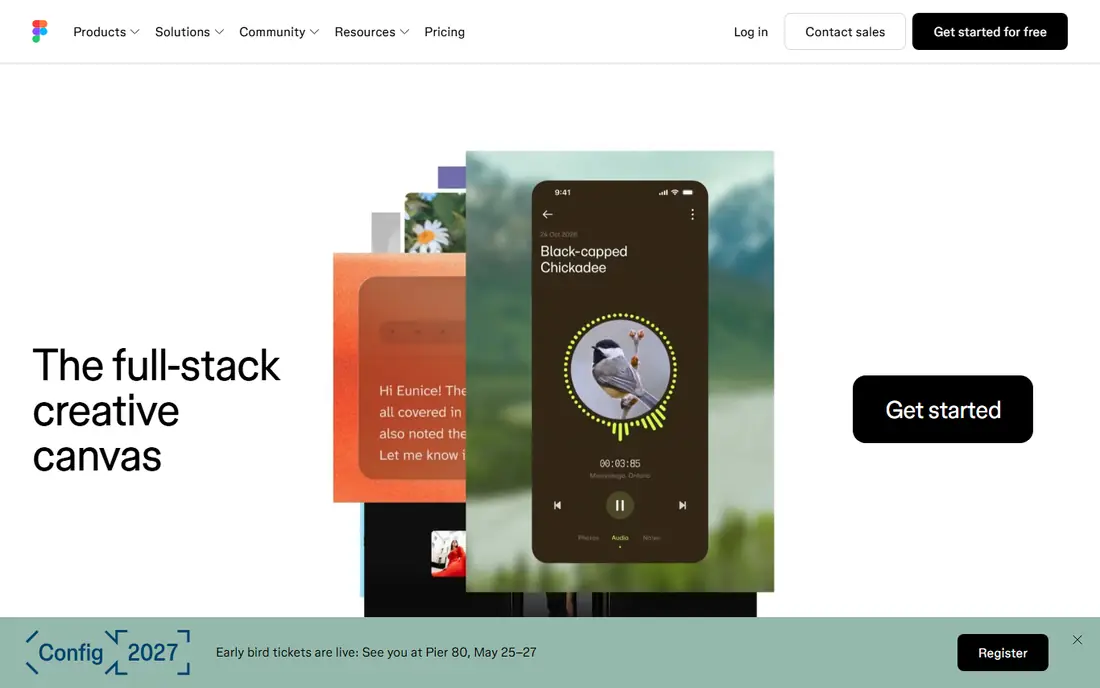
Figma is our pick for most product teams because the prototype lives where the design lives. Draw screens, turn elements into components, link frames into flows with transitions, and share a link that stakeholders can click through in a browser, all without exporting files. The Starter plan is free with limited collaborative files, while Professional starts at $16 per month for a Full seat, with cheaper Dev and Collab seats for teammates who inspect or comment rather than design.
The cost to watch is seat mix, not only the headline price. A team that puts every member on a Full seat will overpay, while a team that assigns Full seats to designers, Dev seats to engineers, and Collab seats to reviewers gets the same collaboration for less. Figma also keeps expanding into slides, sites, and AI features, which can distract a team that only needs prototyping, but the core design-to-prototype workflow remains the strongest default in this list.
- Real-time multiplayer design and prototyping
- Strong component and design system tools
- Built-in developer handoff
- Seat costs scale with team size
- Large files can feel slow in a browser
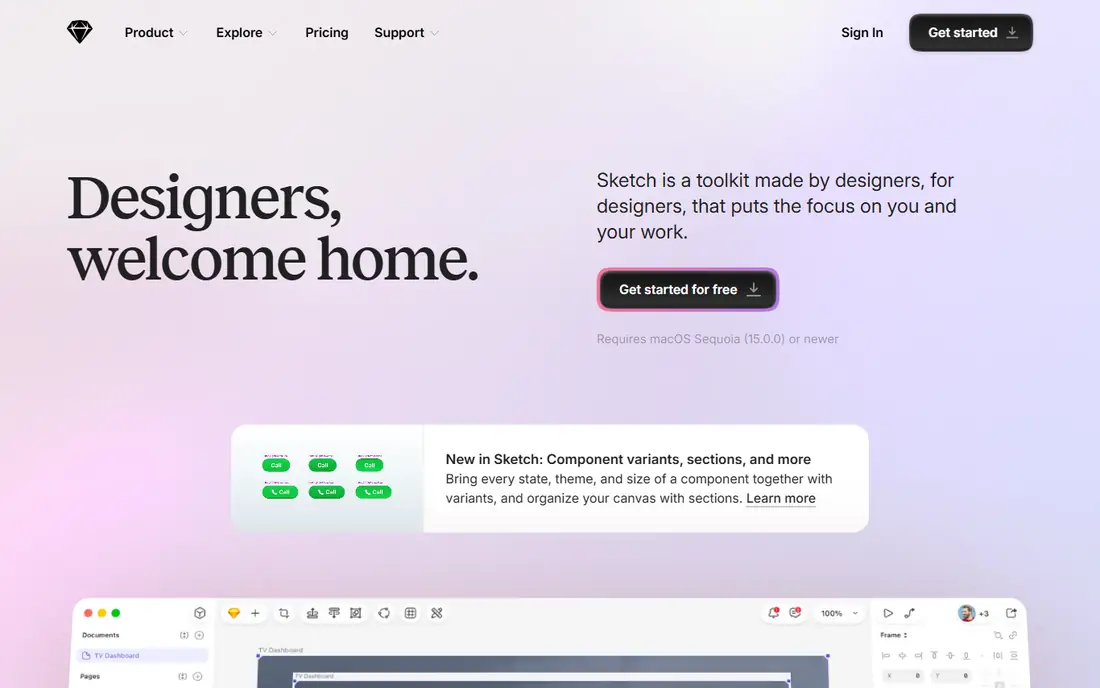
Sketch suits designers who prefer a native Mac app over a browser tool. It feels fast, works offline, and handles symbols, shared libraries, and prototyping with a calm interface that many long-time Mac designers still prefer. The Standard subscription starts around $12 per editor per month on annual billing, with a 30-day trial, and a Mac-only licence is available for solo designers who do not need cloud collaboration.
The hard limit is platform. Editing requires a Mac, so a Windows or Linux teammate cannot edit files directly, though they can view and inspect through the web app. Real-time collaboration is also less live than Figma, which matters for teams that co-edit daily. Choose Sketch when your team is Mac-based, values offline work, and wants a focused design tool without a browser-first workflow.
- Fast native Mac app with offline work
- Strong symbols and libraries
- Web app for viewing and inspection
- Mac only for editing
- Collaboration is less live than Figma
- No permanent free plan
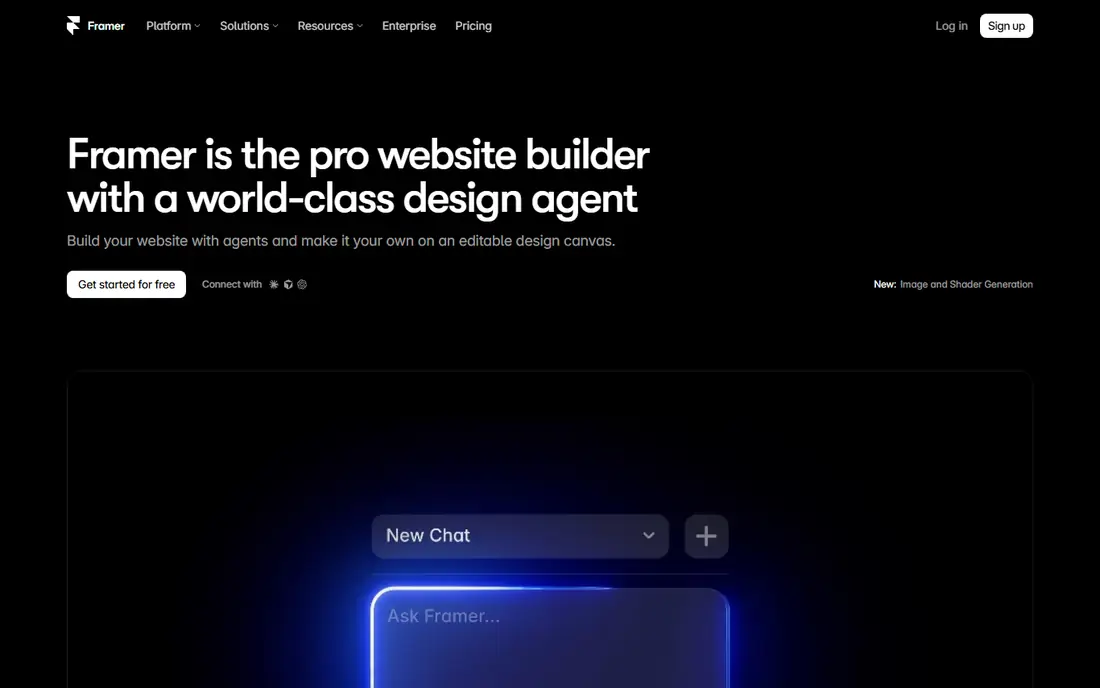
Framer is the tool to pick when a prototype should feel like a real website, not a slideshow of screens. Design with a Figma-like canvas, add scroll effects, hover states, and interactions, then publish to a live URL for user testing or stakeholder review. The free plan lets you build and publish on a Framer subdomain, while paid site plans start at $5 per month for Mini on annual billing, with Basic and Pro raising pages, content items, and traffic limits.
Pricing is per site, which changes the maths for agencies. One portfolio plus five client sites means six plans, not one subscription, so total cost can exceed a seat-based tool quickly. Framer also focuses on marketing sites and landing pages more than complex app logic, so teams building data-heavy products may need Axure or ProtoPie alongside it. For a prototype that must impress as a live site, Framer is the most direct route.
- High-fidelity prototypes with real interactions
- Publish to a live site from the same project
- Free plan for learning
- Pricing is per site, so costs stack for agencies
- Less suited to complex app logic than ProtoPie or Axure
ProtoPie is for prototypes that must behave like a real app, not just link screens together. Build interactions with triggers, responses, and conditions, use phone sensors such as tilt and voice in mobile prototypes, and test flows that change based on user input. That depth makes ProtoPie popular for user testing, where a flat click-through would hide real usability problems.
The learning curve is steeper than Figma prototyping, because rich interactions need careful logic, and pricing is listed as See website here because plan details change and should be confirmed on the vendor page before budgeting. ProtoPie also works best as a prototyping specialist alongside a design tool, rather than as a full design replacement. Choose it when interaction fidelity decides whether a test gives useful answers.
- Rich interactions without code
- Sensors and device features for mobile prototypes
- Strong for user testing
- Learning curve for advanced interactions
- Pricing needs checking on the vendor site for current tiers
Axure RP is the veteran tool for complex, logic-heavy prototypes. It supports variables, conditional logic, repeaters with realistic data, and adaptive views, so a prototype can behave like a working app for testing and stakeholder approval. For enterprise software, internal tools, and data-heavy flows, that logic depth still beats most modern design tools, which focus on visual polish over behaviour.
Axure takes time to learn, and its interface feels older than Figma or Framer, which can slow new designers. Pricing is also not published as a simple starting price in this article, so check the vendor site for current subscription and cloud options. Choose Axure when a prototype must prove logic, data, and edge cases, not only look good in a presentation.
- Conditions, variables, and dynamic data
- Detailed documentation and specs
- Strong for enterprise app flows
- Steep learning curve
- Interface feels dated next to Figma
- Pricing is not a simple entry price
Penpot is our pick for teams that want Figma-style design and prototyping without a subscription or vendor lock-in. It runs in a browser, supports components, prototyping flows, and developer handoff, and its open file format and self-hosting option give organisations control over their design data. For schools, nonprofits, open source projects, and small teams on a tight budget, Penpot removes the cost barrier entirely.
The ecosystem is smaller than Figma, with fewer plugins, templates, and community files, and some advanced features lag behind commercial rivals. Penpot also suits teams comfortable with open source support through documentation and community channels rather than a commercial help desk. If budget, openness, and control matter more than the largest plugin library, Penpot is a credible daily tool, not only a free alternative.
- Free and open source
- Browser-based with prototyping and handoff
- No vendor lock-in for files
- Smaller plugin and template ecosystem
- Fewer AI and advanced features than Figma
UXPin suits product teams that maintain a design system and want prototypes built from real, code-like components rather than flat images. Designers can use components with states, interactions, and data, so a prototype behaves closer to production code and developers receive clearer specs. That realism helps when testing complex forms, tables, and dashboards that static screens cannot represent well.
Pricing is listed as See website because UXPin plans and enterprise options vary, and teams should request a current quote for their seat count and needs. Code components also take setup time, so UXPin pays off most for teams with an established design system and a developer workflow to match it. Smaller teams without that system may move faster in Figma or Penpot.
- Code-based components for realistic prototypes
- Strong design system support
- Conditional logic and data
- Pricing is quote-based for many teams
- Learning curve for code components
Balsamiq is deliberately rough, and that roughness is its strength. Its hand-drawn style wireframes keep early feedback on layout, flow, and content, instead of pulling discussion toward colours, fonts, and polish that do not matter yet. Product managers, founders, and non-designers can sketch a flow in minutes, share it, and revise it without learning a full design tool.
Balsamiq is not a high-fidelity prototyping tool. Interactions are basic, visual polish is intentionally limited, and a team will still need Figma, Penpot, or another tool for final interface design. Pricing follows a project-based model that should be checked on the vendor site, with a free trial for testing. Use Balsamiq at the start of a project, when speed and structural clarity matter most, and move to a higher-fidelity tool once the flow is agreed.
- Very fast for rough wireframes
- Sketch style keeps feedback on structure, not visuals
- Easy for non-designers
- Not for high-fidelity prototypes
- Limited interaction depth
- Pricing is per project model, check vendor site
Justinmind sits between Balsamiq wireframes and Axure logic-heavy prototypes. It offers interactive wireframes with variables, conditional logic, and data lists, plus templates for web and mobile apps, so a team can test a realistic flow before committing to visual design. That middle ground suits agencies and product teams that need more than linked screens but do not need full Axure complexity.
The interface feels older than Figma or Framer, and the community, plugin, and template ecosystem is smaller, which can slow learning. Pricing should be confirmed on the vendor site, with a free trial available for testing. Choose Justinmind when your prototype needs data-driven behaviour and you want a desktop tool with a gentler learning curve than Axure.
- Interactive prototypes with variables and data
- Mobile and web templates
- Useful for testing app flows
- Interface feels dated
- Smaller community than Figma
- Pricing should be confirmed on the vendor site
How we picked these
We compared official feature pages, pricing pages, and public documentation, and we kept tools that link screens into testable flows, support transitions or interactions, and help with developer handoff or user testing. We favoured a mix of collaborative design tools, high-fidelity interaction specialists, logic-heavy enterprise tools, and low-fidelity wireframing, because different project stages need different fidelity. We excluded tools that shut down or no longer sell a current product, and we noted platform limits, such as Sketch Mac-only editing, rather than hiding them.
What to check before you pay
Match fidelity to project stage. Early ideas need Balsamiq or Penpot wireframes that invite structural feedback. Mid-stage product work needs Figma or Sketch for design plus prototyping in the same file. Late-stage testing of complex interactions needs ProtoPie, Axure, or UXPin, depending on whether interaction, logic, or design system realism matters most. Buying a high-fidelity tool for an early idea wastes time on polish, while testing a complex flow with flat screens wastes the test itself.
Test handoff with a real developer
A prototype that looks good in a review meeting can still fail handoff if developers cannot inspect spacing, colours, assets, and interactions clearly. Before you commit, share a prototype link with a developer, ask them to build one screen from it, and note every question they ask. That exercise reveals whether handoff specs, component naming, and interaction notes are clear enough. A tool that passes that test will save more time than a tool with prettier transitions but vague specs.
Count seats and sites, not only the headline price
Prototyping pricing hides cost in seat types and, for Framer, per-site plans. List who designs, who inspects, and who only comments, then map those roles to seat types. For Framer, list every site you will publish, because each site needs its own plan. For enterprise tools, ask whether viewer seats are free and whether white-label or single sign-on features sit on a higher tier. A short seat and site count, attached to a vendor quote, prevents a surprise renewal bill.
Frequently asked questions
What is the difference between a wireframe and a prototype?
A wireframe shows layout and structure, usually in low fidelity, while a prototype links screens into a clickable flow that simulates how a product behaves. Wireframes answer what goes where, and prototypes answer how it feels to use. Most projects need both, starting rough and adding fidelity as decisions firm up.
Is Figma enough for UI prototyping, or do I need ProtoPie?
Figma covers most product prototyping, including linked screens, transitions, and basic interactions, and it keeps design and prototype in one file. ProtoPie adds richer interactions, device sensors, and conditional behaviour that Figma cannot easily express. Use Figma by default, and add ProtoPie when user testing needs realistic interaction to give valid answers.
Can I prototype for free?
Yes. Figma Starter and Penpot are free, and Framer has a free plan for learning and small published sites. Free plans limit files, pages, or publishing options, so they suit personal projects, learning, and early tests. Paid plans become necessary when a team needs unlimited files, shared libraries, or client-ready publishing without branding limits.
Should a small team choose Sketch or Figma?
Choose Figma if your team works across Mac and Windows, collaborates in real time, or shares prototypes by link with clients. Choose Sketch if your team is Mac-only, prefers a native desktop app, and values offline work. Both handle design and prototyping well, so platform and collaboration habits should decide, not feature lists alone.
How do I test a prototype with real users?
Share a clickable link, give testers a task rather than a tour, and watch where they hesitate, tap the wrong element, or ask for help. Record those moments, note whether the problem is flow, labelling, or interaction, and revise only the affected screens before retesting. A prototype test is useful when it changes a decision, not when it merely confirms a design you already liked.
What should I hand to developers after prototyping?
Hand over a prototype link with final screens, component specs, spacing and colour tokens, interaction notes, and asset exports, plus a list of open questions. Tools such as Figma Dev Mode, Penpot handoff, and UXPin code components help, but clear naming and notes matter more than any single feature. Walk through one complex flow together before development starts, so assumptions surface early.
Sources
See where you really rank - block by block
ProMapRanker scans Google Maps across a grid of your service area. Simple monthly plans from $19, white-label on every plan.
Start freeKeep reading
 zoro.to alternatives
Best Zoro.to Alternatives in 2026
We compare the best zoro.to alternatives in 2026, listing only legal licensed anime streaming services, from Crunchyroll to free options for fans today.
Read → zip alternatives
Best Zip Alternatives in 2026
We compare the best zip alternatives for buy now, pay later in 2026, covering pay-in-4 plans, fees, spending limits, and credit reporting options today.
Read → yesware alternatives
Best Yesware Alternatives in 2026
Compare the best yesware alternatives for sales email tracking, templates, and sequences, with current pricing and honest tradeoffs for small sales teams.
Read →