 ProMapRanker
Best Tools for Remote Working in 2026

Key takeaways
- Most remote teams need four layers: chat, video meetings, shared docs, and task tracking, and no single tool covers all four well.
- Slack, Zoom, Notion, and Asana form a strong core stack, with Google Workspace or Microsoft Teams covering email, files, and meetings in one bundle.
- Free plans work for small teams, but message history limits, seat caps, and storage limits are the usual reasons to upgrade.
- Pick tools your team will actually open every day, since an unused tool adds cost without helping remote work.
Quick comparison
| Pick | Great for | Pricing starts at | Free tier | |
|---|---|---|---|---|
 Slack | Day-to-day team chat | See website | Yes | Visit |
 Zoom | Reliable video meetings | See website | Yes | Visit |
 Notion | Shared docs and team wikis | See website | Yes | Visit |
 Asana | Clear task ownership | $10.99 per user per month | Yes | Visit |
 Google Workspace | Email, docs, and storage in one bundle | See website | No | Visit |
 Microsoft Teams | Microsoft 365 teams | See website | Yes | Visit |
 Trello | Simple visual project boards | See website | Yes | Visit |
 Miro | Visual planning and workshops | See website | Yes | Visit |
The best tools for remote working
Remote work fails most often on communication, not on effort. The tools below cover the daily work of a distributed team: talking, meeting, writing things down, and tracking who owns what.
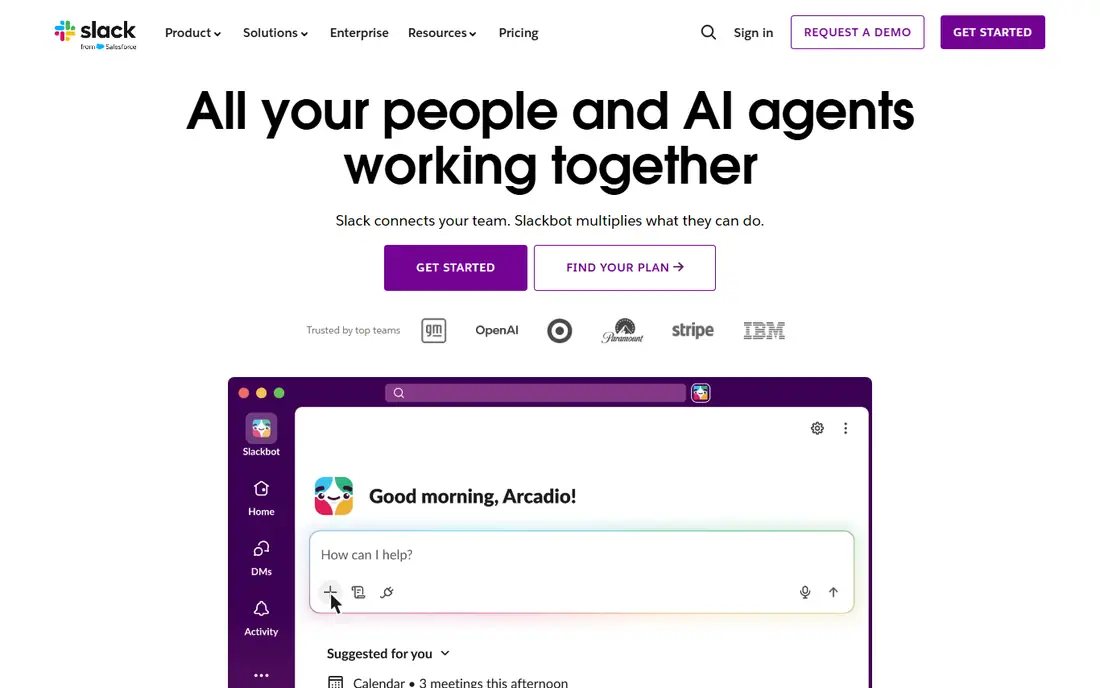
Slack is the daily hub for many remote teams because it replaces long email threads with short, searchable conversations. Channels separate projects, teams, and social chat, while direct messages and huddles handle quick questions without a full meeting. Integrations bring alerts from tools like Asana, Google Drive, and Zoom into the same place.
The honest catch is history and noise. The free plan keeps only recent message history, which hurts when a decision made months ago needs checking. Large teams also need clear channel rules, or every channel becomes a stream of messages nobody reads fully. Slack works best when a team agrees on which channels matter, what belongs in a thread, and when a message should become a task instead.
- Channels keep topics organized
- Large integration library
- Fast search across recent messages
- Free plan limits message history
- Busy workspaces create noise
- Paid seats add up for large teams
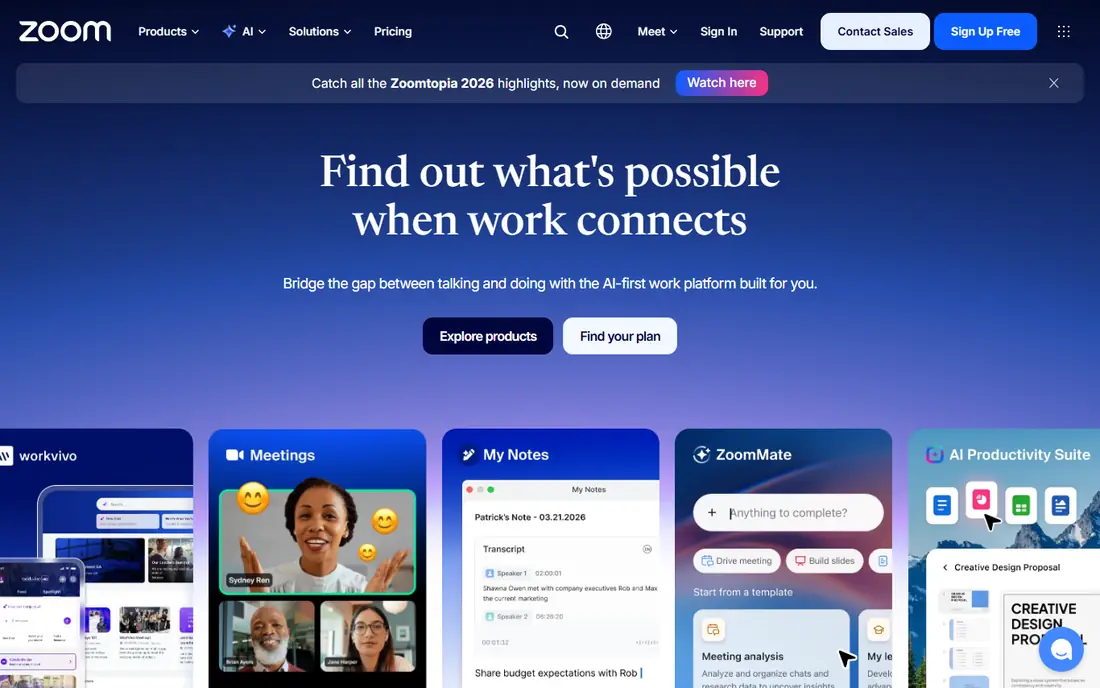
Zoom became the default video meeting tool because joining a call is simple and the quality holds up on modest connections. Breakout rooms help workshops and training, recording helps people in other time zones catch up, and screen sharing covers demos and reviews. Most guests already know how to use it, which removes friction for client calls.
The free plan limits group meetings in length, so regular team meetings need a paid plan. Zoom also cannot fix a meeting-heavy culture on its own. Teams that default to video for every question end up tired and short on focus time. Use Zoom for decisions, demos, and relationship building, and move status updates to chat or docs.
- Familiar meeting controls
- Breakout rooms and recording
- Works across devices
- Free meetings have a time limit for groups
- Meeting fatigue is real
- Advanced webinar features cost more
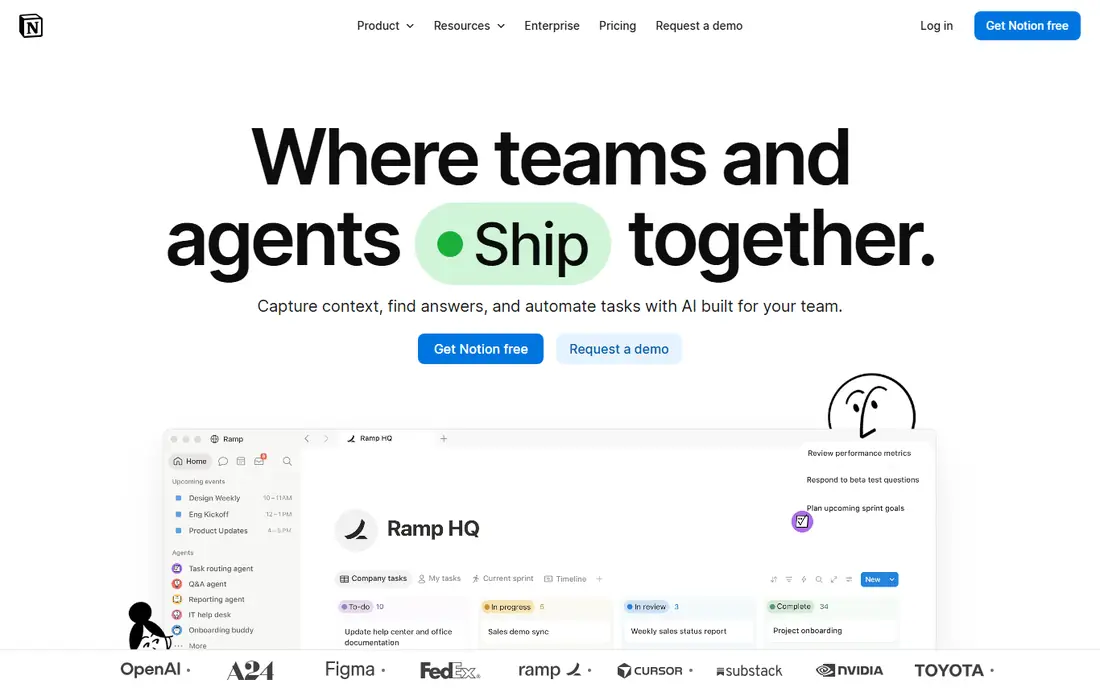
Notion gives remote teams one place for notes, project docs, meeting records, and internal wikis. Pages link to databases, so a hiring doc, a product spec, and a task list can live in the same workspace instead of scattered files. Templates help small teams start fast without building a system from scratch.
Flexibility is also the risk. Without a clear owner for each section, a Notion workspace fills with duplicate pages and outdated docs. Teams should agree on naming, archive old pages, and keep the most-used docs short and current. Notion fits teams that want docs and light databases together, while heavy project tracking still belongs in Asana or Trello.
- Flexible pages, databases, and wikis in one place
- Good templates
- Strong free personal plan
- Can grow messy without owners
- Large databases can feel slow
- Permissions get complex on paid plans
Asana answers the question every remote team asks: who owns this, and when is it due. Tasks carry owners, dates, comments, and attachments, so work does not get lost in chat. Board, list, and calendar views let different people see the same work in the way that suits them, and paid plans add timelines and portfolios for larger projects.
The free Personal plan suits individuals and pairs, but growing teams hit its limits quickly, especially around timelines and automation. The Starter price above is billed annually, so budget for the monthly rate if you pay month to month. Asana works best when every task has one owner and one due date, and when managers review the board instead of asking for status in chat.
- Clear owners and due dates
- Timeline and board views on paid plans
- Many integrations
- Free plan is limited to small groups
- Advanced reporting needs higher tiers
- Setup takes care
Google Workspace is the quiet backbone of many remote teams. Gmail handles email, Drive stores files, Docs and Sheets support live collaboration, and Meet covers video calls. Commenting and suggestion mode make document review possible without passing files back and forth, and sharing controls keep access tied to people rather than email attachments.
The trade-off is bundling. You pay per user for the whole suite even if your team only uses part of it, and admin and security controls improve on higher tiers. Teams that already live in Google tools will find Workspace natural, while teams built around Microsoft Office may prefer Teams and Microsoft 365. For new remote teams, Workspace is a safe, complete starting point.
- Gmail, Docs, Sheets, Drive, and Meet together
- Easy sharing and commenting
- Familiar for most users
- No free business tier
- Admin controls vary by plan
- Heavy spreadsheet work can push users to desktop apps
Microsoft Teams makes the most sense when a company already pays for Microsoft 365. Chat, video, and document collaboration sit beside Word, Excel, and Outlook, so files open and edit without leaving the work environment. Admin controls, compliance options, and guest access suit larger or regulated organizations.
For a small team without Microsoft 365, Teams can feel larger than needed, and its channel and team structure takes time to learn. A free version exists for basic chat and meetings, but the full value arrives with a paid Microsoft 365 plan. Teams is the pick for organizations that already run on Microsoft, not the lightest chat tool for a five-person startup.
- Chat, meetings, and file collaboration in one app
- Deep Office integration
- Strong admin controls
- Can feel heavy for small teams
- Best value comes inside a Microsoft 365 subscription
- Channel structure takes learning
Trello is the simplest project tool on this list, and that is its strength. Cards move across columns, checklists break work into steps, and labels and due dates keep a small project visible at a glance. New team members understand a Trello board in minutes, which matters when remote onboarding time is short.
Complex work exposes the limits. Trello lacks the portfolios, workload views, and reporting that Asana offers, and a board with hundreds of cards becomes hard to scan. Paid plans add more automation and views, but teams with many linked projects will outgrow Trello. Use it for editorial calendars, hiring pipelines, and small team workflows where a board is enough.
- Easy Kanban boards
- Quick to learn
- Useful Power-Ups add calendars and automation
- Weak for complex projects and reporting
- Large boards get hard to manage
- Advanced features need paid plans
Miro replaces the office whiteboard for remote teams. Sticky notes, diagrams, user journey maps, and planning boards live on a shared canvas that everyone can edit at once. Templates cover retros, brainstorms, org charts, and product planning, so a facilitator can start a session without building a board from blank space.
Miro is not a project tracker, and it should not become one. Boards grow messy when nobody cleans up after a workshop, and the free plan limits the number of editable boards. Pair Miro with Asana or Trello: plan and brainstorm on the canvas, then move agreed actions into tasks with owners and dates. For design, product, and workshop-heavy teams, Miro earns its place.
- Infinite canvas for brainstorming and mapping
- Many templates
- Good for live workshops
- Free plan limits boards
- Large boards can feel cluttered
- Not a task tracker on its own
How we picked these
We compared official pricing pages, free plan limits, and published feature pages for widely used remote work tools, and we checked that each tool is actively offered in October 2026. We favored tools that cover distinct remote work needs rather than listing eight chat apps, and we kept the list to tools a small or mid-size team can adopt without specialist setup. Where a price was not verified on the vendor site during research, we wrote See website rather than repeating a third-party figure.
How to build a remote stack that sticks
Start with the work, not the app list. A team that writes together needs docs first, while a support team needs chat and a shared inbox first. Add one tool at a time, give it a named owner, and agree on simple rules: where decisions live, how fast replies are expected, and what never belongs only in chat. Remote teams suffer when the same decision sits in Slack, email, and a doc at once.
Watch for overlap and cost creep. Slack plus Teams, or Notion plus three doc tools, means paying twice for the same job and losing track of where the current version lives. Review seats every quarter, remove people who left, and downgrade tools that only a few people open. A smaller stack that everyone uses beats a large stack that only managers check.
Frequently asked questions
What are the best tools for remote working?
Slack for chat, Zoom for meetings, Notion for docs, and Asana for tasks form a strong core, with Google Workspace or Microsoft Teams covering email and files. Add Miro for visual planning and Trello for simple boards where they fit.
What is the best software for remote working for a small team?
A small team can start with Slack, Zoom, Notion, and Trello on free or low-cost plans, then add Asana when task volume grows. Keep the stack small until a clear gap appears.
Do I need both Slack and Microsoft Teams?
Usually no. Pick one chat and meeting hub to avoid splitting conversations across two apps. Teams suits Microsoft 365 shops, while Slack suits teams that mix Google tools and many third-party apps.
What are the best remote working platforms for async work?
Notion, Asana, and Trello support async work well, because decisions, docs, and tasks stay visible without a live meeting. Recorded Zoom meetings and written updates help time zones stay in sync.
Are free plans enough for remote work?
Free plans work for small teams and trials, but message history limits, seat caps, and storage limits push growing teams to paid plans. Budget for at least the core chat and task tools once the team passes a handful of people.
How do remote teams avoid too many meetings?
Move status updates to Asana or Trello, decisions to Notion, and quick questions to Slack. Reserve Zoom for decisions, demos, and conversations where tone and discussion matter.
Sources
See where you really rank - block by block
ProMapRanker scans Google Maps across a grid of your service area. Simple monthly plans from $19, white-label on every plan.
Start freeKeep reading
 zoho inventory alternatives
6 Alternatives to Zoho Inventory, Compared on Price and Fit
Zoho Inventory alternatives: 6 tools compared on price, free plans and fit. Katana leads the list for manufacturers. Fit and flaws are laid out for each entry.
Read → zoho crm alternatives
Best Zoho CRM Alternatives (2026)
Need Zoho CRM alternatives? We compare 7 tools on cost, free access and who each suits. Every pick gets a straight assessment. Built for quick decisions.
Read → zelle alternatives
Best Zelle Alternatives in 2026
Compare the best Zelle alternatives for sending money to friends, paying sellers and moving funds abroad, with honest notes on fees, speed and safety in 2026.
Read →