 ProMapRanker
Best Tools for Remote Teams in 2026


Fast team chat with many integrations · Pricing starts at: $7.25 per user per month
Key takeaways
- Slack is a strong starting point for many teams, while the other options cover different budgets and work styles.
- Microsoft Teams suits readers who already use its wider ecosystem or need its particular strengths.
- Free plans are useful for a trial, but paid plans usually add the limits, controls, and support that larger groups need.
- Check pricing on the vendor site before you commit, since plans and limits change during the year.
Quick comparison
| Pick | Great for | Pricing starts at | Free tier | |
|---|---|---|---|---|
| Slack | Fast team chat with many integrations | $7.25 per user per month | Yes | Visit |
 Microsoft Teams | Teams already using Microsoft 365 | $4 per user per month | Yes | Visit |
 Zoom Workplace | Video meetings and webinars | See website | Yes | Visit |
 Asana | Structured projects and timelines | $10.99 per user per month | Yes | Visit |
 ClickUp | Flexible work in one workspace | $7 per user per month | Yes | Visit |
 Notion | Docs, wikis, and light project tracking | $10 per user per month | Yes | Visit |
 monday.com | Visual planning across departments | $9 per user per month | Yes | Visit |
 Miro | Brainstorming and workshops | $8 per user per month | Yes | Visit |
 Google Workspace | Email, docs, and video in one bundle | $7 per user per month | Yes | Visit |
The best tools for remote teams
We compared official feature pages, pricing pages, and app store listings for this list. The options below cover different budgets, team sizes, and work styles, so start with the fit for your group rather than the longest feature list.
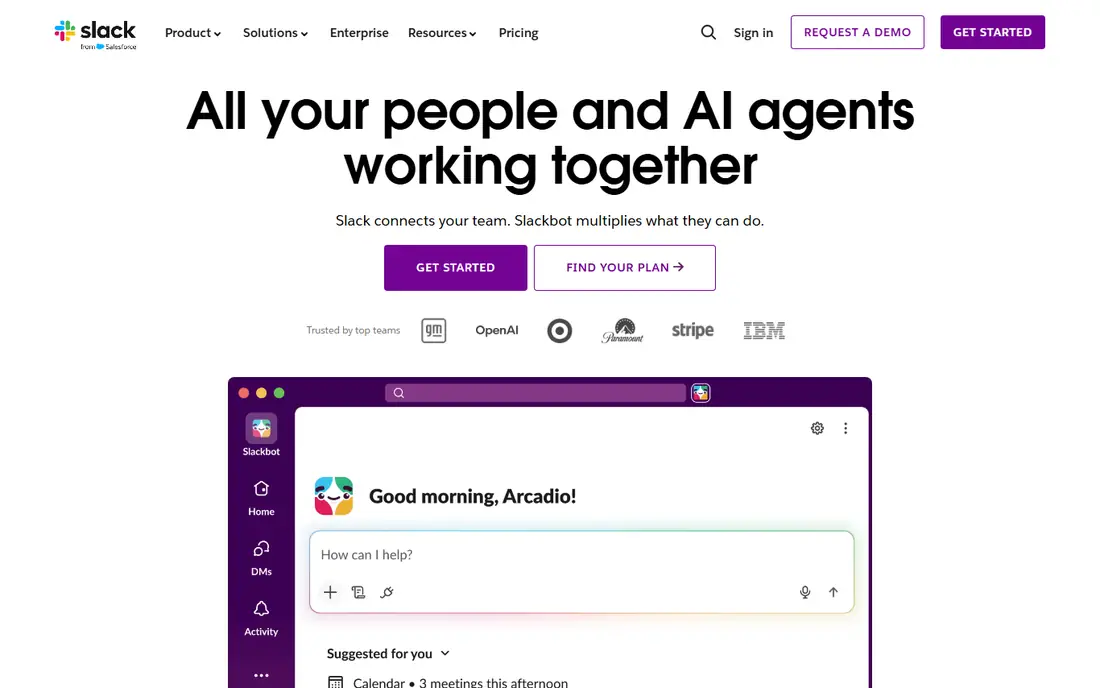
Slack works best when a remote team lives in chat and needs short, searchable threads rather than long email chains. Channels keep projects, clients, and social talk apart, and threads keep side talk from taking over the main channel. Huddles give a team a fast voice option without booking a formal meeting.
Our pick for most chat-first teams is Slack when the budget fits, because its integrations bring alerts from other tools into one place. The catch is price at scale, and the free plan will feel tight once a team needs full history and more storage. Set channel rules early, or a busy workspace can turn noisy.
- Channels and threads
- Large integration catalog
- Huddles for quick calls
- Costs add up for large teams
- Message history is limited on the free plan
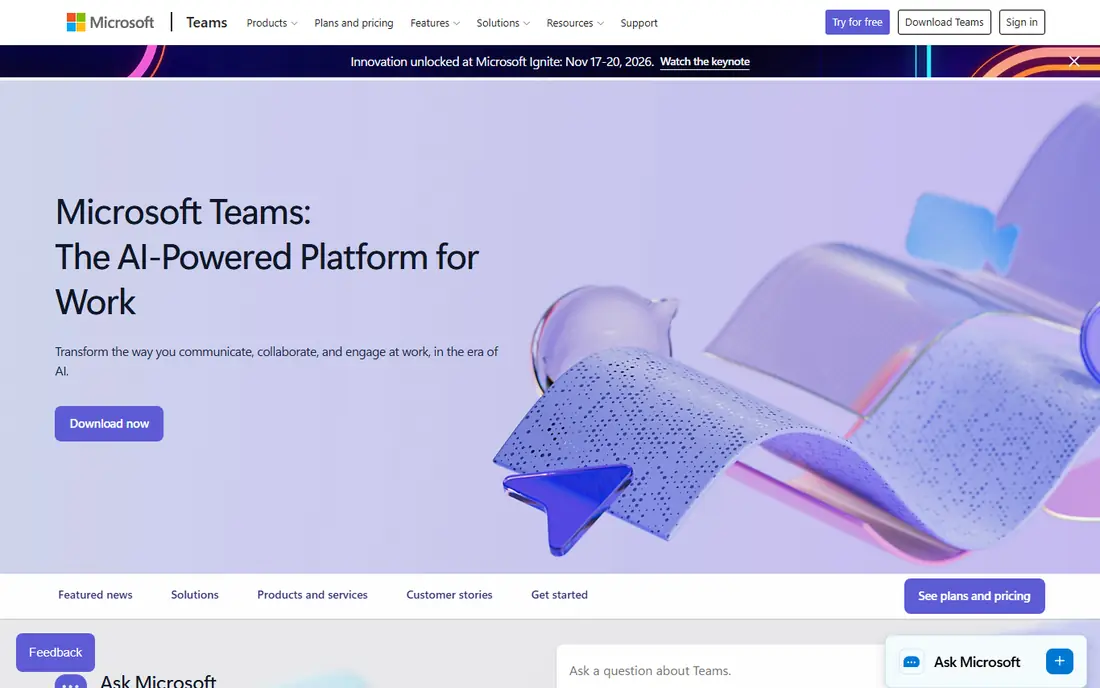
Microsoft Teams makes sense when a company already pays for Microsoft 365, since chat, meetings, and file storage arrive in one bundle. Teams can move from a message to a call to a shared document without switching accounts, and that saves time for staff who work across departments.
The downside is the crowded interface, which packs chat, channels, files, and apps into one window. New staff may need a short guide to the basics. For a Microsoft shop, though, the value is hard to beat, since the team avoids paying for several separate tools.
- Chat, video, and files in one app
- Strong fit with Office apps
- Guest access for outside partners
- Interface can feel busy
- Setup takes care in larger organizations
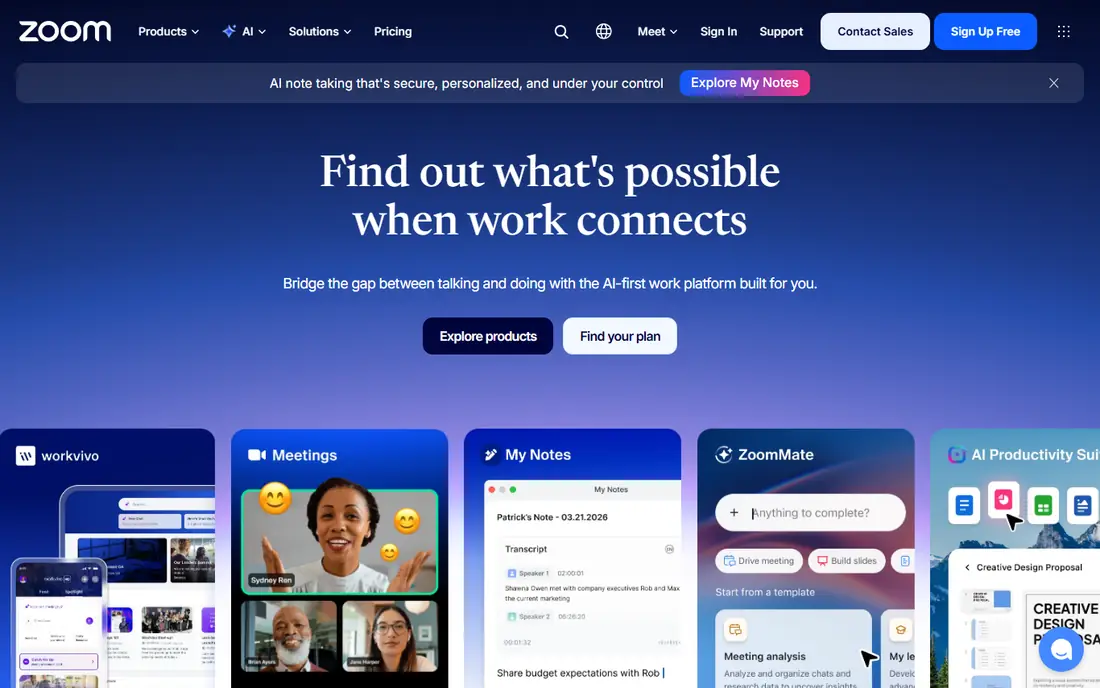
Zoom Workplace remains a clear choice for video-first remote work, from daily standups to client calls and webinars. Breakout rooms help a host split a large session into small groups, and the meeting controls are familiar to most guests, which cuts the time spent on tech help.
The free plan covers short group meetings, but longer sessions need a paid plan. Teams that also need chat and project tracking will still need other tools, so Zoom works best as the video layer in a wider stack rather than as the only tool.
- Reliable video for large meetings
- Breakout rooms
- Webinar options
- Full meeting length needs a paid plan
- Costs rise with add-ons
Asana suits teams that run repeatable work, such as campaign launches, client onboarding, and sprint plans. Tasks carry an owner and a due date, timelines show how work overlaps, and rules can move routine tasks forward without manual checks. That structure helps a remote manager see progress without asking for status updates all day.
The trade is that some of the most useful reporting and workflow features need a higher tier. Small teams may do well on the starter plan, while larger teams should price the tier they actually need before they build every process inside Asana.
- Timeline and board views
- Rules for repeat work
- Clear task ownership
- Advanced features sit on higher tiers
- Free plan is limited for larger teams
ClickUp appeals to teams that want tasks, docs, goals, and time tracking in one workspace instead of four separate apps. Views range from lists and boards to calendars and timelines, so different roles can look at the same work in the way that suits them best.
That flexibility is also the main risk, since a workspace with too many custom fields and automations can confuse new joiners. Start with a simple setup, name owners for each space, and add complexity only when a real problem calls for it.
- Many views in one place
- Docs, goals, and time tracking
- Broad customization
- Customization can overwhelm new users
- Some features need setup time
Notion is a strong home for team docs, wikis, meeting notes, and light project tracking. Pages can hold text, tables, and files, and databases let a team filter the same notes by owner, status, or date. For documentation-heavy remote teams, that shared memory matters as much as chat.
As a full project tool, Notion is lighter on automation than Asana or ClickUp, so teams with complex workflows may need another app for that work. The fix is to give Notion a clear job, such as docs and planning, and to keep its structure tidy as it grows.
- Flexible pages and databases
- Strong wiki features
- Easy sharing
- Project automation is lighter than dedicated project tools
- Large workspaces need governance
monday.com gives remote teams a visual way to track work across departments, with boards that show status, owner, and deadline at a glance. Templates help a team start fast on common jobs such as marketing campaigns, hiring, and client work, without building every board from scratch.
The visual style is a plus for managers who want a quick overview, but teams that need deep task detail may find the board view too shallow on its own. Price also matters, since costs are per seat, so count only the staff who truly need full access.
- Color-coded boards
- Clear status views
- Many templates
- Per-seat costs rise quickly
- Deeper features need higher tiers
Miro fills a gap that chat and task tools miss, which is live visual work. Remote teams can brainstorm on a shared board, map a customer journey, run a retrospective, and vote on ideas in real time. Templates give workshops a starting shape, so a facilitator does not face a blank canvas.
Miro is not a replacement for a task tracker, and a board without a facilitator can turn into a sprawl of notes. Use it for sessions and planning, then move agreed actions into a task tool with an owner and a date.
- Large canvas for workshops
- Templates for planning
- Real-time collaboration
- Not a task tracker on its own
- Large boards can get messy
Google Workspace bundles Gmail, Docs, Sheets, Drive, and Meet into one account, which suits cloud-first remote teams. Sharing is simple, version history is clear, and staff can work on the same document at the same time from different time zones.
The main check is file compatibility when clients use desktop Office files, since formatting can shift between formats. For teams that live in the browser, though, the bundle is simple to run and easy for new hires to learn.
- Gmail, Docs, Drive, and Meet together
- Simple sharing
- Strong mobile apps
- Desktop Office compatibility can vary
- Admin controls need care at scale
How we picked these
We started with products that exist and work in October 2026 and that fit the topic directly, not products that only touch it in passing. We checked each vendor site for current plans and free tiers, and we left a price as See website where we could not confirm it from the vendor page during this review. We favored a mix of widely used leaders and smaller options with a clear purpose, and we noted an honest drawback for each pick.
We did not claim hands-on testing that did not happen. Our comparison rests on official feature pages, pricing pages, app store listings, and public documentation. That approach keeps the focus on facts a reader can check again before buying, rather than on claims about a private trial.
How to choose remote team tools
Start by listing the three jobs your team does every day, such as chat, meetings, and tracked work, and buy for those jobs first. A tool that does many things poorly can cost more in confusion than two focused tools cost in fees. Check who owns each workspace, since a tool without an owner tends to grow messy and hard to search.
Next, run a short trial with a real project, not a demo task. Invite the staff who will use the tool daily, set a clear end date, and ask them to note what slowed them down. Look at guest access, mobile apps, and admin controls during that trial, because those details matter once clients and contractors join. Finally, agree on where each kind of work lives, and write that rule down where new hires can find it.
Frequently asked questions
What is the best remote work software for a small team?
Start with the job you do most. Slack or Microsoft Teams covers chat, Asana or ClickUp covers projects, and Google Workspace covers email, docs, and video. A small team often needs two or three of these, not all nine, so pick the core set and add tools only when a gap appears.
Is free remote team software enough?
Free plans work for a trial and for very small teams, but they often limit history, storage, or admin controls. If your team relies on a tool daily, check those limits before you build processes around it, and budget for the paid tier that removes the limit you hit first.
Do remote teams need both chat and project tools?
Many do, because chat is for discussion and project tools are for tracked work. When every task lives in chat, work gets lost. When every chat lives in a task tool, talk slows down. Keep discussion in chat and move agreed actions into a task with an owner and a due date.
How do we keep remote tools from becoming noisy?
Set channel rules, name owners for each workspace, and turn off alerts that do not need action. A weekly cleanup of channels, boards, and docs also helps, since unused spaces tend to collect noise and confuse new staff.
Which tool is best for video meetings?
Zoom Workplace is a strong video-first choice, while Microsoft Teams and Google Meet suit teams already in those bundles. Pick the video tool your clients and partners can join with the least friction, since guest access matters as much as host features.
Sources
See where you really rank - block by block
ProMapRanker scans Google Maps across a grid of your service area. Simple monthly plans from $19, white-label on every plan.
Start freeKeep reading
 zoro.to alternatives
Best Zoro.to Alternatives in 2026
We compare the best zoro.to alternatives in 2026, listing only legal licensed anime streaming services, from Crunchyroll to free options for fans today.
Read → zip alternatives
Best Zip Alternatives in 2026
We compare the best zip alternatives for buy now, pay later in 2026, covering pay-in-4 plans, fees, spending limits, and credit reporting options today.
Read → yesware alternatives
Best Yesware Alternatives in 2026
Compare the best yesware alternatives for sales email tracking, templates, and sequences, with current pricing and honest tradeoffs for small sales teams.
Read →