 ProMapRanker
Best Tools for Mixed Media Art in 2026

mixed media artists who need one deep tool for layers and compositing · Pricing starts at: $22.99 per month
Key takeaways
- Mixed media work benefits most from layered apps with varied brushes, not from a single-effect filter app.
- Krita and Affinity give professional results for free, while Procreate is the best value paid pick at $12.99 one-time.
- Corel Painter and Rebelle lead for realistic wet-media painting, but both are painting specialists.
- Photoshop remains the strongest choice for compositing scans, photos, and paint into a finished piece.
Quick comparison
| Pick | Great for | Pricing starts at | Free tier | |
|---|---|---|---|---|
| Adobe Photoshop | mixed media artists who need one deep tool for layers and compositing | $22.99 per month | Free trial | Visit |
 Procreate | iPad artists who want fast, affordable painting and collage | $12.99 one-time | No | Visit |
 Clip Studio Paint | illustrators who mix ink, paint, and comic or panel layouts | See website | Free trial | Visit |
 Corel Painter | painters who want realistic traditional media simulation | $429 one-time | Free trial | Visit |
 Krita | artists who want a free, full-featured painting app | Free | Yes | Visit |
 Affinity | artists who want professional raster and vector tools for free | Free | Yes | Visit |
 Rebelle | artists focused on watercolour, ink, and wet-media effects | See website | Free trial | Visit |
 MediBang Paint | beginners and comic artists who want a free cross-device app | Free | Yes | Visit |
 Adobe Fresco | touch-device painters who want live watercolour and oil brushes | Free | Yes | Visit |
The best tools for mixed media art
Mixed media art mixes materials and methods, such as paint, ink, paper, photography, and digital marks, in one piece. The digital tools below help at different stages: painting a base, scanning and layering paper textures, inking over a wash, or arranging a collage. We focused on apps that handle layers, textures, and varied brushes well, and we included free options alongside paid ones. Our pick for most artists is Krita if cost matters and Procreate if you already work on an iPad.
Adobe Photoshop
Great for: mixed media artists who need one deep tool for layers and compositing
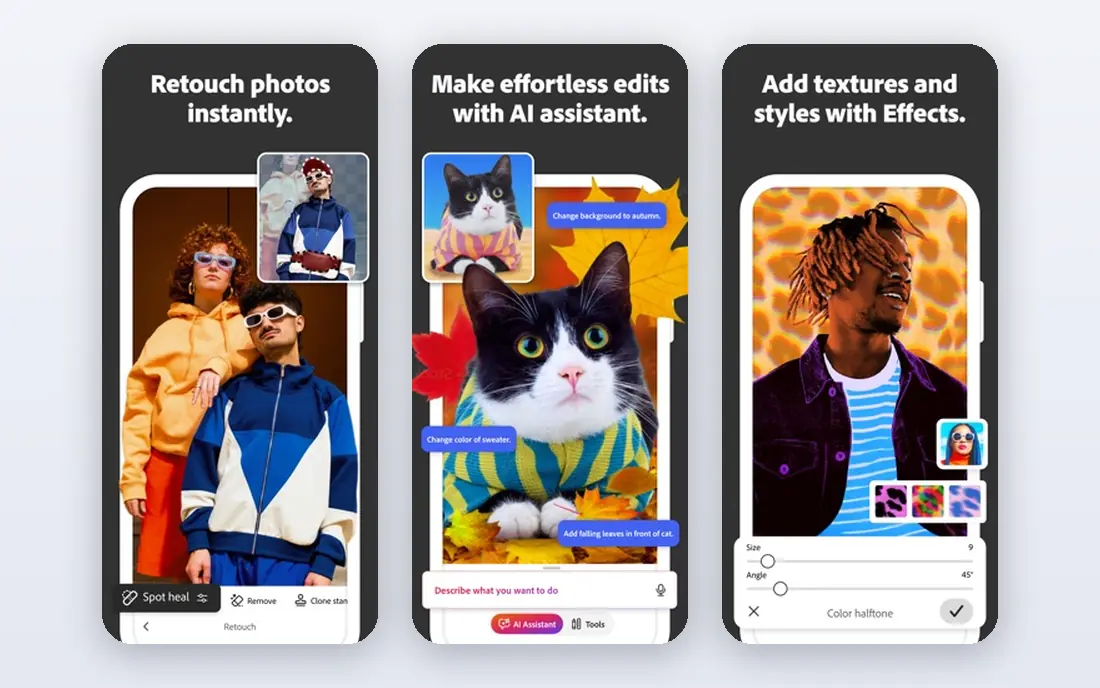
Adobe Photoshop is a strong choice for mixed media artists who need one deep tool for layers and compositing. Photoshop lets mixed media artists combine scanned paper, paint textures, photos, and digital brushwork in layered files. Blend modes, masks, and smart objects make it easy to try a collage arrangement, undo it, and try another without damaging the original scans.
The trade-off is worth weighing before you commit. The subscription adds up, and the sheer number of panels can slow beginners. Painters who want a natural-media feel may prefer a dedicated painting app for the brush stage and keep Photoshop for compositing. Check the current plan limits on the vendor site, since allowances and add-ons change often, and run a small pilot with real tickets, content, or data before you roll it out more widely.
- Huge brush and layer tools
- Photo and paint in one app
- Wide tutorial base
- Subscription only
- Photo-first design can overwhelm painters
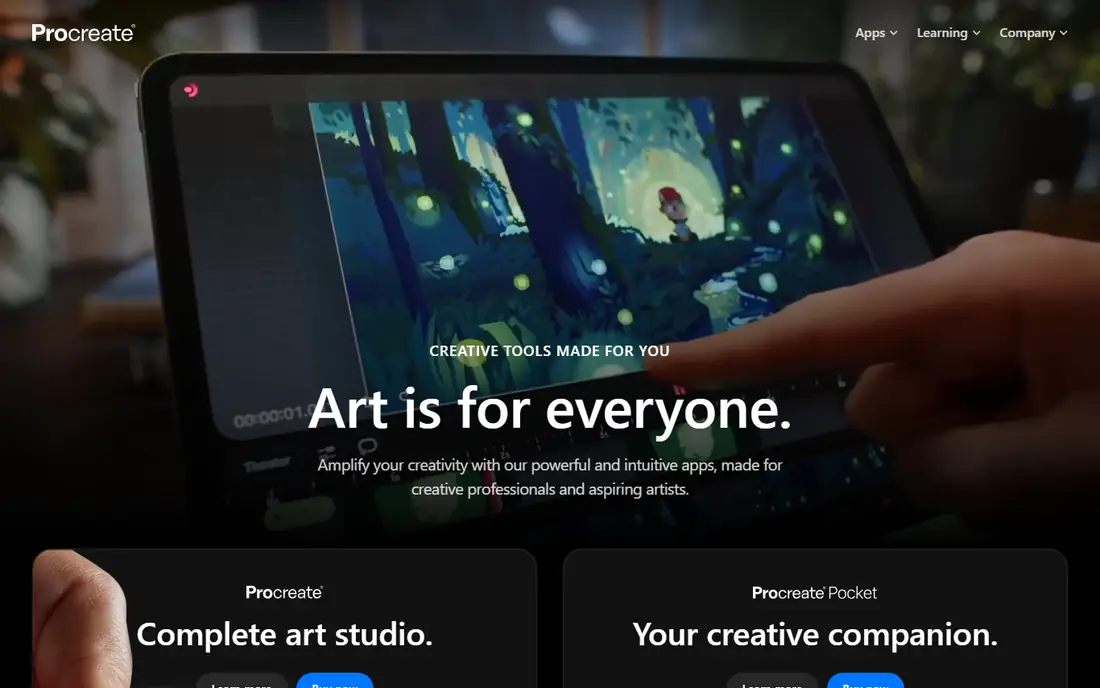
For iPad artists who want fast, affordable painting and collage, Procreate stands out for a practical reason. Procreate is the quickest way to sketch, paint, and layer mixed media ideas on an iPad with an Apple Pencil. Its brush library covers ink, watercolour, and texture effects, and layers let you stack scanned paper, photos, and paint without a subscription.
There is a catch to plan around. It only runs on iPad, so artists on Windows or Mac need another app for desktop work. Animation is basic compared with dedicated animation tools, but for still mixed media work it is hard to beat on value. That does not rule it out, but it does mean you should test it against your own workflow and confirm the price for your team size before you buy.
- One-time price
- Huge brush library
- Automatic time-lapse of each piece
- IPad only
- No desktop version
Clip Studio Paint
Great for: illustrators who mix ink, paint, and comic or panel layouts
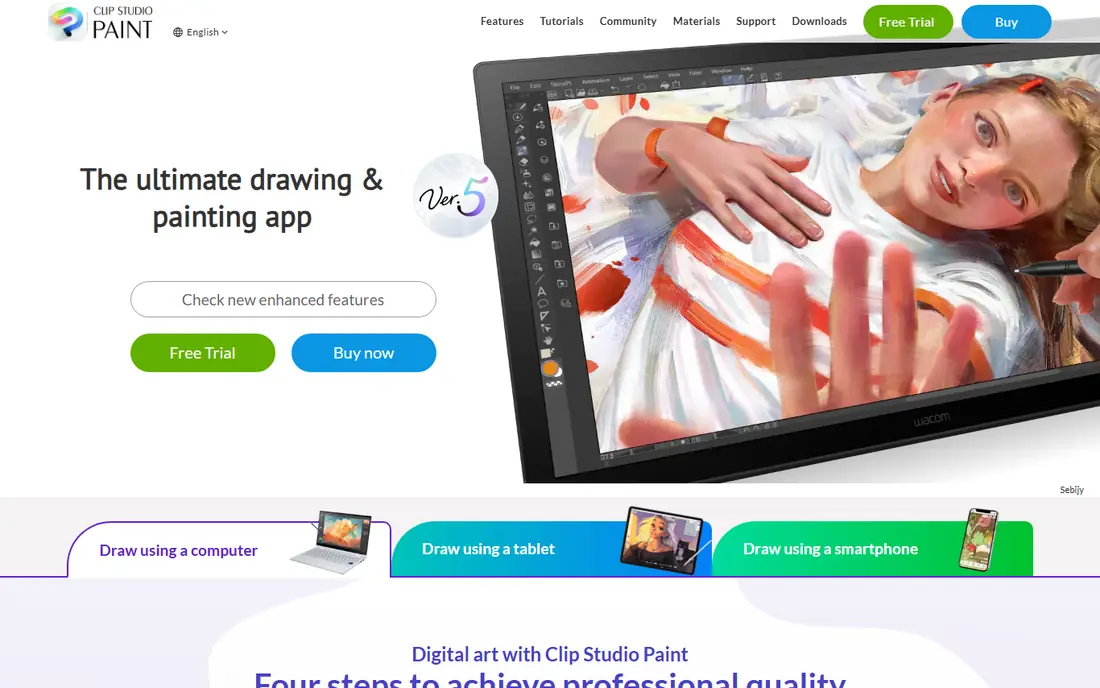
Clip Studio Paint earns its place here through its fit for illustrators who mix ink, paint, and comic or panel layouts. Clip Studio Paint suits mixed media artists who work with ink lines, watercolour-style brushes, and textured paper, then arrange the result into panels or pages. Its brush engine and layer tools handle both clean line work and loose painterly marks.
Watch the limits as well as the strengths. Pricing differs between one-time desktop licences and subscriptions on tablets, so check the plan for your device. The interface has many panels, and new users should start with a small brush set. A short trial with your own examples will tell you more than any feature page, so use that time to test the parts you will rely on every week.
- Strong inking and comic tools
- Wide brush support
- Works on many devices
- Pricing model varies by device
- Learning curve for full feature set
If your main need is painters who want realistic traditional media simulation, start with Corel Painter. Corel Painter is built to imitate real paint, including how watercolour bleeds and oils build up on canvas. For mixed media artists who start with a painted base and add digital collage, that realism keeps the painted layer looking like paint rather than a flat digital fill.
The honest limit matters here. The price is high for hobbyists, and it needs a reasonably powerful computer for large canvases. It is a specialist painting tool, so photo editing and page layout are better done elsewhere. If that limit touches your core work, compare the next tier or a rival before you sign up, and keep an eye on renewal terms.
- Realistic oils, watercolours, and pastels
- Deep brush customisation
- High one-time price
- Windows and Mac only
Krita suits teams and individuals focused on artists who want a free, full-featured painting app. Krita gives mixed media artists a free painting app with a serious brush engine, layer groups, and texture brushes for paper, ink, and paint effects. It also includes animation tools, so a mixed media piece can grow into a short animated work without buying another app.
Price and fit need a final check. The interface packs in many options, which can confuse first-time users. Community tutorials are plentiful but less standardised than Adobe courses, so expect some self-guided learning. Start on the lowest plan or trial that covers your main task, measure what it saves or improves, and only then move up a tier.
- Free and open source
- Strong brush engine
- Animation tools included
- Interface can feel busy
- Fewer commercial tutorials than Photoshop
Affinity
Great for: artists who want professional raster and vector tools for free
Among the options here, Affinity is the one to check first for artists who want professional raster and vector tools for free. Affinity, now free under Canva, gives mixed media artists pro-grade raster editing and vector drawing without a subscription. That combination helps when a piece mixes painted texture with clean vector shapes or lettering.
The trade-off is worth weighing before you commit. Photo, Designer, and Publisher are separate apps, so a mixed media workflow may need more than one of them. Check the current Canva terms for commercial use before relying on it for client work. Check the current plan limits on the vendor site, since allowances and add-ons change often, and run a small pilot with real tickets, content, or data before you roll it out more widely.
- Free professional tools
- Raster and vector in related apps
- Works on desktop and iPad
- Separate apps for photo, design, and publishing
- Newer free model still settling
Rebelle
Great for: artists focused on watercolour, ink, and wet-media effects
Rebelle is built around artists focused on watercolour, ink, and wet-media effects, and that focus shows in daily use. Rebelle simulates how wet paint spreads, dries, and blends on paper, which is useful for mixed media artists who layer watercolour washes under ink or collage. Its dry media tools cover pencils and pastels for the drawing layer.
There is a catch to plan around. It is a painting specialist, not a full compositing or layout app, so large collage projects may need a second tool. The community is smaller than Photoshop or Procreate, so tutorials take more searching. That does not rule it out, but it does mean you should test it against your own workflow and confirm the price for your team size before you buy.
- Convincing watercolour and wet-media simulation
- Dry media tools
- Realistic paper
- Smaller brush and tutorial base
- Windows and Mac only
MediBang Paint
Great for: beginners and comic artists who want a free cross-device app
Buyers who need beginners and comic artists who want a free cross-device app will find MediBang Paint a sensible shortlist pick. MediBang Paint is a free starting point for mixed media artists who combine ink, screentones, and simple paint effects, especially for comics. It runs on desktop and mobile, and cloud saving lets a sketch started on a phone continue on a computer.
Watch the limits as well as the strengths. Free does not mean every feature is free, and cloud sync needs a MediBang account. Its painting engine is lighter than Krita or Painter, so very painterly work may feel limited. A short trial with your own examples will tell you more than any feature page, so use that time to test the parts you will rely on every week.
- Free on desktop and mobile
- Comic and panel tools
- Cloud saving
- Cloud features need an account
- Some premium features are paid
Adobe Fresco
Great for: touch-device painters who want live watercolour and oil brushes
Adobe Fresco takes a clear approach to touch-device painters who want live watercolour and oil brushes. Fresco offers live brushes that bloom and blend like real watercolour, alongside pixel and vector brushes in the same document. That mix suits mixed media artists who want to paint, ink, and add clean vector shapes without switching apps.
The honest limit matters here. The free tier is a starting point, and fuller use needs a paid Adobe plan. It works best with a stylus and touch screen, so desktop mouse users may prefer Photoshop or Krita. If that limit touches your core work, compare the next tier or a rival before you sign up, and keep an eye on renewal terms.
- Live brushes for watercolour and oil
- Vector and pixel brushes together
- Free basic tier
- Full features need a paid plan
- Best on touch devices
How we picked these
We compared official product pages, pricing, and platform support for each app, and checked that each one is still sold and supported in October 2026. We favoured apps with layer support, varied brush engines, and texture handling, since those are the features mixed media work relies on. We did not claim hands-on testing. Prices are entry prices or one-time fees where published, and free tiers are noted where they are genuinely usable for artwork.
How to choose a mixed media app
Match the app to your stage
If you paint by hand and scan the result, a compositing app such as Photoshop or Affinity Photo matters most. If you paint digitally, start with a painting app such as Krita, Procreate, or Rebelle, and add a second app only if layout or photo editing is needed.
Check layers, brushes, and file types
Look for layer groups, masks, and blend modes, plus brushes for ink, watercolour, and texture. Check that the app exports common formats your printer or client needs, and that large canvases stay responsive on your device.
Start free, then pay for a gap
Krita, Affinity, and MediBang cover a lot of mixed media work for free. Pay only when a free app lacks a specific brush, a device you use, or a file feature you need every week.
Frequently asked questions
What is mixed media art?
Mixed media art combines two or more materials or methods in one piece, such as paint and collage, ink and photography, or digital brushwork over scanned paper textures.
Do I need a drawing tablet?
A tablet helps a lot for pressure-sensitive brushwork, but many apps also work with a mouse or touch screen. Entry-level tablets from Wacom and similar makers are enough for most beginners.
What is the best free tool for mixed media art?
Krita is our free pick for painting and texture work, while Affinity covers raster and vector editing for free. MediBang is a good free starting point for comic-style mixed media.
Can I mix scanned paper with digital paint?
Yes. Scan paper at a high resolution, import it as a layer, and paint or ink over it using blend modes and masks. Keep the original scan untouched on its own layer.
Is Procreate good for mixed media?
Yes, if you work on iPad. It handles layers, brushes, and imported textures well at a one-time price, but it has no desktop version, so Windows and Mac users need an alternative.
Sources
See where you really rank - block by block
ProMapRanker scans Google Maps across a grid of your service area. Simple monthly plans from $19, white-label on every plan.
Start freeKeep reading
 zoho inventory alternatives
6 Alternatives to Zoho Inventory, Compared on Price and Fit
Zoho Inventory alternatives: 6 tools compared on price, free plans and fit. Katana leads the list for manufacturers. Fit and flaws are laid out for each entry.
Read → zoho crm alternatives
Best Zoho CRM Alternatives (2026)
Need Zoho CRM alternatives? We compare 7 tools on cost, free access and who each suits. Every pick gets a straight assessment. Built for quick decisions.
Read → zelle alternatives
Best Zelle Alternatives in 2026
Compare the best Zelle alternatives for sending money to friends, paying sellers and moving funds abroad, with honest notes on fees, speed and safety in 2026.
Read →