 ProMapRanker
Best Tool to Extract PDF Pages in 2026

Key takeaways
- Extracting pages means saving chosen pages as a new PDF, and most tools here do it by page selection, ranges, or splitting at set intervals.
- Free browser tools cover occasional jobs well, while desktop tools such as PDFsam Basic and PDF24 Creator suit frequent or sensitive work that should stay local.
- Privacy matters most with sensitive files: local tools avoid uploads entirely, while browser tools should offer encryption and automatic file deletion.
- Free plans cap tasks, pages, or file size, so check the cap before you start a large file, and keep a copy of the original until the new file checks out.
Quick comparison
| Pick | Great for | Pricing starts at | Free tier | |
|---|---|---|---|---|
 Adobe Acrobat | Professional PDF work | See website | Free trial | Visit |
 Smallpdf | Quick browser extraction | $12 per month | Yes | Visit |
 iLovePDF | Clear thumbnail extraction | See website | Yes | Visit |
 Sejda | Privacy-conscious browser jobs | See website | Yes | Visit |
 PDF24 Tools | Free frequent browser use | Free | Yes | Visit |
 PDFsam Basic | Free local extraction | Free | Yes | Visit |
 Foxit PDF Editor | Desktop editing plus extraction | See website | Free trial | Visit |
 PDFgear | Free desktop and browser use | Free | Yes | Visit |
 PDF2go | Simple browser splitting | See website | Yes | Visit |
 Nitro PDF Pro | Desktop PDF suite | See website | Free trial | Visit |
The best tools to extract PDF pages
You may need one chapter from a report, a single signed page from a contract, or a set of pages from a large manual. These tools pull those pages into a new file without rebuilding the document, and they differ mainly in price, privacy, and whether they run in a browser or on your computer.
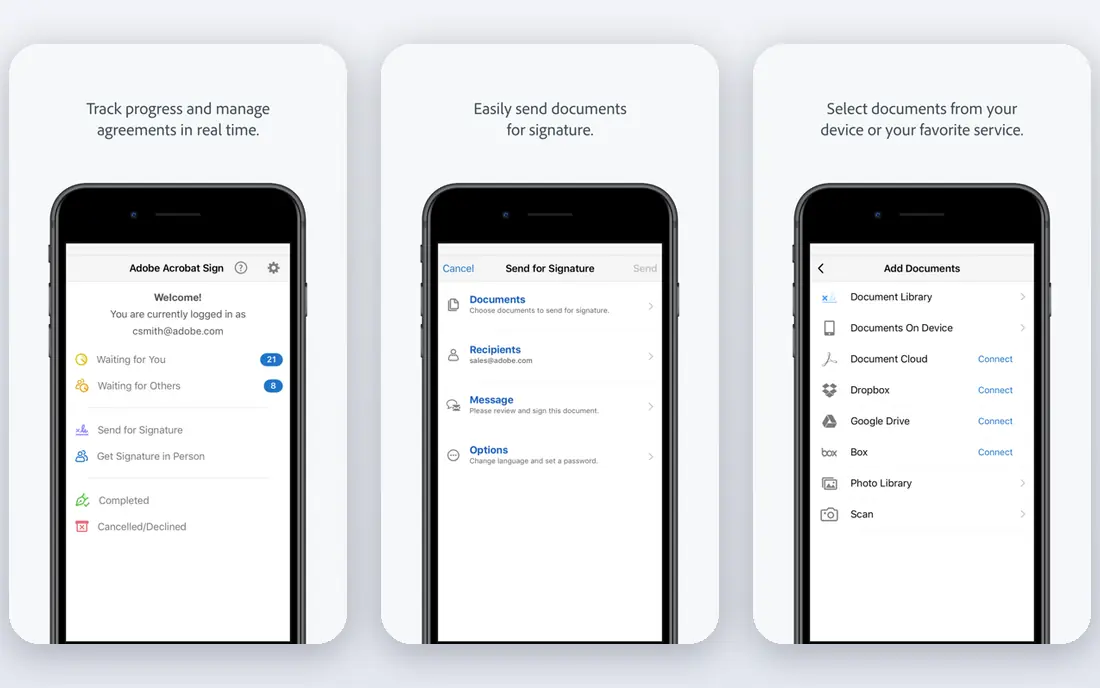
Adobe Acrobat is the professional standard for PDF work, and page extraction is a small part of a much larger toolset. On desktop, the Organize Pages view lets you select pages, drag them into order, and extract them into a new file, with options for splitting by page count, file size, or bookmarks on suitable plans. The online Split PDF tool supports large files in published guides, up to 1 GB and 1,500 pages, though free transactions are limited. For legal, publishing, and enterprise work that also needs signing, accessibility tagging, or print production, Acrobat is the safe, complete choice.
For a one-off extraction, Acrobat is overkill. Pricing sits in the $12. 99 to $23. 99 per month range in comparisons depending on plan and billing, and the free online tier allows only limited use. Acrobat suits professionals and teams that already use Adobe tools daily and need reliable handling of large, complex files.
- Precise page extraction and organizing
- Handles large and complex documents
- Full PDF editing, signing, and compliance tools
- Subscription cost is high for a single task
- Online free use is limited
- Desktop app needs installation and learning time
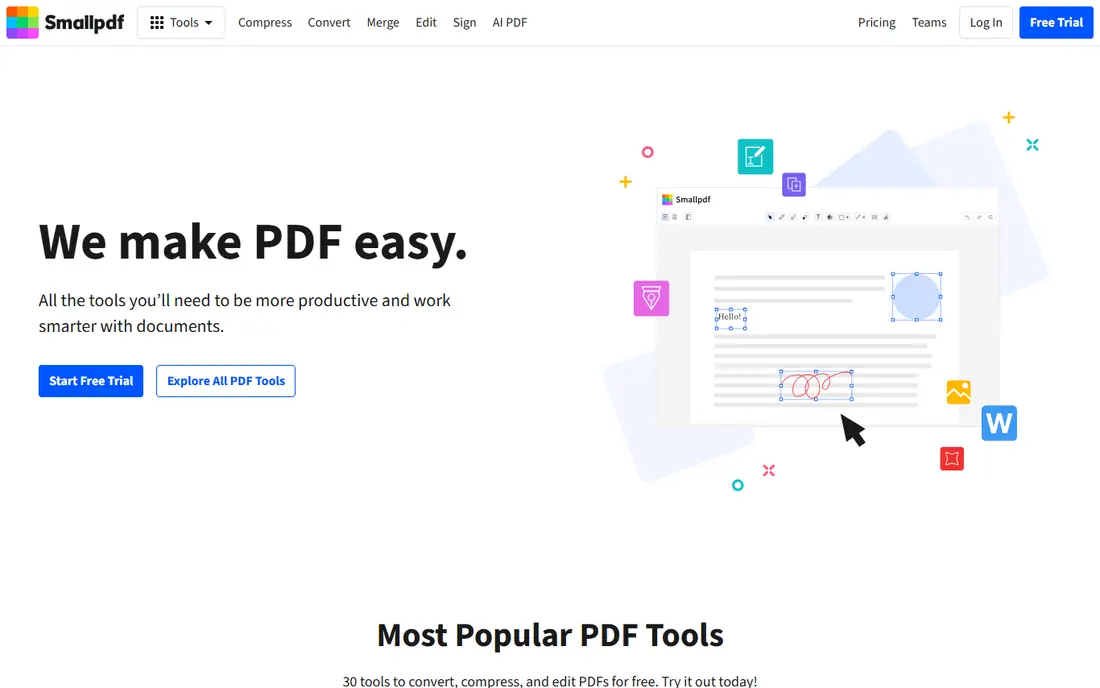
Smallpdf is the easiest browser tool for a quick extraction job. Upload a PDF, choose Extract Pages or Split PDF, click the pages you want, and download the new file. The interface is clean, it works on any device with a browser, and it pairs extraction with a wider toolkit for merging, compressing, and converting PDFs. Pro pricing is listed at $12 per month in comparisons, which removes limits and adds team and collaboration features.
The free tier is the limit: published guides describe a daily task limit, often two tasks per day, which makes Smallpdf a poor free choice for frequent work. Uploading files also means sensitive documents leave your computer, so check deletion policy before uploading contracts or personal records. Smallpdf suits occasional users who value speed and a polished interface over free volume.
- Very easy browser workflow
- Page extraction and manual splitting
- Works across devices without installation
- Free use is limited to a small number of tasks per day
- Upload required
- Pro needed for frequent use
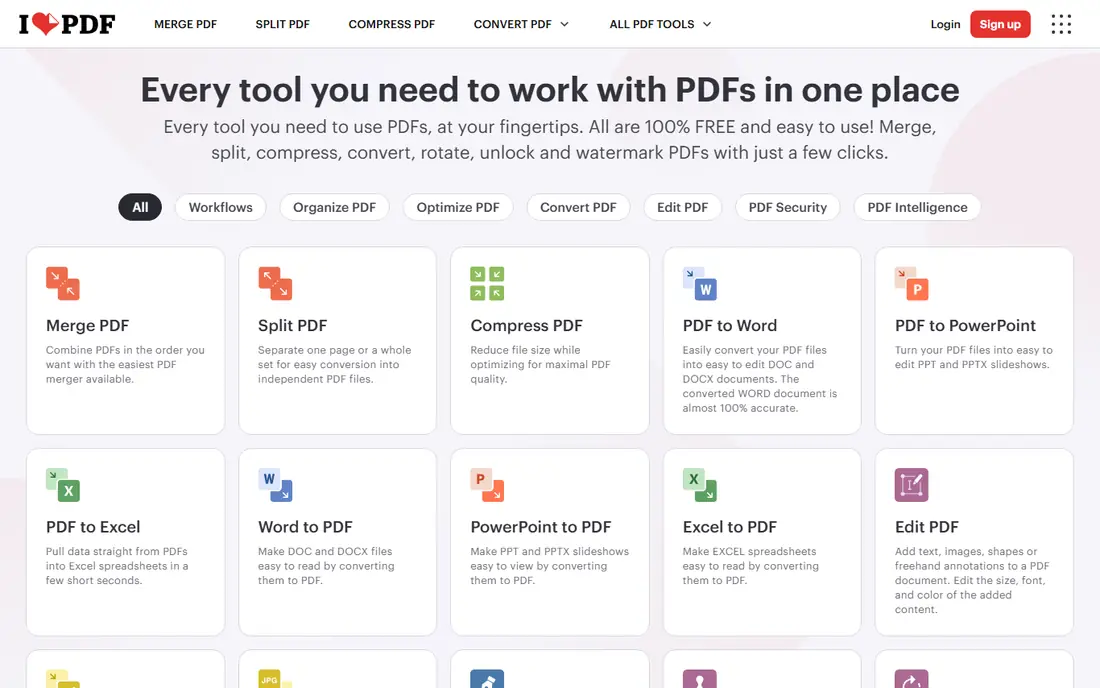
iLovePDF gives one of the clearest extraction workflows in a browser. Pages appear as thumbnails, so you can pick individual pages, set custom ranges, or split by fixed intervals, then download the new file or split the document into several files. The wider toolkit covers merging, compressing, converting, and editing, which helps when extraction is one step in a larger document job. Pro pricing is listed at around $6 to $7 per month in comparisons depending on billing, with a free tier for basic use.
Free use has limits on document processing, and files must be uploaded to the service, so sensitive work needs the same privacy check as with any browser tool. Watermarks and queuing can also appear on some free tools in the wider suite. iLovePDF suits students, office workers, and small teams that extract pages often enough to want thumbnails and ranges, but not so often that a desktop tool is required.
- Clear thumbnail view for page selection
- Custom ranges and fixed ranges
- Wide browser PDF toolkit in one place
- Free plan limits document processing
- Upload required
- Pro pricing varies by billing period
Sejda is a thoughtful browser choice for occasional, privacy-conscious extraction. Its online splitter supports ranges, every-page splits, bookmark splits, and size-based splits, and published guides list free limits of 200 pages or 50 MB and three tasks per hour. Files are deleted after processing under its published policy, and no watermark appears on free output in comparisons. A desktop version exists for users who want local processing without the browser limits.
The free caps still bind: three tasks per hour and size limits will frustrate a large batch job, and browser use still requires upload. Pro pricing is listed at $7. 50 per month in comparisons for unlimited-style use. Sejda suits users who extract pages a few times a week, value a clean privacy stance, and need flexible split modes such as bookmarks.
- No watermark on free use in guides
- Range, bookmark, and size splitting
- Desktop option for local work
- Free online use caps tasks per hour and file size
- Upload required for browser use
- Pro needed for heavy use
PDF24 Tools is the free browser pick for frequent use. Its online PDF tools, including splitting and page extraction, are published as free without artificial daily task limits, and guides report no watermark on output. That makes it practical for a user who extracts pages daily but does not want to pay or install software. A Windows desktop app, PDF24 Creator, adds offline processing for users who prefer local work.
Browser use still requires uploading files, so sensitive documents need care, and the free service is ad-supported in places. The Windows-only desktop app also leaves macOS and Linux users with the browser version only. PDF24 suits students, teachers, and office workers who extract pages often and want a free, no-cap browser tool.
- Online tools published as free without artificial usage limits
- No watermark in guides
- Windows desktop Creator app for offline work
- Browser use requires upload
- Interface carries ads in places
- Desktop app is Windows-only
PDFsam Basic is the privacy-first pick for page extraction. It runs on your computer, so files never upload to a server, and it is free and open source. The Split and Extract Pages functions support page numbers, ranges, every N pages, bookmarks, and target file size, which covers most structured splitting jobs, from chapters to single pages. For sensitive contracts, client files, and personal records, local processing removes the main privacy worry of browser tools.
PDFsam needs installation, and its interface is practical rather than pretty, with thumbnails less prominent than in browser tools. Some advanced functions, such as visual page editing, sit in paid PDFsam editions. PDFsam Basic suits professionals handling sensitive files, frequent splitters, and users on Windows, macOS, or Linux who want a free local tool.
- Free and open source
- Fully local processing with no uploads
- Split by pages, ranges, bookmarks, and size
- Requires desktop installation
- Interface is functional rather than polished
- Advanced features sit in paid editions
Foxit PDF Editor is a desktop alternative to Acrobat that covers extraction as part of full PDF editing. You can organize pages, extract chosen pages, merge, edit text, annotate, sign, and collaborate inside one app, which suits teams that already edit PDFs daily. Foxit is often described as lighter and faster-feeling than heavier suites, and its pricing undercuts Acrobat on comparable plans in many comparisons, though exact pricing should be checked on the vendor site.
Buying a full editor for extraction alone is wasteful, and the free trial ends, so occasional users should not start here. Plan differences also matter, since some collaboration and advanced features sit on higher tiers. Foxit suits offices and teams that edit, review, and sign PDFs regularly and want extraction built into that workflow.
- Page organizing and extraction inside a full editor
- Lighter feel than some rivals
- Collaboration and signing tools
- Full editor pricing exceeds a single-task budget
- Free trial is time-limited
- Some features vary by plan
PDFgear is a free PDF tool with desktop apps and browser tools that cover page extraction alongside editing, merging, and conversion. Published guides describe it as generally free for core use, which makes it attractive for users who want more than a single-purpose splitter without paying. The desktop version keeps files local, while the browser version offers quick jobs on any device.
PDFgear is a newer brand than Adobe, Foxit, or iLovePDF, so long-term support and enterprise compliance documentation are thinner, and feature depth can vary between desktop and browser versions. Browser uploads still need the usual privacy care. PDFgear suits budget users who want a free editor plus extraction in one tool, and students or freelancers who handle varied PDF jobs.
- Generally free for core PDF work
- Page extraction on desktop and browser
- Editing and conversion tools included
- Newer brand than Adobe or Foxit
- Feature depth varies by platform
- Check privacy terms for browser uploads
PDF2go is a straightforward browser splitter for users who want no learning curve. Upload a PDF, select the pages to keep, and download the new file, with options to split into several files and to handle basic editing and conversion in the same suite. It works on any device with a browser, which helps on shared or borrowed computers where installation is not possible.
Free use has limits, and uploads mean sensitive files need caution, as with all browser tools. Split modes are simpler than Sejda bookmark or size splitting, or PDFsam structured extraction, so complex batch jobs may need another tool. PDF2go suits occasional users who need a fast, no-install extraction and who work with non-sensitive files.
- Simple browser workflow
- Select any pages to extract
- No installation needed
- Upload required
- Free use has limits
- Fewer advanced split modes than Sejda or PDFsam
Nitro PDF Pro is a desktop PDF suite for Windows and macOS that includes page organizing and extraction alongside editing, e-signing, conversion, and review tools. For a team that already produces, reviews, and signs PDFs daily, extraction inside Nitro keeps the workflow in one app without browser uploads. Past listings have shown both subscription and one-time style options depending on plan and region, so current pricing should be confirmed on the vendor site.
Nitro is a suite purchase, not a splitter purchase, and the trial ends, so it makes little sense for a single extraction. Regional pricing and plan variation also make comparison harder without a quote or store check. Nitro suits offices and professional teams that want a desktop Acrobat alternative with editing and signing depth.
- Page extraction inside a full desktop suite
- Editing, signing, and conversion tools
- One-time and subscription options in past listings
- Suite pricing exceeds a single-task budget
- Trial is time-limited
- Availability and pricing vary by region and plan
How we picked these
We compared official product pages, vendor documentation, and published PDF splitter comparisons checked in October 2026, and we kept only tools that are live now and that genuinely extract or split PDF pages into a new file. We favored a mix of browser and desktop tools, free and paid options, and privacy-conscious local tools alongside convenient browser tools. We left out tools that only merge PDFs without page selection, discontinued products, and obscure tools with no clear vendor page. Prices change, so confirm the current plan on the vendor site before you buy.
How to extract pages safely and cleanly
Start by keeping a copy of the original file, since extraction creates a new file and you may need the full document later. Choose the tool by privacy first: use a local tool for contracts, medical records, financial files, or client data, and reserve browser tools for non-sensitive files. Next, check the page order and count in the new file before sharing it, since a missed page or a reversed range is the most common extraction error. Also check that bookmarks, links, and text quality survive, especially for scanned files where splitting cannot improve image quality.
Frequently asked questions
How do I extract pages from a PDF for free?
Use a free browser tool such as PDF24 Tools, Sejda, or iLovePDF for a quick job, or PDFsam Basic for free local extraction. Upload or open the file, select the pages or ranges you want, extract them into a new file, and download the result. Free browser plans cap tasks, pages, or file size, so a large or sensitive file suits a local desktop tool better.
Is it safe to upload a PDF to an online extractor?
It depends on the file and the service. Reputable tools use encryption in transit and delete files after processing, but uploads still leave your computer, so avoid browser tools for sensitive contracts, medical records, or client data.
Can I extract non-consecutive pages into one new PDF?
Yes, with most tools here. Browser tools such as iLovePDF, Sejda, and PDF2go let you click individual pages or thumbnails, while desktop tools such as Acrobat, Foxit, and PDFsam let you enter page numbers and ranges.
What is the difference between splitting and extracting a PDF?
Splitting divides a PDF into several new files, often by page count, range, bookmark, or size. Extracting pulls chosen pages into a single new file and leaves the rest behind.
Will extracted pages keep their quality?
Extraction normally preserves the original page content, text, and images without re-rendering them, so quality stays the same as the source. Splitting cannot improve a low-quality scan or fix a damaged page, and some browser tools may compress files if you also use a compression step.
Can I extract pages on a phone?
Yes, browser tools such as Smallpdf, iLovePDF, Sejda, and PDF24 work on a phone browser, and some vendors offer mobile apps. Small screens make thumbnail selection fiddly for long documents, so phone extraction suits short files and a handful of pages.
Sources
- https://www.adobe.com/acrobat.html
- https://smallpdf.com
- https://www.ilovepdf.com
- https://www.sejda.com
- https://tools.pdf24.org
- https://pdfsam.org
- https://www.foxit.com
- https://www.pdfgear.com
- https://www.pdf2go.com
- https://www.gonitro.com
- https://www.blogthetech.com/best-tools-to-split-pdf/
- https://sqmagazine.co.uk/easiest-browser-pdf-tools-assemble-reorder-pages/
See where you really rank - block by block
ProMapRanker scans Google Maps across a grid of your service area. Simple monthly plans from $19, white-label on every plan.
Start freeKeep reading
 zoho inventory alternatives
6 Alternatives to Zoho Inventory, Compared on Price and Fit
Zoho Inventory alternatives: 6 tools compared on price, free plans and fit. Katana leads the list for manufacturers. Fit and flaws are laid out for each entry.
Read → zoho crm alternatives
Best Zoho CRM Alternatives (2026)
Need Zoho CRM alternatives? We compare 7 tools on cost, free access and who each suits. Every pick gets a straight assessment. Built for quick decisions.
Read → zelle alternatives
Best Zelle Alternatives in 2026
Compare the best Zelle alternatives for sending money to friends, paying sellers and moving funds abroad, with honest notes on fees, speed and safety in 2026.
Read →