 ProMapRanker
Best Speed Test App in 2026: 9 Apps Compared

Key takeaways
- Ookla Speedtest is our pick for most people because it combines a large server network, saved history and apps for phones and computers.
- FAST.com is the simplest check for streaming, since it starts at once and shows download speed first, with upload and latency on a second screen.
- Run two or three tests at different times before you call your provider, since one result can reflect a busy server, a weak Wi-Fi signal or background downloads.
- Free tools cover the core numbers well, so pay only when you need scheduled tests, detailed reports or business monitoring.
- A wired test measures your plan, while a Wi-Fi test measures your home network, and the gap between them often points to the router or the room, not the plan.
Quick comparison
| Pick | Great for | Pricing starts at | Free tier | |
|---|---|---|---|---|
 Speedtest by Ookla | Most people and saved history | Free | Yes | Visit |
 FAST.com | Quick streaming checks | Free | Yes | Visit |
 Opensignal | Mobile coverage and carrier comparison | Free | Yes | Visit |
 nPerf | Detailed technical results | Free | Yes | Visit |
 TestMy.net | Manual, browser-based accuracy checks | Free | Yes | Visit |
 Cloudflare Speed Test | Latency and packet loss under load | Free | Yes | Visit |
 SpeedOf.Me | Browser-only real-world checks | Free | Yes | Visit |
 FCC Speed Test | Documenting mobile performance | Free | Yes | Visit |
 Google Fiber Speed Test | Fast, no-account desktop checks | Free | Yes | Visit |
The best speed test apps
These nine tools measure the same basic numbers in different ways, and the differences matter more than the brand names suggest. We compared official feature pages, app store listings and public documentation for server choice, history, mobile support and extra detail.
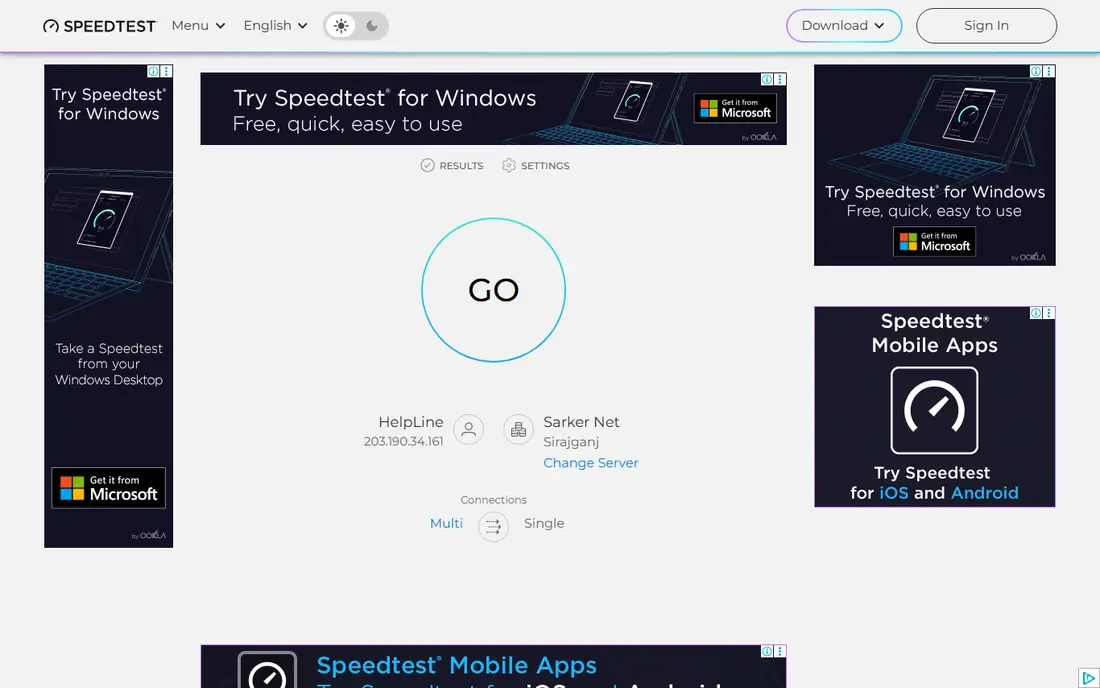
Speedtest by Ookla is the default choice for a reason, and that reason is coverage rather than flash. You can pick a server, run download, upload and ping in one pass, and then look back at earlier results to see if a slow evening is a pattern or a one-off. The mobile app also adds coverage maps and video test options that help when you want to know if the problem is your phone, your carrier or your home Wi-Fi.
The catch is that breadth can make a single result look more final than it is. A distant or busy server can drag a number down, and ads in the free app can distract from the result screen. We suggest running the test twice, once with the automatic server and once with a nearby server you choose by hand, and noting the time of day. If both runs agree, you have a result worth sharing with your provider.
- Very large server network
- Apps for iOS, Android, Windows and Mac
- Saved results and history for trends
- Free version shows ads
- Some advanced features sit behind paid options
- Results vary with server choice
FAST.com answers one question fast: how quickly can this connection pull video down right now. The page starts measuring as soon as it loads, which makes it handy when a show buffers and you want a number in seconds. Clicking for more detail adds upload speed plus unloaded and loaded latency, and that second pair is useful for video calls, where a connection can look fast on download yet still feel laggy.
The trade-off is depth. FAST.com is not built as a long-term log, and it does not offer the server choice or carrier maps that other tools provide. Use it as a first check, then move to Ookla or nPerf when you need a record to compare over days or to show a provider.
- Starts at once with no account
- Clean, ad-free result screen
- Uses Netflix servers for a streaming view
- Download is the headline number
- Upload and latency need an extra click
- No saved history without extra steps
Opensignal suits phone users who want context, not just a number. A speed result sits next to coverage information and experience scores for video and browsing, which helps explain why a fast download in one neighborhood feels slow in another. The app is also a good second opinion when you are deciding if a carrier switch would help, since it reflects real user measurements rather than a single lab-style test.
The limits show up on a desk. Opensignal is built around mobile networks first, so desktop users get less control and less detail than they would from a browser tool with manual server selection. Treat it as a mobile companion to a desktop test, not a replacement for one.
- Mobile-focused tests
- Coverage maps and carrier comparisons
- Video and browsing experience scores
- Desktop experience is weaker than mobile
- Results depend on local user data
- Fewer manual server controls
nPerf is the pick when you want the full picture in one place. A single run reports download, upload, latency and browsing performance, and the result page breaks those numbers down in a way that helps you spot a weak upload link or high jitter behind a choppy call. The maps add a useful layer too, since they show how a network performs across an area rather than at one address.
That detail comes with a denser screen. New users may find the result page busier than FAST.com or Ookla, and the most useful comparisons take a few runs to learn. Spend ten minutes with one location first, then use the extra detail only when a simple test leaves a question unanswered.
- Download, upload, latency, jitter and browsing tests in one run
- Detailed result pages
- Maps of measured performance
- Interface is denser than simpler tools
- Some features are easier on the website than in the app
- Results need some care to read well
TestMy.net appeals to people who distrust a single quick burst test. You can choose test sizes, pick a server and watch a graph build over time, which makes it easier to see a connection that starts fast and then fades. That style suits users who suspect throttling, a flaky line or a provider that performs well only in short bursts.
The price for that control is patience. Tests take longer, the layout is less polished than modern apps, and the workflow feels manual compared with one-tap tools. Use TestMy.net when accuracy matters more than speed of testing, and use a faster app for everyday checks.
- No app install needed
- Manual test size and server choices
- Detailed graphs and history for members
- Slower, more manual workflow
- Interface looks dated next to app rivals
- Free use is more limited in some views
Cloudflare Speed Test earns its place by measuring what other tools often hide. Alongside download and upload, it reports jitter, packet loss and how latency changes while the connection is busy, which is the number that matters for gaming and video calls. A connection can post a strong download figure yet still stutter in a game, and this test is good at showing that gap.
It is a browser tool first, so it lacks the saved history and mobile coverage features of app rivals. Run it when calls drop, games lag or a fast download number does not match how the connection feels, and keep a screenshot of the loaded latency result for your notes.
- Measures latency under load and packet loss
- Clean browser test with no install
- Useful for gaming and calls
- No mobile app with the same depth
- No long-term history focus
- Fewer server choices shown to users
SpeedOf.Me is a good middle ground between a one-second check and a full technical report. It runs in the browser, measures download, upload and latency, and aims to reflect everyday browsing rather than a peak burst. That makes it useful on a borrowed computer, a smart TV browser or a device where you do not want to install an app.
The trade-off is scale. Its server network is smaller than Ookla, and it offers less depth on loaded latency than Cloudflare. For a quick, honest cross-check on any device, it works well. For a dispute with a provider, pair it with a larger-network test.
- Works in any modern browser with no install
- Single-stream style reflects everyday browsing
- Simple result history
- Smaller server footprint than Ookla
- Fewer mobile extras
- Limited detail on packet loss and loaded latency
The FCC Speed Test app is the most purposeful tool on this list. It is built to measure mobile broadband performance in a consistent way, and its results feed into public understanding of coverage in the United States. For a user in a weak coverage area, running it over time creates a record that is more structured than a random screenshot.
It is not a home network fixer. The app focuses on mobile performance, and its plain interface offers little guidance on routers, Wi-Fi placement or wired tests. Use it alongside a home test when the question is about your carrier, and use a desktop tool when the question is about your home plan.
- Official US mobile measurement app
- Structured tests for download, upload, latency and loss
- Supports coverage research
- Mobile only in its main form
- Interface is plain
- Results are for measurement, not for fixing a home router
Google Fiber Speed Test is the quiet second opinion in this list. It loads fast, runs a full test in seconds and shows download and upload without asking for an account or an install. That speed makes it easy to run before and after a router restart, a cable swap or a move to a different room.
It does not try to do more. There is no coverage map, no long history view and no mobile carrier comparison, so it works best as a check you run next to a richer tool. When two different tools agree, you can trust the number far more than when one tool stands alone.
- Very fast browser test with no account
- Clear download and upload figures
- Works well as a second opinion
- Fewer extras than app rivals
- No saved history focus
- Not a mobile coverage tool
How we picked these
We compared official feature pages, app store listings and public documentation for each tool, and we kept only tools that are live, free to run and able to measure download, upload and latency in a clear way. We favored tools with a real server network or a clear measurement method, and we left out tools that only estimate speed from a plan name or that require a paid account for a basic test. We did not claim hands-on lab testing, and prices here reflect free access to the core test, since none of these tools charges for a basic speed check.
What to check before you trust a number
Start with the setup, since setup errors cause more false alarms than bad tools. Close large downloads, pause cloud backups and video streams, and run the test on a device close to the router first. Then run the same test over a wired connection if you can, since that step separates your internet plan from your Wi-Fi. A big gap between wired and wireless results points to placement, interference or an old router, while a low result on both points to the plan or the line.
Read the full result, not just the download figure. Upload speed matters for video calls, cloud backups and live streaming, while latency and jitter matter for gaming and calls. Packet loss, even at a low rate, can make a fast connection feel broken. Note the server, the time and the device for each run, and repeat the test at a quiet time and at a busy evening hour. A pattern across days is far more useful than a single peak number, and it is the pattern a provider support team can act on.
Frequently asked questions
What is a good download speed for a home?
It depends on household size and use. A small household that streams in high definition and joins video calls will often feel fine well below gigabit speeds, while a larger household with several streams, games and uploads at once needs more headroom. Compare your result with your plan and with how the connection feels at peak time, not with an advertised maximum alone.
Why do different speed test apps give different results?
Servers, test methods, device limits and network load all shift the number. One tool may use a nearby server and a multi-stream test, while another uses a single stream or a distant server. Background apps, Wi-Fi signal and the time of day add further change. Run the same tool twice and cross-check with a second tool before drawing a firm conclusion.
Should I test over Wi-Fi or with a cable?
Do both when you can. A cable test shows what your plan delivers to your home, while a Wi-Fi test shows what your devices actually get in a given room. If the cable result is strong and the Wi-Fi result is weak, focus on router placement, Wi-Fi bands and interference before you blame the plan.
Does a speed test use a lot of data?
Yes, a full test can use a noticeable amount of data, especially on a fast connection, since it downloads and uploads test data to measure capacity. On a capped mobile plan, run fewer tests, use a smaller test size where the tool offers one, and prefer Wi-Fi for repeated checks.
Can a speed test tell me if my provider is throttling video?
A single test cannot prove it, but a pattern can raise a useful question. Compare a general test with FAST.com, which uses Netflix servers, and repeat both at different times. A large, repeated gap between general speed and video speed is worth raising with your provider, with dates and screenshots attached.
Sources
See where you really rank - block by block
ProMapRanker scans Google Maps across a grid of your service area. Simple monthly plans from $19, white-label on every plan.
Start freeKeep reading
 worlds best local seo company
8 Worlds Best Local SEO Companies for Map Pack Growth in 2026
Compare the worlds best local seo company options for Google Business Profile work, citations, reviews, and multi-location rankings and reporting in 2026.
Read → world's best web hosting company
World's Best Web Hosting Company in 2026
Searching for the world's best web hosting company? We compared 10 hosts on price, renewal rates, speed, and support to help you choose well today in 2026.
Read → who's got the best nanny tax services
Who's Got the Best Nanny Tax Services in 2026
We answer who's got the best nanny tax services, comparing full filing, back taxes, software, and pricing so families can handle nanny taxes correctly.
Read →