 ProMapRanker
Best Service for Converting PDFs in 2026


Users who want the reference PDF tool with strong fidelity · Pricing starts at: See website
Key takeaways
- Adobe, Smallpdf, and iLovePDF suit most one-off conversions, while PDF24 suits frequent free use and Nitro and Foxit suit office desktops.
- Free plans differ sharply in daily tasks, file size, and whether scanned PDFs get text recognition, so read the limits before you upload a large file.
- For sensitive documents, check where files are processed and how quickly they are deleted, and prefer desktop tools for private material.
- Conversion quality depends on layout: simple documents convert cleanly, while complex tables and scanned pages need OCR and manual checking.
Quick comparison
| Pick | Great for | Pricing starts at | Free tier | |
|---|---|---|---|---|
| Adobe Acrobat | Users who want the reference PDF tool with strong fidelity | See website | No | Visit |
 Smallpdf | Everyday users who want a polished, simple web tool | See website | Yes | Visit |
 iLovePDF | Frequent converters who want many tools in one place | See website | Yes | Visit |
 PDF24 | Free, frequent conversions without a subscription | Free | Yes | Visit |
 Sejda | Occasional converters who want a clean web tool | See website | Yes | Visit |
 Nitro PDF | Office users who want desktop PDF editing and conversion | See website | No | Visit |
 Foxit PDF Editor | Offices that want a full PDF editor at a lower cost than Adobe | See website | No | Visit |
 CloudConvert | Users who need many file formats beyond PDF | See website | Yes | Visit |
The best services for converting PDFs
We compared official feature pages, pricing pages, free-tier limits, privacy notes, and public reviews for services that convert PDFs to Word, Excel, PowerPoint, images, and other formats, and back again. Some tools work entirely in the browser, while others are desktop programs with stronger control over private files.
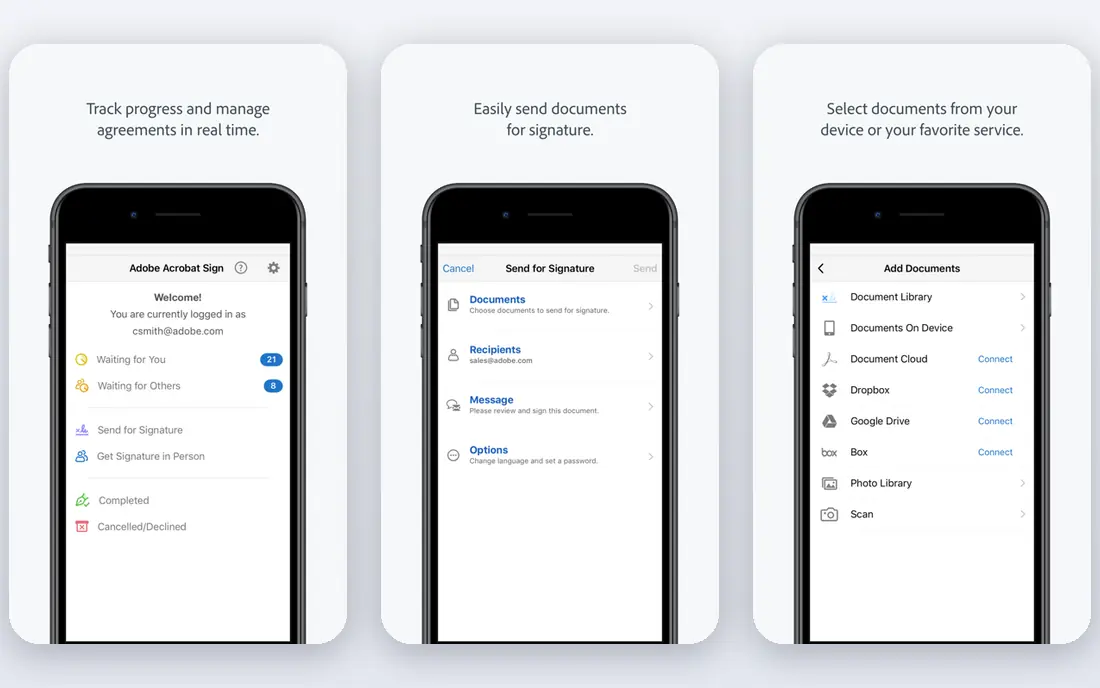
Adobe created the PDF format, and Acrobat remains the benchmark many other tools are measured against. Online Acrobat tools let you convert a PDF to Word or another format without installing software, and the desktop app adds OCR for scanned pages, batch work, and fuller editing. For documents where layout, fonts, and tables must survive the move, that fidelity is a real advantage.
The catch is access. Online free use is limited, and the full subscription is priced as a professional tool rather than a one-off converter. If you convert a file once a month, a free or cheaper tool may be enough. If you convert daily for work, Acrobat is worth the cost for accuracy alone.
- Strong conversion fidelity for Office formats
- Online tools for quick jobs
- Desktop app for regular work
- Online free use is limited
- Full plans cost more than single-purpose converters
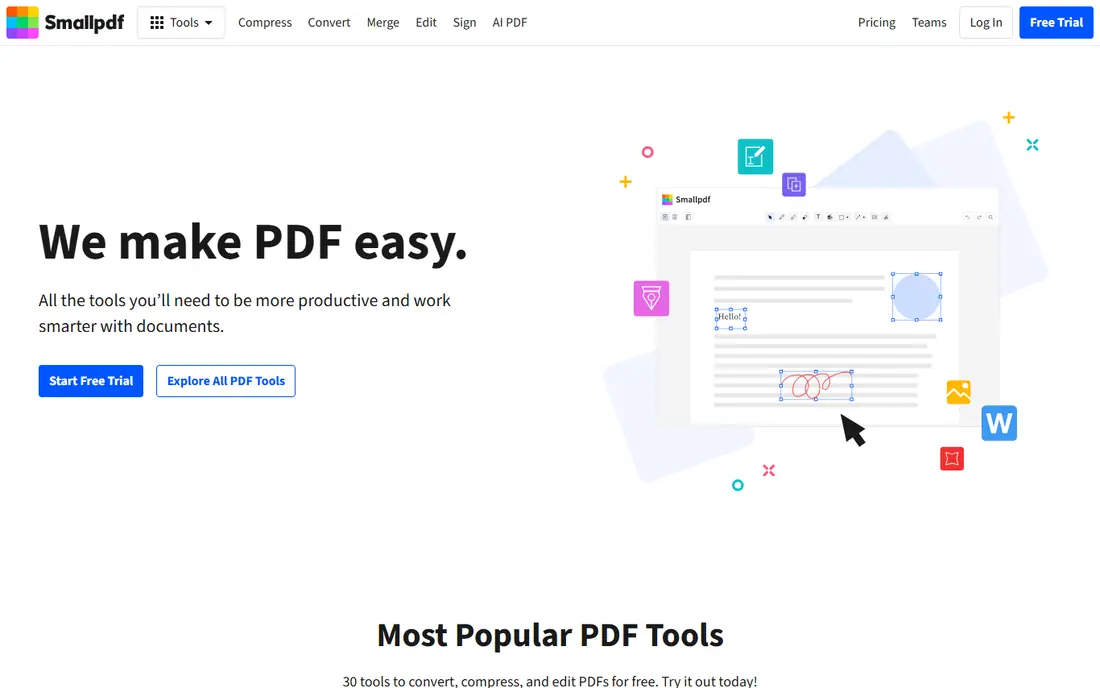
Smallpdf is the tool many people reach for first because the site is easy to read and each tool does one job well. Upload a PDF, pick Word, Excel, or an image format, and download the result in a few clicks. The mobile apps extend the same tools to phones, which helps when a document arrives by email and needs to go out in another format quickly.
Free use is capped by daily tasks, so a busy afternoon of conversions can hit the limit sooner than expected. Advanced features such as OCR for scanned pages and strong compression also require the paid plan. For occasional use, the free tier is enough. For daily work, budget for Pro or pick a less limited option.
- Clean interface and fast tools
- Mobile apps and browser extension
- Files deleted after a short period
- Free plan limits daily tasks
- OCR and batch tools sit behind the paid plan
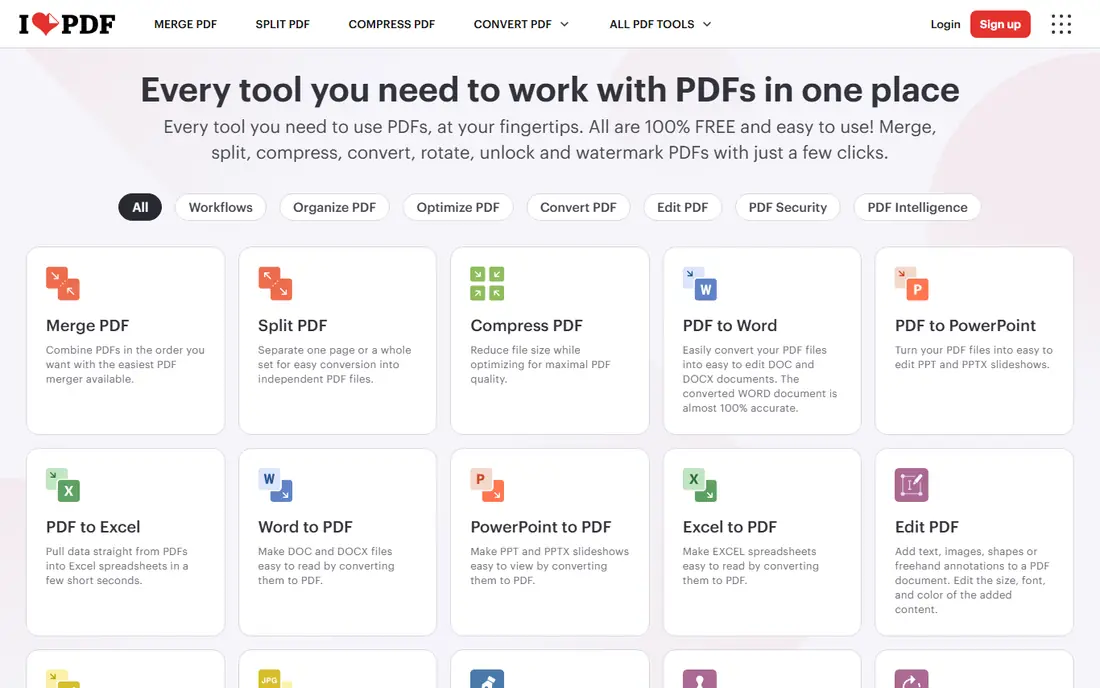
iLovePDF packs more than 30 tools into one site, which makes it useful beyond simple conversion. You can merge files before converting, compress the result, split a long PDF, or sign it, all without switching services. Free users generally get more room to work than on Smallpdf, although file-size caps and queues still apply.
The interface shows that breadth. New users may find the homepage crowded compared with Smallpdf, and free accounts see upgrade prompts. Paid Premium removes many limits and raises file sizes. If you want one account for most PDF jobs, iLovePDF is a practical hub.
- Wide tool range including merge, split, and OCR
- Generous free use for one-off jobs
- Desktop and mobile apps
- Free users see ads and file-size limits
- Interface feels busier than Smallpdf
PDF24 stands out because its online tools are free to use without a subscription, which suits students and small teams with steady conversion needs. The service covers PDF to Word, Excel, images, and more, plus merge, split, and compression tools. A free Windows app lets you work offline, which also helps with privacy for sensitive files.
The web experience is ad-supported and less polished than paid rivals, and Mac users do not get the same desktop app. Conversion quality for complex layouts can also vary, so check tables carefully. For frequent, low-cost conversion, those trade-offs are easy to live with.
- Free online tools with no daily task counter described
- Windows desktop app
- OCR available with a queue
- Ad-supported web tools
- Desktop app is Windows only
- Design feels less polished
Sejda takes a middle path: a clean browser tool with a free tier that resets by the hour rather than by the day. That hourly reset suits people who convert a few files, pause, and return later, rather than running large batches at once. The site also states that uploaded files are deleted after a short period, which is worth noting for private documents.
Limits are still real. Free files are capped by size and page count, and heavy users will need the paid web plan. Sejda also lacks the broad app range of larger rivals. For occasional, straightforward conversions, it is a calm, dependable choice.
- Clear web interface
- Free tasks each hour
- Files deleted after a short period
- Free limits on file size and pages
- Paid plan needed for heavy use
Nitro PDF is desktop software for people who work with PDFs all day, not a site for a single conversion. It converts PDFs to Office formats and back, edits text and images, and handles signing and forms in one program. The interface will feel familiar to Office users, and batch conversion saves time when a whole folder needs to change format.
That power comes with a price and a platform focus. There is no generous free online tier, and the product is strongest on Windows. A casual user who converts one file a month will not need this much tool. An office that processes contracts, reports, and forms daily will get more value from it.
- Desktop editing, conversion, and signing in one program
- Familiar Office-style interface
- Batch conversion
- No meaningful free online tier
- Windows focus
- Cost suits offices more than one-off users
Foxit PDF Editor
Great for: Offices that want a full PDF editor at a lower cost than Adobe
Foxit PDF Editor gives offices a full alternative to Acrobat, with conversion to Office formats, OCR, editing, signing, and collaboration tools. It runs on Windows and Mac, with mobile apps for reading and light edits, so teams are not tied to one system. For organizations that want desktop control without Adobe pricing, Foxit is a credible middle option.
The interface packs in many features, which can feel crowded for a first-time user. Pricing also varies by edition, so check which tier includes the OCR and batch tools you need. For regular, professional PDF work, the depth here beats any free web converter.
- Full editing and conversion tools
- OCR for scanned documents
- Windows, Mac, and mobile versions
- Interface can feel busy
- Some advanced features sit in higher tiers
CloudConvert is a general file converter that happens to handle PDFs well, which makes it useful when a job involves audio, video, images, and documents together. You can convert a PDF to Word, an image, or a spreadsheet, and then convert other files in the same account. Developers can also use its API to build conversion into their own apps.
Because PDF is not the only focus, the tool lacks the PDF editing depth of Acrobat or Foxit. Free credits also limit heavy use, so frequent converters may need a paid plan. If your work spans many formats and you want one converter for all of them, CloudConvert is a flexible pick.
- Supports hundreds of formats
- API for developers
- Conversion quality options for many file types
- PDF is one of many formats, not the sole focus
- Free credits run out with heavy use
How we picked these
We compared official feature and pricing pages, free-tier descriptions, privacy and deletion notes, app store listings, and public reviews for PDF conversion services available in October 2026. We favored tools that convert to and from common Office and image formats, state their free limits plainly, and still operate as live products. We left out tools that only edit PDFs without conversion and sites that could not be verified as current.
How to choose the right converter
Match the tool to your volume first. One file a month fits any free tier, while daily batches need a paid plan or a free service such as PDF24. Then check layout: if your PDFs contain tables, footnotes, or scanned pages, test OCR on a sample page before you trust the output. A clean-looking conversion can still hide a swapped number in a table.
Privacy comes next. Browser tools upload your file to a server, so read the deletion policy and avoid uploading contracts, medical records, or identity documents to a free site unless you trust its terms. Desktop tools such as Nitro and Foxit keep files local, which suits sensitive work. Finally, check the output in the target format before you send it on, especially for Word and Excel files that others will edit.
Frequently asked questions
What is the best free service for converting PDFs?
PDF24 offers free online tools without a subscription, while Smallpdf, iLovePDF, and Sejda offer free tiers with limits. For one-off jobs, any of them can work. For frequent use, PDF24 or a paid plan will save time.
Can I convert a scanned PDF to Word?
Yes, but you need OCR, which reads text from an image of a page. Adobe, Foxit, and paid tiers of web tools offer OCR, while some free tiers limit it. Check the converted text carefully, since OCR can misread numbers and names.
Will tables survive a PDF to Excel conversion?
Simple tables usually survive well, while complex tables with merged cells, footnotes, or shading may need manual cleanup. Always open the spreadsheet and check totals and column alignment before you use it for work.
Is it safe to upload PDFs to a free converter?
It depends on the document and the service. Reputable tools encrypt uploads and delete files after a short period, but any upload leaves your control for a time. For sensitive files, use a desktop tool or a service whose privacy policy you have read.
Do I need to install software to convert a PDF?
No. Adobe, Smallpdf, iLovePDF, PDF24, Sejda, and CloudConvert all work in a browser. Desktop programs such as Nitro and Foxit suit regular office work, offline use, and private files.
Sources
See where you really rank - block by block
ProMapRanker scans Google Maps across a grid of your service area. Simple monthly plans from $19, white-label on every plan.
Start freeKeep reading
 worlds best local seo company
8 Worlds Best Local SEO Companies for Map Pack Growth in 2026
Compare the worlds best local seo company options for Google Business Profile work, citations, reviews, and multi-location rankings and reporting in 2026.
Read → world's best web hosting company
World's Best Web Hosting Company in 2026
Searching for the world's best web hosting company? We compared 10 hosts on price, renewal rates, speed, and support to help you choose well today in 2026.
Read → who's got the best nanny tax services
Who's Got the Best Nanny Tax Services in 2026
We answer who's got the best nanny tax services, comparing full filing, back taxes, software, and pricing so families can handle nanny taxes correctly.
Read →