 ProMapRanker
Best Screenshot Tool in 2026

Key takeaways
- ShareX and Greenshot suit Windows users who want free capture, with ShareX offering far more automation.
- CleanShot X suits Mac users who want polished capture, annotation, and cloud sharing in one app.
- Snagit suits documentation teams that need scrolling capture, templates, and video in one paid tool.
- Lightshot, Gyazo, and Monosnap suit quick sharing, while PicPick and Droplr suit everyday capture with more editing.
Quick comparison
| Pick | Great for | Pricing starts at | Free tier | |
|---|---|---|---|---|
 Snagit | Documentation and training teams | $39 per year | Free trial | Visit |
 ShareX | Windows power users | Free | Yes | Visit |
 CleanShot X | Mac users who want polish | $35 one-time | Free trial | Visit |
 Greenshot | Simple free Windows capture | Free | Yes | Visit |
 Lightshot | Fast quick captures | Free | Yes | Visit |
 Monosnap | Everyday capture with cloud sharing | Free | Yes | Visit |
 Gyazo | Instant link sharing | Free | Yes | Visit |
 Droplr | Fast capture plus team sharing | See website | Free trial | Visit |
 PicPick | Windows capture with editing | See website | Yes | Visit |
The best screenshot tools
A good screenshot tool saves time when you document a bug, write a guide, or share feedback. We compared free capture apps, paid annotation tools, and cloud sharing options, with close attention to platform, since the best Windows tool is often a poor Mac pick and vice versa.
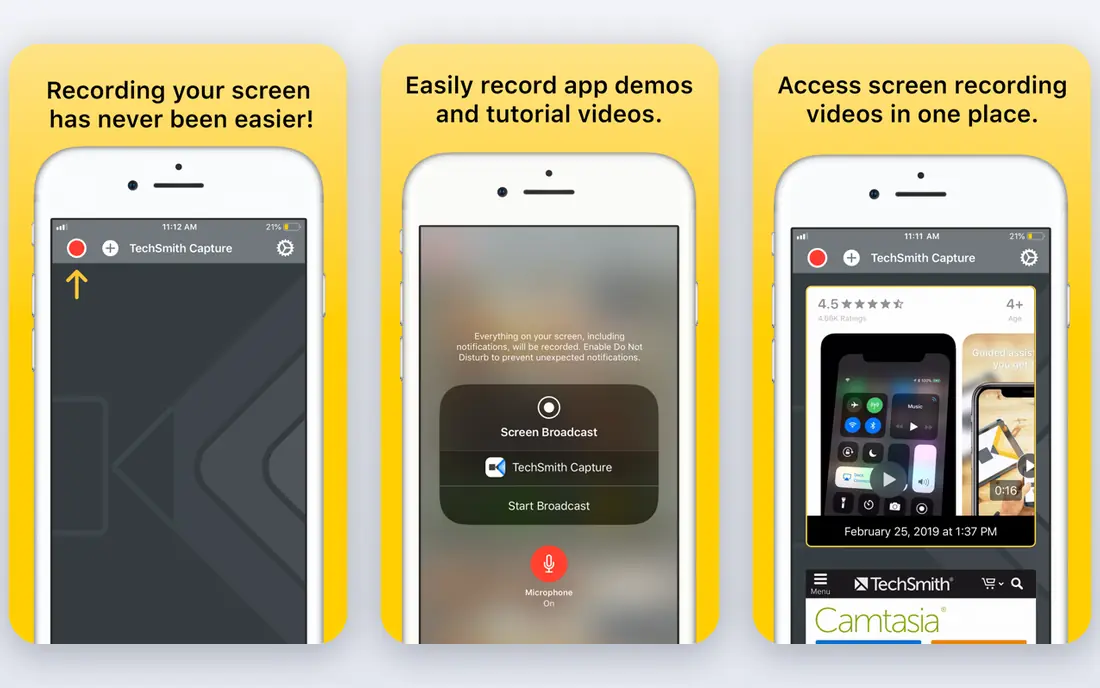
Snagit fits teams writing guides and training material. Its clearest strength is scrolling capture with templates, which matters when you write guides and training material. We compared the official feature pages, pricing pages, and app store listings rather than relying on marketing claims alone, and that comparison is what shapes the view below. The honest catch is yearly subscription. That does not rule it out, but it does shape who should choose it. If you write guides and training material is your main work, Snagit deserves a short trial before you commit, and you should check the current pricing page for the plan that matches your volume. For most readers, the deciding question is simple: does this fit your budget, your device, and your publishing pace? Answer those three points first, and the rest of the comparison gets easier.
- Scrolling capture
- Templates and annotation
- Screen video in one tool
- Yearly subscription
- Heavier than a simple capture app
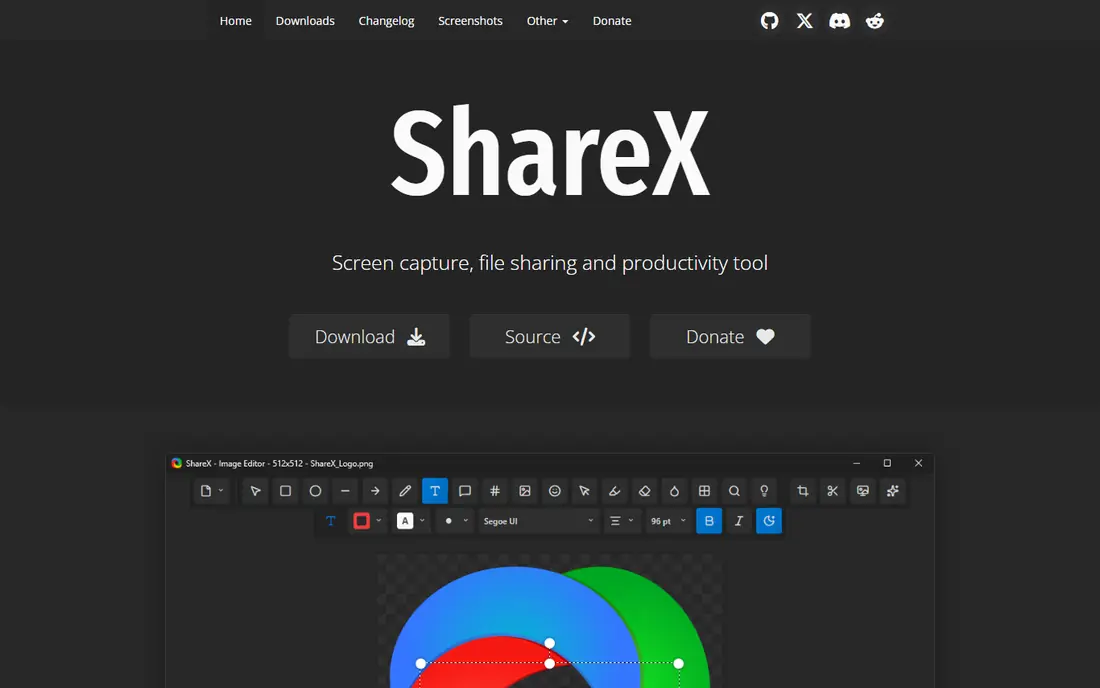
ShareX fits Windows users who want deep capture control. Its clearest strength is capture modes with automation, which matters when you want deep capture control on Windows. We compared the official feature pages, pricing pages, and app store listings rather than relying on marketing claims alone, and that comparison is what shapes the view below. The honest catch is windows only. That does not rule it out, but it does shape who should choose it. If you want deep capture control on Windows is your main work, ShareX deserves a short trial before you commit, and you should check the current pricing page for the plan that matches your volume. Before you pay, check the current plan page and the device requirements. A tool that fits your daily routine will beat a stronger tool that you avoid opening.
- Many capture modes
- Automation and uploads
- OCR and annotation
- Windows only
- Interface feels complex at first

CleanShot X fits Mac users who want polished capture and sharing. Its clearest strength is polished Mac capture with cloud sharing, which matters when you want polished capture on a Mac. We compared the official feature pages, pricing pages, and app store listings rather than relying on marketing claims alone, and that comparison is what shapes the view below. The honest catch is mac only. That does not rule it out, but it does shape who should choose it. If you want polished capture on a Mac is your main work, CleanShot X deserves a short trial before you commit, and you should check the current pricing page for the plan that matches your volume. Try the free option or trial first, with one real project, and judge it on that result. A short, honest test tells you more than a long feature list.
- Polished Mac capture
- Annotation
- Scrolling capture and cloud sharing
- Mac only
- Cloud plan costs extra for larger storage
Greenshot fits Windows users who want simple free capture. Its clearest strength is light, fast capture with simple annotation, which matters when you want simple free capture on Windows. We compared the official feature pages, pricing pages, and app store listings rather than relying on marketing claims alone, and that comparison is what shapes the view below. The honest catch is windows focus. That does not rule it out, but it does shape who should choose it. If you want simple free capture on Windows is your main work, Greenshot deserves a short trial before you commit, and you should check the current pricing page for the plan that matches your volume. For most readers, the deciding question is simple: does this fit your budget, your device, and your publishing pace? Answer those three points first, and the rest of the comparison gets easier.
- Light and fast
- Simple annotation
- Export to files and apps
- Windows focus
- Fewer advanced features than ShareX or Snagit
Lightshot fits users who want the fastest simple capture. Its clearest strength is fast region capture with share links, which matters when you want the fastest simple capture. We compared the official feature pages, pricing pages, and app store listings rather than relying on marketing claims alone, and that comparison is what shapes the view below. The honest catch is limited advanced editing. That does not rule it out, but it does shape who should choose it. If you want the fastest simple capture is your main work, Lightshot deserves a short trial before you commit, and you should check the current pricing page for the plan that matches your volume. Before you pay, check the current plan page and the device requirements. A tool that fits your daily routine will beat a stronger tool that you avoid opening.
- Very fast region capture
- Simple annotation
- Instant share link
- Limited advanced editing
- Shared links need care for private images
Monosnap fits users who want capture plus cloud sharing. Its clearest strength is capture with video and cloud sharing, which matters when you want capture plus cloud sharing. We compared the official feature pages, pricing pages, and app store listings rather than relying on marketing claims alone, and that comparison is what shapes the view below. The honest catch is free plan limits storage. That does not rule it out, but it does shape who should choose it. If you want capture plus cloud sharing is your main work, Monosnap deserves a short trial before you commit, and you should check the current pricing page for the plan that matches your volume. Try the free option or trial first, with one real project, and judge it on that result. A short, honest test tells you more than a long feature list.
- Capture and annotation
- Video and GIF options
- Cloud sharing
- Free plan limits storage
- Paid plans needed for team use
Gyazo fits users who share screenshots by link often. Its clearest strength is instant link sharing, which matters when you share screenshots by link often. We compared the official feature pages, pricing pages, and app store listings rather than relying on marketing claims alone, and that comparison is what shapes the view below. The honest catch is free plan limits. That does not rule it out, but it does shape who should choose it. If you share screenshots by link often is your main work, Gyazo deserves a short trial before you commit, and you should check the current pricing page for the plan that matches your volume. For most readers, the deciding question is simple: does this fit your budget, your device, and your publishing pace? Answer those three points first, and the rest of the comparison gets easier.
- Instant capture links
- GIF and video capture
- Simple sharing
- Free plan limits
- Advanced features need a paid plan
Droplr fits teams that share captures by link daily. Its clearest strength is fast capture with team sharing, which matters when you share captures with a team daily. We compared the official feature pages, pricing pages, and app store listings rather than relying on marketing claims alone, and that comparison is what shapes the view below. The honest catch is paid plans needed for full team use. That does not rule it out, but it does shape who should choose it. If you share captures with a team daily is your main work, Droplr deserves a short trial before you commit, and you should check the current pricing page for the plan that matches your volume. Before you pay, check the current plan page and the device requirements. A tool that fits your daily routine will beat a stronger tool that you avoid opening.
- Fast capture
- Cloud links
- Team sharing and markup
- Paid plans needed for full team use
- Pricing needs a current check
PicPick fits Windows users who want capture plus editing. Its clearest strength is capture with a built-in editor, which matters when you want capture plus editing on Windows. We compared the official feature pages, pricing pages, and app store listings rather than relying on marketing claims alone, and that comparison is what shapes the view below. The honest catch is windows only. That does not rule it out, but it does shape who should choose it. If you want capture plus editing on Windows is your main work, PicPick deserves a short trial before you commit, and you should check the current pricing page for the plan that matches your volume. Try the free option or trial first, with one real project, and judge it on that result. A short, honest test tells you more than a long feature list.
- Capture plus built-in editor
- Color picker and rulers
- Portable option
- Windows only
- Interface feels dated compared with newer Mac tools
How we picked these
We compared official pricing and feature pages, platform support, and the capture and annotation tools each app actually offers. We favored tools that are still offered in October 2026, that explain their license model, and that fit a clear use, from quick sharing to full documentation. We did not claim hands-on testing that did not happen. We weighed the platform limits, the sharing model, and the cost, since a screenshot tool that does not run on your system or that shares private images by default can cause real problems.
How to choose a screenshot tool for your daily work
Start with your platform. Windows users have strong free options, Mac users have strong paid options, and cross-platform teams need a tool that works the same way on both systems. A tool that feels native on your system will get used more often. Next, decide how you share. If you paste into chat and docs, clipboard and file export matter most. If you share by link, check whether links are private, whether they expire, and whether the tool stores your images in the cloud. Never share private screens through a public link. Then check the editing you actually need. Arrows, text, blur, and numbered steps cover most bug reports and guides. Scrolling capture matters for long pages, and OCR matters when you need to copy text from an image. Pay for advanced tools only when you use them weekly. Finally, check privacy before you capture work screens. Blur names, emails, and internal data before sharing, and avoid tools that upload every capture by default if your work involves private data. A simple local capture tool is often the safer pick for sensitive screens.
Frequently asked questions
What is the best screenshot software for Windows?
ShareX suits power users who want free automation, Greenshot suits simple free capture, and Snagit suits documentation teams. Your best pick depends on whether you need automation, simplicity, or templates and video.
What is the best screenshot app for Mac?
CleanShot X is a strong Mac pick for polished capture and sharing, while the built-in Mac screenshot tool covers basic needs for free. Snagit also works on Mac and suits teams that need templates and scrolling capture.
Are free screenshot tools good enough?
For most users, yes. Free tools cover region capture, annotation, and file export well. Paid tools add scrolling capture, templates, cloud sharing, and video, which matter more for documentation teams than for occasional use.
How do I take a scrolling screenshot?
Use a tool with scrolling capture, such as Snagit, ShareX, or CleanShot X, and select the window or page you want to capture. Built-in tools on many systems do not offer scrolling capture, so check that feature before you buy.
Is it safe to share screenshots with links?
It can be safe when links are private and you check what the link exposes. Avoid public links for screens with private data, blur sensitive details first, and use expiring links where the tool offers them.
Sources
See where you really rank - block by block
ProMapRanker scans Google Maps across a grid of your service area. Simple monthly plans from $19, white-label on every plan.
Start freeKeep reading
 zscaler alternatives
Best Zscaler Alternatives in 2026
Looking for zscaler alternatives? We compare 9 SASE and zero trust platforms on architecture, data protection, pricing, and fit for your network and team.
Read → zapier alternatives free
Best Zapier Alternatives Free in 2026
Nine automation tools for zapier alternatives free in 2026, all with genuinely free tiers, plus free plan limits, starting prices and upgrade paths explained.
Read → which platform is best for online reputation
Which Platform Is Best for Online Reputation in 2026
Wondering which platform is best for online reputation? We compare 8 review, listing, and response tools for small and multi-location businesses and agencies.
Read →