 ProMapRanker
Best Screen Sharing Software in 2026

Key takeaways
- Zoom is the most dependable meeting choice for most teams, while Microsoft Teams and Google Meet win if you already pay for those suites.
- TeamViewer, AnyDesk, and Splashtop are the stronger picks for remote support, where control matters more than a meeting link.
- Chrome Remote Desktop and Jitsi Meet are the best free options, with clear limits on support features.
- Check who can join, who can control, and how sessions are recorded before you share a screen with sensitive work on it.
Quick comparison
| Pick | Great for | Pricing starts at | Free tier | |
|---|---|---|---|---|
 Zoom | Reliable meetings | $14.16 per month | Yes | Visit |
 Microsoft Teams | Microsoft 365 teams | $4.00 per month | Yes | Visit |
 Google Meet | Google Workspace teams | $7.00 per month | Yes | Visit |
 TeamViewer | Cross-platform remote support | See website | Yes | Visit |
 AnyDesk | Fast remote support | See website | Yes | Visit |
 Splashtop | Support teams on a budget | $22 per month | Free trial | Visit |
 Webex | Enterprise meetings | See website | Yes | Visit |
 Chrome Remote Desktop | Free personal access | Free | Yes | Visit |
 Jitsi Meet | Free browser meetings | Free | Yes | Visit |
The best screen sharing software
Screen sharing covers two different jobs, and this list keeps them separate. Meeting tools share a screen during a call, while remote support tools let another person control a computer. We included both, and the notes say which job each tool fits, so you do not pay for control features when you only need a meeting link.
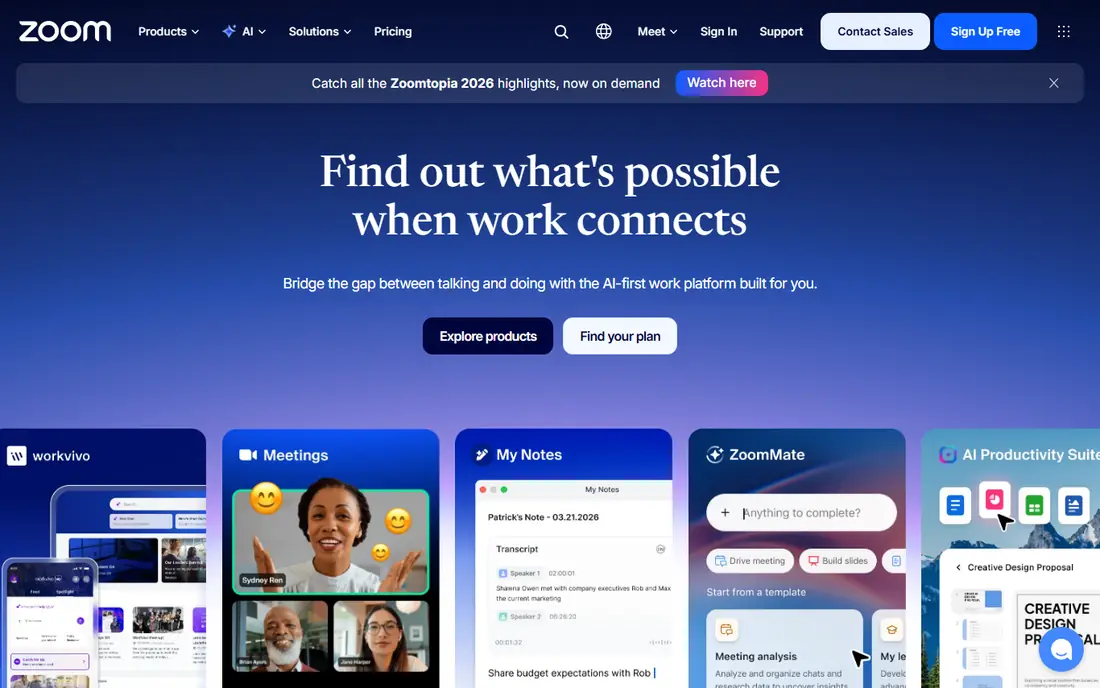
Zoom remains the default meeting tool for a practical reason: the join link works for almost everyone, and screen sharing stays stable on weak connections. The Pro plan at $14.16 per user per month billed annually removes the 40-minute group cap, adds cloud recording, and includes meeting summaries on paid plans. Annotation, whiteboard, and breakout rooms help when a call turns into a working session.
The cost model is the catch. Zoom bills per host, so a team with many hosts pays more than a team with a few, and large meetings, extra storage, and phone features are separate add-ons. If your company already pays for Google Workspace or Microsoft 365, compare the bundled meeting tool first. If meetings are the main job, Zoom is still the dependable pick.
- Dependable video and screen sharing
- Annotation and whiteboard
- Huge integration range
- Free group meetings cap at 40 minutes
- Add-ons can raise the bill
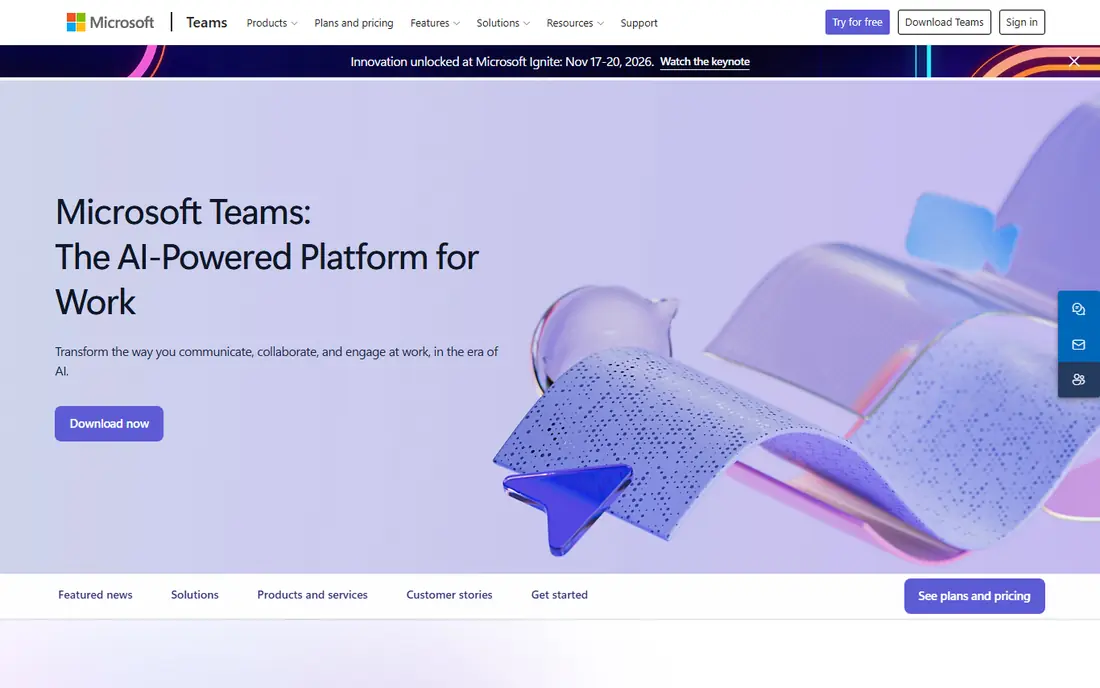
Microsoft Teams makes the most sense when your files, chat, and calendar already live in Microsoft 365. Screen sharing sits inside that workflow, so you can share a document, annotate it, and keep the chat and recording with the team afterward. Teams Essentials at $4.00 per user per month is the standalone entry point, while Microsoft 365 Business Basic at $7.00 per month adds the wider suite.
The app can feel complex for a simple call, and performance on a low-spec machine is a fair complaint. For a team that already uses Word, Excel, and OneDrive daily, those costs are outweighed by having one place for meetings, files, and chat. For a team that only needs occasional calls, a lighter tool may be a better fit.
- Deep Office and OneDrive integration
- Chat stays with the meeting
- Whiteboard included
- Can feel heavy on older machines
- Best value needs a Microsoft 365 plan
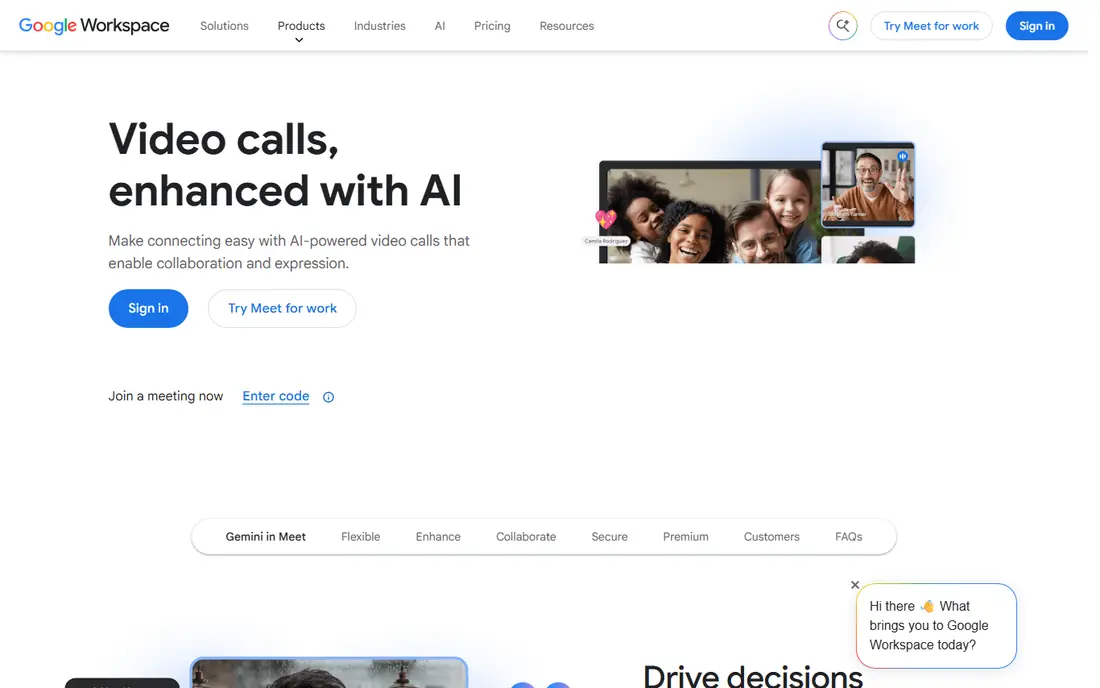
Google Meet is the simplest meeting tool for Google Workspace teams. Guests join from a browser link, captions help in noisy rooms and for accessibility, and recordings save to Drive on Business Standard and above. Business Starter at $7.00 per user per month is the entry Workspace plan that includes Meet, and the free tier allows 60-minute meetings for groups of three or more.
Meet has fewer extras than Zoom, with less room for large webinar-style setups and fewer advanced meeting controls. That simplicity is a strength for everyday team calls and classes, and a limit for events that need registration, polling, and complex breakout work. If your team already uses Gmail and Drive, Meet is the low-friction choice.
- Browser-based and easy to join
- Live captions
- Drive integration for recordings
- Fewer meeting extras than Zoom
- Paid features depend on the Workspace plan
TeamViewer is built for support, not only for meetings. A technician can join a computer with the user present, or connect to an unattended machine, transfer files, and chat during the session. That range is why IT teams and support desks still use it, even though newer meeting tools handle simple calls well. The free tier covers personal, non-commercial use, which suits helping family or a friend.
Pricing is the part to check on the vendor site before you budget, since published figures vary by region and by plan, with recent listings showing different monthly rates for different tiers. Commercial use detection can also flag a free account if the pattern looks like business use. For a business, buy the right plan up front rather than testing the free tier at work.
- Works across Windows, Mac, Linux, iOS, and Android
- Attended and unattended access
- File transfer
- Paid pricing varies by region and plan
- Free use is limited to personal, non-commercial use
AnyDesk earns its place for speed. Its codec keeps a remote screen responsive on a slow connection, which matters when you are fixing a problem on a distant machine or guiding a user through a task. The app runs on Windows, Mac, Linux, iOS, and Android, supports unattended access, and includes drag-and-drop file transfer. The free tier covers private, non-commercial use.
The interface is more technical than Zoom or Meet, and paid pricing varies by region, so check the current plan page for your country. Small support teams often find AnyDesk a good middle ground: faster than a meeting tool for control work, and less heavy than a full enterprise support suite.
- Lightweight and fast on slow connections
- Cross-platform
- Unattended access and file transfer
- Paid pricing varies by region
- Interface is more technical than a meeting app
Splashtop SOS at $22 per month billed annually is a value pick for support technicians who need attended sessions without an enterprise bill. Technicians can connect to a user device, chat, transfer files, and handle several sessions, while business plans add unattended access for office machines. That split lets a small team buy only the support type it actually uses.
The product range can confuse a first-time buyer, since personal access, business access, and SOS are separate products with different limits. Read the plan page carefully, and trial the exact plan you intend to buy. For a support desk with a clear attended-support job, Splashtop is hard to beat on price.
- Good value for support technicians
- SOS plans for attended support
- Cross-platform clients
- Personal and business plans differ sharply
- Some features need higher tiers
Webex suits larger organizations that need strong security controls, compliance features, and support for Cisco room hardware. Screen sharing, whiteboard, messaging, and recording sit in one suite, and the free plan allows meetings up to 100 people with a 40-minute cap. For a company with strict IT policies, those controls matter more than a slightly simpler join flow.
Smaller teams may find Webex heavier than Zoom or Meet, and paid pricing is often quoted rather than listed as a single monthly figure, so check the vendor site for your case. If your IT team already uses Cisco hardware or needs enterprise compliance, Webex is a serious contender. If you only need weekly team calls, a simpler tool will be faster to adopt.
- Strong security and compliance options
- Whiteboard and messaging
- Cisco hardware support
- Interface can feel complex
- Paid pricing often needs a sales quote
Chrome Remote Desktop is the free answer to a simple question: how do I reach my own computer from elsewhere, or help a family member for a few minutes? You install the extension, set a PIN for your own machines, or share a one-time code for a support session, and you are connected from a browser. There is no subscription, no trial clock, and no feature gate for basic access.
It lacks the support-desk tools that TeamViewer or Splashtop provide, such as session logging, multi-technician queues, and detailed permission controls. For personal use and occasional help, that is fine. For a business support desk, use a paid support tool and keep Chrome Remote Desktop for your own machines.
- Completely free for personal use
- Simple browser setup
- Works across major platforms
- No advanced support desk features
- Needs a Google account and Chrome
Jitsi Meet is the free, open-source meeting option for readers who want screen sharing without an account or a bill. You create a room in the browser, share a link, and share a screen, with chat and basic meeting controls included. Schools, community groups, and privacy-minded teams often use it for that reason, and self-hosting is an option for organizations with IT skills.
The trade-off is that call quality depends on the server, and the free public service does not match Zoom or Meet for large meetings or business integrations. For small, informal calls and classes, it is a strong free choice. For a large company meeting, use a paid tool with guaranteed capacity and support.
- No account needed for basic meetings
- Browser-based screen sharing
- Open source
- Performance depends on the server you use
- Fewer business integrations
How we picked these
We compared official feature pages, pricing pages, and public documentation, and we favored tools that are live and working in October 2026. We split the list between meeting tools and remote support tools, because a tool that is excellent for one job can be a poor fit for the other. We did not claim hands-on testing that did not happen, and we based the notes on published limits, platforms, and prices.
We also flagged pricing uncertainty where vendor figures vary by region or plan. TeamViewer, AnyDesk, and Webex fall in that group, and the field lines say See website for those cases rather than repeating a figure that may not match your region. Check the vendor page for your country before you budget.
How to choose the right screen sharing tool
Start with the job. If you need a meeting, pick from Zoom, Teams, Meet, Webex, or Jitsi Meet. If you need to control another computer, pick from TeamViewer, AnyDesk, Splashtop, or Chrome Remote Desktop for personal use. Mixing those jobs in one purchase usually means paying for features you will not use.
Next, check the suite you already pay for. Teams is the natural pick for Microsoft 365 users, and Meet is the natural pick for Google Workspace users. Adding Zoom on top of either suite only makes sense when meetings are the core job and you need its larger feature set or its wider guest familiarity.
Then test the limits that matter in real calls. Check the free meeting length, the participant cap, whether guests need an account, and whether screen sharing includes annotation or remote control. For support work, check unattended access, file transfer, session logging, and two-factor protection. Those details decide daily usefulness more than a feature list.
Finally, protect the session. Share only the window you need, not your full desktop, when sensitive files are open. Use a waiting room or a one-time code for support sessions, and turn on two-factor protection for unattended access. A screen share shows more than you intend if you leave mail, messages, or passwords visible.
Frequently asked questions
What is the best free screen sharing software?
Chrome Remote Desktop is the best free choice for personal remote access, while Jitsi Meet is the best free choice for browser meetings. Zoom, Teams, and Meet also have free tiers for meetings, with time caps on group calls. For business support work, a paid tool with session controls is a safer choice than a free personal tool.
What is the best screen sharing app for teaching?
Zoom and Google Meet are the strongest teaching picks, since both handle larger groups, captions, and recording. Zoom adds breakout rooms and whiteboard tools that help for group work, while Meet is simpler for a class already on Google Workspace. Jitsi Meet is a useful free option for small, informal classes.
What is the best screen sharing tool for remote support?
TeamViewer and AnyDesk are the leading cross-platform support tools, with Splashtop SOS as the value pick for technicians. All three support attended sessions, file transfer, and unattended access on paid plans. Chrome Remote Desktop is fine for occasional personal help, but it lacks support-desk controls.
Do guests need an account to join a screen share?
It depends on the tool. Zoom, Meet, Webex, and Jitsi Meet generally let guests join from a link without a host account, although some hosts can require sign-in. TeamViewer and AnyDesk support sessions need the support app or a one-time code on the guest side. Check the host settings before you send a link to a non-technical guest.
Is screen sharing safe?
It can be safe when you control what you share and who can join. Share a single window instead of your full screen, use a waiting room or a code, and close sensitive apps before you start. For unattended access, use a strong PIN or password plus two-factor protection, and review access regularly.
Can I share a screen from a phone?
Yes, most tools on this list support mobile screen sharing, including Zoom, Teams, Meet, TeamViewer, and AnyDesk. Mobile sharing usually needs an app permission and may be limited by the phone operating system. Test it once before an important call, since phone sharing can look different from desktop sharing.
Sources
See where you really rank - block by block
ProMapRanker scans Google Maps across a grid of your service area. Simple monthly plans from $19, white-label on every plan.
Start freeKeep reading
 zoho inventory alternatives
6 Alternatives to Zoho Inventory, Compared on Price and Fit
Zoho Inventory alternatives: 6 tools compared on price, free plans and fit. Katana leads the list for manufacturers. Fit and flaws are laid out for each entry.
Read → zoho crm alternatives
Best Zoho CRM Alternatives (2026)
Need Zoho CRM alternatives? We compare 7 tools on cost, free access and who each suits. Every pick gets a straight assessment. Built for quick decisions.
Read → zelle alternatives
Best Zelle Alternatives in 2026
Compare the best Zelle alternatives for sending money to friends, paying sellers and moving funds abroad, with honest notes on fees, speed and safety in 2026.
Read →