 ProMapRanker
Best Screen Recording Software in 2026


Free recording and streaming without limits · Pricing starts at: Free
Key takeaways
- OBS Studio is the best free screen recording software for most people who want full control and no watermark or time limit.
- Loom is the fastest choice for short work videos, because recording ends with a shareable link rather than a file to upload.
- Camtasia and ScreenFlow are the picks when recording is only half the job and real editing matters just as much.
- ScreenPal and Screencastify give schools and small teams a low-cost middle ground between free tools and full editors.
- Check the free plan limits first, since video length, watermark, and storage caps are where most free recorders differ.
Quick comparison
| Pick | Great for | Pricing starts at | Free tier | |
|---|---|---|---|---|
| OBS Studio | Free recording and streaming without limits | Free | Yes | Visit |
 Loom Loom | Quick team video messages | $15 per user per month | Yes | Visit |
 Camtasia Camtasia | Polished tutorials with built-in editing | $179.88 per year | Free trial | Visit |
 ScreenPal ScreenPal | Affordable recording for teachers and teams | $4 per month | Yes | Visit |
 ScreenFlow ScreenFlow | Mac creators who record and edit | $169 one-time | Free trial | Visit |
 Bandicam Bandicam | High frame rate game capture | See website | Free trial | Visit |
 ShareX ShareX | Free capture for technical Windows users | Free | Yes | Visit |
 Screencastify Screencastify | Browser recording for classrooms | $7 per user per month | Yes | Visit |
 Movavi Screen Recorder Movavi Screen Recorder | Simple everyday recording | See website | Free trial | Visit |
The best screen recording software
We compared official pricing pages, feature lists, and app store listings, weighing recording quality, editing, sharing, platform support, and what the free version actually allows. The right tool depends less on brand and more on what happens after you press stop.
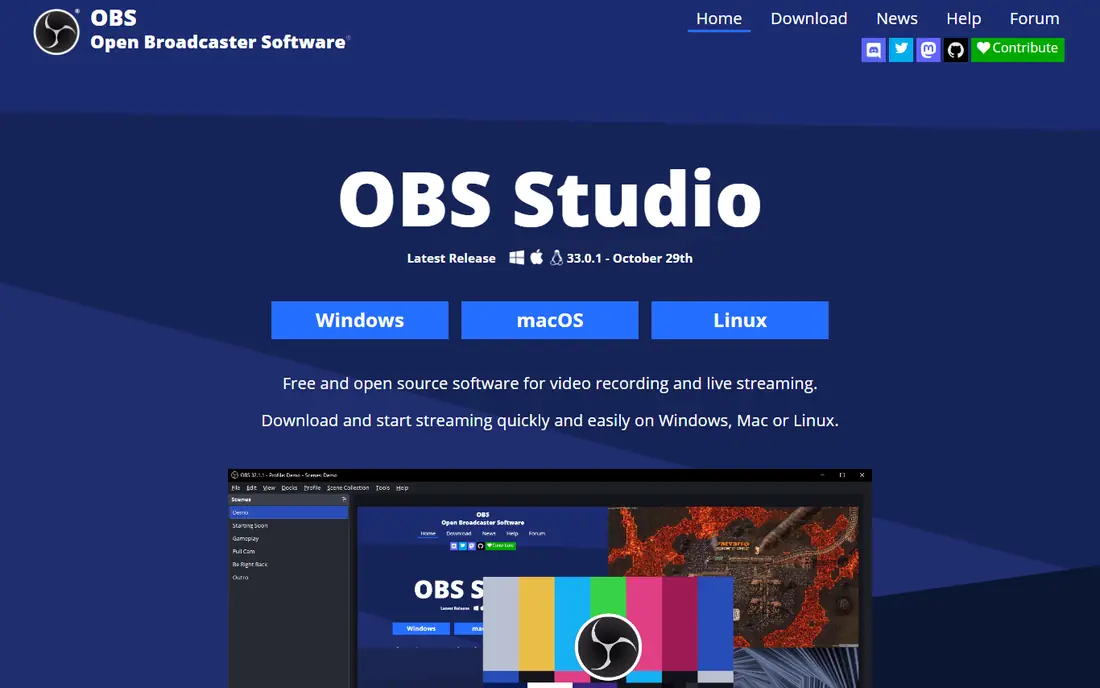
OBS Studio remains the answer when someone asks for the best free screen recording software, and it has held that spot for years. It captures your screen, webcam, audio sources, and capture cards, mixes them into scenes, and records or streams at whatever quality your hardware can handle. There is no paid tier waiting behind a feature, and exports carry no watermark.
The trade-off is that OBS is a production tool, not a messaging tool. Setting up your first scene takes some learning, and when you finish you get a video file, not a share link. If you want to record a polished tutorial or stream gameplay with overlays, nothing free matches it. If you want to send a two-minute update to a coworker, Loom will get you there faster.
- Completely free and open source
- No watermark or time limit
- Scenes, sources, and plugins for advanced setups
- Steep learning curve for beginners
- No built-in editor or cloud sharing
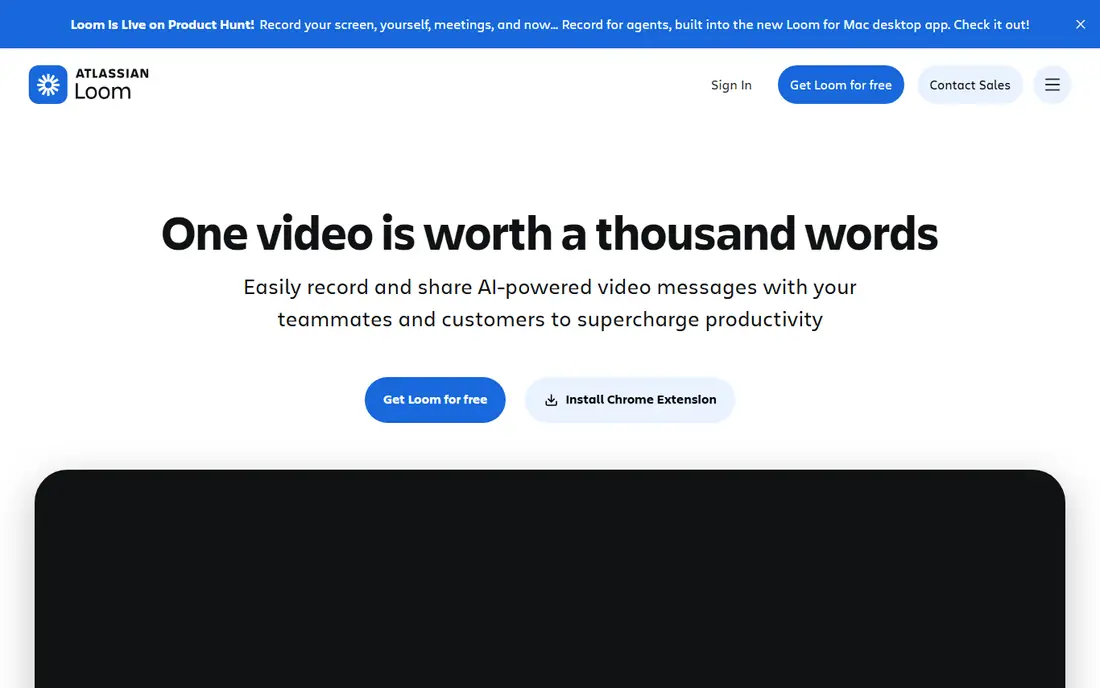
Loom wins the speed test for workplace video. You record your screen, webcam, or both, and the result lives at a link you can paste into chat or email, with comments and reactions attached to the video itself. That loop, record, link, reply, is why so many remote teams use it for feedback, bug reports, and short walkthroughs.
The free Starter plan is usable but tight, with 25 videos per person at 5 minutes each in 720p. Business, at 15 dollars per user per month billed annually, removes those limits and adds 4K recording and branding control. Teams above a handful of people should check how tiered billing applies to their headcount before budgeting from the per-user figure alone.
- Record and share by link in minutes
- Viewer comments and reactions
- Transcripts and AI summaries on paid plans
- Free plan limits videos to 25 per person at 5 minutes each
- Paid pricing is tiered for larger teams
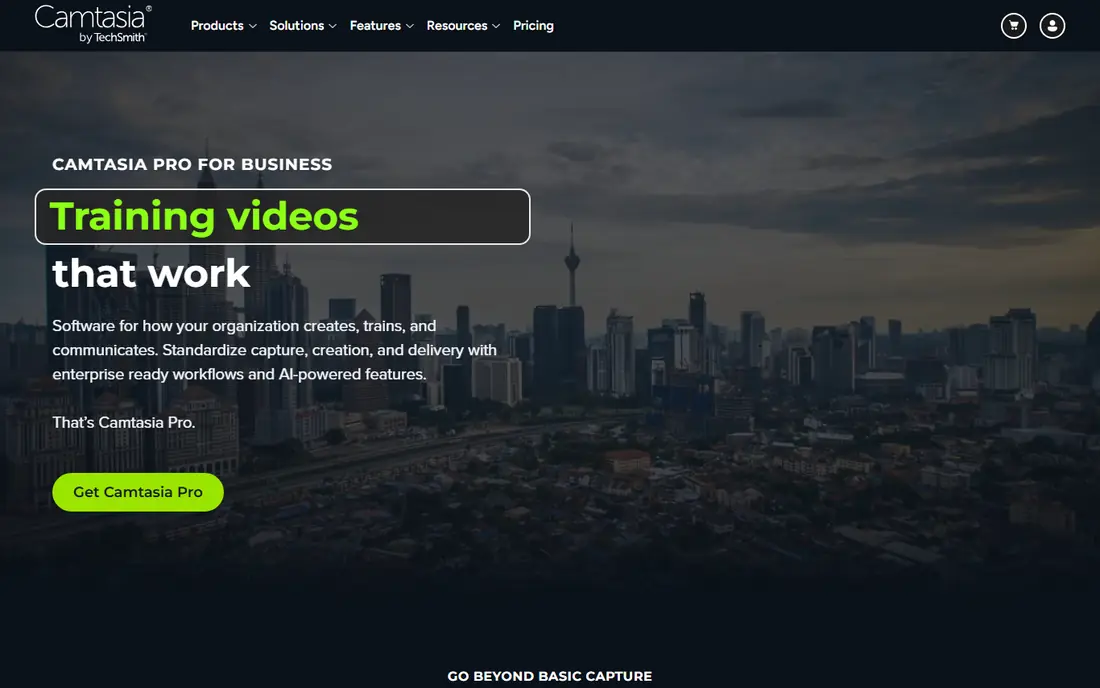
Camtasia is the tool to pick when a tutorial needs to look finished, not just recorded. It pairs a capable recorder with a real editing timeline, so you can cut mistakes, add zooms and callouts, and export directly without moving files between apps. Your narration, screen, and webcam stay on separate tracks, which makes fixing a slip later much simpler.
The cost is the main barrier. The yearly plan starts at 179.88 dollars per user, and the free version exports with a watermark, so it works as a trial rather than a permanent free tool. TechSmith also recommends at least 8GB of RAM, with 16GB preferred. For teams producing training videos weekly, the bundled editing is worth it. For a single quick clip, it is more tool than you need.
- Recorder plus full multi-track editor in one app
- Callouts, zooms, and templates built for teaching
- Separate tracks for screen, webcam, and narration
- Free version exports with a watermark
- Heavier system requirements than lightweight recorders
ScreenPal, formerly Screencast-O-Matic, is the budget pick that still covers the full workflow. The free plan allows unlimited videos with a 15-minute limit per recording on desktop, plus basic editing, hosting, and a small number of video quizzes. That is a generous free tier compared with most rivals, and it suits teachers and small teams well.
Paid plans start with Deluxe at 4 dollars per month billed annually, which removes the recording limit and adds the full editor and captions. Max, at 10 dollars per month billed annually, adds AI captions and analytics. ScreenPal will not beat Camtasia for heavy editing or Loom for pure speed, but for the price it covers more ground than either free plan alone.
- Free plan with unlimited videos at 15 minutes each
- Built-in editor, hosting, and quizzes
- Low paid starting price
- Advanced AI features need the higher Max plan
- Interface feels less polished than Loom for pure messaging
ScreenFlow is the Mac creator pick for a reason that has little to do with specs. It feels built for Mac workflows, from capture through editing to publishing, and it handles screen, webcam, and audio on a timeline that stays manageable for solo creators. Recent pricing lists it at 169 dollars as a one-time purchase, which appeals to creators who dislike subscriptions.
The limits are clear. There is no Windows version, so mixed-platform teams need another tool. The trial also exports with a watermark, so budget for the purchase if you plan to publish. If you work on a Mac and make tutorials, demos, or course lessons regularly, ScreenFlow is the most pleasant recorder and editor combination on this list.
- Recorder and editor designed for Mac
- Strong motion, annotation, and publishing tools
- One-time purchase rather than a subscription
- Mac only, with no Windows version
- Trial exports carry a watermark
Bandicam has survived for years by doing one job well, which is capturing games and demanding apps without dragging performance down. It supports hardware encoding, records at high frame rates, and keeps file sizes manageable for long sessions. Game creators and anyone recording 3D apps will notice the difference against a browser-based recorder.
Windows is the only platform, and the free version is a trial in practice, with a recording limit and a watermark on exports. Check the current yearly or one-time price on the vendor site before you buy, since Bandicam has sold both models over time. For pure gameplay capture on Windows, it remains a dependable specialist pick.
- Strong performance for game and app capture
- Hardware encoding support
- Long history as a Windows recorder
- Windows only
- Free version limits recordings and adds a watermark
ShareX is the tool technical users install and then never replace. It is free and open source, and it covers screenshots, annotated captures, GIF recording, and screen video, with a long list of upload destinations and automated workflows. If you file bug reports, write docs, or answer support questions all day, that combination saves real time.
The interface is the price you pay. ShareX packs many options into dense menus, and first-time setup takes patience. It is also Windows only, so Mac users need to look elsewhere. Once configured, though, it is one of the most capable free tools in this roundup, and it costs nothing to keep.
- Completely free and open source
- Screenshots, GIF capture, and screen recording in one tool
- Many upload and workflow options
- Windows only
- Interface is dense and takes time to configure
Screencastify suits schools and teams that live in the browser. It runs as a Chrome extension, records a tab, desktop, or webcam, and fits neatly into Google Classroom workflows, which is why it appears so often in education lists. Teachers can record a lesson, add simple edits, and share it without asking students to install desktop software.
The paid plan starts at 7 dollars per user per month billed annually. The free plan is useful for trying the tool, but it carries limits that push regular users toward paid. If your team works mainly outside Chrome or needs heavy editing, a desktop recorder will serve you better. Inside a Chromebook classroom, Screencastify is hard to beat for simplicity.
- Runs in the browser with no heavy install
- Built for Chromebooks and Google Classroom
- Simple editor and sharing
- Best experience is tied to Chrome
- Free plan has recording and feature limits
Movavi Screen Recorder is the pick for people who want to press record and be done. The interface is plain, the controls are obvious, and scheduled recording lets you capture a webinar or meeting without sitting at the keyboard. Simple drawing and editing tools cover the small fixes most casual recordings need.
The trial is limited, with watermarked exports, so treat it as a test drive rather than a free plan. Pricing has varied by plan and region, so check the current Movavi page for the plan that fits you before deciding. For everyday, low-fuss recording on Windows or Mac, Movavi earns its place through simplicity rather than depth.
- Very easy to learn
- Scheduled recording and simple editing tools
- Clean interface for casual users
- Trial exports carry a watermark
- Pricing varies by plan and region, so check the vendor page
How we picked these
We compared official feature pages, pricing pages, and app store listings, plus public user reviews, for recorders that are actively maintained in 2026. We favored tools with a clear free plan or trial, honest limits, and a distinct job, whether that is free capture, fast sharing, full editing, or classroom use. Tools that were discontinued, or whose pricing we could not trace to the vendor, were left out.
How to choose the right recorder
Start with what happens after recording, because that decides most purchases. A file you edit yourself points to OBS, Camtasia, or ScreenFlow. A link you send to coworkers points to Loom or ScreenPal. A lesson you share with a class points to Screencastify or ScreenPal.
Check free limits before you rely on them
Free plans differ more than feature lists suggest. Look at maximum video length, number of videos, watermark rules, storage, and export quality. A free plan that caps videos at five minutes is fine for bug reports and poor for lectures. Test the free version with a real recording before you build a workflow around it.
Match the tool to your computer
Mac-only tools, Windows-only tools, and browser tools all appear here for a reason. ScreenFlow and ShareX are platform-specific, while OBS, Loom, and Movavi cover more systems. Check your operating system and hardware first, especially for Camtasia, which asks for more memory than a lightweight recorder.
Editing needs decide the budget
If you cut mistakes, add captions, and brand your videos, budget for Camtasia or ScreenFlow rather than fighting a free recorder plus a separate editor. If you rarely edit, save the money and pick Loom, ScreenPal, or OBS. Paying for editing you never use is the most common waste in this category.
Frequently asked questions
What is the best screen recording software?
OBS Studio is the best free screen recording software, with no watermark or time limit and strong streaming support. Loom is the best screen recording app for quick team messages, because it turns a recording into a shareable link. Camtasia is the best choice when you also need serious editing, while ScreenFlow is the top recording software for Mac creators.
What is the best free screen recording software?
OBS Studio and ShareX are the strongest fully free options, with OBS better for video and streaming and ShareX better for screenshots plus short captures. ScreenPal also offers a generous free plan, with unlimited videos at 15 minutes each. Free plans from Loom and Screencastify are useful for trying the tools, but their limits push regular users toward paid plans.
What is the best screen recording app for tutorials?
Camtasia is our pick for polished tutorials, thanks to its multi-track editor, callouts, and templates. ScreenFlow is the best tutorial tool on Mac, and Screencastify works well for short classroom lessons in a browser. For a free tutorial workflow, record in OBS Studio and edit in a separate free editor, accepting the extra step.
Does screen recording software work on Mac and Windows?
Most tools here cover both, including OBS Studio, Loom, Camtasia, ScreenPal, and Movavi. ScreenFlow and Bandicam are exceptions, with ScreenFlow for Mac only and Bandicam for Windows only. ShareX is also Windows only. Always check the vendor download page for your system before you buy.
Can I record my screen and webcam at the same time?
Yes, most tools on this list support picture-in-picture webcam recording, including OBS Studio, Loom, Camtasia, ScreenFlow, and ScreenPal. OBS gives the most control over layout, while Loom and ScreenPal make the webcam bubble quick to position. Check the free plan limits, since some tools restrict webcam or resolution on free tiers.
Is there a best app for screen recording on a Chromebook?
Screencastify is the most practical pick for Chromebooks, since it runs in the browser and fits Google Classroom. Loom also offers a browser and Chrome extension workflow that works on Chromebooks. Desktop-only tools such as OBS Studio and ScreenFlow are not a fit for most Chromebook setups.
Sources
- https://rankite.com/blog/best-screen-recording-software
- https://rankite.com/blog/best-screen-recording-software-for-tutorials
- https://rankite.com/blog/top-recording-software-for-pc
- https://www.trupeer.ai/blog/best-screen-recording-softwares
- https://iconpolls.com/blogs/top-10-best-screen-recording-software-for-online-course-creators-in-2026
- https://prospeo.io/s/loom-pricing-reviews-pros-and-cons
- https://toolquestor.com/vs/obs-studio-vs-screen-studio
See where you really rank - block by block
ProMapRanker scans Google Maps across a grid of your service area. Simple monthly plans from $19, white-label on every plan.
Start freeKeep reading
 zendesk alternatives
Best Zendesk Alternatives in 2026
Compare the best Zendesk alternatives in 2026, from budget help desks to AI-first support tools, with current pricing, free plans, and honest trade-offs.
Read → wordpress alternatives
Best WordPress Alternatives in 2026
Looking for the best WordPress alternatives? We compare 8 free and paid options for blogs, business sites, stores, and developer-led projects in 2026.
Read → which real estate company has the best training
Best Real Estate Company Training in 2026
Compare which real estate company has the best training, from Keller Williams and eXp to Compass and Coldwell Banker, by program, mentor, and fit in 2026.
Read →