 ProMapRanker
Best Screen Capture App in 2026

Key takeaways
- Snagit is the best all round capture app for screenshots, annotation, and short videos.
- Loom and ScreenPal suit teams that share quick video messages by link.
- OBS Studio and ShareX offer full power at no cost, with a steeper learning curve.
- Camtasia and ScreenFlow suit creators who need real editing, not just recording.
- Pick by output first: a still image, a short clip, or a polished tutorial each points to a different tool.
Quick comparison
| Pick | Great for | Pricing starts at | Free tier | |
|---|---|---|---|---|
 Snagit | Screenshots plus short videos | $39 per year | Free trial | Visit |
 Loom | Quick video messages by link | Free | Yes | Visit |
 OBS Studio | Free recording and streaming | Free | Yes | Visit |
 ShareX | Free Windows capture | Free | Yes | Visit |
 Camtasia | Tutorials with full editing | $179.88 per year | Free trial | Visit |
 ScreenPal | Affordable recording and hosting | $4 per month | Yes | Visit |
 Screencastify | Browser based classroom capture | Free | Yes | Visit |
 ScreenFlow | Mac tutorials and editing | See website | Free trial | Visit |
 Greenshot | Lightweight Windows screenshots | Free | Yes | Visit |
 CleanShot X | Fast Mac screenshots and video | See website | Free trial | Visit |
The best screen capture apps
These are the best screen capture apps and tools for work, teaching, and support. We compared capture options, annotation, editing, sharing, and price, with a mix of free and paid tools.
Snagit is our pick for most office users because it handles the daily capture job so well. Take a region, a window, or a scrolling page, add arrows, text, and blur, then share the image by link or file. Short video capture covers quick how to clips without opening a separate editor.
It is not a full video editor, so long tutorials with cuts and titles need Camtasia or ScreenFlow. For support tickets, documentation, and chat messages, Snagit saves time every day and keeps captures clear and easy to read.
- Strong screenshot annotation
- Simple video capture
- Scrolling capture for long pages
- Full video editing is limited
- Paid plan needed after the trial

Loom is built for async messages. Record your screen with a webcam bubble, stop, and share a link that opens in a browser. Viewers can comment at a time stamp and reply with video, which makes feedback faster than a long email thread. The free Starter plan covers occasional use, with limits on video count and length.
Teams that record daily will need a paid plan, starting at about 15 dollars per user per month on annual billing. If your main need is quick explanations rather than polished tutorials, Loom is the fastest route from record to shared link.
- Record screen and webcam fast
- Share by link
- Viewer comments and reactions
- Free plan limits videos and length
- Recordings live on Loom servers
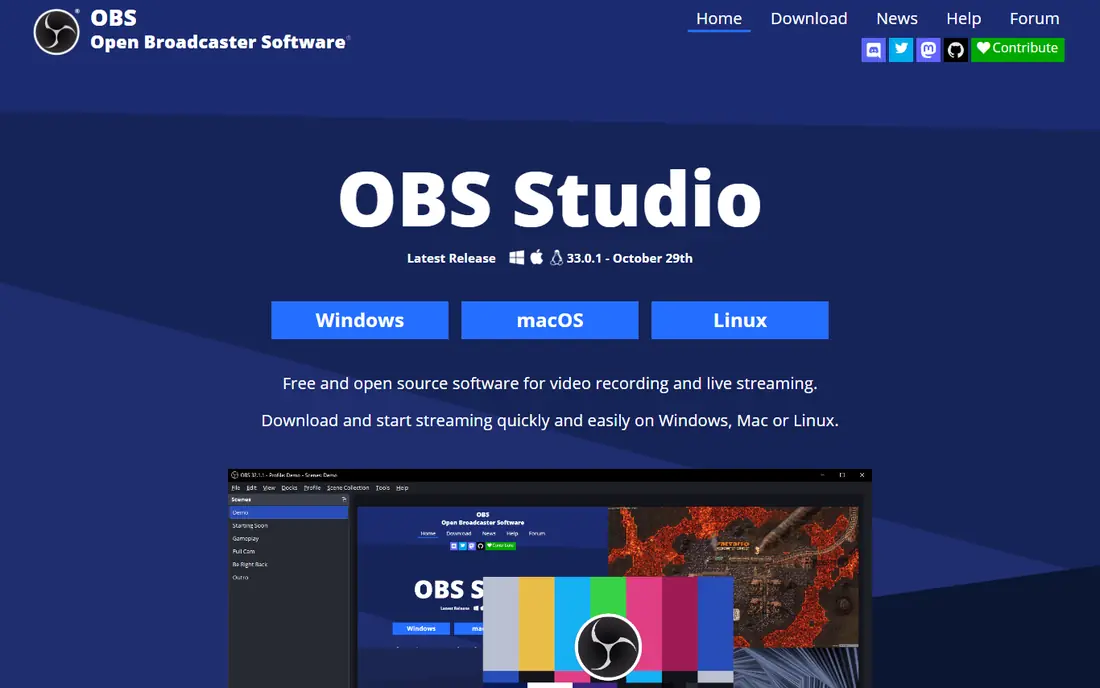
OBS Studio is the free power tool in this list. You can record multiple sources, mix audio, build scenes, and stream live, all without paying. That depth suits creators, gamers, and presenters who want control over layout, audio, and output quality.
Beginners should expect a learning curve. Scenes, sources, and audio tracks take time to set up, and sharing means exporting a file yourself. If you record often and want full control at zero cost, OBS rewards the setup effort.
- Free and open source
- Multi source scenes
- Live streaming to major platforms
- Steep setup for beginners
- No built in cloud sharing or simple editor
ShareX is the best free Windows capture tool for users who want speed and options. It covers regions, windows, scrolling pages, and screen recording, plus custom workflows that can upload, copy, or annotate in one step. There is no watermark and no subscription.
The interface is functional rather than friendly, and Mac users need another tool. For Windows support staff, developers, and writers who capture all day, ShareX is hard to beat at any price, because the price is zero.
- Free and open source
- Many capture modes
- Fast uploads and workflows
- Windows only
- Interface feels technical
- Video editing is basic
Camtasia suits teams that produce training and courses on a regular basis. Record screen, webcam, and audio on separate tracks, then cut mistakes, add zooms, callouts, and captions in the same app. That single workflow saves the file juggling that comes with a separate recorder and editor.
The Essentials plan starts at 179.88 dollars per year, and the app asks for solid hardware for smooth editing. If you make a tutorial once a month or less, a lighter recorder may be enough. If you publish weekly training, Camtasia pays for itself in editing time.
- Recorder plus multi track editor
- Callouts, zooms, and captions
- Templates for courses
- Higher price
- Needs decent hardware
- Free version exports with a watermark
ScreenPal, formerly Screencast-O-Matic, offers a low cost path to recording, light editing, and hosting. The Solo Deluxe plan starts at 4 dollars per month on annual billing, and the free plan covers short recordings with basic editing. Sharing by link, embed, or file covers classrooms, support, and small teams.
It will not match Camtasia for polished course production. For everyday explainers, feedback videos, and student work, ScreenPal gives a good balance of price, simplicity, and hosting without a steep learning curve.
- Low priced Solo plan
- Recording, editing, and hosting in one place
- Easy sharing
- Editor is lighter than Camtasia
- Free plan limits recording length and hosting
Screencastify is a practical pick for teachers and Chromebook users. Install the browser extension, record a tab, a window, or a webcam, then share to Google Drive or by link. That browser first flow suits schools and teams that already work in Google Workspace.
The free plan limits recording length and the number of videos, and paid plans start at 7 dollars per user per month on annual billing. For quick lessons and student feedback, Screencastify is faster to start than a desktop editor.
- Runs in Chrome with no heavy install
- Good for classrooms
- Simple sharing to Drive
- Best inside Chrome
- Free plan limits videos and length
- Editing is basic
ScreenFlow is the Mac counterpart to Camtasia for creators who want polished tutorials. It records screen, webcam, and audio cleanly, then offers a timeline editor with titles, transitions, and effects. Publishing to common video formats and platforms is straightforward from inside the app.
Windows users need another tool, and the price sits above simple recorders. For Mac based trainers, course creators, and product teams, ScreenFlow offers a refined editor that stays fast on Apple hardware.
- Strong Mac editor
- Smooth screen and webcam recording
- Good publishing options
- Mac only
- Price is higher than light recorders
- Learning curve for full editing
Greenshot is a small, free tool that does one job well: screenshots. Press a hotkey, capture a region or window, annotate quickly, and save or copy the result. It uses few resources and stays out of the way, which suits users who capture images many times a day.
It is not a video tool, so pair it with Loom or OBS when you need clips. For pure screenshot work on Windows, Greenshot is faster and lighter than opening a full editor for every image.
- Free
- Fast region and window capture
- Simple annotation and export
- Windows focused
- Video capture is not its strength
- Fewer sharing integrations
CleanShot X is a favorite among Mac users who want capture to feel instant. It handles screenshots, scrolling pages, short videos, and annotation in a clean overlay, then shares by link or file. The workflow feels quicker than system tools for users who capture often.
It is Mac only, and full use requires payment, with pricing shown on the vendor site. For Mac professionals who capture daily and want a polished, fast tool, CleanShot X is worth the cost over built in capture alone.
- Fast Mac capture
- Scrolling capture
- Annotation and cloud sharing built in
- Mac only
- Subscription or one time purchase needed for full use
How we picked these
We compared official feature pages, pricing pages, and platform support for each tool, and we favored tools that are actively maintained in 2026 and clearly state their capture, editing, and sharing limits. We mixed free and paid tools because the best screen capture app depends on whether you need a still image, a quick clip, or a full tutorial. We left out tools with unclear pricing or discontinued support.
How to choose a screen capture tool
Start with the output you need most. If you send annotated screenshots, pick Snagit, ShareX, Greenshot, or CleanShot X. If you send short video messages, pick Loom or ScreenPal. If you publish tutorials, pick Camtasia or ScreenFlow. Buying a tutorial editor for screenshots wastes money, and buying a screenshot tool for courses wastes editing time.
Next, check audio and sharing. A good microphone matters more than a higher resolution for most viewers, so test mic levels before a real recording. Check where files live after capture, whether sharing needs a login, and whether your audience can view without installing software. A link that opens in a browser usually gets more views than a file download.
Finally, test the free plan with real work. Record a five minute explanation, annotate a screenshot, and share both with a colleague. Note any watermark, length limit, or export step that slows you down. The tool that survives that real test is the right one, even if another tool has a longer feature list.
Frequently asked questions
What is the best screen capture app for Windows?
ShareX is the best free Windows option, while Snagit is the best paid all round option for screenshots and short videos. ShareX offers more capture modes at no cost, while Snagit offers a friendlier editor and scrolling capture. Choose ShareX for free power, and Snagit for daily support and documentation work.
What is the best free screen capture tool?
OBS Studio and ShareX are the strongest free tools, with OBS better for video and streaming, and ShareX better for fast screenshots. Greenshot is another free choice for screenshots only. Free tools lack cloud sharing polish, but they export clean files without watermarks in most cases.
What is the best screen capture software tool for tutorials?
Camtasia on Windows and ScreenFlow on Mac are the best tutorial tools because they pair recording with a real editor. Both support multi track editing, callouts, zooms, and captions. For shorter explainers, Loom or ScreenPal may be faster, but they do not match full tutorial editing.
Can I capture my screen without installing software?
Yes. Screencastify runs as a browser extension, and built in tools on Windows and Mac capture basic screenshots and video. Browser tools are best for short clips and classroom use. For longer recordings, annotations, or editing, a desktop app gives more control and better output.
Do screen capture apps add watermarks?
Some free plans and trials do, including the free version of Camtasia, while OBS Studio, ShareX, and Greenshot do not add watermarks to exports. Always check the free plan terms before recording important work. Paid plans on the tools here remove watermarks and lift length or hosting limits.
Sources
See where you really rank - block by block
ProMapRanker scans Google Maps across a grid of your service area. Simple monthly plans from $19, white-label on every plan.
Start freeKeep reading
 zscaler alternatives
Best Zscaler Alternatives in 2026
Looking for zscaler alternatives? We compare 9 SASE and zero trust platforms on architecture, data protection, pricing, and fit for your network and team.
Read → zapier alternatives free
Best Zapier Alternatives Free in 2026
Nine automation tools for zapier alternatives free in 2026, all with genuinely free tiers, plus free plan limits, starting prices and upgrade paths explained.
Read → which platform is best for online reputation
Which Platform Is Best for Online Reputation in 2026
Wondering which platform is best for online reputation? We compare 8 review, listing, and response tools for small and multi-location businesses and agencies.
Read →