 ProMapRanker
Best Rotoscoping Software in 2026

Planar tracking and roto in many hosts · Pricing starts at: $48 per month
Key takeaways
- Mocha Pro and Silhouette are the professional standards for dedicated roto, tracking, and paint work.
- After Effects, Nuke, and DaVinci Resolve suit artists who already work in those hosts and need roto inside a larger finishing workflow.
- Blender and Natron give free, capable options for learners and small projects, with more manual work than paid tools.
- Planar tracking is the feature that saves the most time, because a good track carries a mask through motion that hand keyframes cannot match.
- Budget for learning time as well as price, since roto quality depends on technique, edge control, and patience as much as on software.
Quick comparison
| Pick | Great for | Pricing starts at | Free tier | |
|---|---|---|---|---|
| Mocha Pro | Planar tracking and roto in many hosts | $48 per month | Free trial | Visit |
 Silhouette | Dedicated roto and paint for film work | See website | Free trial | Visit |
 Adobe After Effects | Roto inside motion graphics and VFX | See website | Free trial | Visit |
 Nuke | High-end compositing with roto tools | See website | Free trial | Visit |
 DaVinci Resolve | Roto and finishing in one free-to-start app | Free | Yes | Visit |
 Blender | Free 3D and masking for learners | Free | Yes | Visit |
 Natron | Free node-based compositing and roto | Free | Yes | Visit |
 Runway | AI-assisted masking for fast turnarounds | See website | Free trial | Visit |
 Autodesk Flame | Finishing and roto for post houses | See website | Free trial | Visit |
The best rotoscoping software
Each tool below fits a different budget and workflow, from film-grade roto rooms to quick online edits.
Mocha Pro is our first recommendation for serious roto work. Its planar tracker follows flat surfaces through motion, blur, and partial occlusion better than point tracking, and that track can drive a mask so the artist adjusts shapes rather than redrawing them every frame. It runs as a plugin for After Effects, Premiere Pro, Nuke, Fusion, Flame, and other hosts, and as a standalone application, so it fits most pipelines without forcing a host change.
Published pricing starts at $48 per month for individual plugins, with annual options lower per month, and perpetual licenses also listed by the vendor. The learning curve is real, since Mocha rewards careful plane selection and shape discipline, but the time saved on a long shot usually repays that effort. For paid roto work, Mocha Pro is the safest default.
- Planar tracking that follows surfaces well
- Works as a plugin and standalone app
- Object removal and stabilization tools included
- Monthly cost adds up for occasional users
- Full feature set takes time to learn
Silhouette, from Boris FX, is a dedicated roto and paint application built for film and television finishing. It offers detailed shape tools, paint and cloning, morphing, and node-based compositing, with Mocha tracking built in for mask movement. Roto teams use it because shapes, layers, and paint strokes stay organized across long shots, and exports fit cleanly into Nuke, After Effects, and other hosts.
The price reflects that professional focus, with subscriptions and perpetual licenses listed on the vendor page, plus a 14-day trial for evaluation. Silhouette is not a casual editor, and beginners may find its depth intimidating at first. For a studio or freelancer whose main work is roto and paint, it remains one of the two industry-standard choices alongside Mocha Pro.
- Dedicated roto and paint toolset
- Node-based compositing
- Built-in Mocha tracking
- Price is high for hobbyists
- Interface assumes VFX experience
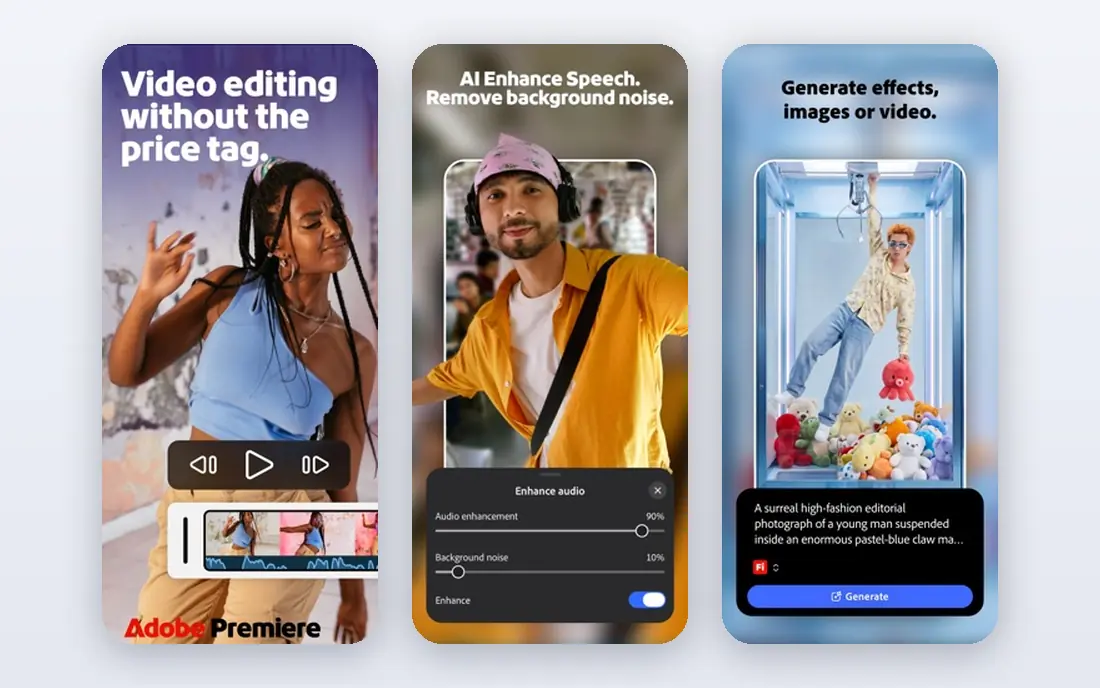
After Effects is the practical choice for editors and motion designers who already live in Adobe tools. Its pen tool gives precise manual masks, while Roto Brush can speed up selections on subjects with clear edges, and masks can be tracked, feathered, and refined frame by frame. Because After Effects also handles motion graphics, compositing, and titles, a roto shot can be finished without leaving the app.
The limit is scale. Long, detailed roto on hair, fur, or fast motion takes longer here than in Mocha Pro or Silhouette, and the subscription model means paying monthly even in quiet months. For short shots, social content, and motion graphics work, After Effects is more than enough. For feature-length roto, pair it with Mocha Pro or move the shot to Silhouette.
- Pen tool masks and Roto Brush for faster selections
- Huge plugin and tutorial ecosystem
- Fits Adobe workflows
- Subscription cost covers the whole Creative Cloud context
- Roto on long, complex shots is slower than in dedicated tools
Nuke, from Foundry, is the compositing standard on many feature films, and its Roto and RotoPaint nodes are built for that level of work. Artists can build complex node trees, combine roto with tracking, keying, and paint, and keep every step editable for later changes. That node structure matters on shots with many layers, where a linear editor would hide dependencies and make fixes painful.
Nuke is expensive and demanding, with pricing that varies by license type, so it suits studios and experienced compositors rather than casual editors. Learning it takes real time, and simple masks do not need its full power. When roto is one part of a large compositing shot, though, doing it inside Nuke keeps the work in one place and under version control.
- Node-based compositing standard in film
- Precise Roto and RotoPaint nodes
- Strong for complex shots
- High price and steep learning curve
- Overkill for simple masks
DaVinci Resolve is the best free-to-start option for roto inside a full finishing app. Its Fusion page offers masks, tracking, and paint in a node workflow, while the edit and color pages handle the rest of the project. The free version covers a surprising amount, and the paid Studio version adds features such as Magic Mask for faster people selections and higher-end tools.
Fusion still takes learning, especially for editors used to timeline tools, and Magic Mask results need checking on difficult edges. For a creator who edits, colors, and finishes in Resolve already, adding roto there avoids buying a separate tool. For a learner on a budget, Resolve plus Blender covers most roto needs at no cost.
- Free version includes Fusion masking tools
- Editing, color, and effects in one app
- Magic Mask on Studio helps with people
- Studio features cost extra
- Fusion node workflow takes learning
Blender is best known for 3D work, but it also includes masking, motion tracking, and compositing tools that handle basic to intermediate roto. An artist can track a shot, draw masks, feather edges, and composite the result, all in one free application. The tutorial community is large, which helps learners find guidance for common masking tasks.
Blender is not a dedicated roto room, and its masking workflow feels rougher than Mocha Pro or Silhouette on long shots. Edge control and shape management take more manual effort, and the broad interface can distract from the roto task itself. For learners, students, and small projects with no budget, Blender is still a strong, honest starting point.
- Completely free and open source
- Mask and tracking tools in the video editor and compositor
- Large tutorial community
- Roto workflow is less refined than dedicated tools
- Interface can overwhelm beginners
Natron is a free, open source, node-based compositor with a Roto node, tracking, and paint tools that suit learners and small studios. Its workflow will feel familiar to anyone who has used Nuke, which makes it a useful training ground for node compositing without a license fee. Simple to moderate roto shots, titles, and composites are well within its reach.
The trade-offs are community size and pace. Natron has fewer plugins, fewer tutorials, and slower development than Blender or Resolve, and support comes mainly from the community. For a free node-based roto option, though, it remains a valid choice, especially for users who want Nuke-style thinking on a zero budget.
- Free and open source
- Node-based workflow similar to Nuke
- Roto node with tracking support
- Smaller community and slower updates than larger tools
- Fewer ready-made plugins
Runway takes a different approach to roto, using AI models to separate subjects and generate masks with far less manual drawing. For a short clip with a clear subject, that speed is hard to match, and a browser-based workflow means no heavy install. It suits creators who need a usable mask fast for social, marketing, or draft edits.
AI masks are not magic on every shot. Hair, transparent objects, fast motion, and overlapping subjects still need manual cleanup, and results should be checked frame by frame before delivery. Pricing also varies by plan and credits, so check the vendor page for the current model. Use Runway for speed, and keep a manual tool ready for shots where accuracy matters most.
- AI tools can separate subjects quickly
- Browser-based workflow
- Useful for fast social and marketing edits
- AI masks need checking and cleanup on hard edges
- Subscription pricing varies by plan
Autodesk Flame is a finishing system used by post houses for compositing, color, and effects on high-end work, and it includes roto tools inside that integrated workflow. Artists can mask, track, and finish a shot without round-tripping between apps, which helps on tight broadcast and commercial schedules. Its timeline and batch tools suit finishing artists who handle many versions of a spot.
Flame is priced for facilities, not hobbyists, and it demands strong hardware and training. A freelancer who only needs roto should choose Mocha Pro or Silhouette instead. For a post house already finishing in Flame, doing roto there keeps the shot in one system and under one set of color and delivery controls.
- Integrated finishing, compositing, and roto
- Strong for high-end post work
- Timeline and batch workflows
- Very high cost
- Requires powerful hardware and training
How we picked these
We compared official product pages, documentation, and recent vendor listings, and we kept only tools that are live in October 2026 and that offer real roto or masking workflows. We covered dedicated roto tools, compositing hosts, free options, and AI-assisted tools, so readers at different budgets can find a fit. Where pricing varies by host, license, or plan, we wrote See website instead of a figure that might apply to only one version.
How to choose the right rotoscoping tool
Start with the shot, not the brand. A short, simple mask for social content can be done in Resolve, After Effects, or Blender at low cost. A long film shot with occlusion, motion blur, or fine hair needs Mocha Pro or Silhouette, where tracking and shape tools save days. An AI tool such as Runway can speed up a draft, but budget time to check and fix its edges.
Next, consider your host and pipeline. If you already composite in Nuke or finish in Flame, roto inside that host avoids export problems. If you work across hosts, Mocha Pro as a plugin keeps one roto skill set portable. Finally, practice edge work: feathering, motion blur, and shape consistency matter more than any single feature. A careful artist with a free tool often beats a rushed artist with an expensive one.
Frequently asked questions
What is the best software for rotoscoping?
Mocha Pro and Silhouette are the best dedicated tools for professional roto, with strong tracking and shape controls. After Effects, Nuke, and DaVinci Resolve are better when roto sits inside a larger edit or compositing job. The best tool depends on shot length, budget, and host pipeline.
What is the best tool for rotoscoping on a budget?
DaVinci Resolve and Blender are the strongest free options, with Natron as a free node-based alternative. They need more manual work than paid tools, but they handle many real shots well. Start free, learn tracking and edge control, and move to Mocha Pro when paid work justifies the cost.
Is rotoscoping hard to learn?
Rotoscoping takes patience, since it rewards careful shape work, tracking, and edge checks frame by frame. Beginners should start with short, simple shots, learn planar tracking first, and check edges at full size rather than at a small preview. Skill grows faster with short daily practice than with one long, frustrating shot.
Can AI replace manual rotoscoping?
AI tools such as Runway speed up many masks, but they do not replace manual roto on hard shots. Hair, transparency, fast motion, and overlapping subjects still need human checks and fixes. Treat AI as a fast first pass, then refine the mask by hand before delivery.
What is the difference between rotoscoping and keying?
Keying removes a background by color, usually green or blue, while rotoscoping draws masks by hand or with tracking, regardless of background color. Keying is faster when the shoot used a clean screen, while roto works on any footage, including location shots with no screen. Many shots use both, with keying for the bulk and roto for edges and fixes.
Do I need a dedicated roto tool, or is my editor enough?
An editor is enough for short, simple masks, especially in After Effects or Resolve. A dedicated tool pays off when shots are long, subjects move through occlusion, or edges need film-level care. If roto becomes regular paid work, Mocha Pro or Silhouette will save more time than they cost.
Sources
See where you really rank - block by block
ProMapRanker scans Google Maps across a grid of your service area. Simple monthly plans from $19, white-label on every plan.
Start freeKeep reading
 zscaler alternatives
Best Zscaler Alternatives in 2026
Looking for zscaler alternatives? We compare 9 SASE and zero trust platforms on architecture, data protection, pricing, and fit for your network and team.
Read → zapier alternatives free
Best Zapier Alternatives Free in 2026
Nine automation tools for zapier alternatives free in 2026, all with genuinely free tiers, plus free plan limits, starting prices and upgrade paths explained.
Read → which platform is best for online reputation
Which Platform Is Best for Online Reputation in 2026
Wondering which platform is best for online reputation? We compare 8 review, listing, and response tools for small and multi-location businesses and agencies.
Read →