 ProMapRanker
Best RGB Control Software in 2026

Key takeaways
- OpenRGB and SignalRGB are the strongest choices for PCs that mix brands, since they aim to control many devices from one place.
- A brand app such as iCUE or Armoury Crate usually gives deeper control when most of your parts come from that one brand.
- Windows Dynamic Lighting suits simple setups, but it does not replace a full app for complex effects or fan control.
- Check the supported device list before you install anything, because support varies by exact model, not just by brand.
- Running two RGB apps at once is a common cause of flicker, missed devices, and settings that keep changing back.
Quick comparison
| Pick | Great for | Pricing starts at | Free tier | |
|---|---|---|---|---|
 SignalRGB | Mixed-brand lighting effects | Free | Yes | Visit |
 OpenRGB | Free open-source control | Free | Yes | Visit |
 Corsair iCUE | Corsair builds | Free | Yes | Visit |
 ASUS Armoury Crate | ASUS motherboards and parts | Free | Yes | Visit |
 Razer Synapse | Razer peripherals | Free | Yes | Visit |
 MSI Center | MSI parts and peripherals | Free | Yes | Visit |
 GIGABYTE Control Center | GIGABYTE parts | Free | Yes | Visit |
 Windows Dynamic Lighting | Simple built-in lighting | Free | Yes | Visit |
The best rgb control software
We looked at tools that control lighting across keyboards, mice, fans, RAM, and strips, with a focus on real device support and usable free options. The list below starts with cross-brand tools, then covers the main brand apps.
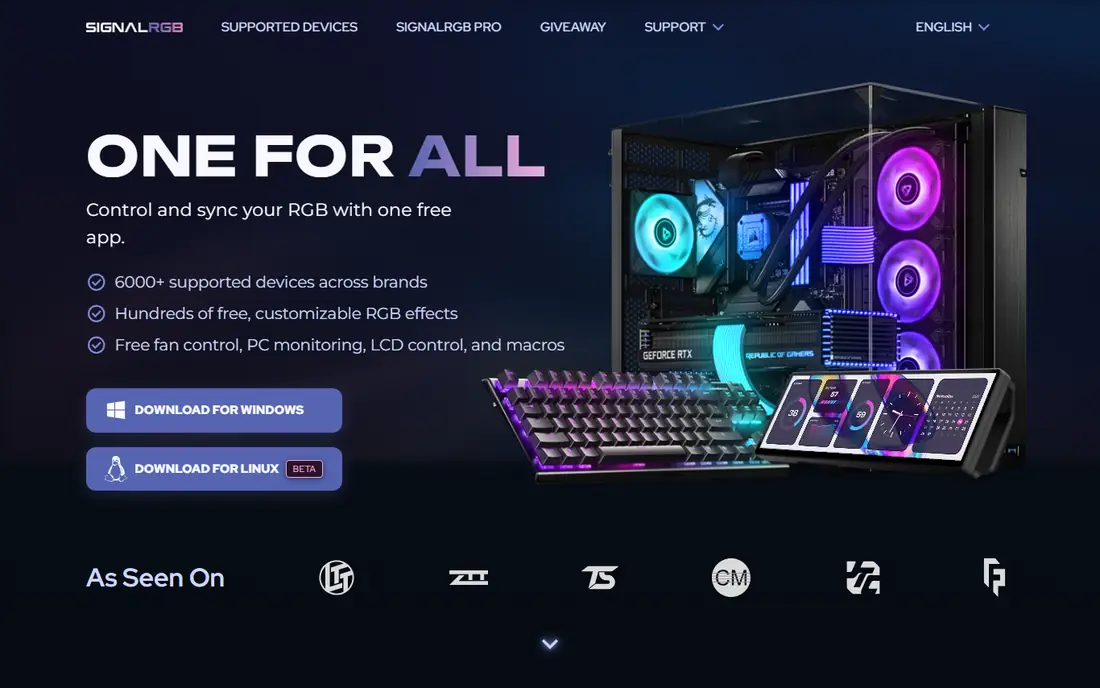
SignalRGB stands out when your PC mixes brands. It scans connected hardware and tries to bring keyboards, fans, RAM, and other parts under one lighting plan, which saves you from opening a separate app for each maker. The effect library is a real draw, with animated presets that go well beyond a single static color or slow pulse.
The catch is that the free version does not include every effect. Audio and screen-based effects, plus some marketplace content, sit behind the paid tier, so check the current pricing page before you commit to a look you saw in a video. Large builds can also need a careful first scan, and you should close other RGB apps first to avoid conflicts.
- Wide cross-brand device support
- Large effect library
- Game and audio reactive effects on paid tiers
- Some advanced effects need a paid plan
- Setup can take time on large builds
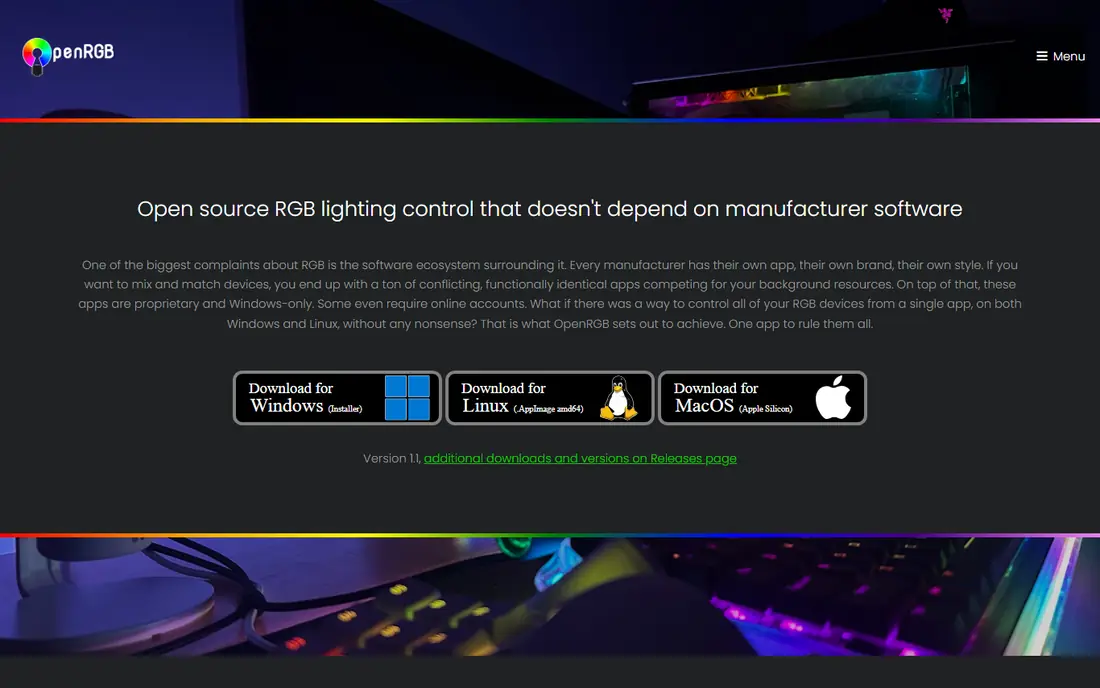
OpenRGB is our pick for people who want control without a subscription or a heavy background app. It talks directly to supported hardware and lets you set colors, zones, and modes from one window. For a straightforward goal, such as matching every part to one color, it does the job with little fuss.
The trade-off is polish. The interface looks plain, and some motherboards and RAM need extra steps on Windows, such as running as administrator or installing a helper driver. Check the supported device list for your exact model, because a device from a supported brand is not always fully supported.
- Free and open source
- Light on system resources
- Works on Windows and Linux
- Plain interface
- Some devices need extra setup or drivers
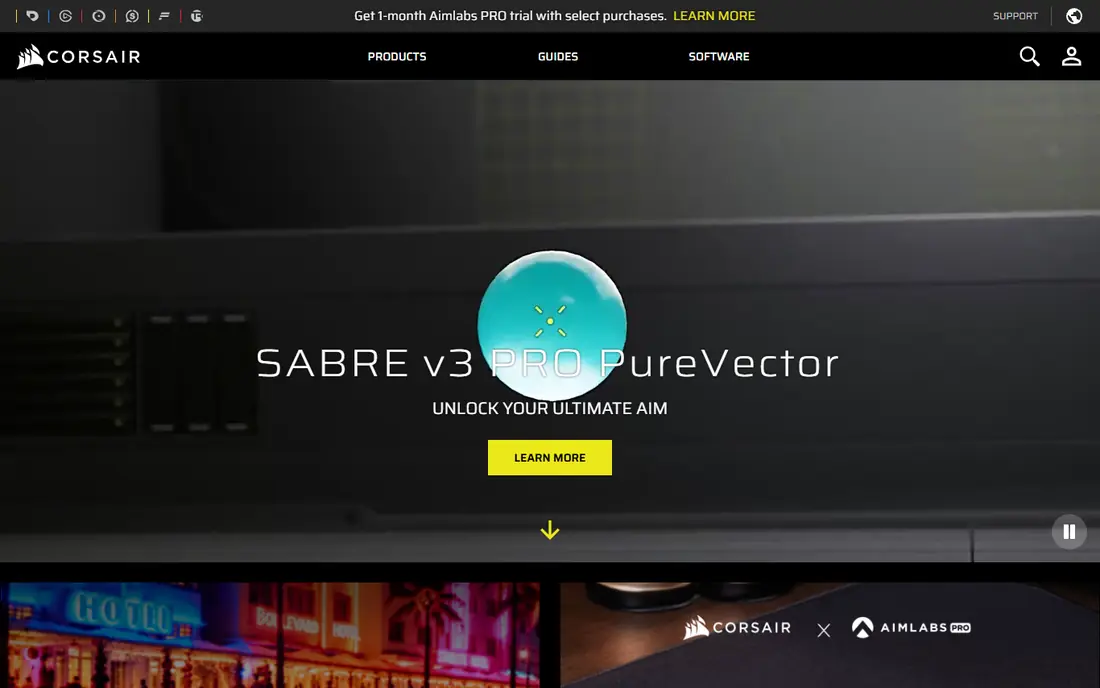
If most of your build is Corsair, iCUE is hard to beat. It pairs lighting with fan curves, cooling profiles, and macros, so one app covers both looks and system behavior. Profiles let you switch a whole setup for work, gaming, or a quiet evening without rebuilding each setting by hand.
The limit is obvious: it is built for Corsair gear first. It can work with some other parts through integrations, but a mixed-brand PC will still need another tool for the rest. The app can also feel large compared with a light tool such as OpenRGB, so it suits a main gaming PC better than a low-power machine.
- Deep Corsair device control
- Fan and cooling controls
- Strong profile and macro options
- Most useful only with Corsair hardware
- Can feel heavy on older systems
Armoury Crate is the natural choice for an ASUS motherboard build. It handles Aura Sync lighting across boards, graphics cards, and supported peripherals, and it also gathers driver updates and system settings in the same app. That combination is handy when you want lighting, fan behavior, and updates without juggling several utilities.
Size is the downside. The install is large, and the app can be slow to open on some systems. It is also less useful if your parts come from many brands, since its best results come from ASUS hardware. Still, for an ASUS-centered PC, it keeps the core controls together.
- Controls ASUS Aura Sync parts
- System and fan settings in one place
- Broad ASUS hardware range
- Large install
- Some users find it slow to load
Razer Synapse makes sense if your desk is built around Razer keyboards, mice, and headsets. Chroma effects are well developed, and per-game profiles can change lighting when you switch titles. Button remapping and macros sit in the same app, which helps players who tune both lighting and controls.
It is not a general PC lighting hub. Motherboard and fan lighting from other brands will usually need their own app, so a mixed build still needs a plan for the parts inside the case. Users who dislike account-based software should also note that sign-in is part of the usual setup flow.
- Strong Chroma effects
- Per-game profiles
- Macro and button controls
- Best with Razer devices
- Account sign-in is part of the setup for many users
MSI Center brings Mystic Light together with system tools for MSI boards, cards, and peripherals. You can set lighting, check system status, and switch performance modes without leaving the app. For an MSI build, that keeps daily tuning in one place.
The module system is a mixed blessing. You install only the parts you need, which keeps things lighter, but finding the right module can take a moment the first time. Like other brand apps, it shines with its own hardware and is less complete as a cross-brand solution.
- Mystic Light control for MSI parts
- System monitoring tools
- Gaming and creator modes
- Module-based install can feel scattered
- Best with MSI hardware
GIGABYTE Control Center is the straightforward pick for a GIGABYTE board or graphics card. It covers RGB Fusion lighting and core board settings, so you do not need a separate utility for basic control. The app is free, and setup is simple when your main parts are GIGABYTE.
The interface is not as polished as newer rivals, and exact lighting options still depend on your model. Check what your board supports, especially for addressable strips and fan headers, before you plan a complex effect. For a single-brand GIGABYTE build, though, it covers the basics well.
- RGB Fusion control for GIGABYTE parts
- Motherboard and card settings in one app
- Free to use
- Interface feels dated
- Support varies by board and card model
Windows Dynamic Lighting, found in Windows 11 settings, is the easiest starting point. If you only want your keyboard, mouse, and case lights to share one color or a simple effect, it may be all you need. There is nothing extra to install, and it avoids another background app.
It is not a full replacement for a dedicated tool. Effects are limited, device support depends on the maker adding support, and it does not handle fan curves or macros. Think of it as a clean baseline: try it first, and move to SignalRGB, OpenRGB, or a brand app only if you need more.
- Built into Windows 11
- No extra app for basic control
- Simple color and effect settings
- Limited effects
- Does not cover fan control or deep device settings
How we picked these
We compared official feature pages, supported device lists, pricing pages, and app store listings, and we favored tools that are still available and working in October 2026. Cross-brand tools earned a place because many readers mix parts, while brand apps earned a place because they often control their own hardware more deeply. We did not claim hands-on testing, and we left out tools that no longer receive meaningful support. Where a price was unclear, we used the free entry point shown by the vendor rather than guessing at a paid tier.
What to check before you install
Start with your parts list
Write down your motherboard, graphics card, RAM, fans, and peripherals, with exact model names. Then check each candidate against that list. A tool that supports a brand in general may still miss your exact fan hub or older keyboard, and that gap matters more than any effect library.
Pick one controller at a time
Do not run two lighting apps that both try to control the same device. Close or uninstall the others, reboot, and let your chosen app scan once. This single step fixes many reports of flicker, wrong colors, and profiles that reset on restart.
Match the app to the job
For a single color across brands, a light free tool is enough. For game-reactive effects, check whether that feature is free or paid before you fall in love with a demo. For fan and cooling control, a brand app or a dedicated fan tool may still be needed alongside a lighting app.
Plan for updates
Motherboard firmware, graphics drivers, and Windows updates can change how lighting apps detect hardware. Keep your chosen app updated, and keep a note of a simple profile you like, so you can rebuild it fast if an update resets your settings.
Frequently asked questions
What is the best pc rgb software for a mixed-brand build?
SignalRGB and OpenRGB are the usual starting points, since both aim to control hardware from several brands in one place. SignalRGB offers a larger effect library, while OpenRGB is free, open source, and lighter. Try the free version of each with your exact parts before you pay for anything.
Is RGB control software free?
Much of it is free at entry level, including OpenRGB, SignalRGB, and the main brand apps. Paid tiers usually add advanced effects, marketplace content, or extra profiles rather than basic color control. Always check the current pricing page, since paid features change over time.
Why is my RGB device not detected?
Close other RGB apps, reboot, and run a fresh scan, since two apps fighting for one device is a common cause. Also check that cables and hubs are seated, and confirm your exact model is on the supported device list. Some RAM and boards need administrator rights or a helper driver on Windows.
Can Windows Dynamic Lighting replace a brand app?
It can replace a brand app for simple shared colors and basic effects on supported devices. It does not replace fan control, macros, or deep per-device settings. Use it as a simple baseline, and add a dedicated app if you need those extra controls.
Do I need RGB software for every part?
No, you only need it for parts with lighting you want to change. A static color set in firmware or a hardware controller can be enough for some builds. Software earns its place when you want synced effects, profiles, or control that a hardware button cannot give you.
Sources
See where you really rank - block by block
ProMapRanker scans Google Maps across a grid of your service area. Simple monthly plans from $19, white-label on every plan.
Start freeKeep reading
 zscaler alternatives
Best Zscaler Alternatives in 2026
Looking for zscaler alternatives? We compare 9 SASE and zero trust platforms on architecture, data protection, pricing, and fit for your network and team.
Read → zapier alternatives free
Best Zapier Alternatives Free in 2026
Nine automation tools for zapier alternatives free in 2026, all with genuinely free tiers, plus free plan limits, starting prices and upgrade paths explained.
Read → which platform is best for online reputation
Which Platform Is Best for Online Reputation in 2026
Wondering which platform is best for online reputation? We compare 8 review, listing, and response tools for small and multi-location businesses and agencies.
Read →