 ProMapRanker
Best Remote Access Software Free in 2026

Key takeaways
- RustDesk is our pick for most people who want free remote access without a personal-use classifier, with self-hosting as an option.
- Chrome Remote Desktop is the simplest free option for personal access to your own computers through a browser.
- TeamViewer and AnyDesk offer free personal tiers, but their commercial-use detection can limit or flag some home users.
- Zoho Assist suits a solo technician with a free plan, while Apache Guacamole and MeshCentral suit teams that can self-host.
- Only access devices you own or have permission to access, and use strong passwords, two-factor authentication, and up-to-date software on every device.
Quick comparison
| Pick | Great for | Pricing starts at | Free tier | |
|---|---|---|---|---|
 RustDesk | Free self-hosted remote access | Free | Yes | Visit |
 Chrome Remote Desktop | Simple free personal access | Free | Yes | Visit |
 TeamViewer | Free personal remote support | See website | Yes | Visit |
 AnyDesk | Fast free personal access | See website | Yes | Visit |
 Zoho Assist | Solo technician support | See website | Yes | Visit |
 Apache Guacamole | Browser-based self-hosted access | Free | Yes | Visit |
 MeshCentral | Self-hosted management of many computers | Free | Yes | Visit |
 TightVNC | Free LAN remote access | Free | Yes | Visit |
 Remmina | Free Linux remote desktop client | Free | Yes | Visit |
The best free remote access software
We compared free tier terms, personal versus commercial use, self-hosting, security features, and platform support. Our list includes only tools with a genuinely free tier, not trial-only tools. Only access devices you own or have permission to access.
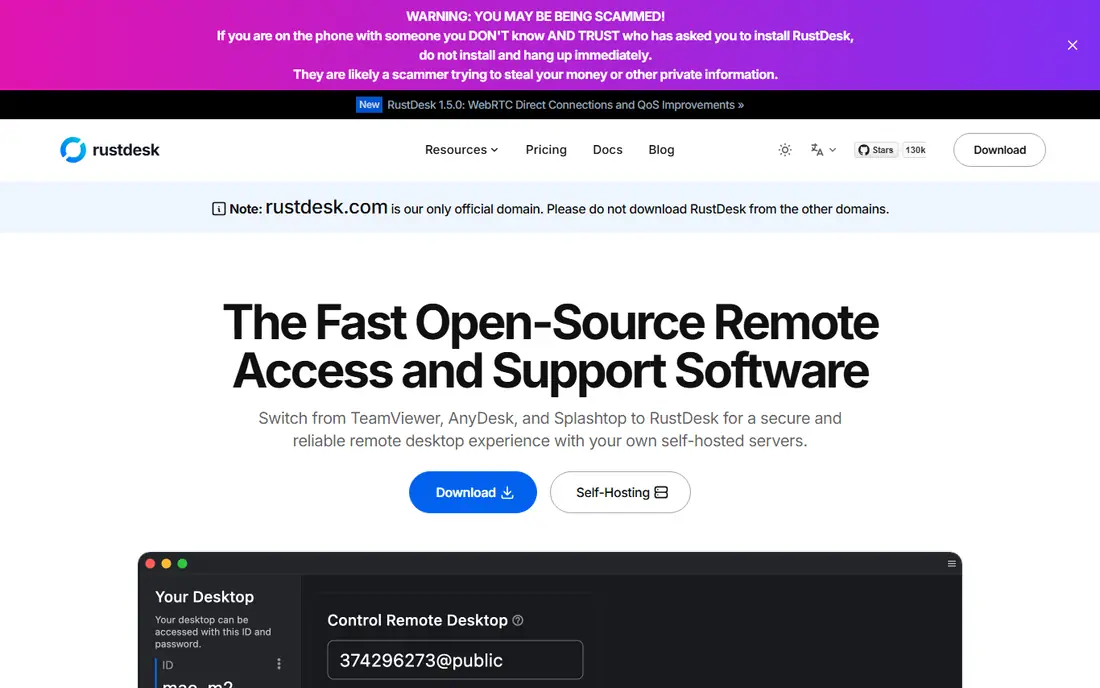
RustDesk is the strongest free remote access tool for most readers in 2026. Its client and community server are free, with no license fee, expiry, or commercial-use classifier to trip over. You can use the public relay to start fast, or point RustDesk at your own server so sessions stay inside infrastructure you control.
Self-hosting takes work: hosting, relay bandwidth, backups, and updates all fall to you. For a home user helping family, the public relay is enough to start. For a small team, the self-hosted path gives control that a free personal tier from a commercial vendor does not.
- Open-source client and free community server
- No personal-use classifier
- Self-hosting option for full control
- Self-hosting needs setup and maintenance
- Web console features sit on a paid server plan
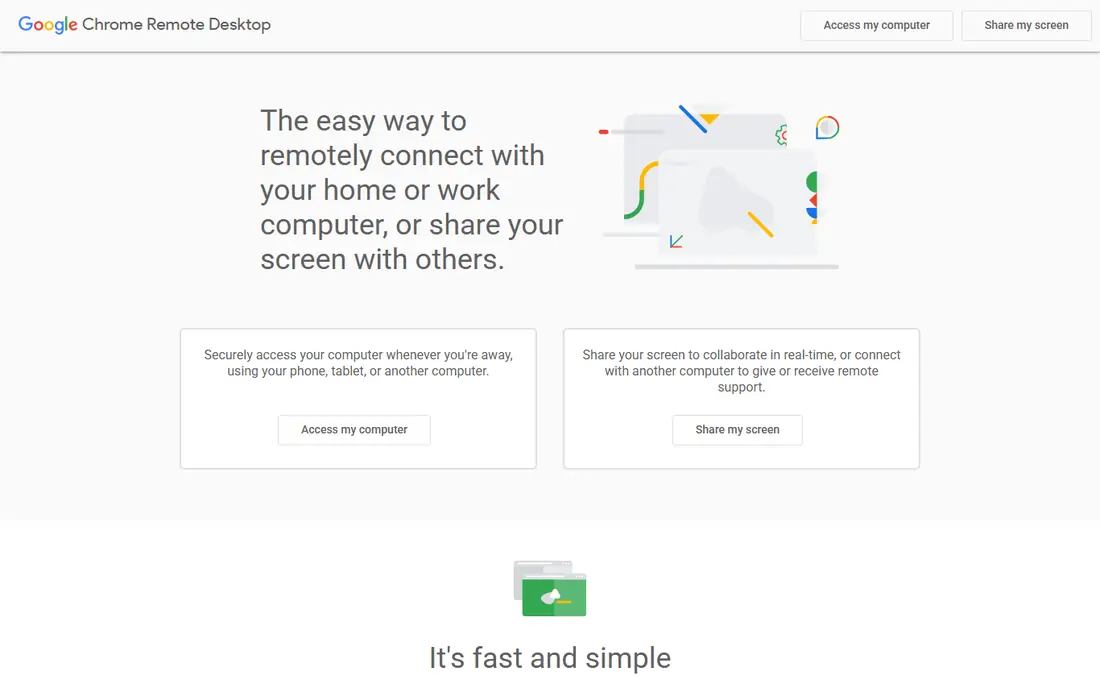
Chrome Remote Desktop is the easiest free tool for reaching your own computer from another device. Install the host, sign in with a Google account, and connect from a browser or mobile app. There is no time limit or device cap in the way some personal tiers impose, which makes it reliable for a home office or a family computer.
Chrome Remote Desktop is a personal access tool, not a full support platform. File transfer is limited, and team features are thin. For simple access to your own machines, that simplicity is a benefit, not a flaw.
- Free with no device cap for personal use in many cases
- Works through a browser
- Easy setup with a Google account
- Limited file transfer and support features
- Relies on a Google account and Google-operated control plane

TeamViewer remains the best-known remote support name, and its free tier covers personal use well. A family member can share a code, you connect, and you help with a problem without a complex setup. Its cross-platform apps cover Windows, Mac, Linux, and mobile, so most home setups work.
The free tier is personal use only, and its detection can flag users it suspects of commercial use, which can cut a session short. If you help family only, TeamViewer is fine. If you support clients, use a tool whose free or paid terms cover commercial work.
- Widely known and easy to use
- Cross-platform support
- File transfer and chat in sessions
- Free tier is for personal use only
- Commercial-use detection can flag and limit some home users
AnyDesk wins on speed. Its codec keeps the remote screen responsive even on a slower connection, which helps when you guide someone through a settings change or fix a file. The client is small and can run without a full install, so a quick help session starts fast.
Like TeamViewer, AnyDesk's free tier is for personal use only. Paid plans add team management, address books, and support features. For personal help on a slow link, AnyDesk is a strong free pick.
- Low-latency connections even on modest links
- Small portable client
- Cross-platform support
- Free tier is for personal use only
- Advanced team features need a paid plan
Zoho Assist suits a solo technician who needs a free tool that covers commercial support. Its free plan allows one technician, a small set of unattended computers, and one session at a time, which is enough for a one-person support habit. Unattended access means you can reach a client's or family member's computer without them sitting there to accept each time, with their permission set up in advance.
The free limits are real. A team, a larger client list, or parallel sessions will need a paid plan. For a solo start, though, Zoho Assist gives a commercial-friendly free tier that TeamViewer and AnyDesk personal tiers do not.
- Free plan for one technician and a small number of computers
- Unattended access
- Session and device tools
- Free plan limits technicians, computers, and sessions
- Larger teams need a paid plan
Apache Guacamole is a different kind of remote access tool. Instead of installing a client on every viewer device, you host a gateway and connect from any web browser. That suits a team that manages servers or a jump host, where a browser is the only client you want to support.
Setup is the main cost. Guacamole needs a server, protocol configuration, and careful security settings, including TLS and strong authentication. It is not a quick family help tool. For a technical team that wants browser access under its own control, it is a strong free option.
- Free and open source
- Access from any browser with no client install
- Supports common remote protocols
- Setup takes hours and technical skill
- Security depends on your own configuration
MeshCentral suits a small IT team that manages many computers and wants one self-hosted console for them all. From a browser, you can see online machines, open a remote desktop, run a terminal, and transfer files. That breadth makes it a practical free alternative to a paid management platform for a technical team.
MeshCentral needs a server and ongoing care, like Guacamole. It is not a tool to install casually for one family computer. For a team that already runs its own services, MeshCentral gives a lot of control for no license fee.
- Free and open source
- Manages many computers from one web console
- Remote desktop, terminal, and file tools
- Self-hosting needs setup and maintenance
- Interface takes time to learn
TightVNC is a classic free VNC tool for a local network. Install the server on one Windows computer, connect with a viewer from another, and control the screen with little overhead. It is simple, light, and free, which suits a home network or a lab where machines sit on the same LAN.
TightVNC's main limit is security. VNC traffic is not encrypted by default, so you should not expose it directly to the internet. Use it on a trusted LAN, or tunnel it through a VPN or SSH. With that guard in place, TightVNC is a reliable free tool.
- Free and open source VNC access
- Simple and light
- Works well on a local network
- Windows-focused
- Encryption is not on by default, so internet use needs a VPN or tunnel
Remmina is the free remote desktop client many Linux users reach for first. It supports RDP for Windows machines, VNC for other systems, and SSH for terminal work, all in one tabbed app with saved connections. That range makes it useful for a Linux user who manages a mix of machines.
Remmina is a client, not a complete remote access service. You still need a server or host on the other end, and security depends on the protocol and network you use. For Linux-based management, Remmina is a clean and free starting point.
- Free and open source Linux client
- Supports RDP, VNC, SSH, and other protocols
- Tabbed sessions and saved connections
- Linux client only, not a full server platform
- Setup varies by protocol
How we picked these
We compared official pricing pages, license terms, and documentation for free access, personal versus commercial use, self-hosting, and security features. We included only tools with a genuinely free tier, and we noted where a free tier covers personal use only. We excluded trial-only tools, and we did not treat a free trial as a free plan.
How to use free remote access safely
Start with permission and identity. Only access devices you own or have permission to access, and confirm who is on the other end before you accept a session. Never install remote access software at the request of an unsolicited caller claiming to be tech support, because that is a common scam pattern. If a call feels wrong, hang up and contact the company through its official channel.
Next, lock down the host. Use a strong, unique password, turn on two-factor authentication where the tool offers it, and keep the software updated. Turn off unattended access when you do not need it, and review the list of allowed devices regularly. A remote access tool is a powerful door into a computer, so treat its settings with the same care you give to a front door lock.
Finally, never expose remote desktop ports directly to the internet. Use a VPN, a self-hosted relay, a secure gateway, or the vendor's own encrypted relay, and check that encryption is on. On a local network, a VNC tool like TightVNC is fine behind a firewall, but it still needs a tunnel for remote use. When in doubt, choose the tool with the clearest security defaults for your skill level.
Frequently asked questions
What is the best free remote access software?
RustDesk is best for most users who want free access without a personal-use classifier, and Chrome Remote Desktop is best for simple personal access to your own computers. TeamViewer and AnyDesk suit personal help, while Zoho Assist suits a solo technician. Pick based on personal versus commercial use and self-hosting comfort.
Is TeamViewer really free?
TeamViewer is free for personal use only. Its commercial-use detection can flag and limit sessions it suspects are commercial, even for some home users. For commercial support, use a tool whose terms cover that use, such as RustDesk, Zoho Assist, or a paid plan.
What is the best free remote desktop app for commercial use?
RustDesk, Apache Guacamole, and MeshCentral permit business use under their open-source licenses, and Zoho Assist offers a free plan that covers a solo technician. Chrome Remote Desktop is also free with enterprise controls, but it relies on Google accounts. Check current terms for each deployment before you rely on it.
Can I use free remote access software on a phone?
Yes. RustDesk, TeamViewer, AnyDesk, Chrome Remote Desktop, and Zoho Assist offer mobile apps for viewing and controlling a computer from a phone. A phone screen is small for long work, but it is useful for a quick check or a short fix.
How do I stay safe when someone asks me to install remote access software?
Only install remote access software for a person or company you trust and have contacted yourself. Never follow instructions from an unsolicited caller, and never share a session code with a stranger. Only access devices you own or have permission to access, and remove the software when the help session is done if you no longer need it.
Sources
See where you really rank - block by block
ProMapRanker scans Google Maps across a grid of your service area. Simple monthly plans from $19, white-label on every plan.
Start freeKeep reading
 zscaler alternatives
Best Zscaler Alternatives in 2026
Looking for zscaler alternatives? We compare 9 SASE and zero trust platforms on architecture, data protection, pricing, and fit for your network and team.
Read → zapier alternatives free
Best Zapier Alternatives Free in 2026
Nine automation tools for zapier alternatives free in 2026, all with genuinely free tiers, plus free plan limits, starting prices and upgrade paths explained.
Read → which platform is best for online reputation
Which Platform Is Best for Online Reputation in 2026
Wondering which platform is best for online reputation? We compare 8 review, listing, and response tools for small and multi-location businesses and agencies.
Read →