 ProMapRanker
Best Remote Access Software for Personal Use in 2026


Free personal access · Pricing starts at: Free
Key takeaways
- For most personal use, a free tool such as Chrome Remote Desktop or RustDesk covers the core job of reaching your own computer.
- Splashtop Solo at about $6 per month is the value pick when you want faster performance and more features than a free tool offers.
- TeamViewer and AnyDesk suit people who also help family or friends, but check commercial-use rules before relying on a free tier.
- Turn on two-factor authentication, use a strong unique password, and keep unattended access limited to machines you own.
- Speed depends more on upload speed and latency at both ends than on any single feature claim, so test with your real connection.
Quick comparison
| Pick | Great for | Pricing starts at | Free tier | |
|---|---|---|---|---|
| Chrome Remote Desktop | Free personal access | Free | Yes | Visit |
 TeamViewer | All-round personal and family help | $24.90 per month | Yes | Visit |
 AnyDesk | Fast low-latency connections | $22.90 per month | Yes | Visit |
 Splashtop | Best value paid personal access | $6 per month | Free trial | Visit |
 RealVNC Connect | Secure lightweight access | $8.25 per month | Yes | Visit |
 RemotePC | Many computers on one plan | See website | No | Visit |
 Zoho Assist | Free personal support sessions | Free | Yes | Visit |
 RustDesk | Open source self-hosted access | Free | Yes | Visit |
The best remote access software for personal use
Personal remote access has one simple job: let you open your own computer from another device, safely, without a long setup. You may need a file from a home PC while travelling, or you may want to help a parent fix a setting without driving over. The eight tools below range from free and simple to paid and fast, and the right pick depends on how often you connect and how much performance you need.
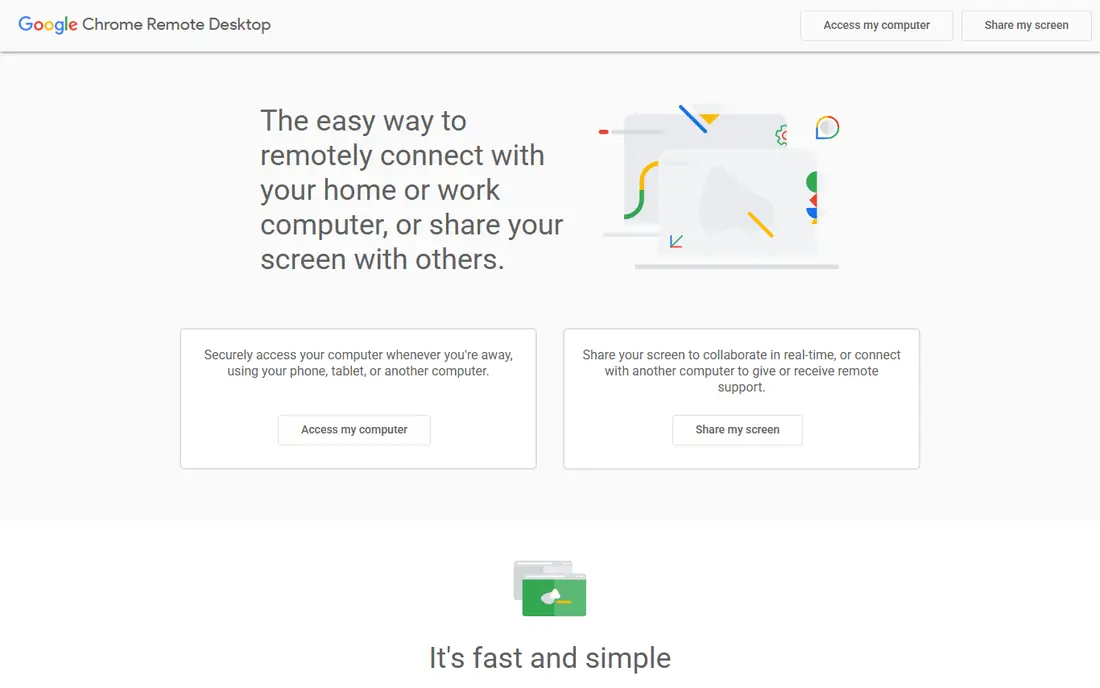
Chrome Remote Desktop is the simplest starting point for personal use. Install the extension, link your computers to your Google account, and connect from a browser or the mobile app. There is no subscription, no device count to manage for casual use, and setup takes minutes rather than an evening of port settings.
The limits are real but fair for a free tool. You get basic remote control without the file transfer, multi-monitor polish, or session management of paid tools, and you need a Google account to use it. If your only need is to reach a home PC now and then, start here and spend nothing. Move to a paid tool only when you hit a specific limit.
- Free for personal use
- Very easy setup
- Works in a browser
- Few advanced features
- No file transfer on some setups
- Needs a Google account
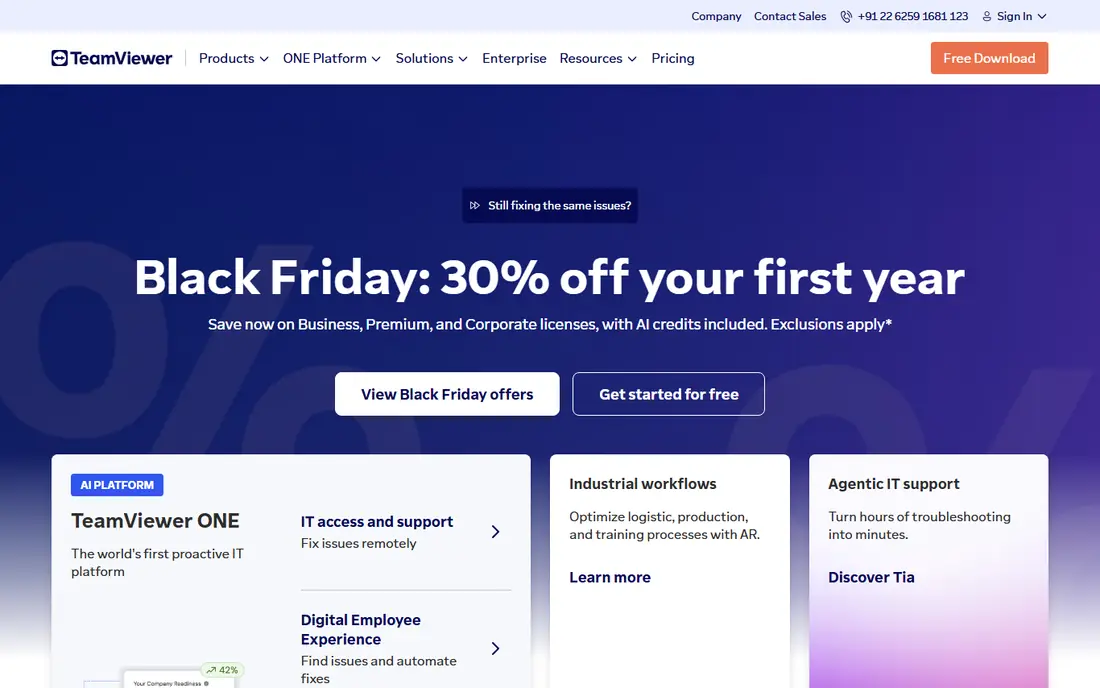
TeamViewer remains the best-known name in remote access, and for personal use its free tier covers non-commercial connections between your own devices and family machines. Paid Remote Access starts near $24.90 per month billed annually and covers unattended access to a small set of devices, with file transfer, remote sound, wake-on-LAN, and session recording on higher tiers.
The honest catch is the commercial-use detection on the free tier, which can interrupt sessions if use looks like business work. Paid pricing also sits above most rivals. If you help several relatives, need unattended access, and want the widest platform support, TeamViewer earns its place. If you only reach one home PC, a free or cheaper tool does the same job.
- Works on almost every platform
- Unattended access
- File transfer and multi-monitor support
- Paid plans are pricey
- Free tier can flag suspected commercial use
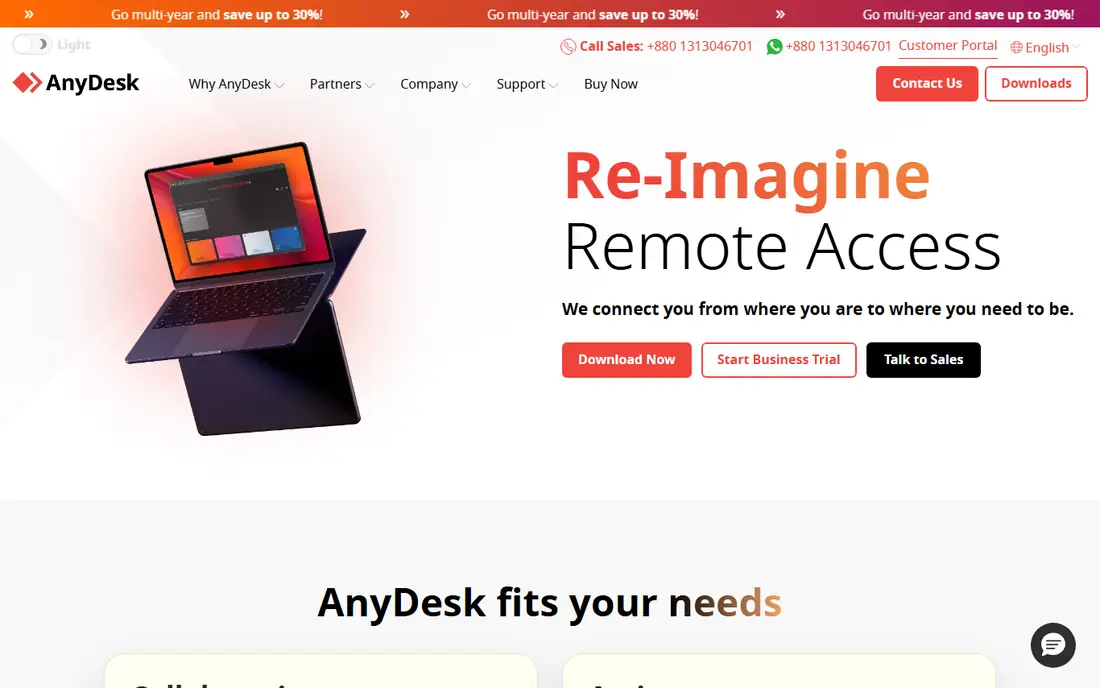
AnyDesk built its name on speed. Its lightweight client and efficient codec keep sessions responsive even on modest connections, which matters when you edit documents, browse files, or work in an application that lags badly under a slower tool. The free tier covers personal use, while paid Solo starts near $22.90 per month.
AnyDesk is less of an all-in-one support platform than TeamViewer, and some features such as session recording sit on higher plans. For a single user who values responsiveness above a long feature list, that trade is easy to accept. Test it on your slowest connection, since that is where the speed difference shows up most clearly.
- Low-latency performance
- Lightweight download
- Works across platforms
- Free tier is for personal use only
- Session recording needs higher tiers
Splashtop Solo, near $6 per month billed annually, is the value pick in this list. You get fast remote access to your own computers, file transfer, multi-monitor support, and a polished client on Windows, Mac, and mobile, without paying the premium that TeamViewer charges. Higher tiers add higher frame rates and colour accuracy for creative work.
The plan structure needs a careful read, since personal, business, and remote support plans differ in features and device rules. Make sure the plan you buy matches personal unattended access rather than a support product. For a home user who connects often and wants paid reliability at a low price, Splashtop is hard to beat.
- Low Solo price
- Strong performance
- Good multi-monitor support
- Personal plans differ from business plans
- Some features need higher tiers
RealVNC Connect takes a quieter, security-first approach. Its Home plan is free for personal use on a limited set of devices, while paid plans start near $8.25 per month and add more devices and management features. Encryption, device authentication, and granular access controls are central to the product rather than add-ons.
The interface is plainer than TeamViewer or Splashtop, and setup asks a little more of the user. People who prefer a clean, lightweight tool and care about access control will like that trade. People who want the most polished consumer experience may prefer Splashtop or AnyDesk instead.
- Strong encryption focus
- Lightweight client
- Free Home plan for personal use
- Interface is plainer than rivals
- Advanced features need paid tiers
RemotePC suits a household or a hobbyist with several machines, because its plans price by computer count rather than by user in the same way as some rivals. You get unattended access, file transfer, remote printing, and chat in a straightforward client. For someone with a desktop, a laptop, and a media PC, that per-computer model can work out cheaper than per-user pricing.
There is no free personal tier, so you pay from the start, and the interface feels functional rather than delightful. Performance is solid for everyday tasks, though creative work at high frame rates may suit Splashtop better. If you manage several of your own computers, RemotePC deserves a trial.
- Low cost per computer
- Unattended access
- File transfer and chat
- No free personal tier
- Interface is functional rather than polished
Zoho Assist is best known as a support tool, but its free tier makes it useful for personal help sessions. Start a session from a browser, share a link or code, and guide a family member through a fix with chat and screen control. That session-based model fits occasional help better than always-on access to your own machines.
Paid plans price per technician and add unattended access and management features, which matter more to small support teams than to home users. If your main need is to help relatives now and then, the free tier is a practical choice. If you need daily access to your own PC, a tool built for unattended access such as Splashtop or RealVNC fits better.
- Free tier for personal use
- Browser-based sessions
- Remote support tools
- Built more for support than for always-on personal access
- Paid tiers price per technician
RustDesk is the open source option for users who want control over their remote access infrastructure. The core client is free, and you can run your own relay and rendezvous server so connections do not depend on a vendor cloud. That appeals to privacy-minded users and to people who already run a home server.
Self-hosting is also the catch. You need enough technical skill to set up and maintain the server, keep it updated, and secure it properly. The hosted service removes that burden but adds a subscription question to check at signup. For a technical home user, RustDesk offers freedom no closed tool matches. For a non-technical user, a simpler free tool is the safer start.
- Open source
- Self-hosting option
- No subscription for core use
- Setup needs more technical skill
- Self-hosted relay needs maintenance
How we picked these
We compared official pricing pages, feature documentation, and public reviews for remote access tools. We kept only tools that exist and work in October 2026, that offer genuine personal-use access, and that publish clear security details such as encryption and two-factor authentication. Prices shown are entry paid prices or free tiers as published, and we used See website where pricing varies by plan or region.
What to check before you choose
Start with security settings, not speed. Turn on two-factor authentication, use a strong unique password for the remote tool, and limit unattended access to machines you own and trust. Disable unattended access on any machine you no longer use, and review the list of authorised devices now and then. A remote tool is a powerful door into your computer, so treat its account like a bank account.
Test performance on your real connection, including a mobile hotspot if you travel. Check file transfer, multi-monitor behaviour, and how the tool handles a dropped connection. Confirm the licence terms for personal use, since some free tiers block sessions that look commercial. Finally, keep the host software updated, since an old remote client is an easy target.
Frequently asked questions
Is free remote access software safe?
Free tools from known vendors can be safe when you use strong passwords, two-factor authentication, and keep software updated. The larger risk is account security and leaving unattended access open on machines you no longer use. Avoid unknown tools that ask for broad permissions or do not publish encryption details.
Can I use remote access software to help family members?
Yes, and most tools in this list support that, either through personal free tiers or through session links. Make sure the person you help understands what you can see and control, and end the session when the task is done. For regular help to many people, a support-oriented plan may fit better than a personal plan.
Do I need to open ports on my router?
No, for the tools in this list. Modern remote access tools use cloud relay or NAT traversal so you do not need port forwarding. Avoid tools that require open ports unless you understand the risk, since an open remote desktop port attracts automated scanning quickly.
Will remote access work on a slow internet connection?
It will for basic tasks such as files, email, and settings, though video and design work will feel laggy. Upload speed at the host computer matters most, since that side sends the screen to you. A wired connection at the host and a stable connection at your end help more than any single setting.
What is the difference between unattended and attended access?
Attended access needs someone at the host computer to accept the session, which suits one-off help. Unattended access lets you connect any time without anyone present, which suits reaching your own machines. Use unattended access only on computers you own, and protect it with two-factor authentication.
Sources
See where you really rank - block by block
ProMapRanker scans Google Maps across a grid of your service area. Simple monthly plans from $19, white-label on every plan.
Start freeKeep reading
 what’s the best risk software for enterprises
What Is the Best Risk Software for Enterprises in 2026
We compared what’s the best risk software for enterprises on risk registers, controls, third-party risk, and reporting, with pricing notes for large teams.
Read → what's the best pam software for enterprises
What is the Best PAM Software for Enterprises in 2026
Find what's the best pam software for enterprises, with vaulting, session recording, just in time access and pricing compared for large enterprise IT teams.
Read → what’s the best grc software
What Is the Best GRC Software in 2026
We compared what’s the best grc software on risk, compliance, audit and vendor risk, so teams can pick a platform that fits their frameworks and budget.
Read →