 ProMapRanker
Best Remote Access Software in 2026


All round access and support · Pricing starts at: $24.90 per month
Key takeaways
- TeamViewer is our pick for most teams that need a well known, cross platform tool for both access and support.
- Splashtop and RemotePC offer strong value for remote work, while AnyDesk leads on low latency sessions.
- Chrome Remote Desktop is the best free option for personal access to your own computers.
- Zoho Assist and ConnectWise ScreenConnect suit IT support teams, while RustDesk suits teams that want self hosting.
Quick comparison
| Pick | Great for | Pricing starts at | Free tier | |
|---|---|---|---|---|
| TeamViewer | All round access and support | $24.90 per month | Yes | Visit |
 AnyDesk AnyDesk | Fast low latency sessions | $22.90 per month | Yes | Visit |
 Splashtop Splashtop | Value remote work access | See website | Free trial | Visit |
 Chrome Remote Desktop Chrome Remote Desktop | Free personal access | Free | Yes | Visit |
 Zoho Assist Zoho Assist | Small IT support teams | See website | Yes | Visit |
 RemotePC RemotePC | Cheap unattended access | See website | Free trial | Visit |
 ConnectWise ScreenConnect ConnectWise ScreenConnect | IT teams and managed providers | See website | Free trial | Visit |
 RealVNC Connect RealVNC Connect | Secure lightweight access | $8.25 per month | Yes | Visit |
 RustDesk RustDesk | Self hosted open source access | Free | Yes | Visit |
The best remote access software
We compared official pricing pages, product pages, and documentation for tools that are live in October 2026. Remote access tools differ in one key way: some are built for reaching your own computers, while others are built for supporting someone else's computer. We included both types, and we used See website where plan structures made a single starting price misleading. Security matters here more than in most software categories, since a remote tool controls another computer.
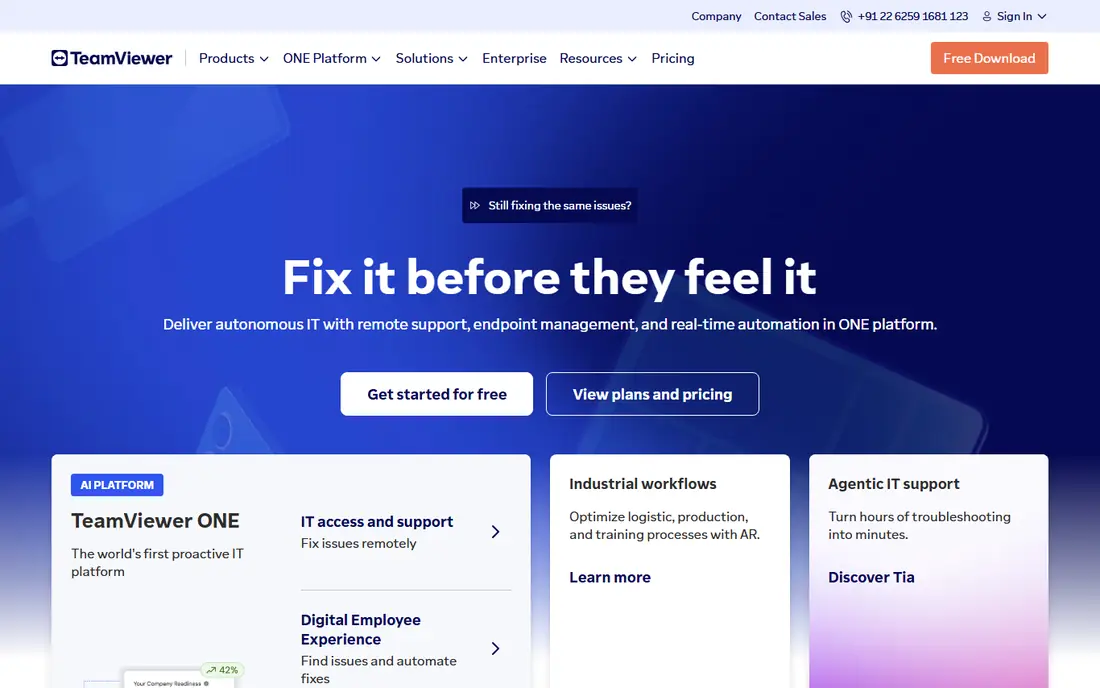
TeamViewer is the best known remote access tool for a reason. It covers unattended access to your own machines, attended support sessions with someone else, file transfer, and multi monitor support, all from one account. The Remote Access plan starts at $24.90 per month when billed annually, and personal use remains free.
Small businesses should weigh that price against Splashtop or RemotePC, which cost less for basic access. TeamViewer wins when you need one tool for both personal access and client support, plus broad platform coverage and management features that smaller tools lack.
- Works across Windows, Mac, Linux, iOS, and Android
- Free for personal use
- File transfer, multi monitor, and session tools
- Business pricing is high for small teams
- Personal use can be flagged if usage looks commercial
- Advanced features sit on higher plans
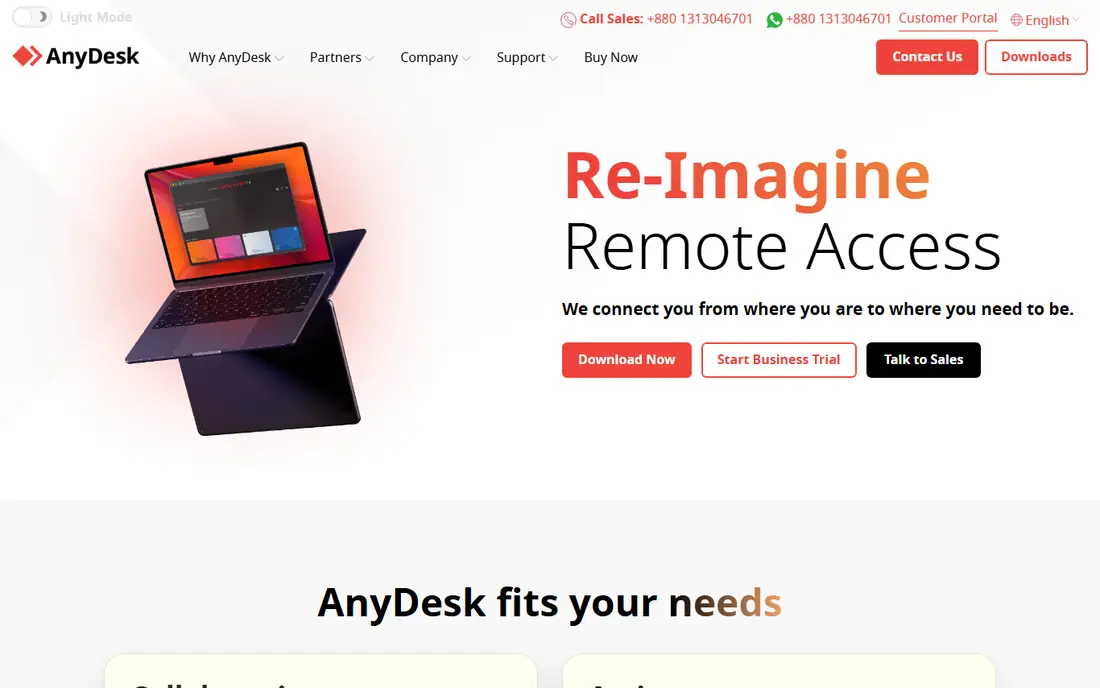
AnyDesk is the speed pick. Its lightweight client and DeskRT codec keep sessions responsive even on weaker connections, which matters for design work, video, and support sessions where lag breaks the flow. Paid plans start at $22.90 per month in recent pricing, and personal use is free for non commercial sessions.
The management and reporting tools are less deep than TeamViewer or ConnectWise, so large IT teams may need a second system. For individuals and small teams who care most about a fast, stable connection, AnyDesk is hard to beat.
- Lightweight client and fast performance
- Cross platform support
- File transfer and remote printing
- Business plans cost more than budget rivals
- Free personal tier has limits
- Interface is simpler than TeamViewer management tools
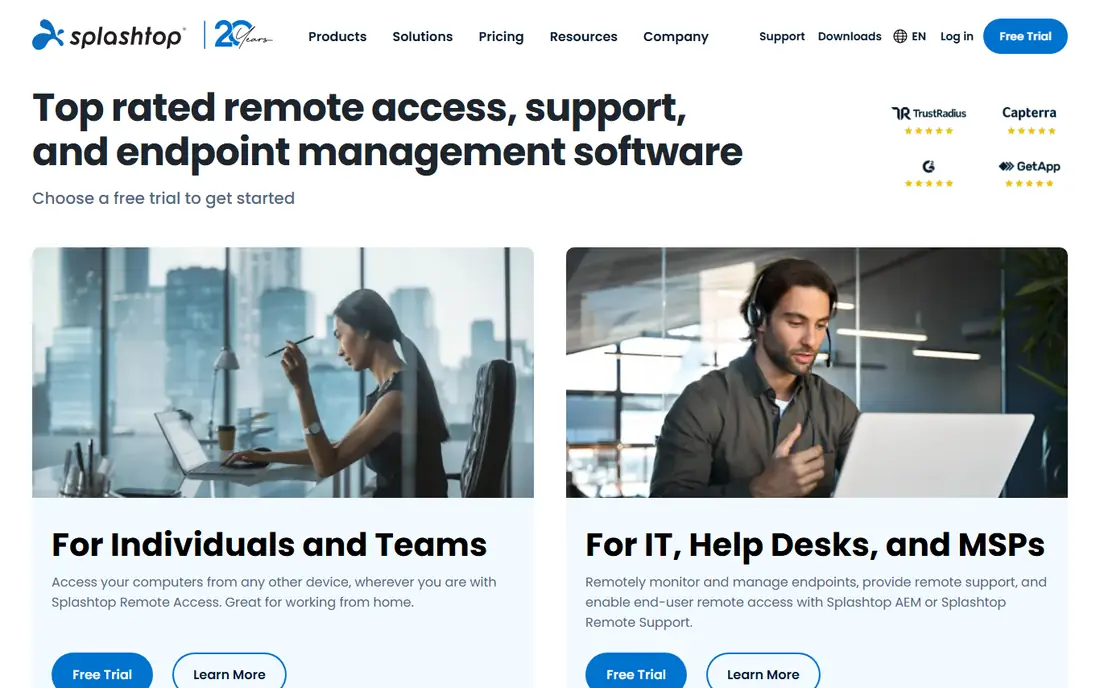
Splashtop offers the best value for remote work access. Business Access plans cover unattended access to work computers from home, with high quality video, multi monitor support, and file transfer, at a price well below TeamViewer for comparable access. Solo and business editions suit individuals and small teams, while SOS editions suit technicians who support other people.
Read the edition carefully before buying. Remote work access and remote support are different Splashtop products, and the support features you may expect, such as session recording, sit on higher plans. Check the current pricing page for the edition that matches your use.
- High quality streaming at a lower price than TeamViewer
- Per user plans for remote work
- Strong multi monitor and 4K support
- Support focused features need higher SOS or enterprise plans
- No ongoing free plan
- Plan names and prices vary by edition
Chrome Remote Desktop is the right answer when the need is simple: reach your own home or office computer from a laptop or phone, for free. Setup takes minutes through the browser, and you can also offer remote assistance by sharing a one time code with someone you trust. There is no subscription, no trial clock, and no per computer fee.
Paid tools win on management, unattended fleets, session recording, and support workflows. If you only need personal access to one or two computers, Chrome Remote Desktop does the job without a bill, and it is the tool we suggest trying first.
- Completely free
- Browser based setup with a Google account
- Works across Windows, Mac, Linux, and ChromeOS
- No advanced IT management tools
- No file transfer as rich as paid tools
- Requires a Google account
Zoho Assist is built for support, not just personal access. Technicians can start attended sessions, set up unattended access, transfer files, and record sessions, with a free tier that suits very small teams or occasional support. Paid plans are priced per technician, which keeps costs predictable for a help desk.
Personal users who only want to reach their own computer will find Chrome Remote Desktop or Splashtop simpler. Zoho Assist earns its place when you support other people regularly and want a support workflow, not just a screen share.
- Free tier for basic support
- Unattended access and session tools
- Integrates with other Zoho apps
- Paid tiers vary by technician count
- Advanced reporting needs higher plans
- Interface favors support use over personal access
RemotePC is the budget pick for unattended access to your own computers. Consumer and small business plans price by computer count rather than by user, which can be far cheaper than per user tools when one person manages several machines. Features cover remote access, file transfer, multi monitor viewing, and remote printing.
It is less suited to a full IT support desk, where session management and integrations matter more. For a freelancer, a small office, or a family managing several PCs, RemotePC gives always on access at a price that is easy to justify.
- Low cost per computer plans
- Unattended access with file transfer and remote printing
- Web based access option
- No ongoing free plan
- Support features are thinner than ScreenConnect
- Plan prices vary by computer count
ConnectWise ScreenConnect, formerly ScreenConnect, is the support desk pick for IT teams. It handles attended and unattended sessions, multiple technicians, session queues, and integrations with ticketing and management tools used by managed service providers. That workflow depth is why many MSPs standardize on it.
Individuals should not buy it for one computer. The price, setup, and learning curve only make sense when you support many endpoints or clients. For that audience, ScreenConnect is more complete than a general access tool such as Splashtop Business Access.
- Built for IT support teams and managed providers
- Unattended access, session management, and integrations
- Strong automation options
- Pricing is higher than personal tools
- Setup takes more time
- Overkill for a single personal computer
RealVNC Connect is the classic VNC option, updated for modern use. It offers secure remote access across Windows, Mac, Linux, and Raspberry Pi, with cloud connections for easy setup and direct connections for local networks. Pricing starts at $8.25 per month when billed annually on recent pricing pages, with a free tier for basic use.
The trade-off is breadth. RealVNC focuses on reliable access rather than a full support suite, so teams that need ticketing, automation, or large fleet management should look at ScreenConnect or Zoho Assist. For lightweight, secure access to a small set of machines, RealVNC is a solid, affordable choice.
- Lightweight VNC based access
- Cloud and direct connection options
- Cross platform including Raspberry Pi
- Feature set is narrower than TeamViewer
- Setup can feel technical
- Higher plans needed for team management
RustDesk is the open source alternative for teams that want control over their own server. The client is free, connections support file transfer and multi monitor use, and a self hosted relay lets an organization keep session routing on its own infrastructure. That control appeals to privacy focused teams, schools, and IT groups with in house skills.
Self hosting is the catch. You need to run and maintain a server, handle security updates, and support users yourself, or pay for the hosted Pro service. RustDesk is best for technical teams that value openness and control over a polished, fully managed support suite.
- Open source client
- Self hosting option for privacy control
- Free for personal and basic team use
- Self hosting needs technical setup
- Paid Pro features need a subscription
- Support and documentation are community driven
How we picked these
We kept only tools that are live in October 2026, offer real remote desktop access, and publish clear pricing or a free tier. We checked official product and pricing pages, and we used See website where editions, per user versus per computer pricing, or annual billing made a single figure misleading. We left out tools that had shut down, tools that only offered screen sharing without remote control, and tools whose homepage did not clearly belong to the product.
How to choose remote access software
Start with the job: your own computers, or other people's computers. For your own machines, Chrome Remote Desktop is free, RemotePC and Splashtop are cheap, and TeamViewer or AnyDesk add polish. For supporting others, Zoho Assist, ScreenConnect, and TeamViewer offer session tools, unattended access, and management that personal tools lack.
Next, check platform coverage and security. Confirm the tool supports every device you need, including phones, and confirm it offers two factor authentication, strong encryption, and session controls such as approval prompts and idle timeouts. Finally, test on your real network. A tool that feels fast on office Wi-Fi may lag on a home connection, so run a trial session with the actual work you do, such as editing documents or using design software, before you pay annually.
Security rules for remote access
Only install remote software from the official vendor site, never from a link in an unexpected message. Turn on two factor authentication, use a strong unique password, and require approval for incoming sessions where the tool allows it. Remove access promptly when a team member leaves, and review the list of devices with unattended access at least once a quarter. If someone you do not know asks you to install a remote tool, stop and verify through a trusted channel first, since that request is a common scam pattern.
Frequently asked questions
What is the best remote access software?
TeamViewer is our pick for most teams because it covers personal access and IT support across platforms. Splashtop offers better value for remote work, AnyDesk offers faster sessions, and Chrome Remote Desktop is best if you want a free personal tool.
What is the best free remote access software?
Chrome Remote Desktop is the best fully free option for personal access to your own computers. TeamViewer and AnyDesk also offer free personal tiers, and RustDesk is free and open source, with self hosting as an option.
What is the best remote desktop software for IT support?
ConnectWise ScreenConnect suits IT teams and managed providers with session management and integrations, while Zoho Assist suits smaller support teams at a lower cost. TeamViewer is a strong middle option for teams that need both access and support.
Is TeamViewer free?
TeamViewer is free for personal, non commercial use. Business use needs a paid plan, starting at $24.90 per month for Remote Access when billed annually, with higher plans for support and team features.
What is the best remote access tool for small business?
Splashtop and RemotePC are strong small business picks for remote work access at a lower cost than TeamViewer. If you also support clients, Zoho Assist adds support workflows without the price of a full MSP platform.
Is remote access software safe?
It can be safe when set up well: use the official vendor download, turn on two factor authentication, use a strong password, and approve incoming sessions. It becomes risky when access is left open, passwords are reused, or software is installed at the request of an unknown caller.
Sources
See where you really rank - block by block
ProMapRanker scans Google Maps across a grid of your service area. Simple monthly plans from $19, white-label on every plan.
Start freeKeep reading
 youtube alternatives
Best YouTube Alternatives in 2026
Looking for youtube alternatives in 2026? We compare Vimeo, Dailymotion, Twitch, Rumble, and more on price, audience, monetization, control and privacy.
Read → what's the best ai tool for photo editing
What Is the Best AI Tool for Photo Editing in 2026
What is the best AI tool for photo editing? We compare ten tools for 2026, from Photoshop and Lightroom to Luminar, Topaz, Canva and mobile editors today.
Read → twitter alternatives
Best Twitter Alternatives in 2026
Compare the best twitter alternatives for 2026, from Bluesky, Threads, and Mastodon to Reddit, Tumblr, and Micro.blog, with free plans and audience notes.
Read →