 ProMapRanker
Best Reels App in 2026: 8 Apps Compared

Key takeaways
- Edits, from Instagram, is our pick for most Reels creators, because it is free, exports without a watermark, and posts straight to Instagram.
- CapCut suits creators who post to several platforms and rely on templates, trends and auto captions.
- Adobe Premiere on mobile and VN suit creators who want timeline control without a watermark on free exports.
- Captions suits talking-head creators who need accurate auto captions, while Canva suits branded, template-led Reels.
- Export quality, watermark rules and caption accuracy matter more than effect counts, so test each app on a real Reel before paying.
Quick comparison
| Pick | Great for | Pricing starts at | Free tier | |
|---|---|---|---|---|
 Edits | Instagram-first Reels editing | Free | Yes | Visit |
 CapCut | Templates and multi-platform posting | See website | Yes | Visit |
 Adobe Premiere mobile | Full timeline editing | See website | Yes | Visit |
 VN | Watermark-free mobile editing | See website | Yes | Visit |
 InShot | Fast everyday mobile edits | See website | Yes | Visit |
 Canva | Branded template Reels | See website | Yes | Visit |
 Adobe Express | Quick branded Reels and graphics | See website | Yes | Visit |
 Captions | Auto captions for talking-head Reels | See website | Yes | Visit |
The best reels app
We compared official app pages, pricing pages and feature descriptions for Reels editing tools. This list focuses on making short vertical videos for Instagram Reels, though most apps also export for other short video platforms. Prices and paid tiers change often, so confirm current terms in the app store before you pay.
Edits is Instagram own editing app, and for most Reels creators it is the simplest starting point. It is free, it exports in high quality without a watermark, and it posts straight to Instagram, which removes the save, upload and reformat steps that other apps require. Safe-zone guides help you keep text and captions clear of Instagram interface elements, and performance insights show how posted Reels perform.
The limits are platform focus and depth. Edits is mobile only, and creators who post the same video to several platforms may miss CapCut template library and cross-platform tools. Meta has also announced a paid Edits tier with extra storage and AI use, though pricing was not shared in the sources we checked, so confirm current terms. If Instagram Reels are your main format, start with Edits.
- Free on iPhone and Android
- Exports without a watermark
- Posts straight to Instagram with safe-zone guides
- Mobile only
- Fewer cross-platform templates than CapCut
- Some advanced features sit in a paid tier
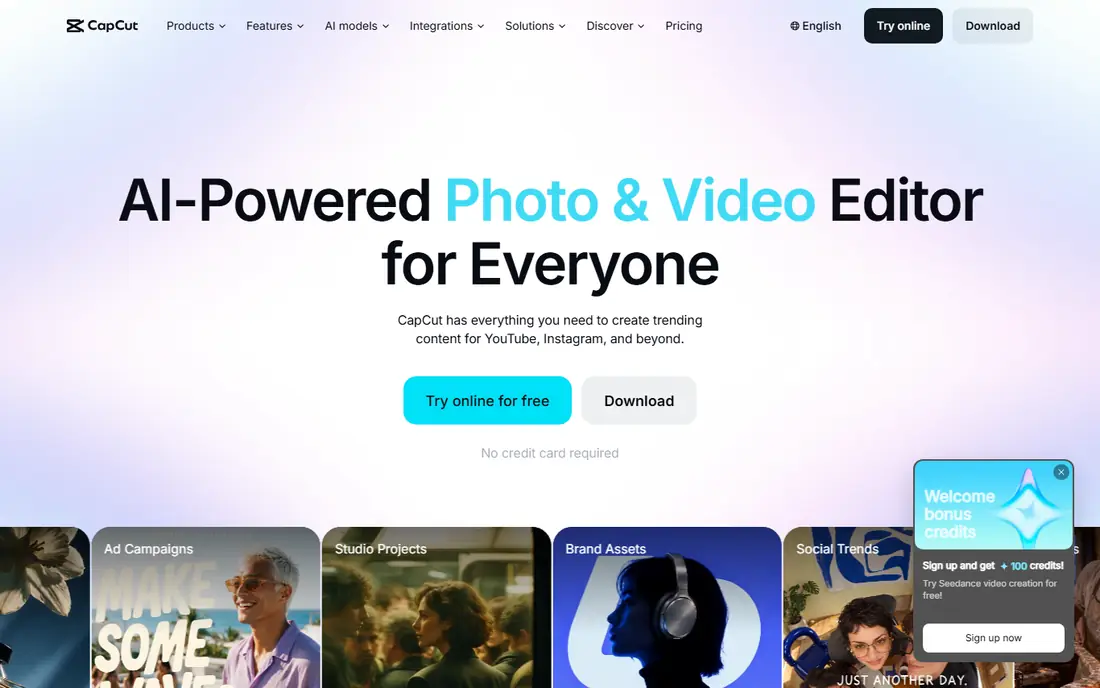
CapCut remains the most complete all-around Reels editor for creators who post across platforms. Its template library tracks trends closely, auto captions save time on talking-head clips, and beat sync matches cuts to music without manual timing. Mobile, desktop and web versions let you start on a phone and finish on a computer, which suits creators who edit often.
The free tier covers basic editing and 1080p export in published descriptions, while Pro adds higher resolution export, fuller AI tools and cloud storage, with pricing that varies by region. Some Pro-locked templates and AI clips can carry a watermark if you keep them on a free plan, so check exports before posting. For trend-led creators who post everywhere, CapCut is hard to beat.
- Large template and trend library
- Auto captions and beat sync
- Mobile, desktop and web versions
- Some advanced AI features need a Pro plan
- Pro-locked templates can add a watermark if kept
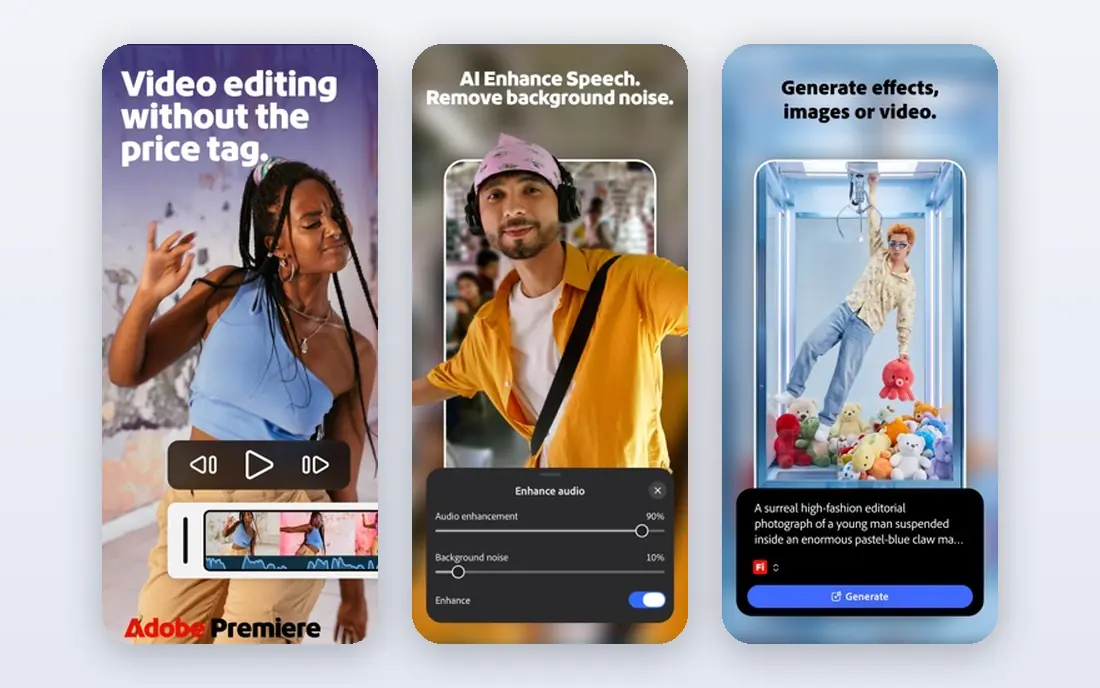
Adobe Premiere on mobile, formerly known in part as Premiere Rush in earlier forms, gives creators a proper timeline editor on a phone, with multi-track editing, precise cuts and audio controls that template apps lack. Free exports carry no watermark in published comparisons, which is a real advantage for creators who post often and dislike paying just to remove a logo. Links to other Adobe tools help creators who already use Adobe apps.
The trade-off is effort. Timeline editing takes longer to learn than tapping a template, and some advanced features sit behind paid plans. Beginners may prefer Edits or CapCut for speed, then move to Premiere mobile when they want finer control. For creators who value edit precision over templates, it is our pick for a free timeline editor.
- Full timeline editing on mobile
- Exports without a watermark on the free version
- Adobe ecosystem links
- Learning curve is steeper than Edits or CapCut
- Some features need a paid plan
VN, also known as VN Video Editor, is a favorite among mobile creators who want serious editing without a watermark on free exports. It offers multi-track timelines, keyframes, speed curves and masking tools that go beyond basic cut-and-filter apps, while staying on a phone. That depth suits creators who film with a phone and edit on the same device, without moving to a desktop editor.
The template library is smaller than CapCut, and the interface rewards a little practice before it feels fast. Paid plans add extra features and remove some limits, but the free version already covers most Reels editing needs. If watermark-free export and timeline control matter more than trending templates, VN is a strong, low-cost choice.
- Exports without a watermark on the free version
- Multi-track timeline
- Keyframe and curve tools
- Smaller template library than CapCut
- Interface takes time to learn
InShot suits creators who want a quick, reliable edit without learning a complex timeline. Trimming, splitting, speed changes, filters, text and music are all a few taps away, which makes it ideal for daily Reels, travel clips and behind-the-scenes videos. The app is stable, widely used and easy to pick up, even for first-time editors.
The main catch is the watermark. Free exports add the InShot logo, which a Pro subscription removes, so creators who post daily may need to pay for clean exports. Advanced AI tools are also thinner than in CapCut or Captions. If speed and simplicity matter most, and you can accept a paid plan for clean exports, InShot is a dependable everyday editor.
- Fast, simple editing for everyday Reels
- Filters, text and music tools
- Easy trimming and speed controls
- Free exports add a logo that a Pro subscription removes
- Fewer advanced AI tools than CapCut
Canva suits brands, small businesses and creators whose Reels need consistent colors, fonts and logos. Its template library covers announcements, product clips, quotes and sale posts, and brand kits keep every Reel looking like it came from the same account. Text animation and graphic overlays are easier here than in a pure video editor, which helps non-designers produce polished clips.
Video editing depth is the limit. Multi-track timeline control, beat sync and advanced audio tools are thinner than in CapCut or Premiere mobile, so Canva is less suited to audio-driven trend edits. Premium elements need a Pro plan, though free templates cover many needs. For branded, template-led Reels, Canva is the most efficient choice.
- Large template library for branded Reels
- Easy text, logos and brand kits
- Web and mobile versions
- Video editing depth is less than CapCut or Premiere mobile
- Premium elements need a Pro plan
Adobe Express sits between Canva and a full video editor, offering quick templates, automatic resizing for different platforms, and AI tools for captions and background removal. It suits small businesses and creators who need a polished Reel and a matching thumbnail or story graphic from the same project, without opening several apps. Free exports carry no watermark in published comparisons, which helps occasional creators.
Timeline depth is less than Premiere mobile, so complex edits with many tracks may feel constrained. Premium features, including fuller AI tools, sit behind a paid plan. If you want fast, branded Reels plus graphics in one tool, Adobe Express is a practical pick, especially for users already in the Adobe system.
- Quick templates and resize tools
- AI caption and background tools
- Exports without a watermark on the free version in published comparisons
- Less timeline depth than Premiere mobile
- Fullest features need a Premium plan
Captions, from Captions.ai, is built for creators who talk to camera and need captions that viewers can read with sound off. Its auto captions cover many languages, and it offers a teleprompter, eye-contact correction and AI editing tools that help solo creators record clean takes without a crew. Exports are clean, without a watermark on your own footage in published comparisons.
The app is less suited to dance trends, template edits or heavy effects work, where CapCut or Edits fit better. Advanced AI avatars and auto-editing sit on higher plans, so check current pricing before relying on those features. If your Reels are mainly you talking, teaching or explaining, Captions saves the most time per video.
- Accurate auto captions in many languages
- Teleprompter and eye-contact tools
- Clean exports
- Best for talking-head videos, less for trend templates
- Advanced AI features need a higher plan
How we picked these
We compared official app pages, pricing pages and feature descriptions for Reels editors in October 2026. We kept apps that are live, edit vertical video, and export for Instagram Reels, and we noted watermark rules and free tiers where published sources described them. We did not claim hands-on testing, and we used See website where pricing varies by region or plan.
How to choose the right Reels app
Start with your Reel type. Talking-head creators should try Captions or Edits first, trend creators should try CapCut, branded creators should try Canva or Adobe Express, and control-focused creators should try Premiere mobile or VN. Use one main editor for a month, rather than switching apps for every Reel, since a steady workflow improves quality faster than new effects.
Check three things before you pay: watermark rules on free exports, caption accuracy on your own voice and accent, and export quality at your usual Reel length. Keep Reels under three minutes for discovery in published Instagram guidance, use captions for sound-off viewers, and keep text inside safe zones. A good app should make posting feel easy, not add a new chore to every video.
Frequently asked questions
What is the best reel app for most creators?
Edits is our pick for most Instagram Reels creators, because it is free, exports without a watermark, and posts straight to Instagram. CapCut is better if you post to several platforms or rely on templates.
Which reels app has no watermark for free?
Edits, Adobe Premiere on mobile, VN and Adobe Express export without a watermark on their free versions in published comparisons. CapCut adds an ending clip you can delete in some cases, while InShot adds its logo to free exports.
What is the best app to make Reels with templates?
CapCut offers the largest trend and template library on this list, while Canva offers the best branded templates for businesses. Edits offers Instagram-focused tools but fewer cross-platform templates.
Can I edit Reels on a computer as well as a phone?
Yes. CapCut, Canva and Adobe Express run on web and desktop as well as mobile, while Edits and VN are mainly mobile tools. Premiere mobile focuses on phone editing, with desktop Premiere as a separate product for fuller projects.
How long should a Reel be?
Instagram allows Reels up to 20 minutes in published guidance, but Reels longer than 3 minutes are less likely to be recommended to new audiences. For discovery, keep most Reels short and focused, and save longer cuts for existing followers.
Do I need a paid plan to make good Reels?
No. Free versions of Edits, CapCut, VN, Premiere mobile, Canva and Adobe Express cover most Reels editing needs. Paid plans add higher resolution export, fuller AI tools, premium templates and cloud storage, so pay only when a specific limit blocks your workflow.
Sources
See where you really rank - block by block
ProMapRanker scans Google Maps across a grid of your service area. Simple monthly plans from $19, white-label on every plan.
Start freeKeep reading
 zscaler alternatives
Best Zscaler Alternatives in 2026
Looking for zscaler alternatives? We compare 9 SASE and zero trust platforms on architecture, data protection, pricing, and fit for your network and team.
Read → zapier alternatives free
Best Zapier Alternatives Free in 2026
Nine automation tools for zapier alternatives free in 2026, all with genuinely free tiers, plus free plan limits, starting prices and upgrade paths explained.
Read → which platform is best for online reputation
Which Platform Is Best for Online Reputation in 2026
Wondering which platform is best for online reputation? We compare 8 review, listing, and response tools for small and multi-location businesses and agencies.
Read →