 ProMapRanker
Best Recovery Software in 2026

Key takeaways
- This article covers data recovery software, which restores deleted or lost files from drives, cards, and partitions.
- Software cannot guarantee recovery from physically failed drives, and a clicking, grinding, or unrecognised drive needs a professional lab, not more scanning.
- Stop using the affected drive at once, since new writes can overwrite the files you hope to recover.
- Start free for small losses, with Recuva or PhotoRec, and pay only when the free scan finds files worth recovering.
Quick comparison
| Pick | Great for | Pricing starts at | Free tier | |
|---|---|---|---|---|
 Disk Drill | All-round home recovery | $89 | Free trial | Visit |
 EaseUS Data Recovery Wizard | Beginners with a large free tier | $69.95 per month | Yes | Visit |
 Stellar Data Recovery | Photo and video recovery | $59.99 per year | Free trial | Visit |
 Wondershare Recoverit | Camera media and video recovery | See website | Free trial | Visit |
 Recuva | Free Windows recovery | Free | Yes | Visit |
 PhotoRec | Free open source recovery | Free | Yes | Visit |
 R-Studio | Technicians and RAID recovery | $49.99 | Free trial | Visit |
 DMDE | Budget professional recovery | See website | Yes | Visit |
 MiniTool Power Data Recovery | Simple Windows recovery | See website | Yes | Visit |
The best recovery software
We compared tools on scan quality, preview, file system support, free limits, and ease of use. The best recovery tool for a deleted photo folder is not the same as the best tool for a RAID array or a formatted card.

Disk Drill is the easiest all-round pick for most home users. Pick a drive, scan, preview photos and documents, and recover what you need. It can also make a byte-to-byte disk image first, so you scan the image rather than stressing a failing drive, which is a safer way to work with a troubled disk.
The free tier is mainly for scanning and preview on Windows, with a small free recovery allowance, so most users will need the paid version for a real recovery. Deep scans on large drives can also take hours. For a straightforward deleted-file job, its clarity is worth that cost.
- Clean interface
- Disk imaging for failing drives
- Strong preview tools
- Free recovery limit on Windows is small
- Deep scans on large drives take time
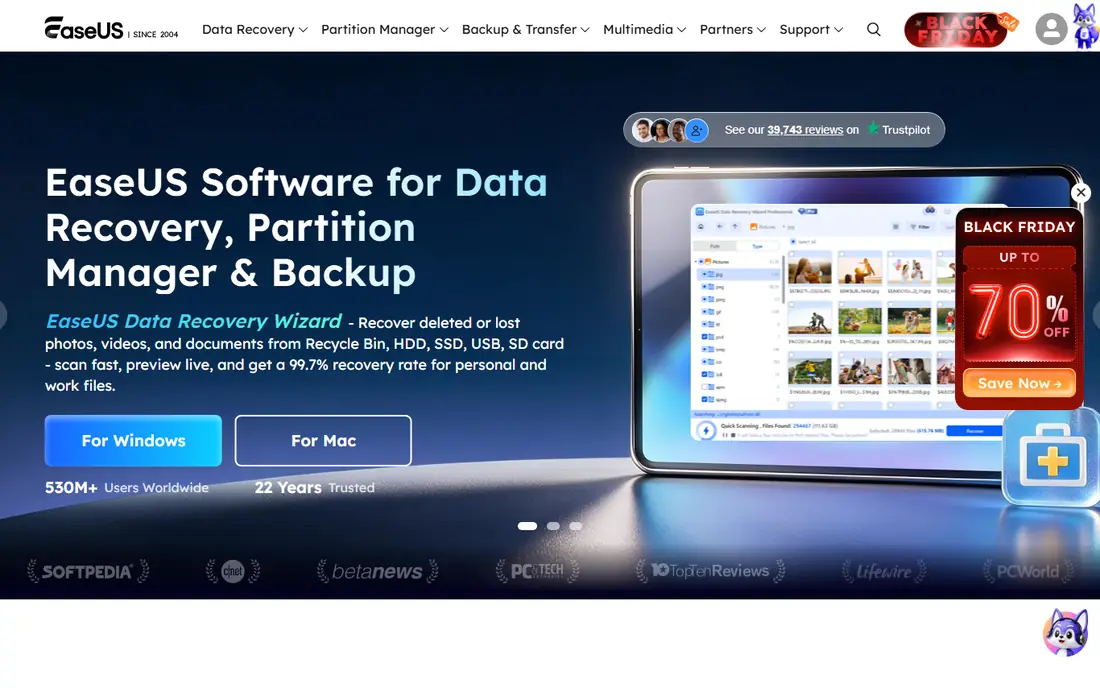
EaseUS is a strong beginner tool because its free tier covers up to 2 GB on Windows, which is often enough for a folder of documents or a batch of photos. It handles deleted files, formatted drives, lost partitions, and RAW drives, with a guided workflow that needs little technical knowledge.
Pricing needs care. The monthly plan is poor value if you only need the tool once, so compare the yearly price before buying. It also lacks the RAID depth of R-Studio, and Linux users should look elsewhere.
- Simple three-step workflow
- Up to 2 GB free recovery on Windows
- Handles formatted drives
- Monthly price is poor value for one job
- RAID and Linux support are limited
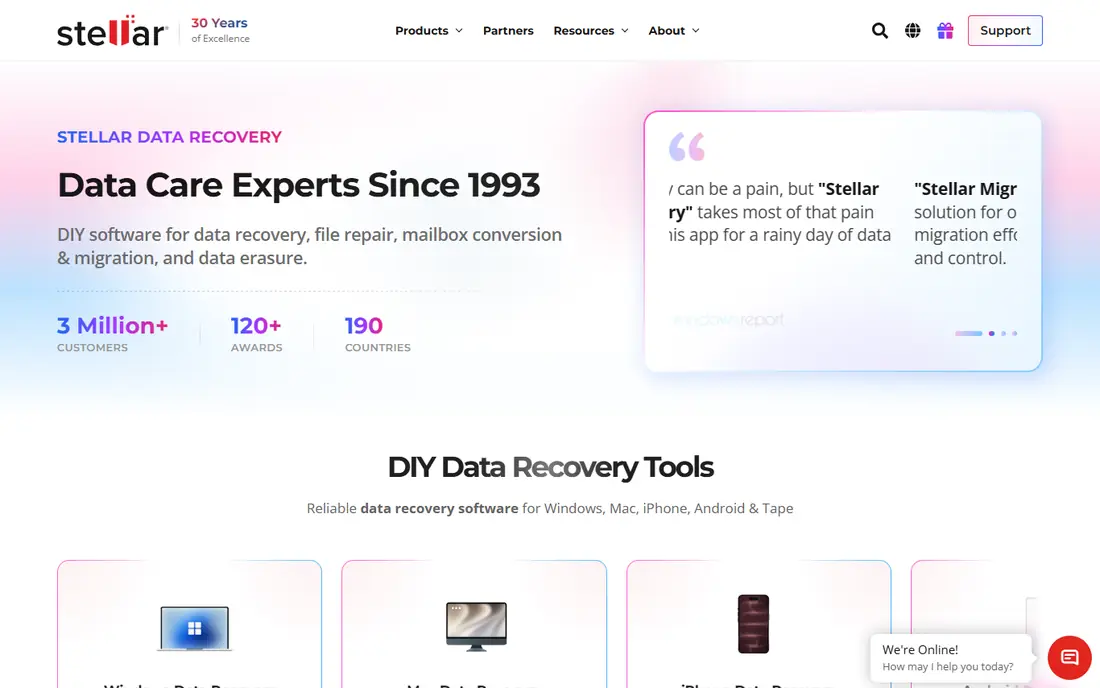
Stellar suits users recovering photos and videos, including damaged media files. The standard tool scans drives, cards, and partitions, while higher tiers add photo and video repair for files that recover but will not open cleanly. Preview helps you check files before paying.
The free tier covers a limited amount of data, so larger recoveries need a paid plan. Users with simple document losses may find a cheaper or free tool enough, while photo and video users often value Stellar's repair features.
- Wide file-type support
- Photo and video repair on higher tiers
- Clear preview
- Advanced repair features need higher tiers
- Free recovery amount is limited
Recoverit covers a broad range of drives, memory cards, NAS devices, and camera media in one app. That breadth helps photographers and videographers who work with several card types and formats. Higher tiers add enhanced video recovery and repair for corrupted video files.
Free scanning and preview are useful, but recovery beyond the free allowance needs a paid plan. Check the plan that matches your device type and file count before buying, since pricing varies by tier.
- Broad drive and card support
- Good for camera media
- Video repair on higher tiers
- Paid to recover beyond the free allowance
- Pricing varies by plan
Recuva is the best free starting point on Windows for simple, recent deletions. It is light, fast, and free for basic recovery, with a paid Pro version adding support and automatic updates. For a file deleted yesterday from a healthy drive, it often finds it in minutes.
It is Windows only, and it is weaker than paid tools on formatted drives, lost partitions, or complex damage. If Recuva finds nothing, try a deeper tool such as Disk Drill or PhotoRec before giving up, and do not keep writing to the drive in between.
- Free unlimited recovery for basic jobs
- Light and fast
- Simple interface
- Windows only
- Weaker on formatted drives and complex damage
PhotoRec, paired with TestDisk, is the best zero-budget option for serious losses. It is free, open source, and runs on Windows, Mac, and Linux, and it can recover files from formatted drives and lost partitions where simpler tools fail. Technicians often use it when paid tools are not an option.
The trade-off is usability. PhotoRec uses a command-line interface, recovers files without original folder names in many cases, and needs care to avoid overwriting data. Patient users with no budget will still find it powerful, while beginners may prefer a paid graphical tool.
- Completely free and open source
- Works on Windows, Mac, and Linux
- Strong for partitions
- Command-line interface
- No simple file preview or folder structure recovery
R-Studio suits technicians and IT staff handling RAID arrays, network drives, and complex damage. It offers deep scan control, RAID reconstruction, and support for many file systems, which general home tools do not match. For a business with a failed array, it is often the first software step before a lab.
The interface is technical, and the demo only recovers small files, so home users may find it daunting. If you are not comfortable with disk structures, start with Disk Drill or EaseUS, and call a professional for a physically failing drive.
- Strong RAID and network recovery
- Works on Windows, Mac, and Linux
- Deep scan control
- Interface is technical
- Demo recovers only small files
DMDE gives budget users access to professional-grade recovery tools at a much lower price than most technician software. It handles partitions, file system damage, and disk imaging, and its free edition recovers a limited number of files per folder. Technicians often keep it as a second tool for tricky cases.
The interface is technical and assumes some disk knowledge, so beginners should expect a learning curve. For a user who wants professional depth without a high price, DMDE is a strong, if demanding, choice.
- Professional-grade tools at a low price
- Good partition work
- Windows, Mac, and Linux support
- Interface is technical
- Learning curve for new users
MiniTool Power Data Recovery suits Windows users who want a simple recovery workflow without a technical interface. It scans drives, cards, and partitions, previews files, and recovers common losses such as deletions and formatting. The free edition helps users check what is recoverable before paying.
It is Windows focused, and it does not match R-Studio or DMDE for RAID or complex technician work. For a home user with a deleted folder or a formatted USB drive, its simplicity is a clear advantage.
- Simple workflow
- Free scan and limited free recovery
- Good for common losses
- Windows focused
- Advanced RAID work needs other tools
How we picked these
We compared official product pages, pricing pages, and feature lists for data recovery tools in active use in October 2026. We favoured tools with real scan and preview features, current availability, and a clear free or paid path. We left out tools that only claim recovery without a working scan, and tools that charge without preview. Prices shown as See website mean the vendor price varies by plan, so check the vendor page before buying. Remember that software cannot guarantee recovery from physically failed drives.
What to check before you choose
Stop using the affected drive as soon as you notice a loss. Do not install recovery software on the same drive, do not save recovered files back to it, and do not run repeated deep scans on a drive that makes clicking or grinding sounds. For a healthy drive with deleted files, install the tool on a different drive and recover to a different drive.
Physical failure signs
If a drive clicks, grinds, beeps, smells burnt, or is not recognised at all, stop and seek a professional data recovery lab. Software cannot fix a failed motor, head, or circuit board, and continued scanning can make a lab recovery harder or impossible. For logical losses such as deletion, formatting, or partition loss, software is the right first step.
Free scan first, then pay
Use free scanning and preview to confirm your files are found before paying. Check the free recovery limit, the file types covered, and whether the tool preserves folder structure. A paid tool is worth it when the free scan finds important files, but no tool should be bought blind for a drive you have not scanned.
Frequently asked questions
What is the best recovery tool for deleted files?
Recuva is the best free start on Windows, while Disk Drill and EaseUS suit users who want a guided paid tool. PhotoRec is the best free option across Windows, Mac, and Linux. Start with a free scan, then pay only if the scan finds your files.
Can data recovery software fix a physically failed drive?
No. Software cannot guarantee recovery from physically failed drives, and it cannot repair failed motors, heads, or circuit boards. If a drive clicks, grinds, or is not recognised, stop using it and contact a professional lab. Software suits logical losses such as deletion and formatting.
How much free data can I recover?
Free limits vary by tool. EaseUS offers up to 2 GB on Windows, Recuva and PhotoRec offer unlimited free recovery for basic jobs, and Disk Drill and Stellar offer limited free amounts. Check the current free terms on the vendor site, since limits change.
Should I recover files back to the same drive?
No. Always recover to a different drive, since writing recovered files to the same drive can overwrite other lost files still waiting to be found. Use a USB drive or a second internal drive as the recovery target.
What should I do if a drive is formatted?
Stop using it at once, then scan it with a recovery tool that supports formatted drives, such as EaseUS, Disk Drill, or PhotoRec. Formatted files often remain on disk until overwritten, so a quick scan gives the best chance. If the drive shows physical failure signs, seek a lab instead.
Sources
See where you really rank - block by block
ProMapRanker scans Google Maps across a grid of your service area. Simple monthly plans from $19, white-label on every plan.
Start freeKeep reading
 zscaler alternatives
Best Zscaler Alternatives in 2026
Looking for zscaler alternatives? We compare 9 SASE and zero trust platforms on architecture, data protection, pricing, and fit for your network and team.
Read → zapier alternatives free
Best Zapier Alternatives Free in 2026
Nine automation tools for zapier alternatives free in 2026, all with genuinely free tiers, plus free plan limits, starting prices and upgrade paths explained.
Read → which platform is best for online reputation
Which Platform Is Best for Online Reputation in 2026
Wondering which platform is best for online reputation? We compare 8 review, listing, and response tools for small and multi-location businesses and agencies.
Read →