 ProMapRanker
Best Recording Software for PC in 2026

Key takeaways
- OBS Studio is the strongest free option for PC recording and streaming, with no time limit and no watermark, if you accept a steeper setup.
- Camtasia is the best record plus edit package for courses and tutorials, while Loom is fastest for short team videos shared by link.
- Bandicam suits high frame rate game capture on Windows, and ShareX suits technical users who want a free, lightweight recorder.
- Free tiers vary a lot: some cap recording length, some watermark exports, and some limit sharing, so check those limits first.
- For classroom or work use, browser based options such as Screencastify and ScreenPal can be simpler than installing desktop software.
Quick comparison
| Pick | Great for | Pricing starts at | Free tier | |
|---|---|---|---|---|
 OBS Studio OBS Studio | free recording and streaming | Free | Yes | Visit |
 Camtasia Camtasia | polished tutorials with built-in editing | $179.88 per year | Free trial | Visit |
 Loom Loom | quick team videos shared by link | $18 per month | Yes | Visit |
 Bandicam Bandicam | high frame rate game capture | $33.26 per year | Free trial | Visit |
 ShareX ShareX | free lightweight capture for technical users | Free | Yes | Visit |
 Movavi Screen Recorder Movavi Screen Recorder | simple everyday recording | $44.95 per year | Free trial | Visit |
 ScreenPal ScreenPal | teachers and quick how-to videos | $4 per month | Yes | Visit |
 Screencastify Screencastify | browser based classroom recording | $7 per month | Yes | Visit |
 Snagit Snagit | quick captures and short clips | $39 per year | Free trial | Visit |
The best recording software for pc
Good PC recording software depends on what happens after you press record. Some tools only capture, some edit, and some share by link in seconds. We compared free and paid options for tutorials, games, work messages, and classroom videos.
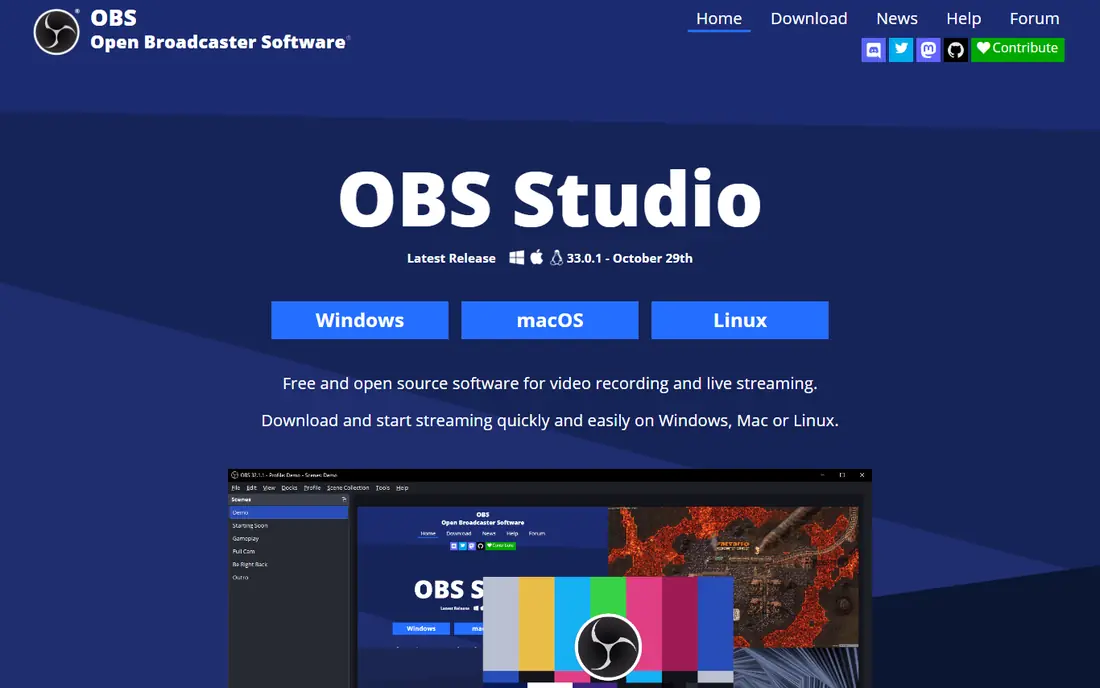
OBS Studio is the standard free recorder for creators who want control. You can capture a full screen, a window, a webcam, and separate audio tracks in one session, then stream to YouTube or Twitch or save a local file. There is no recording time cap and no watermark, which sets it apart from most free tools. The price for that power is setup time. Scenes, sources, and audio settings need configuring before your first clean recording. If you already edit in another program, that trade is easy to accept. If you want a one click record and share workflow, a simpler tool below will feel faster.
- Free and open source with no watermark
- Multi-source recording and streaming
- Works on Windows, Mac, and Linux
- Setup takes time for beginners
- No built-in video editor
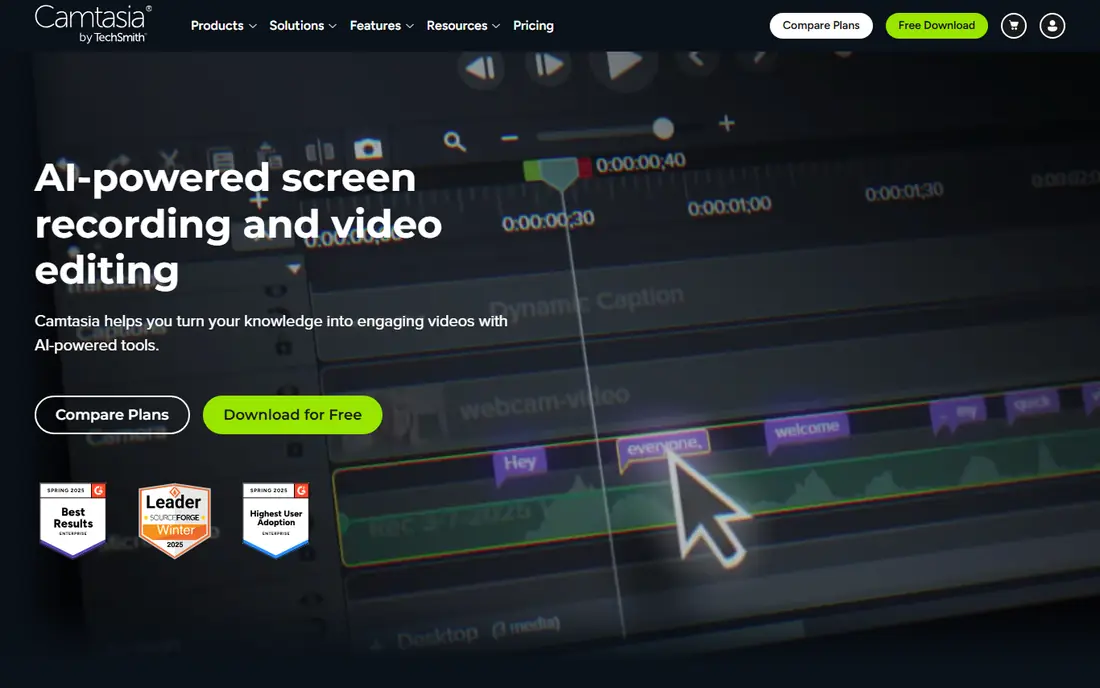
Camtasia is built for people who make courses, not just clips. Record your screen and webcam, then cut, annotate, add transitions, and polish audio on the same timeline. Cursor effects, callouts, and quiz questions help turn a raw walkthrough into a lesson that a learner can follow without extra guidance. Short informal videos do not need this depth, and the yearly price reflects that. For a single tutorial series or a paid course, the time saved by editing in the same tool often justifies the cost. For quick internal messages, Loom or ScreenPal will be faster.
- Recorder plus a full timeline editor
- Annotations, cursor effects, and quizzes
- Good for structured courses
- Higher yearly cost than simple recorders
- Heavier install for short clips
Loom changed work video by removing the export and upload step. Record, stop, and share a link that colleagues can watch and comment on. That flow suits feedback, onboarding notes, and short explanations far better than a traditional recorder that leaves you with a large file to send. The free plan is usable for short messages, but longer videos and advanced features need a paid plan. Editing is limited to trimming and basic cleanup. If your goal is a polished course, choose Camtasia. If your goal is to explain something in five minutes, Loom is hard to beat.
- Very fast record to link workflow
- Screen, webcam, and voice in one capture
- Comments and viewer insights on paid plans
- Free plan limits recording length and features
- Editing is basic compared with Camtasia
Bandicam has long been a favourite for Windows game recording because it balances quality and file size. It can capture games and apps at high frame rates while compressing footage so long sessions do not fill a drive as fast as uncompressed capture. The interface is simple, with clear choices for screen area, audio, and webcam overlay. It is a capture tool first. There is no timeline editor, so creators who need cuts, titles, and effects will pair it with another program. The free version also limits recording length and adds a watermark. For pure capture on Windows, especially games, it remains a strong paid pick.
- High compression keeps files smaller
- Strong game and high frame rate capture
- Simple Windows interface
- Windows only
- No built-in editor, so editing needs a separate tool
ShareX suits users who want a free tool that does more than record. It captures screen video, screenshots, and scrolling captures, adds annotations, and can upload to a range of destinations. Power users can set hotkeys, custom workflows, and automated actions that save time across repeated captures. Beginners may find the settings dense at first. There is no guided tutorial flow like Camtasia, and the design favours function over polish. For technical users, students, and support teams on Windows who want a free recorder without a watermark or time cap, ShareX is a practical choice.
- Free and open source
- Screen recording plus screenshots and annotation
- Many upload and sharing options
- Interface can feel busy for beginners
- Windows only
Movavi Screen Recorder targets everyday recording without a learning curve. Choose an area, pick audio sources, and record. Scheduled recording helps for webinars and live sessions you cannot attend, and basic trimming covers simple cleanup before sharing. The layout stays clear even for first time users. It is not a course creation suite. Advanced editing, annotations, and interactive elements are limited, so creators making structured lessons will want more. For office walkthroughs, software demos, and personal captures, the balance of price and simplicity works well.
- Easy setup for beginners
- Scheduled recording
- Basic trimming and sharing options
- Trial exports carry a watermark
- Editing depth is limited
ScreenPal, formerly Screencast-O-Matic, is a low cost option for teachers and teams who record short how-to videos often. Recording, basic editing, and hosting live in one account, so a lesson can go from capture to a shareable link without juggling files. The low monthly starting price makes it easy to equip a whole classroom or support team. Longer or more polished productions will hit limits on lower tiers. The editor covers trimming and captions rather than full course production. For quick explanations, homework help, and internal guides, that scope is exactly right.
- Low starting price
- Easy sharing and hosting
- Useful for schools and small teams
- Free plan limits features and video length
- Editing is basic on lower tiers
Screencastify is popular in schools because it lives in the browser. Teachers can record a tab, a desktop area, or a webcam, then save to Google Drive and share a link with students. That setup avoids installs on managed school devices and keeps videos close to classroom tools many schools already use. Browser capture is not ideal for demanding game recording or for very high frame rate work, where a desktop recorder such as OBS Studio or Bandicam performs better. The free plan also limits recording length. For lessons, feedback, and short tutorials, Screencastify removes friction that stops teachers from recording at all.
- Runs in Chrome with no heavy install
- Google Drive integration
- Simple sharing for schools
- Browser based capture has limits for games and high end video
- Free plan limits length and features
Snagit is best understood as a capture tool for communication, not for courses. Take a screenshot, annotate it, record a short screen video, and share it in minutes. Support teams, trainers, and managers use it to show a problem or a step rather than writing a long email about it. If you need long recordings or timeline editing, Camtasia is the better TechSmith choice. Snagit earns its place here for speed: the fastest path from a question on screen to a clear visual answer. The trial lets you test that workflow before paying.
- Excellent screenshots plus short video
- Fast annotation and sharing
- Made by the same team as Camtasia
- Not a full video editor
- Yearly cost for mainly short captures may feel high
How we picked these
We compared official feature pages, pricing pages, app store listings, privacy policies, and public reviews for PC screen recording tools available in October 2026. We looked for capture quality, audio options, webcam support, editing, sharing, and the real limits of free plans, including watermarks and length caps. We included desktop, browser, and free open source options so different budgets and use cases were covered. We did not claim hands-on testing for this list. Check the vendor pricing page before you buy, because yearly and monthly prices, trial terms, and free limits change over time.
How to choose the right recorder
Decide what happens after recording
If you edit heavily, pick a record plus edit tool such as Camtasia. If you only share a link, Loom or ScreenPal will save time. If you stream or capture games, OBS Studio or Bandicam fits better. The post recording workflow matters more than a long feature list.
Check audio and webcam options
Good tutorials need clear voice audio and, often, a webcam overlay. Confirm that a tool records system audio, microphone audio, and webcam together, and that it lets you adjust levels or record tracks separately. Poor audio will hurt a video more than a small drop in resolution.
Watch free plan limits
Free does not always mean unlimited. Check recording length, watermark rules, export resolution, and storage limits before you record an important session. A trial with a watermark can still be useful for testing, but it should not be your plan for published work.
Test on your own PC
Recording performance depends on your processor, graphics, and drive speed. Record a short test at your target resolution and frame rate, then check file size and playback smoothness. That quick test prevents a long session lost to stutter or a file too large to share.
Frequently asked questions
What is the best screen capture software for PC?
OBS Studio is the best free screen capture software for PC if you want no watermark and no time limit. Camtasia is better if you also need a full editor for courses. For quick work videos, Loom offers the fastest record to link flow. The best pick depends on editing and sharing needs, not just capture quality.
What is the best free screen recording software for PC?
OBS Studio and ShareX are the strongest free options, both without a watermark on full recordings. OBS Studio suits streaming and multi-source capture, while ShareX suits screenshots plus video for technical users. ScreenPal and Loom also offer free plans, but with length and feature limits.
What is the best video capture software for games?
Bandicam and OBS Studio are the usual picks for game capture on PC. Bandicam keeps files smaller through compression and is simple to set up on Windows. OBS Studio adds streaming and multi-source control for free, at the cost of more setup time.
What is the best screen recording software for tutorials?
Camtasia leads for polished tutorials because recording and editing live in one tool. ScreenPal and Screencastify suit shorter classroom tutorials with fast sharing. If you edit in a separate program, OBS Studio can capture the footage for free.
Does free recording software add a watermark?
Some free tools do, and some do not. OBS Studio and ShareX do not watermark recordings. Trial versions of Camtasia, Movavi, and Bandicam typically watermark exports or limit length. Always check the trial terms before recording work you plan to publish.
Can I record my screen and webcam at the same time?
Yes, most tools on this list support screen plus webcam recording, including OBS Studio, Camtasia, Loom, Movavi, ScreenPal, and Screencastify. Check that the tool lets you place and resize the webcam overlay, and that it records microphone and system audio as you need.
Sources
See where you really rank - block by block
ProMapRanker scans Google Maps across a grid of your service area. Simple monthly plans from $19, white-label on every plan.
Start freeKeep reading
 zendesk alternatives
Best Zendesk Alternatives in 2026
Compare the best Zendesk alternatives in 2026, from budget help desks to AI-first support tools, with current pricing, free plans, and honest trade-offs.
Read → wordpress alternatives
Best WordPress Alternatives in 2026
Looking for the best WordPress alternatives? We compare 8 free and paid options for blogs, business sites, stores, and developer-led projects in 2026.
Read → which real estate company has the best training
Best Real Estate Company Training in 2026
Compare which real estate company has the best training, from Keller Williams and eXp to Compass and Coldwell Banker, by program, mentor, and fit in 2026.
Read →