 ProMapRanker
Best Rated PDF Reading Software in 2026

Key takeaways
- Adobe Acrobat Reader remains the safest default for files that must open exactly as the sender made them, and it costs nothing for basic reading.
- Foxit PDF Reader and PDF-XChange Editor give Windows readers more annotation and form tools without a subscription.
- SumatraPDF and Okular suit readers who want a small, fast program that opens files and stays out of the way.
- PDF Expert is the strongest pick for Apple devices, while UPDF and PDFgear suit readers who move between desktop and mobile.
- Paid upgrades matter only if you edit, convert, or sign documents often; for plain reading, the free tiers here cover most needs.
Quick comparison
| Pick | Great for | Pricing starts at | Free tier | |
|---|---|---|---|---|
 Adobe Acrobat Reader | Maximum file compatibility | Free | Yes | Visit |
 Foxit PDF Reader | Windows readers who annotate | Free | Yes | Visit |
 PDF-XChange Editor | Power readers on Windows | Free | Yes | Visit |
 UPDF | Cross-device reading | Free | Yes | Visit |
 PDF Expert | Apple devices | Free | Yes | Visit |
 SumatraPDF | Lightweight Windows reading | Free | Yes | Visit |
 Nitro PDF Pro | Business reading and signing | See website | Free trial | Visit |
 Okular | Open-source reading | Free | Yes | Visit |
 PDFgear | Free reading with extra tools | Free | Yes | Visit |
The best rated pdf reading software
Most people open PDFs in a browser, and that works for a quick look. A dedicated reader gives you better search, steadier printing, form filling, comments, and signing, plus offline access when a connection is poor. We compared official feature pages, pricing pages, and app store listings to pick readers that still work well in October 2026.
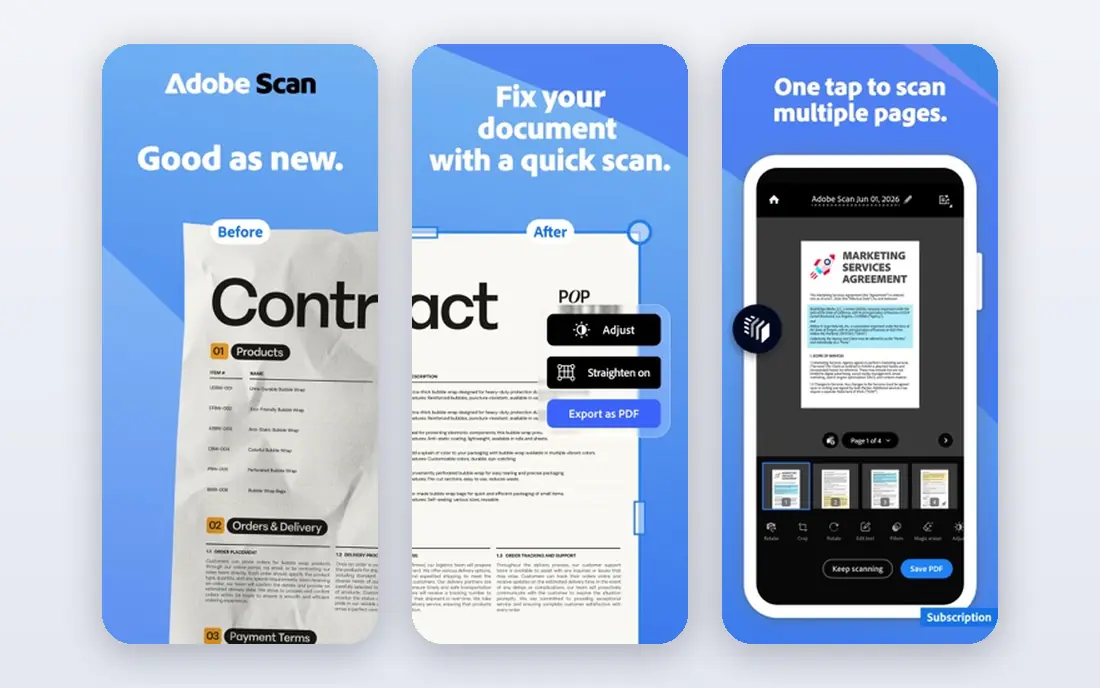
Adobe sets the standard that other readers are judged against, because PDF itself came from Adobe. When a client, a court, or a government office sends a complex form, Acrobat Reader is the least likely to misplace a field, a signature box, or a layer. We put it first for that plain reliability, not for flair. It handles long reports, scanned pages, and linked tables of contents without fuss.
The free version covers reading, searching, printing, commenting, form filling, and basic signing. That is enough for students, renters, job applicants, and anyone who mainly receives documents rather than creating them. The catch is weight and noise: the program is bigger than most rivals, and it regularly points you toward paid Acrobat Pro. If your computer is older or your patience is short, a lighter reader below may feel better day to day.
- Opens almost any PDF correctly
- Fills forms and adds comments
- Signs documents
- Available on Windows, Mac, and mobile
- The installer is large
- Upgrade prompts appear often
- Editing and conversion need a paid plan
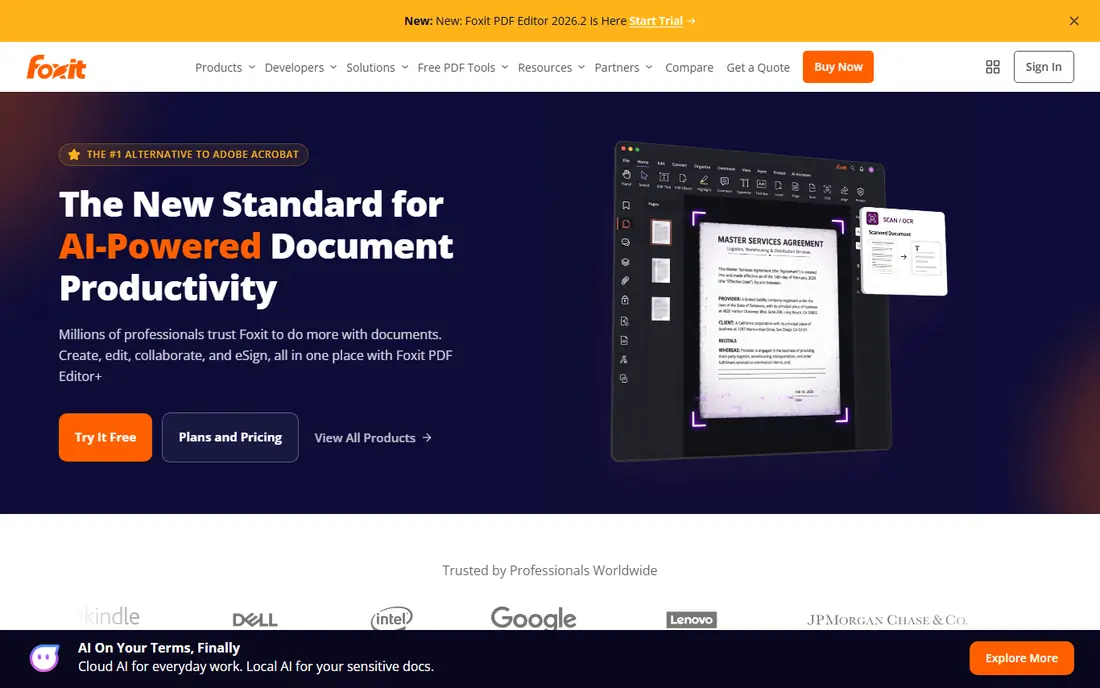
Foxit has long been the practical alternative for people who find Acrobat Reader heavy. It opens quickly, keeps several documents in tabs, and makes highlighting, sticky notes, and stamps easy to reach. For office workers who mark up contracts and reports all day, that combination matters more than any single extra feature. The reader also handles form filling and e-signing in the free version.
We like Foxit for teams that want one reader across Windows and mobile without paying up front. The trade-off is a busier interface, and some users will need time to find settings buried in menus. Paid Foxit PDF Editor adds full editing, conversion, and redaction, but most pure readers will never need it. If you annotate daily, start here before you pay for anything.
- Fast opening and tabbed reading
- Strong annotation and comment tools
- Fills and signs forms
- Works on Windows, Mac, and mobile
- Some advanced tools need the paid editor
- The interface packs in many buttons
- Cloud features need an account
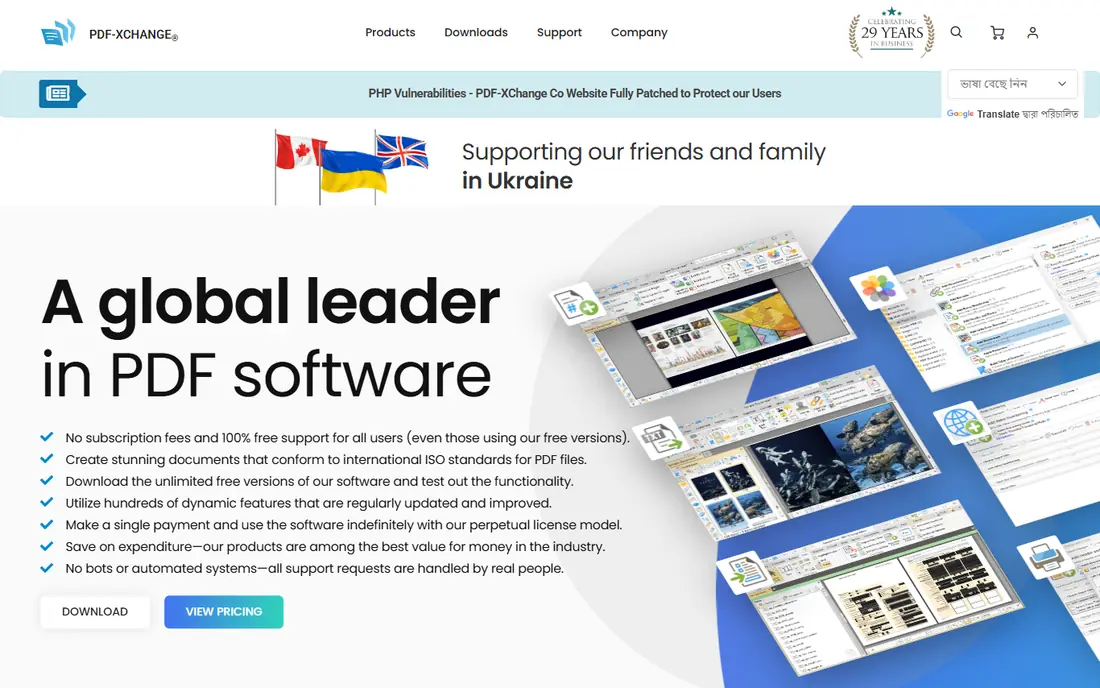
PDF-XChange Editor is the reader for people who live inside documents. Its free version goes further than most rivals, with detailed comments, stamps, measuring tools, and optical character recognition that makes scanned pages searchable. Engineers, researchers, and office staff who review long technical files get real value from those extras. Tabs keep a dozen open documents manageable.
The look will not win design awards, and Mac users need to look elsewhere, since this is a Windows program. A few premium features add watermarks unless you buy a licence, so check the exact tool before you rely on it for a final copy. Still, for Windows readers who want the most free capability, this is our pick. It rewards a short learning period with a genuinely capable daily tool.
- Deep annotation and measurement tools
- Text recognition for scanned pages
- Tabbed documents
- One-time paid licence option
- Windows only
- The interface looks dated
- Some paid features leave watermarks in the free version
UPDF feels like a reader built for people who switch devices during the day. You can start a report on a Windows laptop, add notes on an iPad, and finish it on a phone without relearning the layout. The interface is calm and modern, with annotation, bookmarks, and form filling easy to find. That consistency is its main selling point, and it is why many readers who dislike cluttered menus settle here.
The free version covers reading and basic annotation, while editing, conversion, and AI summaries sit behind a paid plan. We would not choose UPDF purely for AI features, since those tools vary and should be checked against your own documents. Choose it because you want one tidy reader everywhere you work, and because its free tier is good enough to test properly before you spend anything.
- Clean modern interface
- Works on Windows, Mac, iOS, and Android
- Annotation and form tools
- Built-in AI summary features on paid plans
- Full editing and AI tools need a paid plan
- Newer brand than Adobe or Foxit
- Some features vary by platform
PDF Expert is the reader we point Apple users toward first. It opens large files quickly, scrolls smoothly, and makes annotation with a finger or Apple Pencil feel natural rather than fiddly. Students marking up lecture notes and professionals signing contracts on an iPad will notice the difference within a day. Form filling and signing are straightforward, and files stay organized in a simple library.
The limits are clear: there is no Windows or Android version, so mixed-device households need a second reader. The free version covers reading and some annotation, while editing, conversion, and advanced signing need a paid subscription or lifetime purchase. If you live inside the Apple world and read PDFs every day, the polish is worth that cost. If you only open the odd attachment, the free tier or a cross-platform reader will do.
- Fast and polished on Mac, iPad, and iPhone
- Strong annotation and Apple Pencil support
- Fills and signs forms
- Good file organization
- No Windows or Android version
- Full editing needs a paid plan
- Subscription pricing may put off occasional readers
SumatraPDF is for readers who want a document open in a second and nothing else. It is tiny by modern standards, starts almost instantly, and can run from a USB stick without installation, which suits shared computers and older machines. It also opens ebooks and comic files, so it can replace two or three small viewers at once. There are no ads, no accounts, and no prompts to upgrade.
That simplicity is also its limit. You cannot annotate much, fill forms, or sign documents here, so it works best as a reading tool alongside another program when those jobs arise. We keep it on this list because speed and lightness still matter, especially on older hardware or for people who open dozens of files a day. If your main need is to read, search, and print, SumatraPDF does it with the least fuss.
- Very small and fast
- Portable version needs no install
- Opens PDFs and several other formats
- No ads or upgrade prompts
- Windows only
- Annotation tools are minimal
- No form filling or signing features
Nitro PDF Pro suits office teams that need more than reading but do not want Adobe pricing. The interface borrows the ribbon style from Microsoft Office, so new users find editing, conversion, and signing tools without a long tutorial. Batch conversion helps staff who process many files at once, and the signing tools cover routine approvals. It is a work tool first, and it shows in its priorities.
There is no permanent free tier, only a trial, so casual readers should choose a free option above instead. The program is also heavier than SumatraPDF or Foxit Reader, and exact pricing depends on the plan you pick, so check the vendor site before budgeting. For small businesses that edit and sign PDFs weekly, Nitro gives a solid middle path between a free reader and an enterprise contract.
- Full editing, conversion, and signing
- Familiar Office-style interface
- Batch processing
- Works on Windows and Mac
- No lasting free version
- Heavier than simple readers
- Pricing varies by plan and platform
Okular comes from the KDE community and is a strong choice for readers who prefer open-source software. It reads PDFs well, adds annotations and bookmarks, and opens other formats such as ebooks and DjVu files. Linux users in particular get a capable reader without paying or accepting tracking-heavy installers. Windows and Mac versions exist too, which helps mixed households stay on one program.
The interface is functional rather than polished, and people used to Adobe or PDF Expert may need a day to settle in. Form filling and digital signing are more basic here than in paid rivals, so check those features against your own forms before you commit. For readers who value free software, privacy, and cross-platform coverage, Okular is a dependable pick that does the core job well.
- Free and open source
- Annotation and bookmark tools
- Works on Windows, Mac, and Linux
- Supports many document formats
- Interface feels technical
- Form and signing support is basic
- Mobile version is limited
PDFgear stands out because it gives away more than most free readers. Alongside reading and annotation, it includes conversion, form filling, and signing tools that other vendors reserve for paid plans. The interface is modern and consistent across desktop and mobile, which makes it easy to recommend to family members who just need one program. A built-in assistant can summarize or answer questions about a document, though results should always be checked against the original text.
The honest catch is track record: PDFgear is newer than Adobe, Foxit, or Nitro, so long-term support is less proven. Its editing depth also falls short of paid editors when you need precise layout changes or redaction. For everyday reading, annotation, and the odd conversion, though, it is one of the best free options available now. Try it with your real files before you decide it is your main reader.
- Free reading, annotation, and conversion tools
- Works on Windows, Mac, iOS, and Android
- Built-in chat and summary features
- No account needed for basics
- Newer brand with a shorter track record
- Some AI features need a connection
- Advanced editing depth lags paid rivals
How we picked these
We compared official feature pages, pricing pages, and app store listings for readers that are actively maintained in 2026. We kept only programs that open standard PDFs reliably, run on at least one major desktop or mobile platform, and offer a usable free tier or trial. We left out abandoned viewers, browser-only tools with no desktop app, and readers whose main job is editing rather than reading. Prices were taken from vendor sites where published, and marked as See website where pricing varies by plan or region.
What to check before you choose a reader
Start with your device and your documents. A Mac and iPad household gets the most from PDF Expert, while a Windows-only office gets more from Foxit or PDF-XChange Editor. If you read on several systems, pick a cross-platform reader such as UPDF or PDFgear so your notes and layout stay familiar. Open your largest and most complex file in any trial first, since a reader that handles a two-page memo may still struggle with a scanned 400-page report.
Think about the jobs beyond reading. Form filling, signing, and annotation are free in several tools here, but full text editing, page rearrangement, and redaction usually need a paid plan. Check how a reader handles scanned pages, since searchable text matters when you need to find a clause in a long contract. Privacy matters too: for sensitive files, prefer a desktop reader that processes files on your device over a web tool that uploads them. Finally, check update history and support pages, since PDF security fixes arrive regularly and an unmaintained reader is a risk.
Frequently asked questions
Is a dedicated PDF reader better than a browser?
Yes, for regular use. Browsers open PDFs fine for a quick view, but dedicated readers give you better search, annotation, form filling, signing, and printing controls. They also work offline and handle large or complex files more steadily.
What is the best free PDF reader?
Adobe Acrobat Reader is the safest free default for compatibility, while Foxit PDF Reader and PDF-XChange Editor add more free annotation tools on Windows. SumatraPDF suits readers who want speed above all else, and PDFgear gives the broadest free feature set across devices.
Can I fill and sign forms without paying?
Yes, in most readers on this list. Adobe Acrobat Reader, Foxit PDF Reader, UPDF, PDF Expert, and PDFgear all include form filling and basic signing in their free tiers. Advanced signature workflows, bulk signing, and legal-grade audit trails may need a paid plan.
Do PDF readers work on mobile?
Yes. Adobe, Foxit, UPDF, PDF Expert on Apple devices, and PDFgear all offer mobile apps with reading and annotation. Check whether your notes sync across devices before you rely on a mobile app for work, since sync often needs an account.
Is it safe to use a free PDF reader?
Generally yes, when you download it from the vendor official site and keep it updated. Avoid third-party download sites that bundle extra software, and use a desktop reader for sensitive documents rather than uploading them to an unknown web tool.
Sources
See where you really rank - block by block
ProMapRanker scans Google Maps across a grid of your service area. Simple monthly plans from $19, white-label on every plan.
Start freeKeep reading
 zoro.to alternatives
Best Zoro.to Alternatives in 2026
We compare the best zoro.to alternatives in 2026, listing only legal licensed anime streaming services, from Crunchyroll to free options for fans today.
Read → zip alternatives
Best Zip Alternatives in 2026
We compare the best zip alternatives for buy now, pay later in 2026, covering pay-in-4 plans, fees, spending limits, and credit reporting options today.
Read → yesware alternatives
Best Yesware Alternatives in 2026
Compare the best yesware alternatives for sales email tracking, templates, and sequences, with current pricing and honest tradeoffs for small sales teams.
Read →