 ProMapRanker
Best Rated PDF Merge Software in 2026

Key takeaways
- PDFsam Basic is the best free offline merger, with no file limits and no upload, which suits sensitive documents.
- Smallpdf and iLovePDF are the easiest online options for a quick merge, but free tiers limit daily tasks.
- PDFgear and PDF24 Creator give broad free merging without a subscription, while Sejda suits privacy-minded occasional users.
- Adobe Acrobat and Foxit PDF Editor suit people who merge as one step inside editing, signing, and form work.
- For confidential files, prefer a desktop tool that processes pages on your device over any web tool that uploads them.
Quick comparison
| Pick | Great for | Pricing starts at | Free tier | |
|---|---|---|---|---|
 PDFsam Basic | Free offline merging | Free | Yes | Visit |
 Smallpdf | Quick online merges | Free | Yes | Visit |
 iLovePDF | Feature-rich online merging | Free | Yes | Visit |
 Sejda | Privacy-minded occasional merges | Free | Yes | Visit |
 PDFgear | Free merging across devices | Free | Yes | Visit |
 PDF24 Creator | Free Windows merging | Free | Yes | Visit |
 Adobe Acrobat | Merging inside a full PDF suite | See website | Free trial | Visit |
 Foxit PDF Editor | Business PDF work | See website | Free trial | Visit |
 Lumin | Merging with cloud document work | See website | Yes | Visit |
The best rated pdf merge software
Merging PDFs sounds simple until a file is large, scanned, password protected, or full of mixed page sizes. Some tools handle that smoothly, while others slow down, drop formatting, or cap your day after two tasks. We compared vendor feature pages, free-tier limits, and privacy policies to pick mergers that still work well in October 2026, covering both online and offline routes.
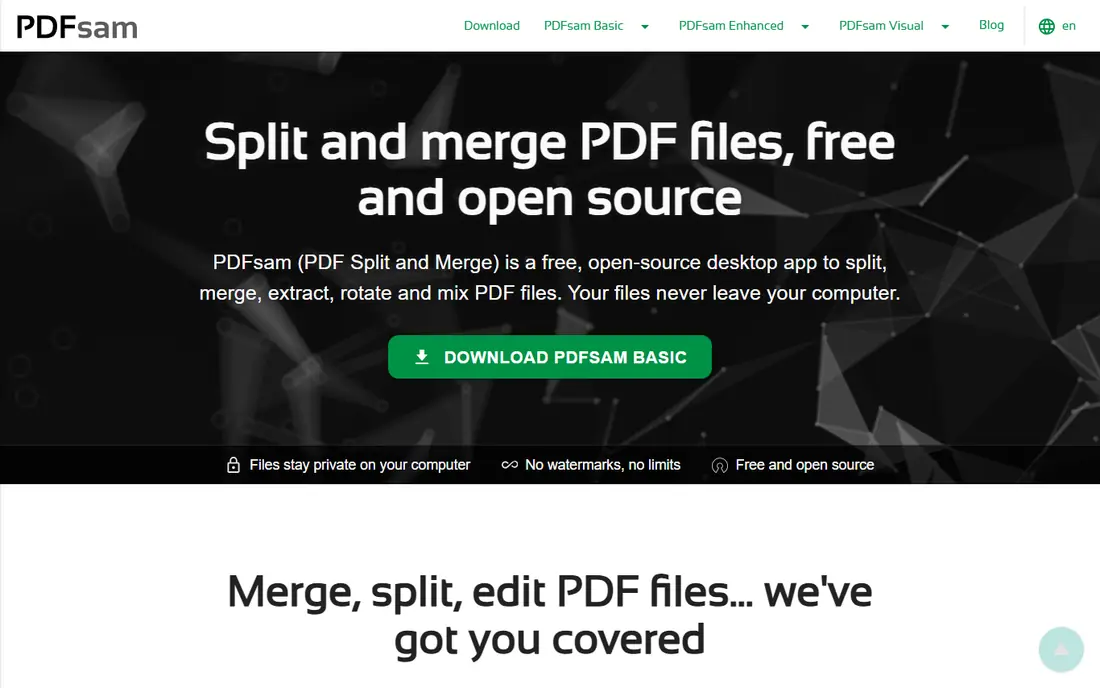
PDFsam Basic is our first recommendation for anyone who merges often or handles private files. It runs on your computer, so documents never upload to a server, and the free version places no daily cap on merge tasks. You can reorder pages, merge bookmarks, mix files, and process large documents without watching a progress bar stall on an upload. It has been maintained since 2006, which gives it a longer track record than most free rivals.
The interface is functional rather than pretty, and there is no browser version for a quick phone merge. Advanced tools such as OCR, form editing, and richer page handling sit in the paid PDFsam Enhanced version. For the core job of combining files safely and without limits, though, PDFsam Basic is hard to beat. Install it once and you stop thinking about daily limits altogether.
- Free with no task limits
- Runs offline on Windows, Mac, and Linux
- Merges, splits, and rotates
- Handles large files locally
- Interface is plain
- No web version
- Advanced editing and OCR need the paid Enhanced version
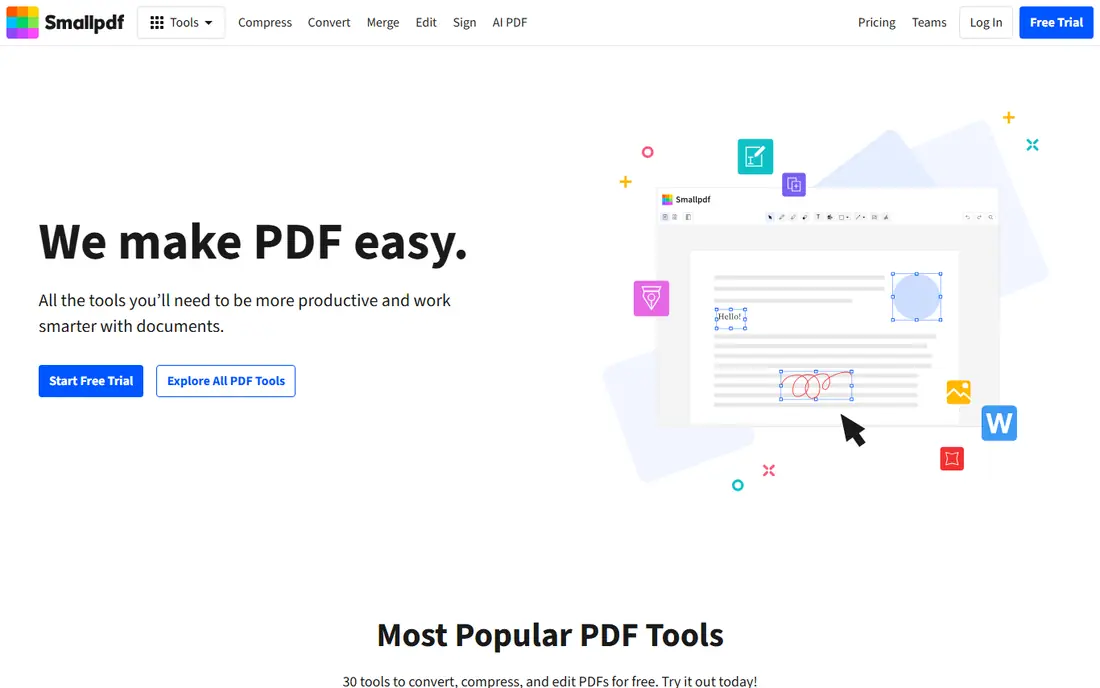
Smallpdf is the tool we suggest when someone needs one merge right now and does not want to install anything. Open the site, drop files in, drag them into order, and download the result in under a minute. The preview helps catch a wrong page order before you commit, and the wider tool set covers compression, conversion, and signing when those jobs follow a merge. That simplicity is why it stays popular with students and office staff.
The limits are real: the free tier allows only a limited number of tasks per day, and files upload to Smallpdf servers for processing, with deletion promised within a short window. For sensitive contracts or medical records, use an offline tool instead. For everyday school, rental, or job application packs, Smallpdf is fast, clear, and easy to recommend.
- Very easy drag-and-drop merging
- Works in any browser
- Page reorder and preview
- Broad PDF tool set
- Free tier limits daily tasks
- Uploads files to servers
- Large files can be slow online
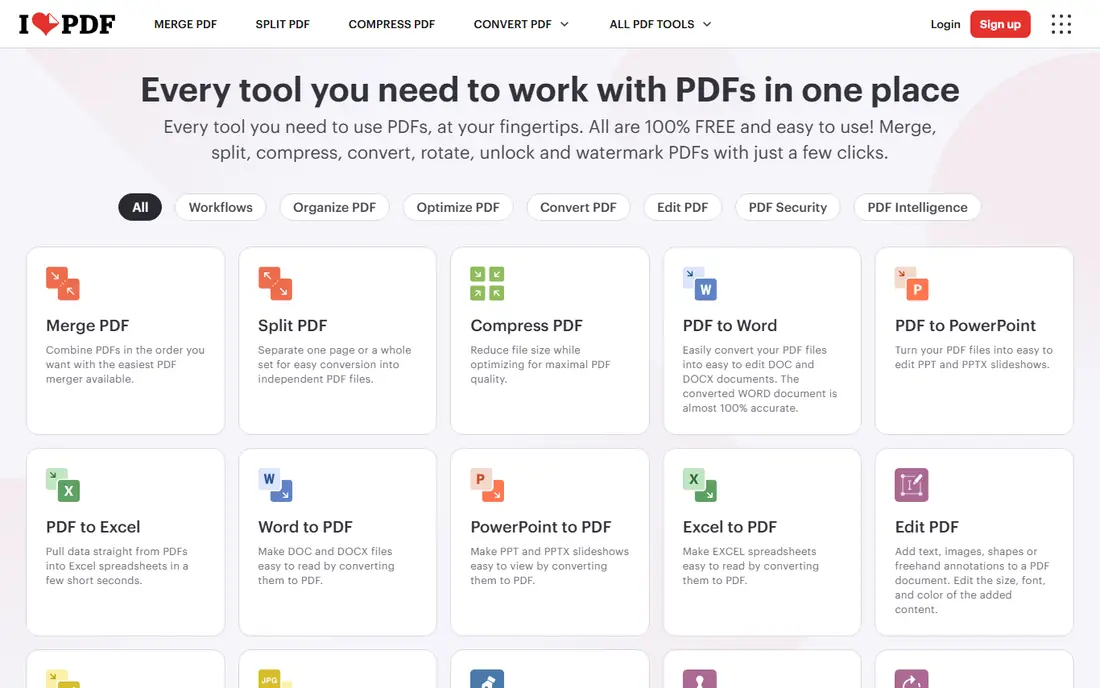
iLovePDF is the broadest online PDF workshop on this list. Merge sits alongside split, compress, convert, sign, and edit tools, so a document pack that needs several steps can stay in one place. The merge tool itself is straightforward, with file and page ordering, preview, and a desktop app for users who prefer local processing for some jobs. Mobile apps extend the same workflow to phones and tablets.
Free use is limited to a set number of tasks per day, and web merges upload files to iLovePDF servers, so confidential documents deserve the desktop route or an offline rival. Paid plans remove task limits and add batch and larger file handling. Choose iLovePDF when merging is part of regular document work rather than a one-off job, and when you value having every PDF tool in one account.
- Large PDF tool collection
- Desktop and mobile apps
- Page reorder and file preview
- Batch handling on paid plans
- Free tier limits daily tasks
- Uploads files for web processing
- Some tools need a paid plan for full use
Sejda suits readers who merge rarely but care about how files are handled. Its web tools process documents without an account for basic tasks, and its privacy stance, including short retention and encrypted transfer, is stated more plainly than many rivals. Page and range selection lets you merge only the pages you need, rather than whole files, which helps when building a pack from longer reports. A desktop version exists for users who prefer local work.
Free limits are the catch: the free tier allows only a few tasks per day, with file size and page caps that fill quickly on bigger jobs. Paid plans raise those limits and add larger file support. If you merge once or twice a week and want a careful privacy approach, Sejda is a good fit. If you merge daily, a free offline tool will save you repeated frustration.
- Privacy-focused processing
- Web and desktop options
- Page and range selection
- No account needed for basic tasks
- Free tier caps tasks and file size tightly
- Large files need a paid plan
- Interface is plainer than Smallpdf
PDFgear is the free option we point frequent mergers toward when they do not want to install a desktop-only tool. Its core merge tool is free without the daily task caps that frustrate Smallpdf and iLovePDF users, and it runs across desktop and mobile with a consistent layout. Annotation, conversion, and signing tools sit alongside merging, so a merged pack can be marked up and shared without switching programs.
The brand is newer than Adobe or PDFsam, so its long-term record is shorter, and advanced editing still trails paid suites. AI summary features also need a connection and should be checked against the source document. For regular, basic merging across devices at no cost, PDFgear is one of the strongest choices available now. Test it on a large file first to confirm it handles your page sizes well.
- Core merging free without daily caps
- Works on Windows, Mac, iOS, and Android
- Annotation and conversion tools
- Modern interface
- Newer brand with a shorter track record
- Some AI features need a connection
- Editing depth lags paid suites
PDF24 Creator is a free Windows toolbox that covers merging alongside splitting, compression, conversion, and page tools. Because the desktop version processes files locally, it suits office users who handle internal documents and prefer not to upload them. There is no account and no subscription for the core desktop tools, which makes it easy to install across a small office without licence tracking.
Windows-only coverage is the main limit, since Mac and Linux users need another pick, and the companion web tools do upload files for processing. The interface is practical rather than polished, and support comes mainly through documentation. For Windows users who want a free, local, all-purpose PDF toolbox, PDF24 Creator is a dependable workhorse that covers merging well.
- Free desktop tools for Windows
- Merge, split, compress, and convert
- Local processing
- No account needed
- Windows only for the desktop creator
- Online tools upload files
- Interface is utilitarian
Adobe Acrobat is the right pick when merging is one step inside heavier document work. Its combine tool handles large files, mixed page sizes, scanned pages, and complex layouts more reliably than lighter web tools, and the merged file keeps formatting that cheaper tools sometimes disturb. Editing, redaction, form creation, and signing sit in the same program, so a merged contract can be finished without exporting between tools.
Cost is the reason it is not first. There is no permanent free tier beyond a trial and limited online tools, and a subscription is hard to justify if you only merge files a few times a month. The desktop program is also large. Choose Acrobat when document quality, security, and a full workflow matter more than price, and use a free merger for simple jobs alongside it.
- Most reliable handling of large and complex files
- Merge, edit, sign, and redact in one program
- Strong format preservation
- Cloud and desktop access
- No lasting free version
- Subscription cost is high for merging alone
- Program is large
Foxit PDF Editor gives business users a middle path between free mergers and Adobe pricing. Merging is quick, page organization is clear, and the same program handles editing, conversion, forms, and e-signing for daily office work. It launches faster than Acrobat for many users and offers team licensing that small businesses find easier to manage. Security tools, including redaction and password protection, cover routine confidential work.
There is no permanent free version, only a trial and the separate free Foxit PDF Reader, so pure merging needs are cheaper elsewhere. Exact pricing varies by plan, so check the vendor site before budgeting. Pick Foxit when merging feeds into regular editing and signing, and when you want a capable business editor without Adobe-level subscription cost.
- Merge, edit, convert, and sign in one editor
- Lighter than Acrobat
- Good form and security tools
- Business licensing options
- No lasting free version
- Full features need a paid plan
- Some advanced tools vary by plan
Lumin suits people whose documents already live in Google Drive or OneDrive. Merging and splitting sit inside a workspace where you can also annotate, comment, sign, and share files with colleagues, so a merged pack can move straight into review without downloads and re-uploads. Drive integration is its clearest advantage, and the interface is friendly for teams that collaborate on documents daily.
The workflow is web-first, so files are processed in the cloud, which makes it a poor fit for highly sensitive documents that should stay local. Free plan limits also apply, and offline merging is limited compared with PDFsam or PDF24 Creator. Choose Lumin when merging is part of ongoing cloud document work and collaboration matters. For private or large offline jobs, pair it with a desktop merger.
- Merge and split inside a cloud document workspace
- Google Drive and OneDrive integration
- Annotation and signing tools
- Collaboration features
- Web-first workflow uploads files
- Free plan limits apply
- Offline merging is limited
How we picked these
We compared vendor feature pages, free-tier limits, and privacy handling for tools that are actively maintained in 2026. We kept mergers that preserve page order and formatting on test-style jobs, offer a usable free tier or trial, and state their file handling plainly. We left out abandoned desktop tools, single-purpose web pages with no clear vendor, and general editors where merging is buried or unreliable.
What to check before you merge a file
Start with privacy. If a document contains contracts, financial details, health information, or legal material, use a desktop tool that processes pages locally, and avoid uploading it to any web merger. For everyday files, a web tool is fine, but check retention promises and delete the result from the service when you are done. Test a sample merge before a big job, especially with scanned pages, mixed sizes, or password-protected files, since formatting problems show up only on real documents.
Check limits before you rely on a free tier. Daily task caps, file size caps, and page caps can stop a deadline job halfway through, so frequent mergers should pick PDFsam Basic, PDFgear, or PDF24 Creator rather than a capped web tool. Confirm that bookmarks, links, and form fields survive the merge when those elements matter, since not every tool preserves them. Finally, keep the original files until you have checked the merged copy page by page.
Frequently asked questions
What is the best free PDF merge software?
PDFsam Basic is the best free merger for most people, since it runs offline with no daily limits. PDFgear and PDF24 Creator are strong free alternatives, while Smallpdf and iLovePDF suit occasional online merges within their free caps.
What is the best pdf merge software for large files?
Desktop tools such as PDFsam Basic, Adobe Acrobat, and Foxit PDF Editor handle large files more reliably than web tools, which can slow down on uploads. Test a sample file first when the merged result runs into hundreds of pages.
Is it safe to merge PDFs online?
Reputable tools encrypt uploads and delete files after a short period, but any upload still sends your document to a third-party server. For sensitive files, use a desktop merger that processes pages on your device.
Can I merge only selected pages from PDFs?
Yes. Sejda, iLovePDF, Smallpdf, Adobe Acrobat, and Foxit PDF Editor all let you pick pages or ranges before merging. Check that the tool you choose offers page selection rather than whole-file merging only.
Do merged PDFs keep their formatting?
Reliable tools preserve text, images, and page sizes in most cases, though very large or complex files can cause problems on lighter web tools. Always check the merged file page by page before sharing it.
Sources
See where you really rank - block by block
ProMapRanker scans Google Maps across a grid of your service area. Simple monthly plans from $19, white-label on every plan.
Start freeKeep reading
 zoro.to alternatives
Best Zoro.to Alternatives in 2026
We compare the best zoro.to alternatives in 2026, listing only legal licensed anime streaming services, from Crunchyroll to free options for fans today.
Read → zip alternatives
Best Zip Alternatives in 2026
We compare the best zip alternatives for buy now, pay later in 2026, covering pay-in-4 plans, fees, spending limits, and credit reporting options today.
Read → yesware alternatives
Best Yesware Alternatives in 2026
Compare the best yesware alternatives for sales email tracking, templates, and sequences, with current pricing and honest tradeoffs for small sales teams.
Read →