 ProMapRanker
Best-Rated MP4 to GIF Online Services in 2026

Key takeaways
- Ezgif and FreeConvert give the most direct free MP4 to GIF conversion, with no paid plan needed for a basic clip.
- CloudConvert, Convertio, and Zamzar offer free tiers with daily or size limits, so check the limit before a large file.
- Editors such as Kapwing, VEED, Canva, and Adobe Express suit clips that need trimming, captions, or resizing first.
- GIF files have no sound and grow large fast, so trim the clip and lower the frame rate for sharing.
Quick comparison
| Pick | Great for | Pricing starts at | Free tier | |
|---|---|---|---|---|
 Ezgif | Quick free conversion | Free | Yes | Visit |
 CloudConvert | Wide format support | Free | Yes | Visit |
 FreeConvert | Larger free uploads | Free | Yes | Visit |
 Convertio | Simple drag and drop jobs | Free | Yes | Visit |
 Zamzar | Simple reliable conversion | Free | Yes | Visit |
 Kapwing | Trimming and editing before export | Free | Yes | Visit |
 VEED | Captioned social clips | Free | Yes | Visit |
 Canva | Designed GIFs for social posts | Free | Yes | Visit |
The best-rated mp4 to gif online services
A good MP4 to GIF tool should convert in the browser, keep the clip short, and let you trim before export. We compared official feature pages, pricing pages, and public tool descriptions, and we only list a tool as free when it offers a genuine free tier, not a trial alone. Trial-only tools are left out of this list.
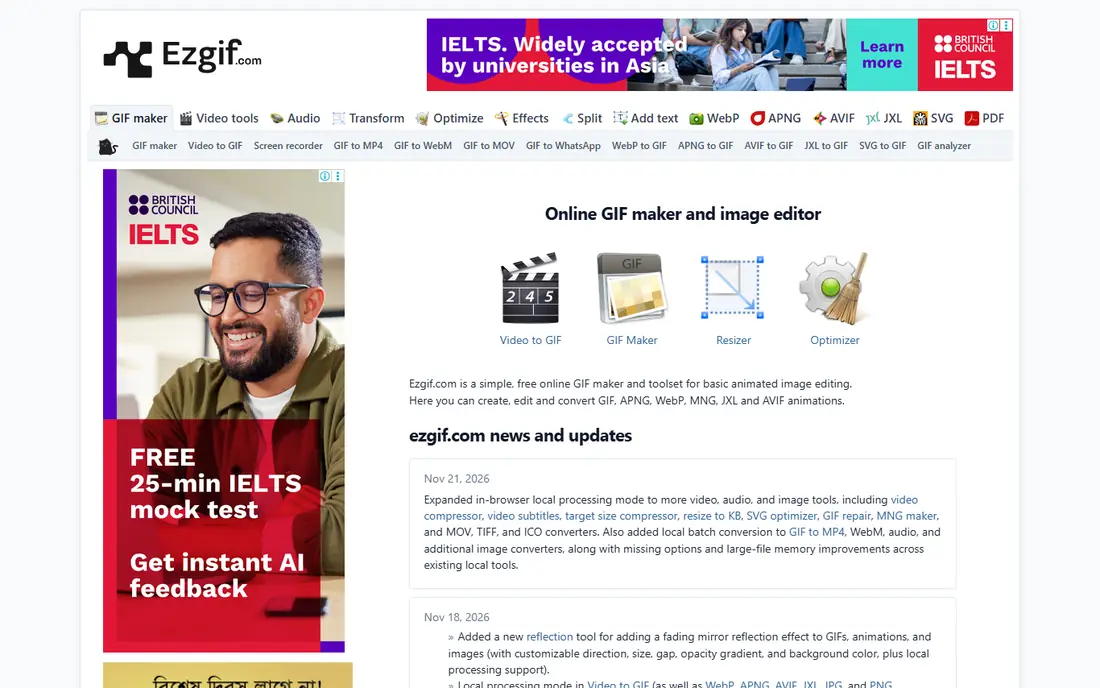
Ezgif is the tool we reach for first when the job is simply to turn a short MP4 into a GIF. Upload the file, set the start and end points, choose size and frame rate, and download the result. Extra tools for cropping, resizing, and optimizing sit on the same site, so a GIF that is too large can be trimmed down without opening another app.
The interface looks old, and ads sit around the tools, which can distract on a first visit. File size limits also mean a long or high-resolution clip may need trimming before upload. For a short clip for a message, a blog post, or a support reply, Ezgif remains the fastest free route.
- Free with no account needed for basic conversion
- Crop, resize, and optimize tools in the same site
- No watermark on converted GIFs in its published descriptions
- Plain and dated interface
- Upload limits apply and large files can be slow
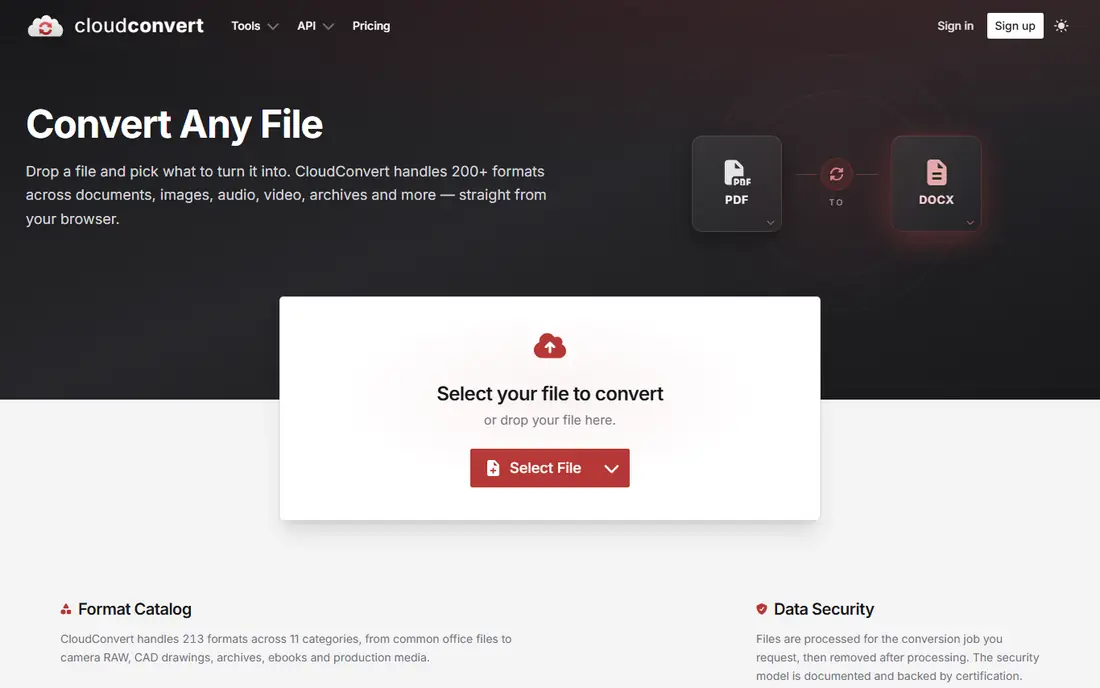
CloudConvert suits a user who converts many file types and wants one account for all of them. The MP4 to GIF path lets you set resolution and quality, import from cloud storage, and batch jobs when needed. That control helps when a GIF must fit a size limit on a website or a chat app.
The free tier is the limit to watch. Published descriptions put free use at a set number of conversions per day, so a busy day of conversions can hit the cap. For occasional jobs, the free tier is enough. For daily batch work, a paid plan or a second free tool may be needed.
- More than 200 formats supported
- Cloud import from Drive and Dropbox
- Control over resolution, quality, and frame settings
- Free tier limits conversions per day
- Interface can feel technical for a first-time user
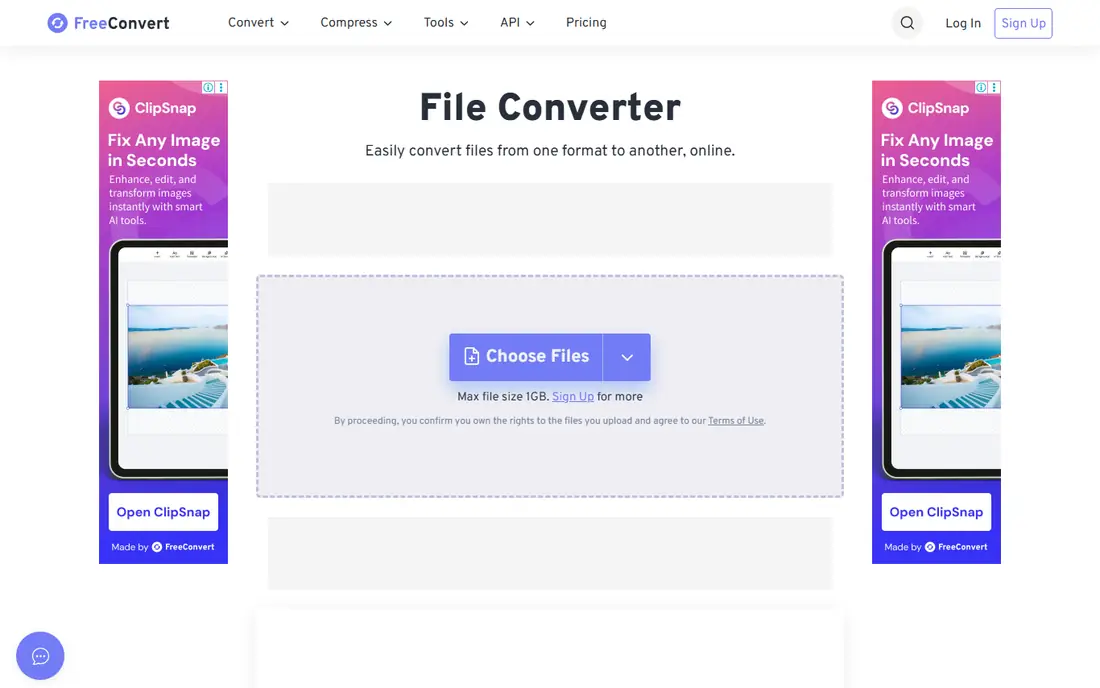
FreeConvert is the pick when the MP4 is larger than most free tools accept. Its reported 1GB per-file limit gives room for a longer clip, and batch conversion helps when several clips need the same treatment. The settings are simple enough for a quick job, with size and quality controls that matter for GIF output.
Ads and queues are the trade-off. Pages carry many ads, and free jobs may wait during peak times. We would use FreeConvert for a large file that other free tools reject, and Ezgif for a quick small clip where speed matters more.
- Large per-file limit reported at 1GB for free use
- Batch conversion supported
- Broad format cover beyond video
- Ad-heavy pages can slow the workflow
- Queue delays appear at busy times
Convertio works best for a user who wants the fewest steps between upload and download. Drag in the MP4, pick GIF as the output, and download the result. Cloud import helps when the clip is already in Drive or Dropbox, and the clean layout makes the tool easy to explain to a colleague.
The free tier is modest, so a large file or a batch of files will hit limits sooner than on FreeConvert or CloudConvert. Convertio also offers little editing beyond conversion, so trim the clip elsewhere if it needs a precise cut. For one short clip, the simplicity is worth it.
- Very simple drag and drop flow
- Cloud import from Drive and Dropbox
- Fast for a single short conversion
- Free file limits are smaller than FreeConvert
- Advanced editing is limited
Zamzar has been converting files online for many years, and its MP4 to GIF flow shows that experience. Upload, pick GIF, and download or receive the file by email. The steps are clear, and the service handles a wide range of input formats beyond MP4.
The free tier is the tightest on this list, with two conversions per day and a 50MB cap in published descriptions. That makes Zamzar a backup tool rather than a daily driver for most users. It still earns a place for a single reliable conversion when other tools are busy or blocked.
- Long-standing conversion service
- Clean and simple flow
- Free tier with a 50MB cap in published descriptions
- Free tier limited to two conversions per day in published descriptions
- No batch upload on the free plan
Kapwing suits a clip that needs work before it becomes a GIF. Trim the start and end, add captions, resize for a platform, and then export as a GIF. That editing step matters for social clips, where a raw conversion often includes dead air at the start or a wrong aspect ratio.
The free plan is genuine, but it has limits on export quality and watermarking that vary by plan, so check the export screen before sharing a final clip. For a quick conversion with no edits, Ezgif is faster. For a clip that needs captions or a clean trim, Kapwing is the better tool.
- Full editor for trimming, captions, and resizing
- MP4 to GIF converter page with a clear flow
- Browser-based with no install
- Free exports can carry a watermark on some plans
- Longer projects push toward a paid plan
VEED fits creators who turn a talking clip or a demo into a short looping GIF for social media. Captions, trimming, and resizing sit in one editor, and the GIF export keeps the edited timing. That flow saves a round trip between a converter and an editor.
The free plan is useful for testing and for short clips, but export limits and watermarks can affect a final post. Check the free export result on a test clip before using VEED for a client post. For a polished social GIF, the editing tools still justify the extra step.
- Browser editor with captions and trimming
- GIF export from edited video
- Templates and social sizes for common platforms
- Free plan limits export quality and features
- Watermark may apply to free exports
Canva is the choice when the GIF is part of a designed post, not just a converted clip. Upload a video, trim it, add text or a logo, and export as a GIF for a social feed or a presentation. The free plan covers many templates and tools, which helps a small team without a design budget.
The drawback is that Canva is not a pure converter. A user who only wants a fast MP4 to GIF change will find extra steps here. For a post that needs text, branding, or a set size, Canva turns a plain clip into a finished asset in one place.
- Free plan with a large template library
- Easy resizing for social platforms
- Text, stickers, and brand elements in one editor
- GIF export is tied to design workflow rather than a pure converter
- Some assets and features need a paid plan
How we picked these
We compared official feature pages, pricing pages, and public tool descriptions, checking for a genuine free tier, MP4 input, GIF output, and browser use without an install. We excluded trial-only tools from the free list, and we noted daily caps, size caps, and watermark limits where published descriptions gave them. All tools listed were live in October 2026.
How to get a small, clean GIF
GIF files have no sound, and they can grow large fast. A few choices before export make the result far easier to share.
Trim first, then convert
Cut dead air, long pauses, and any part of the clip that does not add meaning. A GIF of three to six seconds often works better than a full clip, and it keeps the file size down for messages and web pages.
Lower the frame rate and size
A lower frame rate, such as 10 frames per second, and a smaller width, such as 480 pixels, can cut file size sharply with little loss for a simple clip. Test one export at a lower setting before converting a whole set.
Check sound and looping
GIFs do not carry sound, so a clip that relies on speech needs captions or a different format. Check that the loop point feels clean, with no jump that distracts from the subject.
Frequently asked questions
Is MP4 to GIF conversion really free online?
Yes, for basic use. Tools such as Ezgif and FreeConvert offer genuine free tiers, while CloudConvert, Convertio, and Zamzar offer free tiers with daily or size limits. Check the limit on the tool you choose before a large job.
Why is my GIF larger than the MP4?
GIF compression is less efficient than MP4 compression, and GIFs store each frame as an image. Trimming the clip, lowering the frame rate, and reducing the width are the fastest ways to shrink the file.
Do GIFs keep sound from the video?
No. GIF files do not carry an audio track. If sound matters, keep the MP4 or add captions to the GIF so the message still works without sound.
What frame rate should I use for a GIF?
For most clips, 10 to 15 frames per second gives smooth motion at a reasonable size. A higher rate looks smoother but grows the file fast, so test a short export first.
Can I convert MP4 to GIF without installing software?
Yes. All tools in this guide work in the browser, with no install needed. Upload the MP4, set trim and size options, and download the GIF.
Sources
See where you really rank - block by block
ProMapRanker scans Google Maps across a grid of your service area. Simple monthly plans from $19, white-label on every plan.
Start freeKeep reading
 worlds best local seo company
8 Worlds Best Local SEO Companies for Map Pack Growth in 2026
Compare the worlds best local seo company options for Google Business Profile work, citations, reviews, and multi-location rankings and reporting in 2026.
Read → world's best web hosting company
World's Best Web Hosting Company in 2026
Searching for the world's best web hosting company? We compared 10 hosts on price, renewal rates, speed, and support to help you choose well today in 2026.
Read → who's got the best nanny tax services
Who's Got the Best Nanny Tax Services in 2026
We answer who's got the best nanny tax services, comparing full filing, back taxes, software, and pricing so families can handle nanny taxes correctly.
Read →