 ProMapRanker
Best Professional Video Editing Software in 2026


Professional client work and teams · Pricing starts at: $22.99 per month
Key takeaways
- Premiere Pro suits team pipelines and Adobe workflows, while DaVinci Resolve suits color and all-in-one post work.
- Final Cut Pro is the best one-time purchase for Mac editors, with fast performance on Apple silicon.
- DaVinci Resolve free version covers professional editing for many creators, with Studio adding advanced tools for $295 one-time.
- CapCut, Filmora, and Clipchamp suit faster social and tutorial work, but they are not full replacements for a pro timeline.
- Check GPU needs, plugin compatibility, and export limits before buying, since those decide daily speed more than feature lists.
Quick comparison
| Pick | Great for | Pricing starts at | Free tier | |
|---|---|---|---|---|
| Adobe Premiere Pro | Professional client work and teams | $22.99 per month | Free trial | Visit |
 DaVinci Resolve | Color, audio, and VFX in one app | Free | Yes | Visit |
 Final Cut Pro | Mac editors who want to buy once | $299.99 | Free trial | Visit |
 CapCut | Short-form social video | Free | Yes | Visit |
 Filmora | Beginners who want templates and AI help | $49.99 per year | Yes | Visit |
 CyberLink PowerDirector | Feature-rich enthusiast editing | $79.99 per year | Free trial | Visit |
 Camtasia | Tutorials and screen recordings | $179.88 per year | Free trial | Visit |
 Clipchamp | Simple Windows and web editing | Free | Yes | Visit |
 Descript | Talking-head and podcast video | $16 per user per month | Yes | Visit |
The best professional video editing software
We compared official pricing pages, product documentation, and current version listings for editors that handle professional timelines, color, audio, and delivery. The list focuses on desktop editors for client and creator work, with a few faster tools for social and tutorial video.
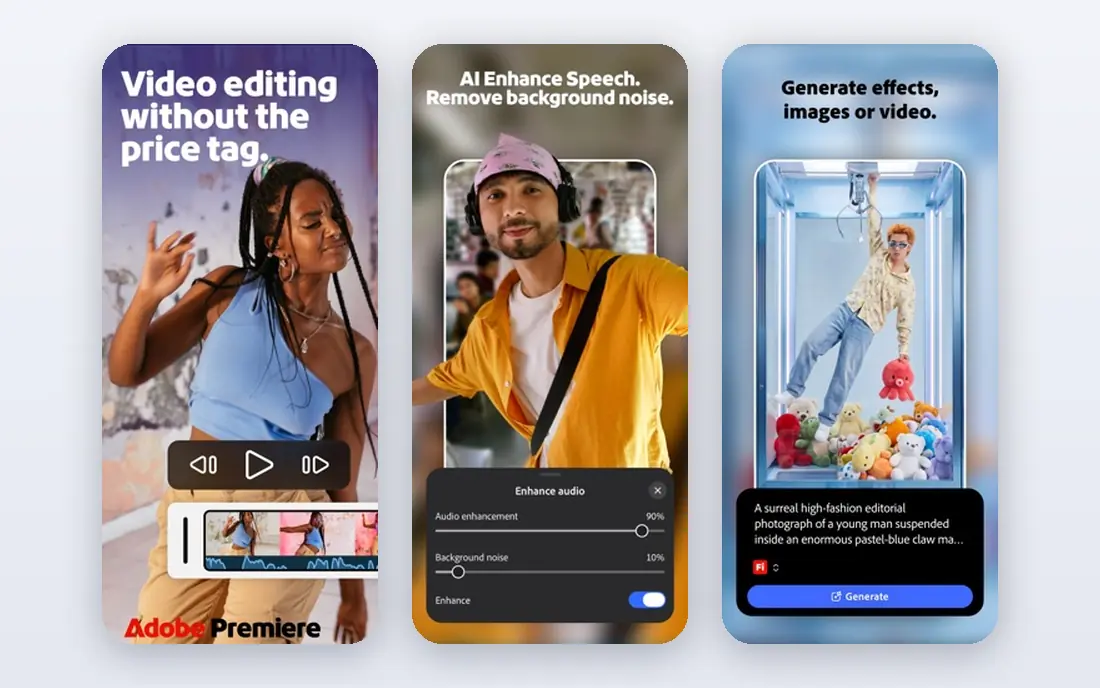
Premiere Pro remains the default for many agencies and freelance editors because it sits inside Creative Cloud alongside After Effects, Audition, and Photoshop. Shared projects, proxy workflows, and broad format support make it practical for team work and for clients who already use Adobe files. Text-based editing and AI helpers speed up rough cuts for talking-head footage.
The subscription model is the main drawback. There is no one-time purchase, so long-term cost exceeds a single purchase editor. Premiere Pro also benefits from a strong GPU and plenty of RAM. If you work in Adobe pipelines, it is the safe professional choice. If you work alone and dislike subscriptions, Resolve or Final Cut may fit better.
- Deep Adobe integration
- Strong team and proxy workflows
- Broad format support
- Subscription only
- Can be demanding on hardware
- Costs add up over years
DaVinci Resolve, from Blackmagic Design, combines editing, color grading, visual effects, and audio in one free app. Its color page is the reason many professionals choose it, with node-based grading that matches tools used on feature films. The free version is not a demo: it edits and exports in 4K without a watermark for most creator work.
The learning curve is real, since each workspace behaves like its own app, and Resolve benefits from a capable GPU. Studio, at $295 one-time, adds noise reduction, object removal, and other advanced tools. For an editor who wants professional power without a subscription, Resolve is the strongest overall pick.
- Professional color tools
- Fairlight audio and Fusion VFX included
- Free version exports 4K
- Steep learning curve
- GPU-heavy
- Studio features cost $295 one-time
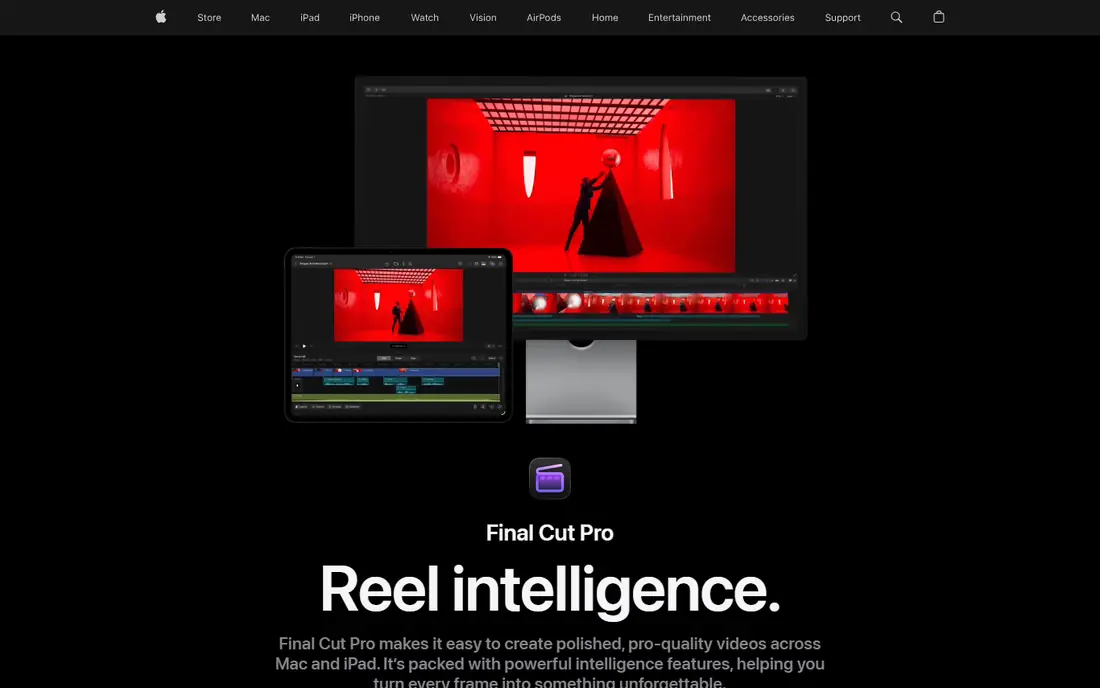
Final Cut Pro suits Mac editors who want speed and a one-time price. The magnetic timeline keeps clips connected as you trim, which makes rough cuts fast, and performance on Apple silicon is strong even on laptops. A 90-day trial gives plenty of time to test it on real projects before buying.
It runs only on Apple devices, and its collaboration and plugin ecosystem is smaller than Premiere Pro. Editors who exchange Premiere projects with clients may face conversion work. For a Mac-based creator or small team that values speed and ownership, Final Cut Pro is an excellent professional editor.
- One-time purchase
- Fast on Apple silicon
- Magnetic timeline speeds rough cuts
- Mac only
- Smaller plugin and collaboration ecosystem than Premiere Pro
CapCut is the fastest route from phone footage to a finished short for TikTok, Reels, or Shorts. Templates, auto captions, and effects reduce editing time, and the free tier covers many basic needs. Desktop and mobile versions let you start on one device and finish on another.
It is not a full professional replacement for color grading or complex audio work. Editors who need precise color, multi-cam depth, or long-form delivery should use Resolve, Premiere Pro, or Final Cut instead. For short-form volume, CapCut is the practical companion tool.
- Fast social templates
- Captions and effects
- Works on desktop and mobile
- Weaker color and audio depth
- Pro features cost $19.99 per month
Filmora, from Wondershare, suits YouTubers and small creators who want a polished video without learning a pro timeline first. Templates, transitions, and AI helpers shorten the path to a finished video, and the interface is clearer than Resolve or Premiere Pro for new editors.
The free version exports with a watermark, so paid use is needed for publishable work. Professional color and audio controls are also shallower than in Resolve or Premiere Pro. For creators who prioritize speed and simplicity, Filmora is a good step up from a phone editor.
- Easy interface
- Many templates and effects
- AI helpers for captions and cuts
- Free exports carry a watermark
- Less depth for professional color and audio
PowerDirector 365 suits enthusiasts who want many features without a steep learning curve. Rendering is fast on Windows, and the effect and template library covers a wide range of creator work. Multi-cam and 360-degree support add value for event and action-camera editors.
The interface packs in many panels and options, which can feel crowded at first. The 365 version is subscription-based, so check whether a perpetual edition suits your budget better. For Windows editors who want speed and breadth, PowerDirector is a strong mid-priced option.
- Fast rendering
- Many effects and templates
- 360 and multi-cam support
- Interface can feel crowded
- Subscription pricing for the 365 version
Camtasia, from TechSmith, is built for tutorials, training videos, and software demos. It records the screen and webcam together, then lets you edit, annotate, and add callouts in the same app. That single workflow saves time for course creators and support teams who produce screen content weekly.
It is not the right tool for narrative film or heavy color work, and the annual price is high if you only make a few videos a year. For training and tutorial production, however, its recording plus editing combination is hard to match with a general editor alone.
- Screen recording plus editing in one app
- Annotations and quizzes
- Easy exports
- Not built for cinematic editing
- Annual price is high for casual use
Clipchamp, from Microsoft, is the easiest free editor on Windows for simple cuts, titles, and social clips. The free tier exports 1080p without a watermark, which sets it apart from many free editors. Browser and Windows versions make it accessible without a heavy install.
Higher resolutions and premium features need a Microsoft 365 subscription, and pro color and audio depth are limited. For quick edits, school projects, and internal videos, Clipchamp is enough. For client work with demanding color or audio, use a desktop pro editor instead.
- Free watermark-free 1080p editing
- Simple browser and Windows workflow
- Microsoft integration
- 4K export needs a subscription
- Fewer pro color and audio tools
Descript suits talking-head videos, podcasts, and training content, where the words drive the edit. You edit the transcript, and the video follows, which makes cutting pauses and filler words fast. Studio sound tools help clean up voice recordings without a separate audio app.
It is weak for visually complex edits, multi-cam work, and precise color grading. Use Descript to cut the spoken content fast, then finish in Resolve or Premiere Pro if the project needs visual polish. For creators who publish spoken video weekly, that workflow saves hours.
- Edit video by editing text transcript
- Filler-word removal
- Studio sound tools
- Weak for visually complex edits
- Timeline control is shallower than pro editors
How we picked these
We compared official pricing pages, product documentation, and current version listings, and we kept only editors that are live and supported in October 2026. We favored editors with clear export terms, professional timeline features, and a real audience for client or creator work. We did not claim hands-on testing that did not happen, and we noted where free exports carry a watermark or where 4K needs a paid plan.
How to choose a professional editor
Start with your delivery and your team. Client work that moves through Adobe files points to Premiere Pro, Mac-based solo work points to Final Cut Pro, and color-led work points to DaVinci Resolve. Check hardware next: Resolve and Premiere Pro benefit from a strong GPU, while Final Cut Pro runs well on Apple silicon.
Test the editor on a real project, including proxies, color, audio, and export, before committing. A trial that only covers a short clip will not reveal slow rendering or plugin gaps. Finally, compare total cost over three years, not just the first month, since subscriptions and one-time purchases diverge fast.
Frequently asked questions
What is the best professional video editing software?
Premiere Pro suits Adobe team pipelines, DaVinci Resolve suits color and all-in-one post, and Final Cut Pro suits Mac editors who want a one-time purchase. The best pick depends on platform, team, and whether you prefer a subscription or ownership.
What is the top professional video editing software for beginners?
DaVinci Resolve free version is the best professional starting point for beginners who want room to grow, while Filmora suits creators who want templates and a simpler interface. Start with Resolve if you plan to learn color and audio properly.
What is the top video editing software for professionals on Mac?
Final Cut Pro is the top one-time purchase for Mac professionals, and DaVinci Resolve is the top free professional option on Mac. Premiere Pro is also strong on Mac for Adobe workflows and team projects.
Is DaVinci Resolve really free for professional work?
Yes, for most creator and freelance work. The free version edits, grades, and exports in 4K without a watermark. Studio adds advanced noise reduction, object removal, and other tools for $295 one-time, but many editors never need it.
Do I need a powerful computer for professional editing?
It helps, especially for 4K, effects, and color work in Resolve and Premiere Pro. Final Cut Pro is more forgiving on Apple silicon, and proxy workflows reduce the load on any editor. Check GPU and RAM guidance on the vendor page before buying.
Can I edit professional video for free?
Yes, with DaVinci Resolve free version and Clipchamp free 1080p exports. Free tools cover timelines, color, and audio for many projects, though advanced effects, 4K, and team features may need a paid plan.
Sources
See where you really rank - block by block
ProMapRanker scans Google Maps across a grid of your service area. Simple monthly plans from $19, white-label on every plan.
Start freeKeep reading
 zscaler alternatives
Best Zscaler Alternatives in 2026
Looking for zscaler alternatives? We compare 9 SASE and zero trust platforms on architecture, data protection, pricing, and fit for your network and team.
Read → zapier alternatives free
Best Zapier Alternatives Free in 2026
Nine automation tools for zapier alternatives free in 2026, all with genuinely free tiers, plus free plan limits, starting prices and upgrade paths explained.
Read → which platform is best for online reputation
Which Platform Is Best for Online Reputation in 2026
Wondering which platform is best for online reputation? We compare 8 review, listing, and response tools for small and multi-location businesses and agencies.
Read →